BrightPearl Integration Guide
Integrate your Brightpearl account with Helm to centralise operations, streamline order flow, and ensure real-time synchronisation of stock and fulfilment data

What is Brightpearl
Brightpearl is a retail-focused ERP system that offers inventory management, order processing, accounting, and CRM in a single platform
Connecting Brightpearl to Helm allows you to unify order fulfilment across systems, maintain accurate stock levels, and simplify your accounting and operations workflow

Log in to Brightpearl and get your account code
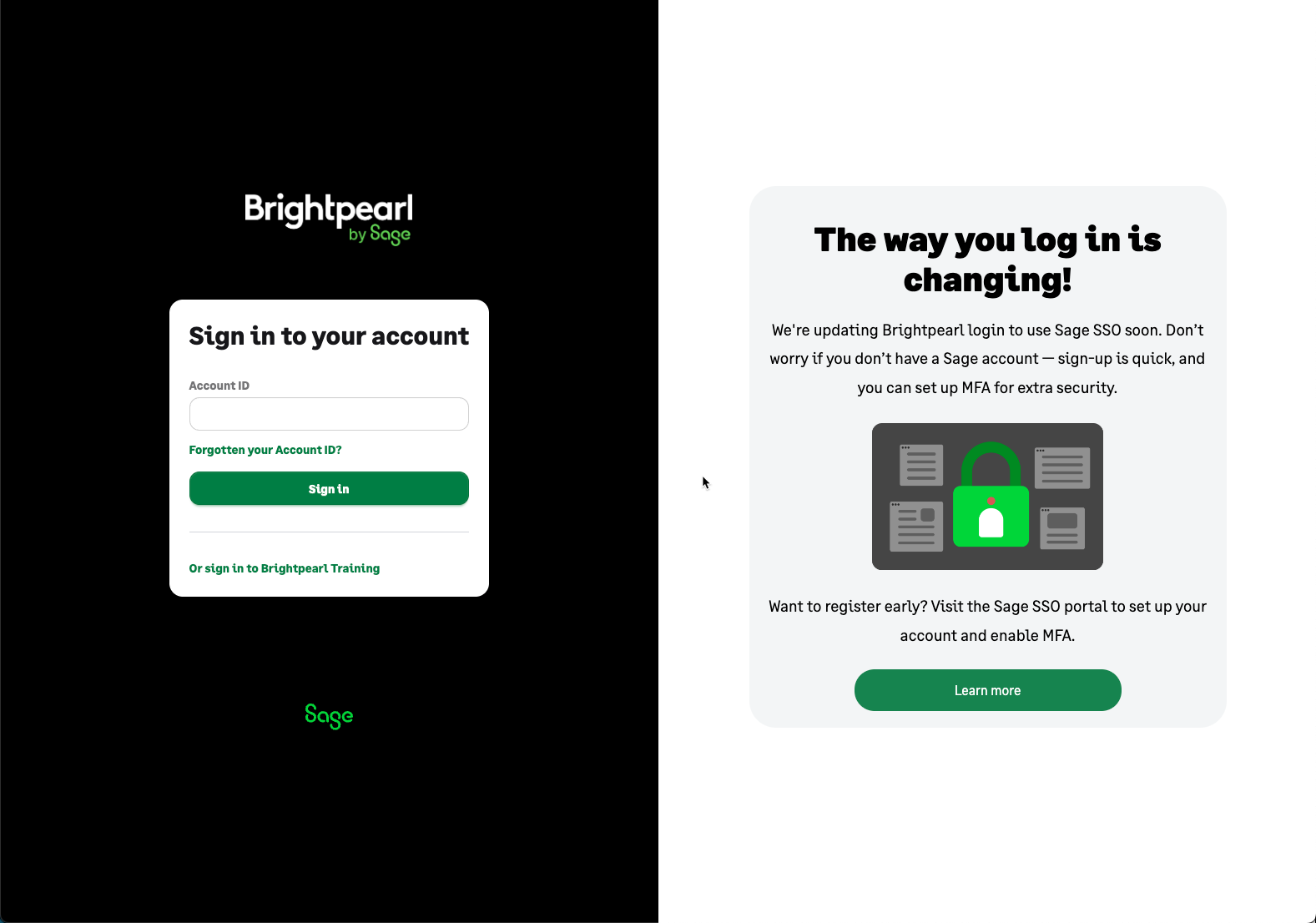
Once you have your account code return to Helm for the setup
Step-by-Step Setup
From your Helm dashboard:
Navigate to Settings > My Store
Click Add New Sales Channel
Select Brightpearl from the list of available integrations
Click Install
No additional credentials are required — simply enter the account code provided by Brightpearl
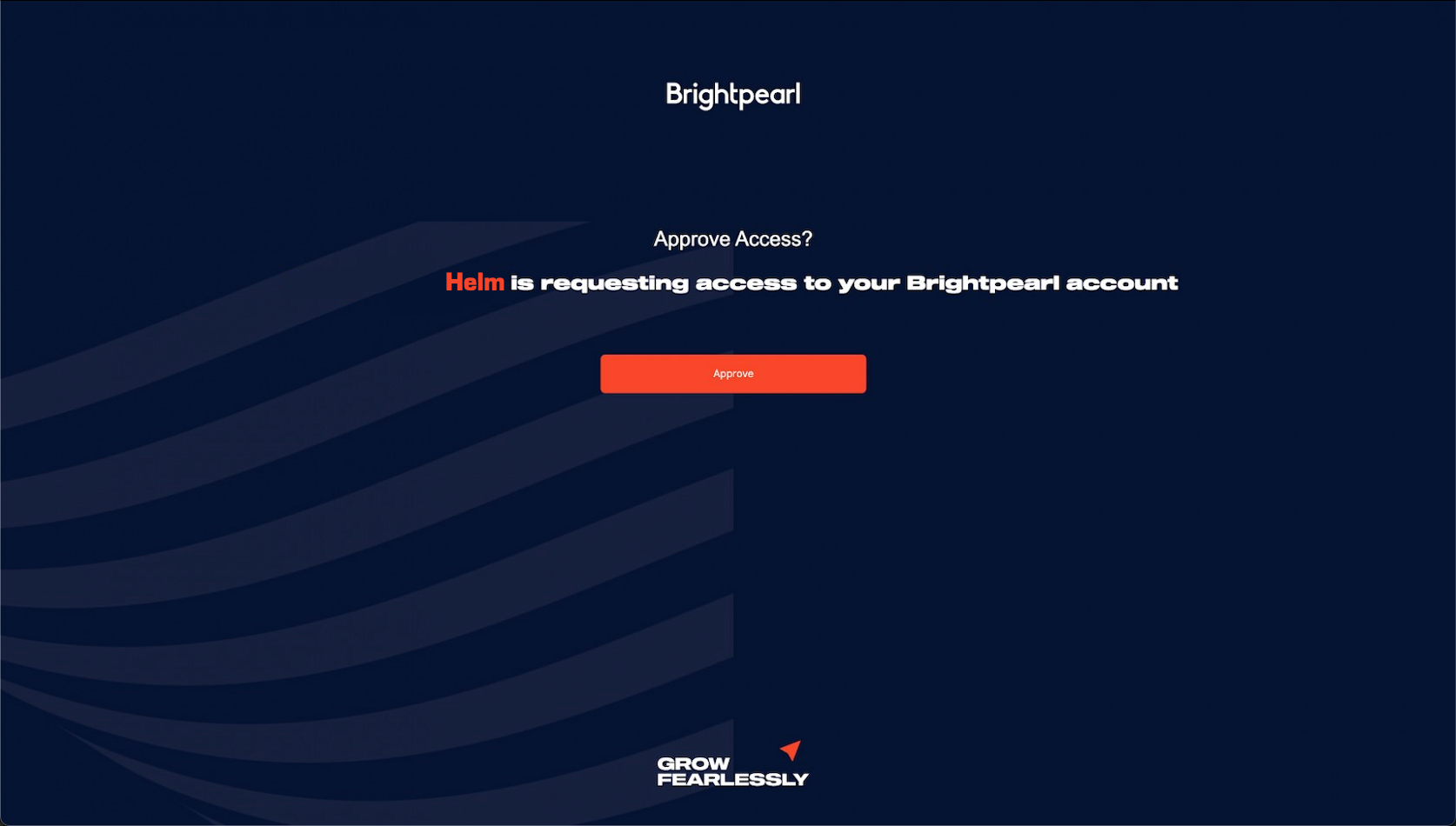
You will be redirected to Brightpearl for Authentication
Click Save when configuration is complete
Set the channel to Is Active at the top of the screen
Once connected, you’re ready to Take the Helm

Allow Helm access to your Brightpearl account

Common Issues
If you experience issues and need assistance, contact Helm Support