Wix Integration Guide
Integrate your Wix store with Helm to automate order imports, synchronise stock levels, and streamline your fulfilment operations across multiple sales channels.

What is Wix
Wix is a cloud-based website builder and eCommerce platform that enables businesses to create professional online stores with ease. Known for its user-friendly interface and customisation options, Wix supports everything from product catalogues to payment processing and marketing tools
Connecting Wix to Helm allows you to unify operations, automate stock updates, and manage orders efficiently - all from a centralised platform

Creating a Custom App in Wix
As the first thing, please log in and access the custom apps page through the Wix Custom Apps page.
Start a New App:

Click the "Create a New App" button at the top right of the "Custom Apps" page.
Select a Build Option:
Choose "Build from scratch" from the available options. If you see "Blocks blank canvas," you can select that instead.
Choose Wix Blocks:
If you select "Build from scratch," a popup will appear. Click on "Wix Blocks."
Initiate the Build Process:
After the app builder loads, click the "Build" button at the top right of the page.
Name Your App:
When prompted, give your app a descriptive name and click "Save & Continue."
Set the App Version:
Wait a few seconds for the version screen to load. Then, select "Major version (1.0)" and click "Build" at the bottom right of the window.
Completion:
Your app is now created, and you’ve completed this process.
Click to maximise the image

Managing App Permissions and Obtaining Credentials
Once you've completed the app creation, return to the Wix Custom Apps page again.
Access the App Dashboard:

Find your newly created app in the list, and click the three dots on the right.
Select From the Popup Window:
Select "Go to app dashboard."
Open Permissions:
From the left-hand menu, click on the "Permissions" tab.
Add Necessary Permissions:
Click "+ Add Permissions" at the top right in the permissions tab.
Select Permissions:
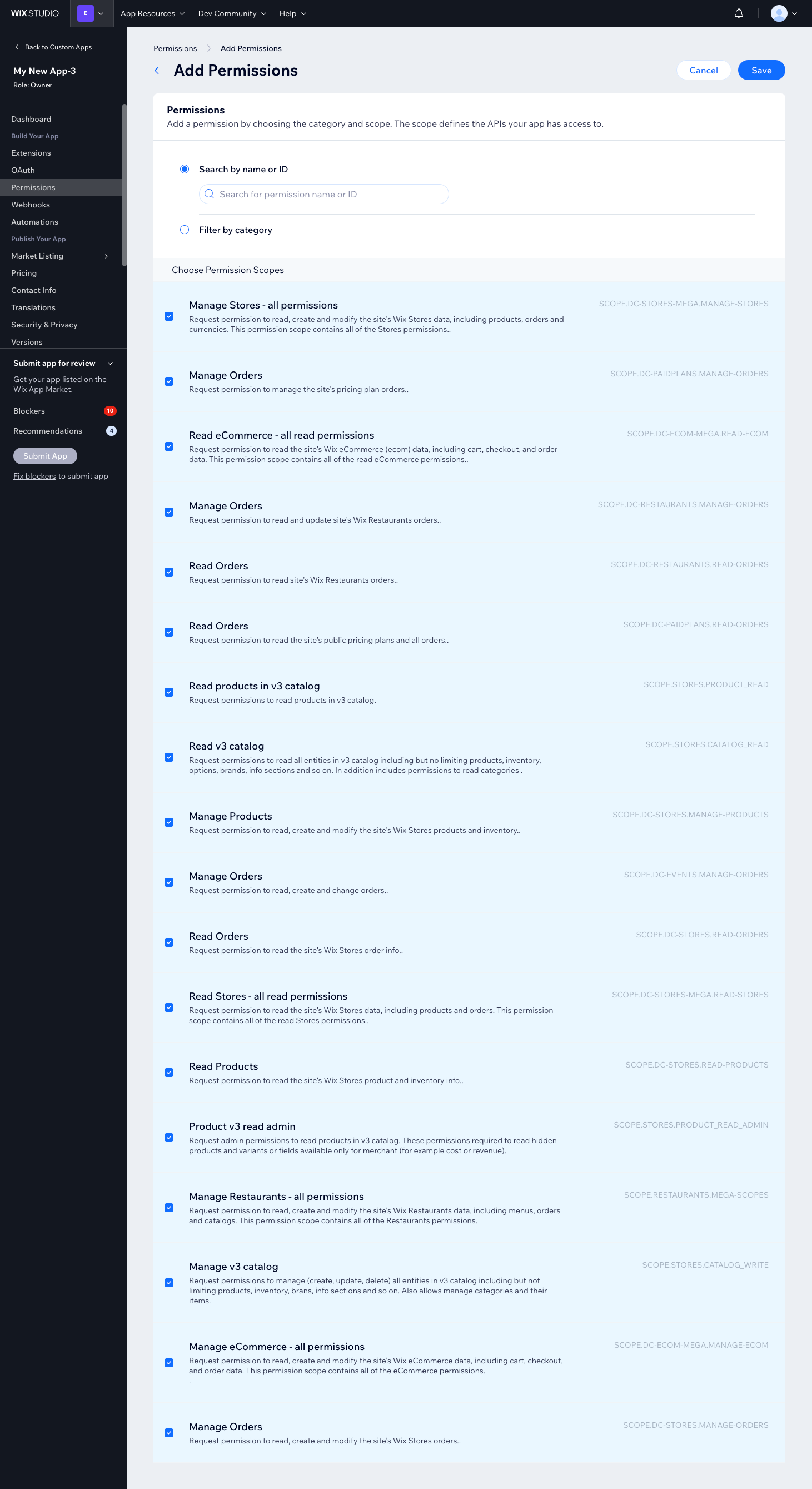
In the "Search by name or ID" section, search for and select the following permissions:
Store Management:
Manage Stores - all permissions
Read Stores - all read permissions
Manage Products
Read Products
Manage Orders
Read Orders
eCommerce Management:
Manage eCommerce - all permissions
Read eCommerce - all read permissions
Catalog Management (v3):
Read v3 catalog
Manage v3 catalog
Read products in v3 catalog
Product v3 read admin
Save Permissions:
After selecting the required permissions, click "Save" at the top right.
Verify Permissions:
Double Check Permissions to ensure all necessary permissions are in place. If any are missing, repeat the process to add them.Wix Permissions
Click to maximise the image
API Permissions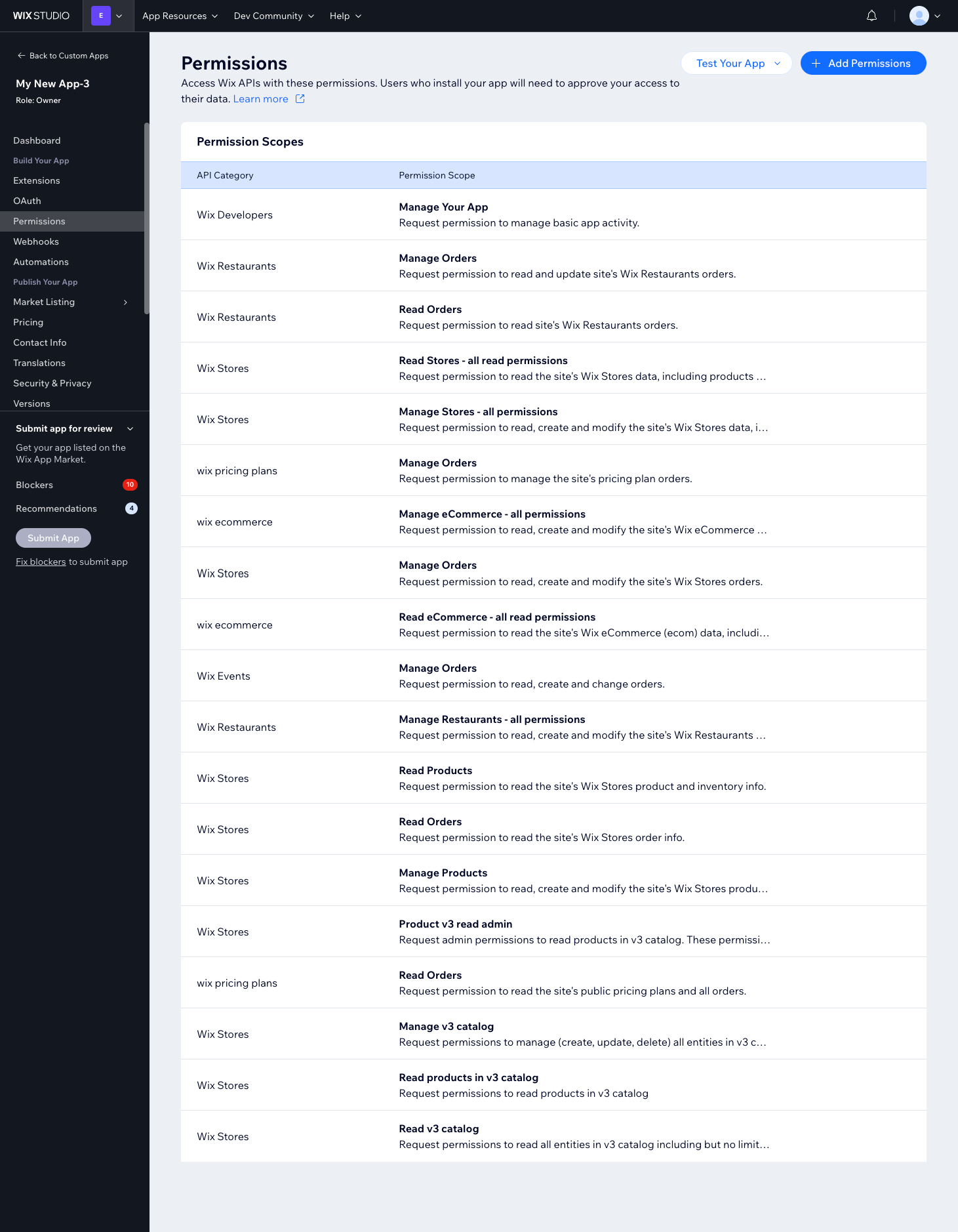
Click to maximise the image
Obtain OAuth Credentials:
Navigate to the "OAuth" tab in the left-hand menu.
Copy App ID and Secret Key:
Copy your "App ID" and "App Secret Key" on the OAuth page and note them down for integration with Helm.
Then, expand the "Advanced OAuth (optional)" section.
Enter the below URL in the "App URL" and "Redirect URL" fields:
https://production.channelapi.co.uk/authorization/connect/
Save OAuth Settings:
Once the URLs are entered, click "Save" at the top right of the page.
Click to maximise the image
To integrate Wix with Helm:
Step-by-Step Setup
Create a Wix Developer Account
Visit https://dev.wix.com and register a new developer account if you don't already have one.Register Your Wix App
In your Wix Developers dashboard, create a new app and set up the required OAuth scopes:Stores.ReadWriteOrders.ReadWriteInventory.ReadWrite
Generate Your OAuth Credentials
Take note of the following from the app configuration:Client ID
Client Secret
Redirect URI (set this to the URI Helm provides during setup)
Log in to Helm
Go to Settings → My Store in your Helm dashboard.Add New Sales Channel
Click Add New Sales Channel, then select Wix from the available list.Initiate OAuth Connection
Click Connect to Wix, enter your store URL, and follow the secure OAuth login process to approve access.Complete the Setup
Click Continue
Interaction Settings
Tailor how Helm communicates with your Wix store:

Final Steps
Click Save once all settings are configured
Set the channel to Is Active at the top of the screen
Your Wix integration is now live - and you’re ready to Take the Helm

Common Issues
If you experience issues and need assistance, contact Helm Support