Splitting Orders
Move some items into a new order so they can ship separately, before picking with Split From Order or after a partial pick with Split Picked.
What Splitting Does
Splitting moves some of an order's items into a brand new order, so each part can be picked and despatched on its own. Helm has two ways to do it:
Split From Order for orders that have not started picking, such as a New Order or a Backorder.
Split Picked for orders that are Partially Picked, so you can send what has been picked and leave the rest behind.
Example: a customer orders a mug, a bowl and a set of dinner plates. The plates are out of stock. You split the plates into a new order, despatch the mug and bowl today, and the plates follow as a separate parcel when stock arrives.

Before You Start
The order must have something to separate: more than one item, or a quantity of more than one on a line. At least one unit has to stay on the original order.
An order that has already been despatched cannot be split. Use Returns, Refunds & Resends instead.
Check your shipping policy. Splitting means the customer receives more than one parcel, and each part is despatched as its own order.
How to Split an Order Before Picking
Open the order from Orders.
Under Order Items, tick the line or lines you want to move. A bar appears at the bottom of the screen.
Click Split From Order.
In Qty to Move, enter how many units of each line to move, or tick Move All for the whole line.
Click Split Items.
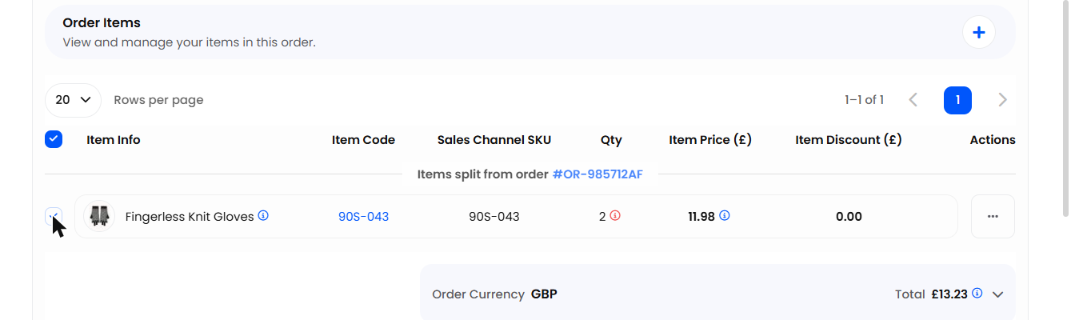


Helm confirms that the order has been split and shows the new order's number, status, value and the items moved. Click Go to New Order to open it. The new order shows Items split from order with a link back to the original, so you can always trace where it came from.
Tip: you can also start a split from the order list. Click the three dots on the order's row and choose Split Order.
How to Split a Partially Picked Order
When pickers mark an item as short, the order becomes Partially Picked. Split Picked moves the picked units into a new order that is ready to despatch.
Open the Partially Picked order. Click Split Picked in the bottom-right corner. You do not need to select any items first.
The window lists every line that has picked units, with Picked Qty and Qty to Move filled in for you.
Adjust Qty to Move, use Move All, or click Clear All to start again. You cannot move more than was picked.
Click Split Items.
Group products: only complete picked sets can be moved. If no full set has been picked yet, Helm tells you there is nothing to move.
Best Practices
Split before picking where you can. It keeps picks simple and avoids moving stock that is already in a tote.
Add a note on both orders explaining why they were split, so customer service can answer questions.
Check the shipping service on the new order before despatch, especially if the customer paid for a single delivery.
Leave the backordered part as a Backorder so it is ready to be allocated when stock arrives. See Allocation, Stock Reservation & Backorders.
FAQ
Why can't I see Split From Order?
Why can't I see Split From Order?
Tick at least one line under Order Items first. The option appears in the bar at the bottom of the screen. If the order is Partially Picked, use Split Picked instead.
Can I move every item into the new order?
Can I move every item into the new order?
No. At least one unit must stay on the original order, otherwise there is nothing to split.
Where is the Split Picked button?
Where is the Split Picked button?
It only appears in the bottom-right corner when the order status is Partially Picked.
How do I find the order that was split off?
How do I find the order that was split off?
Use Go to New Order in the confirmation window, or open the new order from the order list. It shows Items split from order with a link to the original.
Can I join split orders back together?
Can I join split orders back together?
Yes. Select the orders in the order list and use Merge Orders from the bulk actions.
Splitting lets you get in-stock items to customers quickly without waiting for the rest of the order, while keeping a clear link between every part.
Was this helpful?
Still need help? Share an idea