Partners Documentation
Clear guidance for developers on creating, installing, and managing apps in TDC Products. Covers OAuth‑style authentication, exchanging codes for access tokens, HMAC verification, product‑specific install and view URLs, using iframes with secure query parameters, uninstall and data deletion webhooks, hooks for request/response customisation, menu hooks, and steps to publish public apps

How to create an App
What are apps and how do they work?
Apps are modular extensions that augment or refine features within TDC products. They run independently of the core systems yet integrate seamlessly via APIs and hooks. You can create a bespoke app for a single store to address specific operational needs, or publish a public app to the TDC App Store for broader adoption.
Apps can automate workflows, connect external services, introduce sales or marketing capabilities, or simply make complex tasks more approachable. You may build your own, collaborate with a developer, or install an existing app if it suits your requirements. Authentication follows an OAuth 2.0‑style flow, making setup familiar and, for users, delightfully straightforward.
We plan to support revenue for TDC Partners developers: via paid installs and in‑app purchases: in due course. Facilities for charging are not yet available.

Getting Started
To create an app for a product by The Despatch Company:
Register a Partners account on The Despatch Company Partners.
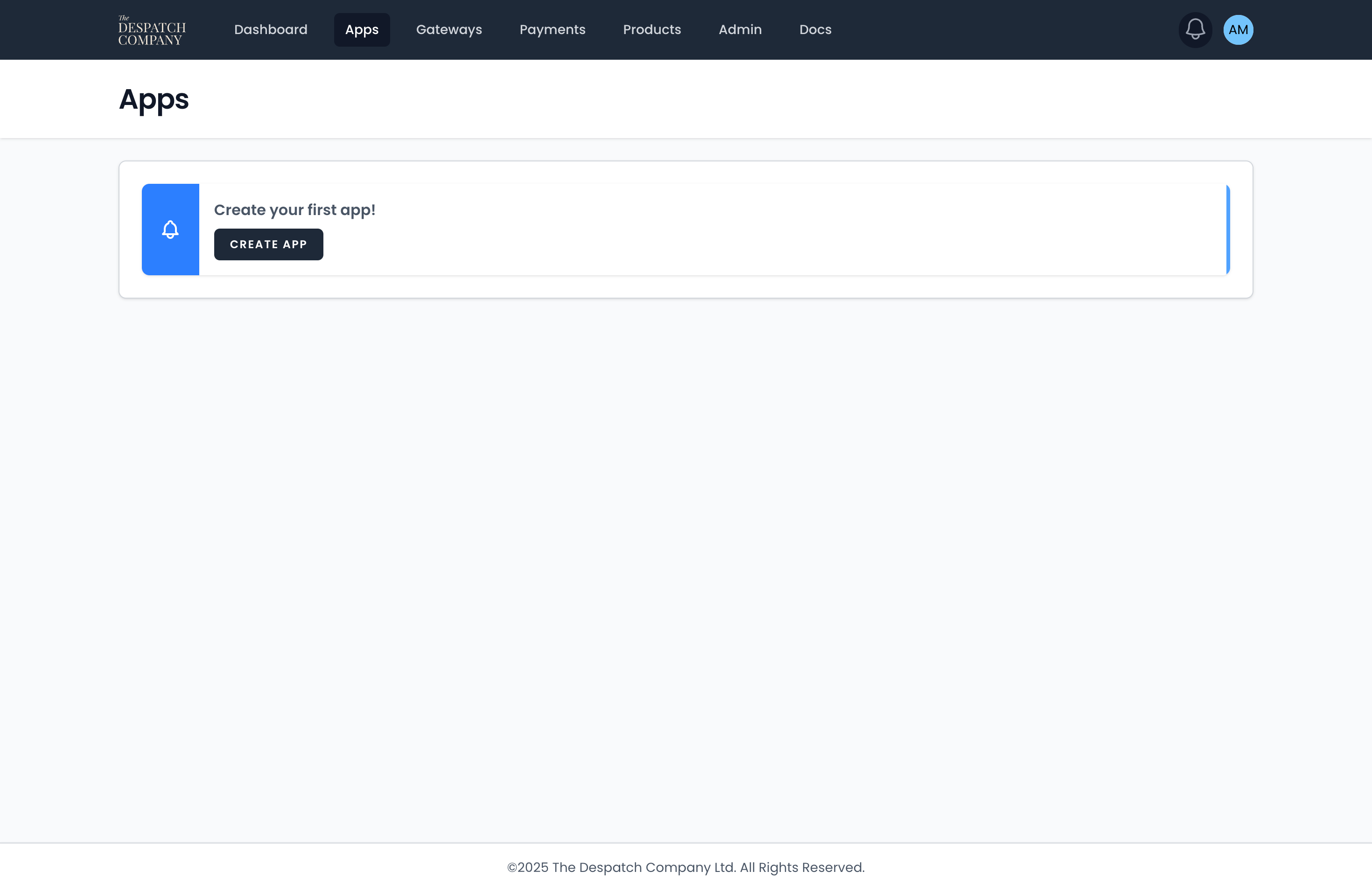
Navigate to Apps and select Create App.
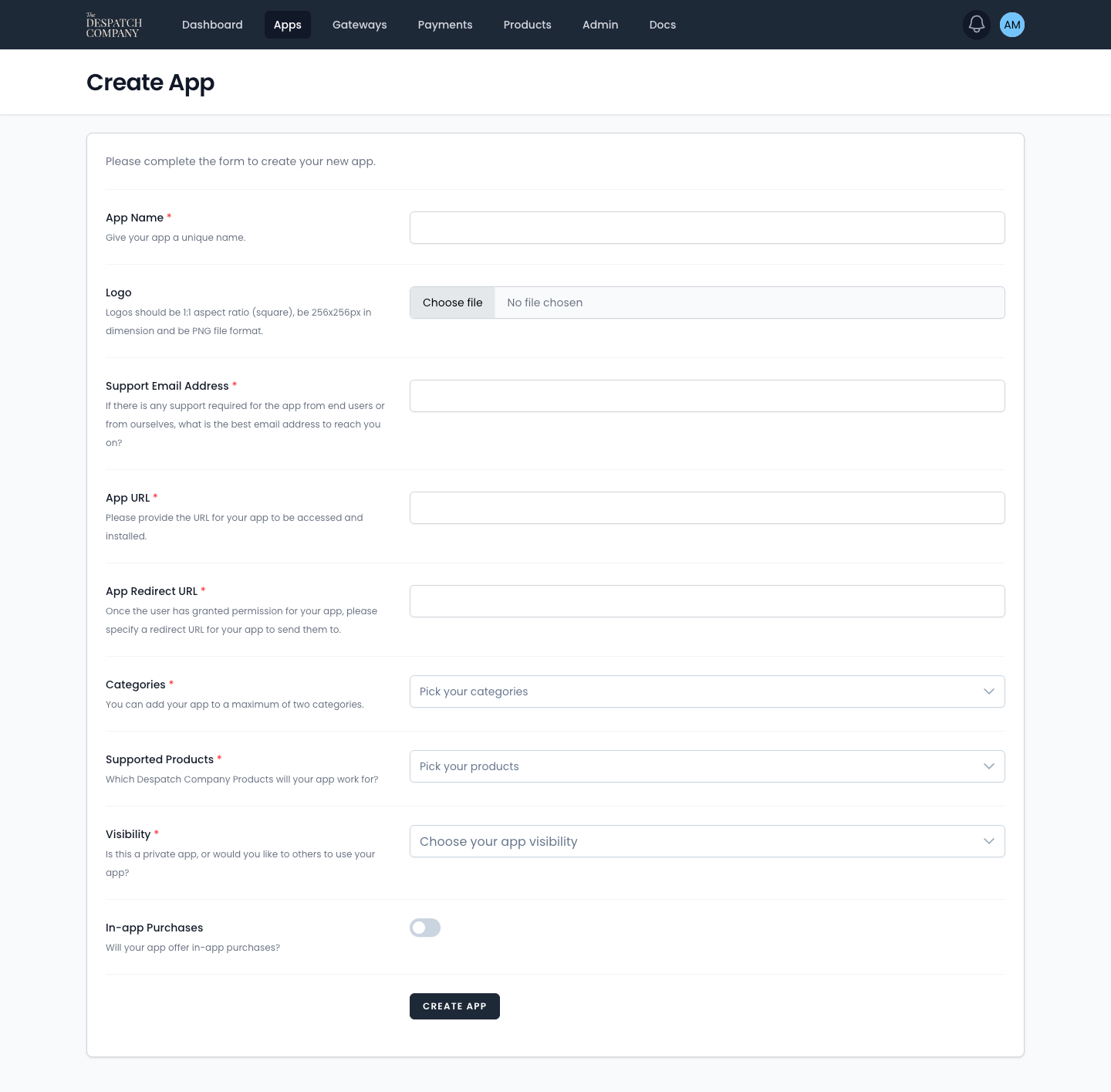
Complete the metadata form. The App URL and App Redirect URL are used to install and authorise users with your app.
After submission, your app will display a Client ID and Client Secret. These credentials are required to authenticate your app.

Installing an App
Use the correct installation URL for the target product, ensuring we can authenticate you and redirect appropriately after installation.
Find the URL’s for the products below:
On install, users see a modal requesting permission to add the app to their account. If they accept, they are redirected to your app’s Redirect URL (specified in the app metadata) with the query parameters appended
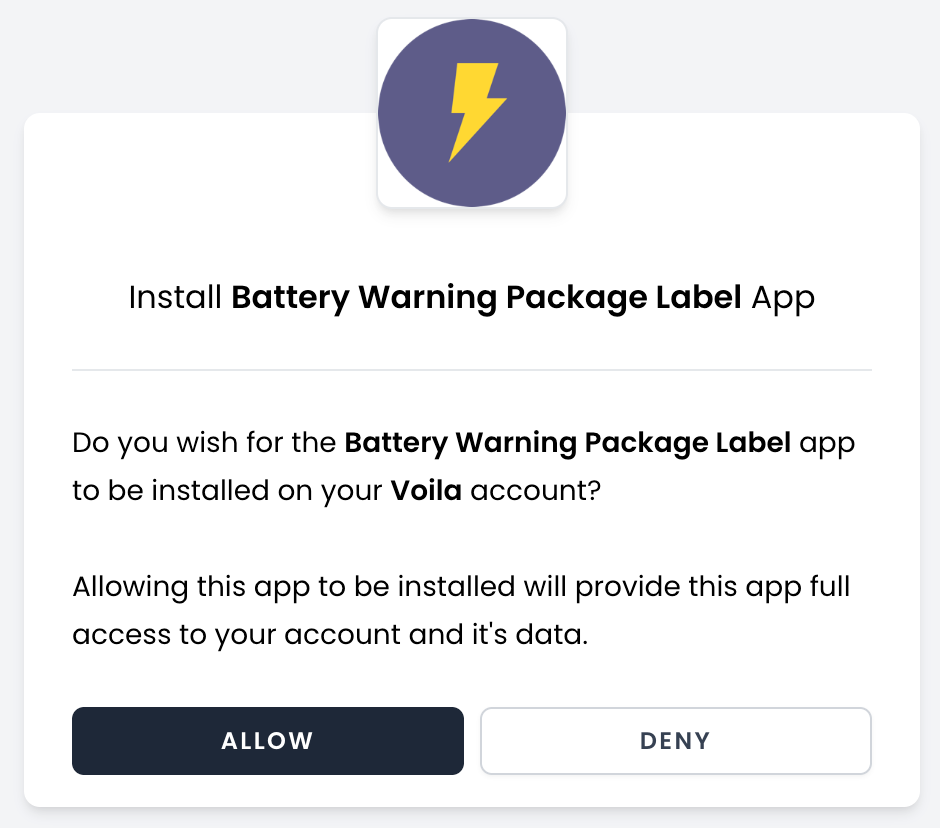
If a user clicks Allow, the user will be taken to the Redirect URL for the app (specified in the App Metadata section in TDC Partners). Appended to the end of the Redirect URL will be the following query params, like so:
{{redirectUrl}}?code={{code}}&grant_type=authorization_code&state={{nonce}}&product={{product}}&expires={{timestamp}}&expires_seconds={{timestampInSeconds}}&hmac={{hmac}}An explanation of each Query Param is documented below:
Exchanging the code for an access token
Your Redirect URL endpoint must exchange the supplied code for an access token via an API call:
POST /oauth/code
HTTP/1.1
Host: partners.despatchcloud.com
Content-Type: application/json
Accept: application/json

{

"client_id": "{{ YOUR_APP_CLIENT_ID }}",
"client_secret": "{{ YOUR_APP_CLIENT_SECRET }}",
"code": "{{ code }}"

}
This API request will return a response:
{

"success": true,
"message": "Access token generated successfully.",
"access_token": "{{ YOUR_USERS_ACCESS_TOKEN }}"

}
Store the access token securely in your app’s database and use it to authenticate the user thereafter. Once complete, redirect the user to the app’s view within the TDC product.
The Product URL's:
Using the App
Your app is rendered inside the TDC product via an iframe pointing to your App URL, with these query parameters appended:
{{appUrl}}?access_token={{code}}×tamp={{unixTimestamp}}&hmac={{hmac}}
Parameter reference:
Use access_token to authenticate the user. Optionally, verify integrity by recomputing the HMAC with access_token and timestamp and comparing it to the hmac provided.
Uninstalling an App
Uninstalling removes the app from the user’s installed apps within the TDC product. Public apps must provide a Data Deletion Webhook URL. TDC will issue a GET request to that URL with access_token, timestamp, and hmac appended (computed as above). Your endpoint should delete all associated user data, including the user record.
Utilising Hooks
Hooks allow your app to interact with requests and responses for defined product events. Add or remove hooks in the app metadata.
For Voila’s Create Label event, you may configure:
Before: Interact with the request payload (POST to your URL with headers, if specified).
After: Interact with the response payload (POST as above).
Your script may read, append, or overwrite payload values. Any overwritten values are retained under an originals key for traceability.
Menu hooks
You can add your app as a menu item within Despatch Cloud by providing a Menu Item hook that returns JSON such as:
{

"title": "{{ text for icon, normally this would be the name of your app }}", "icon": "{{fontawesome icon alias eg. fa-battery-full }}"

}
Publishing an App
Set your app’s Visibility to Public, then navigate to Publish App. Submit the form for approval.
A TDC staff member will review and test your app within a few days. You will receive feedback if the app is denied, or confirmation upon approval.