Setting Up Transfer Destinations
Guide to transfer destinations: what they let a warehouse do, linking a site that already runs Helm, creating and linking a new warehouse in one move, adding a manual address, setting the recipient a transfer is addressed to, a worked example, the day-to-day rhythm, and how to retire or remove a destination.
What Destinations Let You Do
Stock rarely sits where the next order needs it, and moving a pallet between your own sites used to happen outside the system: someone counted what left, someone else counted what arrived, and neither site could see what was in transit.
Helm handles the whole movement now. You tell it which warehouses this one may send stock to, then raise a transfer order much as you would a customer order: pick it, despatch it, and it lands at the receiving warehouse as a delivery to be booked in.
Every transfer order is addressed to a destination, so this list decides where stock is allowed to go, and it is the first thing to set up.

Which Kind of Destination to Set Up
A destination is a place this company may transfer stock to. It holds a name, a delivery address and, where Helm can work one out, a recipient, and that address is what ends up on the label. There are two kinds, and the one you choose decides what happens at the far end:

Before You Start
Permission to open the page. Transfer Destinations appears in Settings for users whose permission group allows it, and creating, editing and linking are governed separately. If an action here is not on your screen, ask whoever administers Helm to add it to your group.
Owner or administrator access in both companies, to link two Helm warehouses. Helm offers only the instances where you hold one of those roles, and checks again when you save. A destination you type in yourself carries no such requirement.
A deliverable address. On both Add Destination and Add New Warehouse, Address line 1, City, Postcode and Country are required, and a transfer order accepts only a destination that has an address. A linked warehouse takes its address from the warehouse itself, as the section on linking covers.
Active destinations are the ones a transfer order offers. Setting one to Inactive retires it without deleting anything, so a site you only use at peak can sit dormant between runs.
Full mode to pick and despatch a transfer. Transfer Orders is in the sidebar whatever mode your warehouse runs in, and Transfer Picks and Transfer Shipments appear only where Warehouse Mode reads Full. Setting destinations up works in any mode, and the mode itself sits on the warehouse record, behind Change Warehouse Mode.
General warehouse setup is covered elsewhere. Naming a warehouse, choosing its mode, building its locations and filling in its address are in the My Warehouse article.

Finding the Transfer Destinations List
This is a Settings screen rather than a sidebar item. Go to Settings, find the System Settings group, and choose Transfer Destinations.
The list shows one row per destination, with Destination Name, Destination Type, Address / Location and Status. Hovering the address cell opens the full address and recipient, and the quick filters narrow to Linked Helm or Manual. Before anything is set up you see No transfer destinations yet.
Address / Location fills in only where the address carries both a postcode and a country: a completed cell confirms Helm has somewhere it can deliver to, and a blank one means Helm has nothing it can deliver to yet.
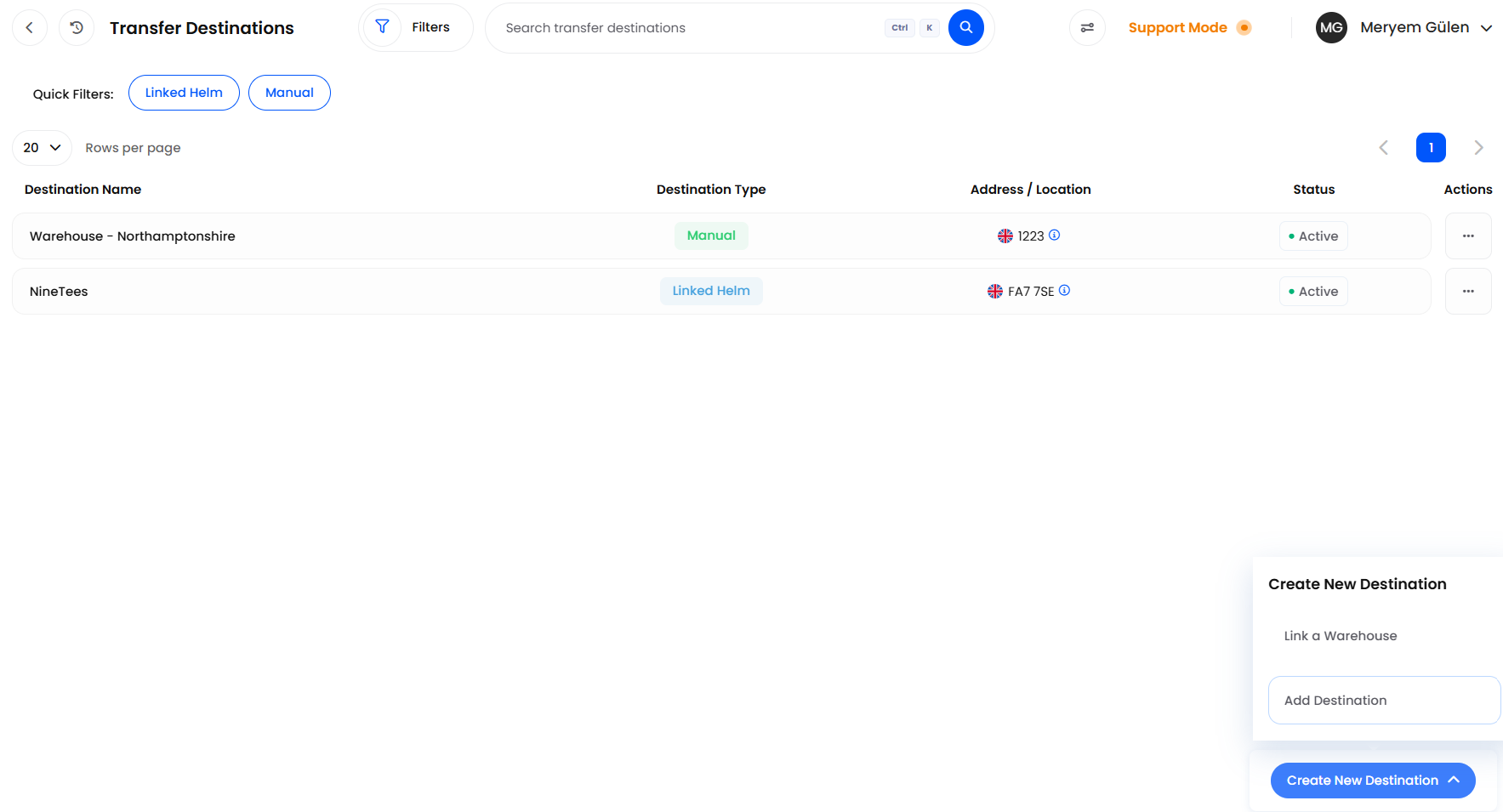

Linking a Warehouse That Already Runs Helm
Use this where the other warehouse already runs Helm as its own company and you administer both.
Go to Settings > System Settings > Transfer Destinations.
Choose Create New Destination, then Link a Warehouse.
Choose the company from Helm instance, which lists the instances you administer and have not already linked, as the Admin Helm Instances Only tooltip says.
Choose Link.
Helm names the destination after the company you picked and copies that warehouse's address onto it. In the background it also creates the matching destination in the other company, pointing back at you, so transfers run in either direction without anyone setting it up twice: your side appears first and theirs follows shortly. That is the only thing linking changes over there: neither their stock nor their warehouse settings is touched.
A linked destination follows the warehouse it points at: it takes that company's name, and the address copied when you linked, which is why Edit on one of these rows offers the Helm instance list rather than name and address fields. So fill that warehouse's address in before you link it, because a transfer order accepts only a destination that has an address, and says so:
A delivery address is required: choose a Transfer Destination that has an address, or enter a custom address.
Link a Warehouse greyed out with a No Warehouses Available tooltip means one of three things: there is no other Helm instance you administer yet, every one you do administer is already linked, or your permission group does not include linking. The tooltip reads the same in all three cases, so start by having your group checked. Where the other site is not in Helm yet, the next section adds it.

Creating & Linking a New Warehouse in One Move
Where the second warehouse is not in Helm yet, you can create it and link it in one move. Helm sets up a new company with you as its owner.
Go to Settings and find the Company Settings group.
Choose Add Warehouse in that group's header.
Fill in Add New Warehouse. Company name, Phone number, Address line 1, City, Postcode and Country are all required here.
Choose Add.
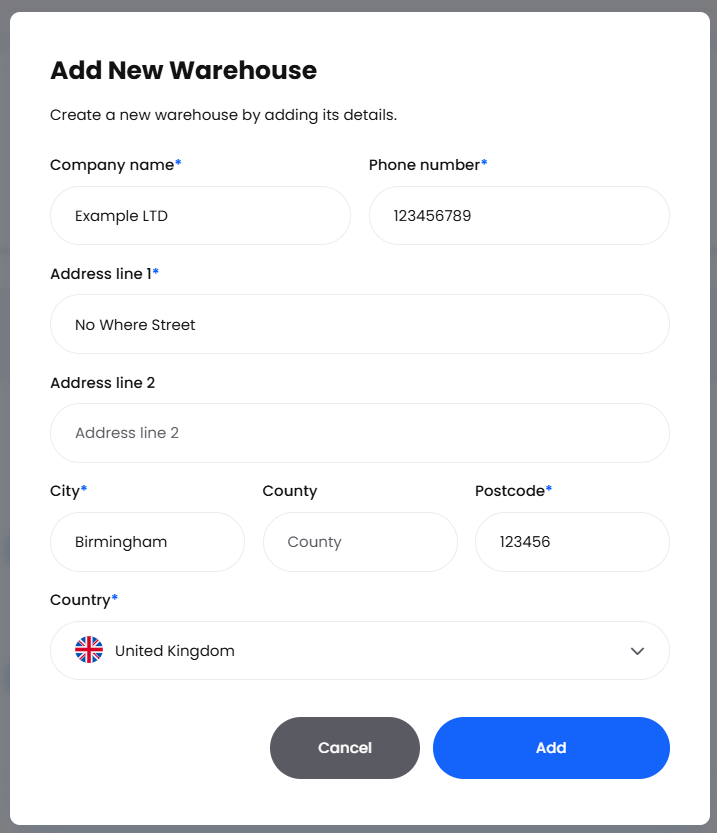
Helm confirms with Added New Warehouse, and Close takes you to the Transfer Destinations list with the new warehouse waiting there as a Linked Helm destination, with an address already, because you typed one in as you created it.
That address and phone number are normally copied onto the new warehouse's own settings too, moments later and only where those settings are still empty. Worth opening the new warehouse to check, because the address on the warehouse itself is what any future link reads. Its locations, mode and contact person are all set from inside it, using Switch Company in the account menu behind your name.

Adding a Manual Destination
A Manual destination is an address you type in yourself, and it suits any site that does not run Helm: a third-party warehouse, a storage unit, a trade customer's site.
On the Transfer Destinations list, choose Create New Destination, then Add Destination.
Enter a Destination name. This is all the picker on a transfer order shows, so use the name your team already uses.
Start typing in Address line 1 and choose the address from the suggestions, or type it out in full.
Check Address line 2, City, County, Postcode and Country. Only Address line 2 and County are optional.
Leave the Active switch on unless you are setting up ahead of time.
Choose Add.
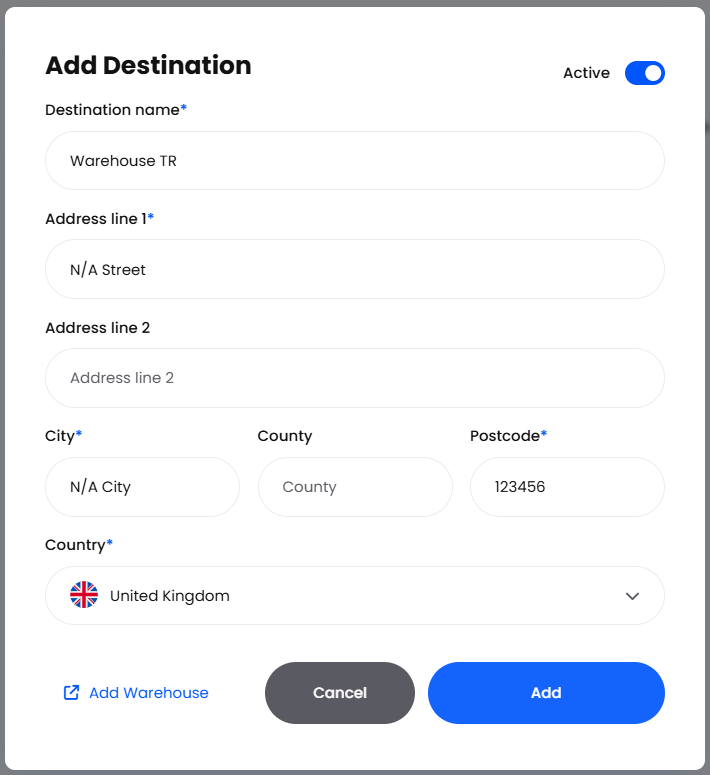
If the place should really be its own Helm warehouse after all, the Add Warehouse link in the dialog's footer takes you to that flow instead.

Setting the Recipient a Transfer Is Addressed To
A transfer order copies its delivery address and recipient from the destination, and that recipient prints on the label. For a Linked Helm destination, Helm takes the recipient from the receiving warehouse's own address settings.
So the place to fill it in is the destination warehouse. In that company, open the warehouse record from its Company Settings group, then the Address card, then edit Warehouse Address: First name, Last name, Email and Phone number sit above the address fields.
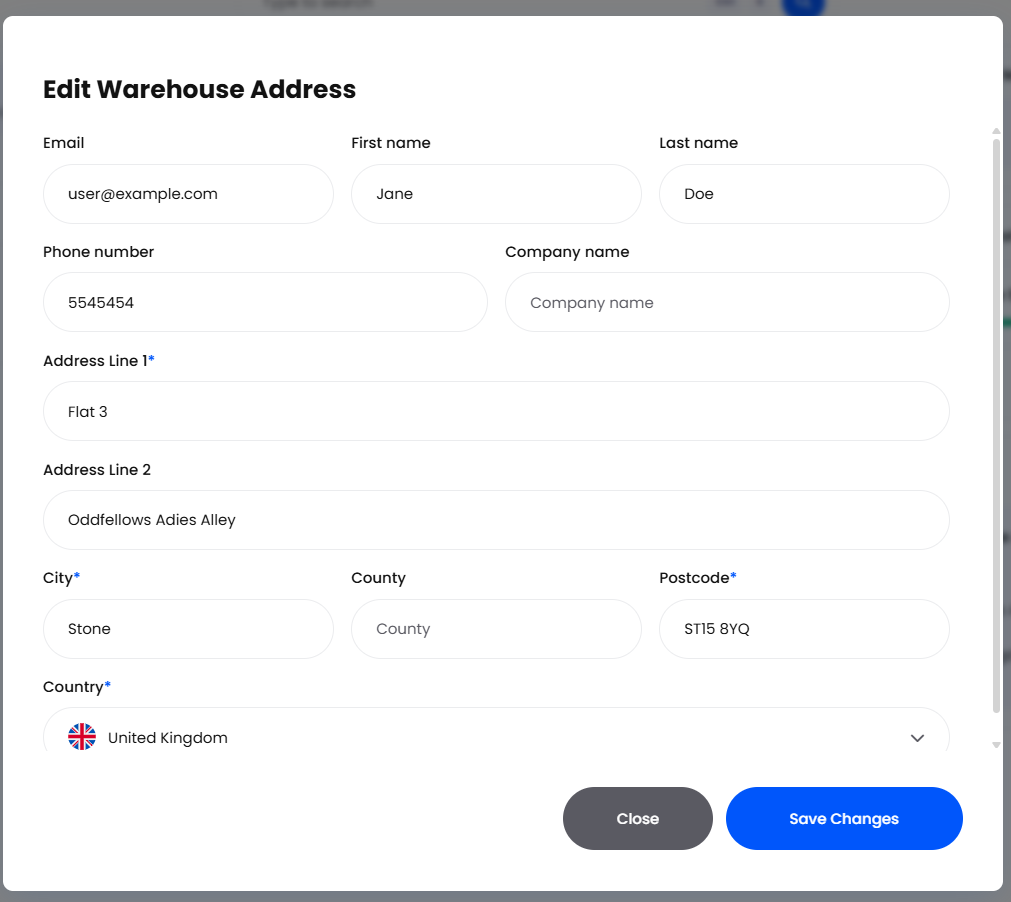
Saving pushes the change out to every Helm company that has this warehouse linked as a destination, and on to the transfer orders addressed to it that have not gone yet. Despatched and cancelled transfers keep the details they went out with, so an old despatch note still reads correctly.
A warehouse created through Add Warehouse takes its contact person from whoever fills one in, so complete those four fields on its Warehouse Address before the first transfer goes out: every despatch to that site then carries a recipient with an email. If a despatch screen already shows a recipient with gaps, switch to that company and fill the same four fields in.

Editing, Retiring & Removing a Destination
Every row has an Actions menu, and which entries appear depends on the destination's type and whether anything is using it.
Where an open transfer order is addressed to a destination, Delete becomes available once those transfers are despatched or cancelled. Or set it to Inactive, which takes it out of the picker without touching anything already raised. Despatched and cancelled transfers never block a deletion, because each carries its own copy of the address.

A Worked Example: Adding the Leeds Unit
Say your northern overflow unit sits at Unit 12, Kirkstall Road, Leeds LS4 2AJ and runs on paper rather than Helm. You add it with Add Destination as Leeds Overflow, postcode LS4 2AJ, country United Kingdom, and leave Active on. Its row then reads Leeds Overflow, Manual, Leeds LS4 2AJ, Active.
When the unit runs low you raise transfer order TO-1042 to Leeds Overflow, pick it and despatch it, and the despatch note carries that address for the unit to book in its own way. Had Leeds run Helm, the same transfer would land there as a delivery quoting TO-1042.

The Day-to-Day Once Destinations Are Set Up
With the list in place, moving stock becomes routine: raise a transfer order, pick it, despatch it, and the receiving site books in what arrives; the Transfer Orders article covers raising one. Nobody touches this Settings screen again until a site opens, closes or moves.
Once a transfer to an active Linked Helm destination is despatched, Helm creates a delivery in the receiving company for the goods that physically went into the parcels. It carries the transfer order number as its Delivery Reference and a Type of Inventory, with no supplier attached.
From there it behaves like any other delivery: nothing is added to stock until somebody receives it, which the Deliveries article covers. A product the receiving company does not hold yet is created there from the sending company's details, so a transfer never stalls for want of a product code.
That delivery is raised only where the destination is a Linked Helm one and active at the moment of despatch. Send to a Manual destination, or to one that was Inactive when the transfer went out, and no delivery is raised at the far end: the receiving site books the goods in its own way. Each company keeps its own records, so the team that receives a transfer confirms it to the team that sent it: Helm reports back neither an arrival nor a shortage found while booking in.

Getting the Most Out of Your Destinations
Do the Address Work at the Warehouse End
A linked destination takes both its address and its recipient from the receiving warehouse's own record, so a few minutes spent there is worth more than any tidying here.
Name a Warehouse Company the Way Your Team Speaks
The picker on a transfer order shows the destination name and nothing else, and a Linked Helm destination takes the name of the company it points at. So name a warehouse company for the pickers who will read it, not for the letterhead.

FAQ
Where Do I Find Transfer Destinations in the Menus?
In Settings, in the System Settings group. The sidebar carries the day-to-day work instead: Transfer Orders and Transfer Picks under Processing, Transfer Shipments under Shipping.
Can I Send a Transfer to a One-Off Address?
Yes. Open the transfer order and use Add New Address on its Transfer Destination card. Helm keeps that as a one-time address for the single order and leaves the destination itself alone.
Which Warehouses Can I Link?
The ones where you are an owner or administrator and which are not already linked to this company. If Link a Warehouse is greyed out altogether, your permission group may not include linking.
How Do I Take a Destination Out of Use for a While?
Set the switch in its Status column to Inactive. Transfers already despatched are unaffected, and no new order can be addressed to it. Set it back to Active before you despatch to that site again, so the delivery is raised at the other end.

If a transfer order will not take a destination, check that its Status reads Active and that Address / Location is filled in. If a despatched transfer produced no delivery at the other end, contact support with the destination name and the transfer order number.
Was this helpful?
Still need help? Share an idea