Setting Up a Courier
Connect your courier account to Helm WMS and add the services you ship with, so labels and tracking numbers come straight from the packing bench.
What Connecting a Courier Does
Once a courier is connected, Helm books shipments with it for you: the packer creates the shipment, Helm sends it to the courier and prints the courier's label with the tracking number on it. Nobody needs to log in to the courier's own website.
Setting up a courier has two parts. First you connect your account with the details the courier gives you. Then you add the services you ship with, such as next day or Saturday delivery, so Helm knows which ones it can book.
Example: a warehouse ships UK parcels with DPD. It installs DPD using the account details from its DPD account manager, adds DPD Domestic Expresspak Next Day and DPD Direct Lite as services, and sets collection for 7pm, Monday to Friday. It then adds both services to its shipping rules, and from that point every matching order gets a DPD label at the packing bench.

Before You Start
Your courier account details. Each courier asks for its own details, such as a username and password, an account number or an API key. Your courier issues these, usually through your account manager or onboarding team.
Live or test account. Decide whether you are connecting a Live or a Test account. Couriers issue separate details for each, and the account type is fixed once the courier is installed.
Access to Settings. Couriers are managed in Settings > Despatch Settings > Couriers.
Note: every courier has its own guide in this collection, listing exactly which details it needs and where to get them. Have it open alongside this article.

How to Set Up a Courier in Helm
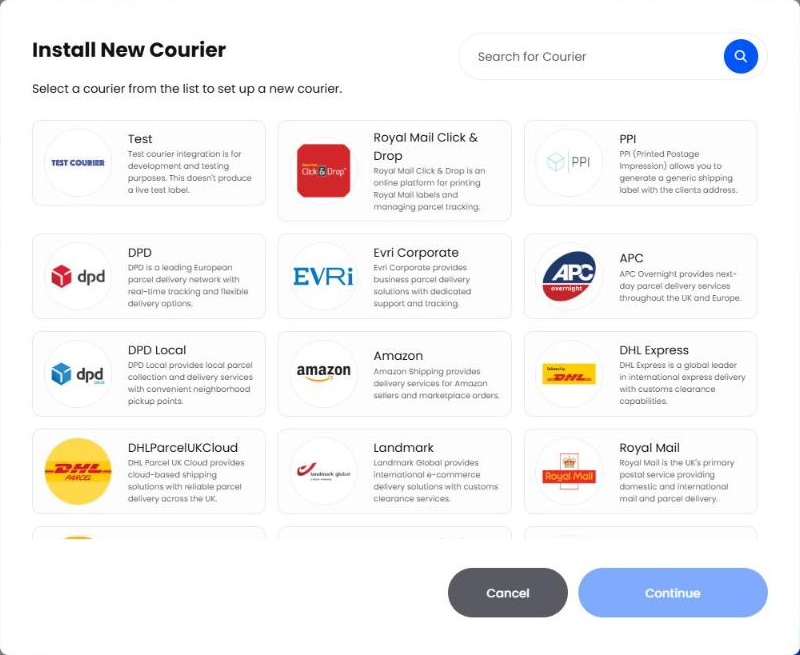
Go to Settings > Despatch Settings > Couriers and click Install New Courier.
Find your courier in the list, or type its name into Search for Courier. Select it and click Continue.
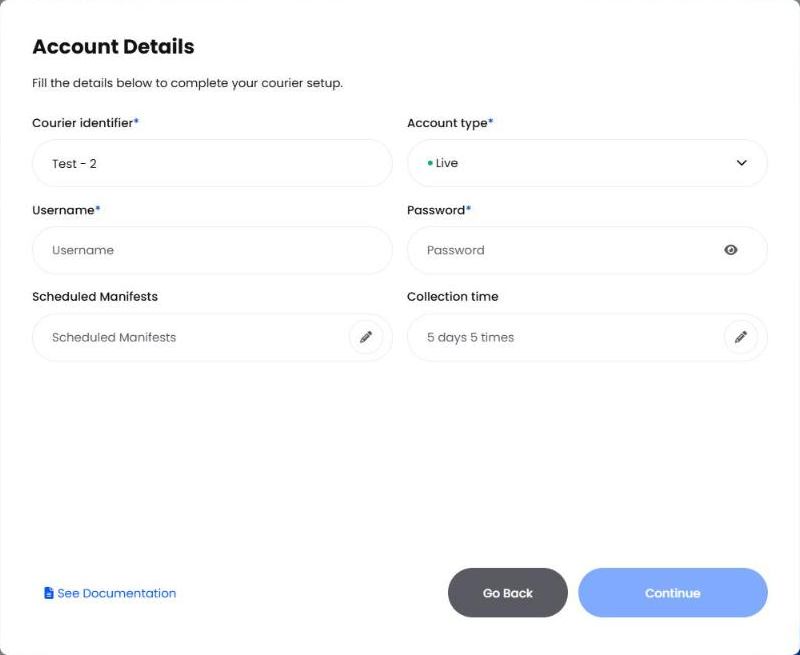
On the Account Details screen, fill in:
Courier identifier: the name this account goes by in Helm. Helm suggests one, but choose a name your team will recognise, especially if you use more than one account with the same courier.
Account type: Live or Test.
The account details your courier asks for. These fields change from courier to courier.
Collection time: the days and times the courier collects from you. Click the pencil to tick the days and set a time for each one.
Scheduled Manifests: the days and times Helm automatically sends your manifest to the courier. Click the pencil to set them up, or leave it for now and add it later.
Click Continue to connect the account. When it is connected, the courier appears in your Couriers list with its Account Type and Status.
Tip: See Documentation, at the bottom left of the window, opens the guide for the courier you picked, so you can check each field as you go.

Adding the Services You Ship With
A service is one delivery option from the courier, such as next day, before noon or Saturday delivery. Helm books every label against a service, so add each one you plan to use.
Open the courier from the Couriers list.
In the Services panel, click +.
In Service Presets, tick the services you want and click Add Service. Use the search box to find a service by name.
If the service you need is not in the list, click Add Manual Service. Enter a Service Name, fill in the Required Settings your courier has given you and click Add Service.
Check the Status column. Make sure every service you plan to use shows Active.
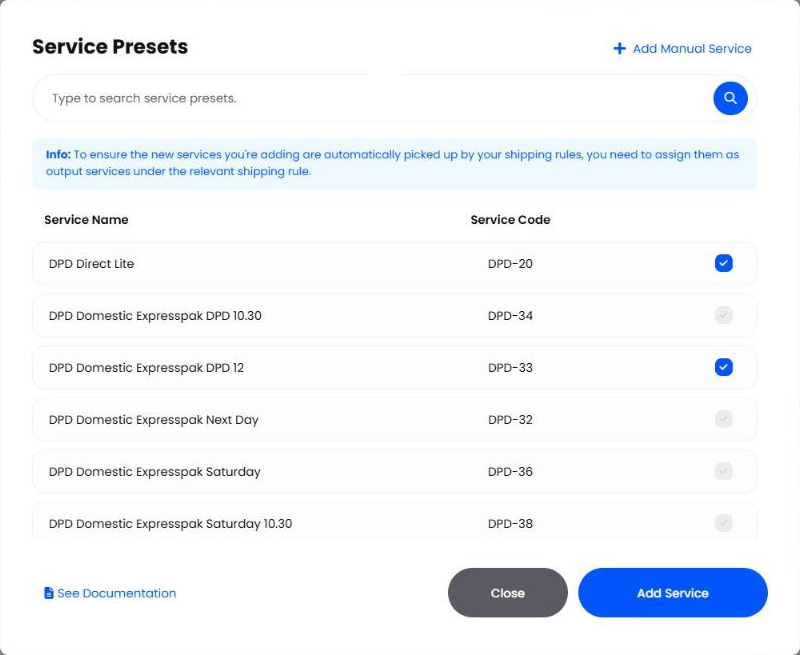
Note: a new service is only picked automatically once it is an output service in a Shipping Rule. Add it to the right rule straight after setting it up.
To change a service's name or settings later, see Editing Courier Services.

Managing a Courier After Setup
Open the courier from the Couriers list. The panel on the right shows its Account Status, Account Type, Configurations and Manifest Schedule.
Update account details, label size or collection time: click the pencil next to Configurations to open Edit Courier Details, make your changes and click Save Changes. The Courier identifier and Account type are locked.
Pause a courier: turn off Active in Edit Courier Details. The account and its services stay set up, ready to switch back on.
Remove a courier: click Delete Courier Account at the bottom of the panel.
Warning: deleting a courier account removes it from Helm. Move any shipping rules that use its services to another courier first, and pause the account instead if you might need it again.

Best Practices & Notes
Name Accounts So Your Team Can Tell Them Apart
If you have two accounts with the same courier, give them identifiers that say what each is for, such as "DPD Main" and "DPD Returns". The identifier cannot be changed after installing, so it is worth getting right first time.
Start on a Test Account Where You Can
If your courier offers test details, install a Test account first and book a few labels before going live. When you are ready, install the live account as its own courier.
Set Up Collection Times and Manifests Together
Setting Scheduled Manifests a little before your Collection time means the courier has the day's parcels on record when it collects.
Check Courier Logs When a Label Fails
Courier Logs, in Settings > System Settings, records every call Helm makes to your couriers, including failed shipment attempts, so you can see what went wrong.

FAQ
Where do I get my courier account details?
Where do I get my courier account details?
From the courier, usually your account manager or their onboarding team. The guide for your courier in this collection lists exactly which details you need.
Can I connect more than one account with the same courier?
Can I connect more than one account with the same courier?
Yes. Install the courier again and give the new account its own Courier identifier.
How do I move from a test account to a live one?
How do I move from a test account to a live one?
Install the courier again with your live details and Account type set to Live, then point your shipping rules at the live account's services.
Why are orders not using my new service?
Why are orders not using my new service?
Check that the service shows Active and that it is an output service in a Shipping Rule the order matches.
Why did a label fail to print?
Why did a label fail to print?
Open Courier Logs and find the failed attempt to see what the courier sent back, then check the account details and the service's settings.

Still stuck? Contact Support and the team will help.
Was this helpful?
Still need help? Share an idea