All Company Settings
Helm’s Settings area is the central nexus from which users can shape, configure, and refine every corner of their warehousing environment.

Company Settings
Access and update the essential details relating to your company profile
This includes general company information such as name, contact details, and business identifiers, which form the backbone of many documents and communications throughout Helm
For a more detailed explanation explore this Company Settings Page

System Defaults
Tailor your default operating behaviours across the platform
From default warehouse selection to overarching order and inventory preferences, these settings subtly shape the underlying logic of how Helm responds to your business needs
For a more detailed explanation explore this System Defaults Settings Page
Users
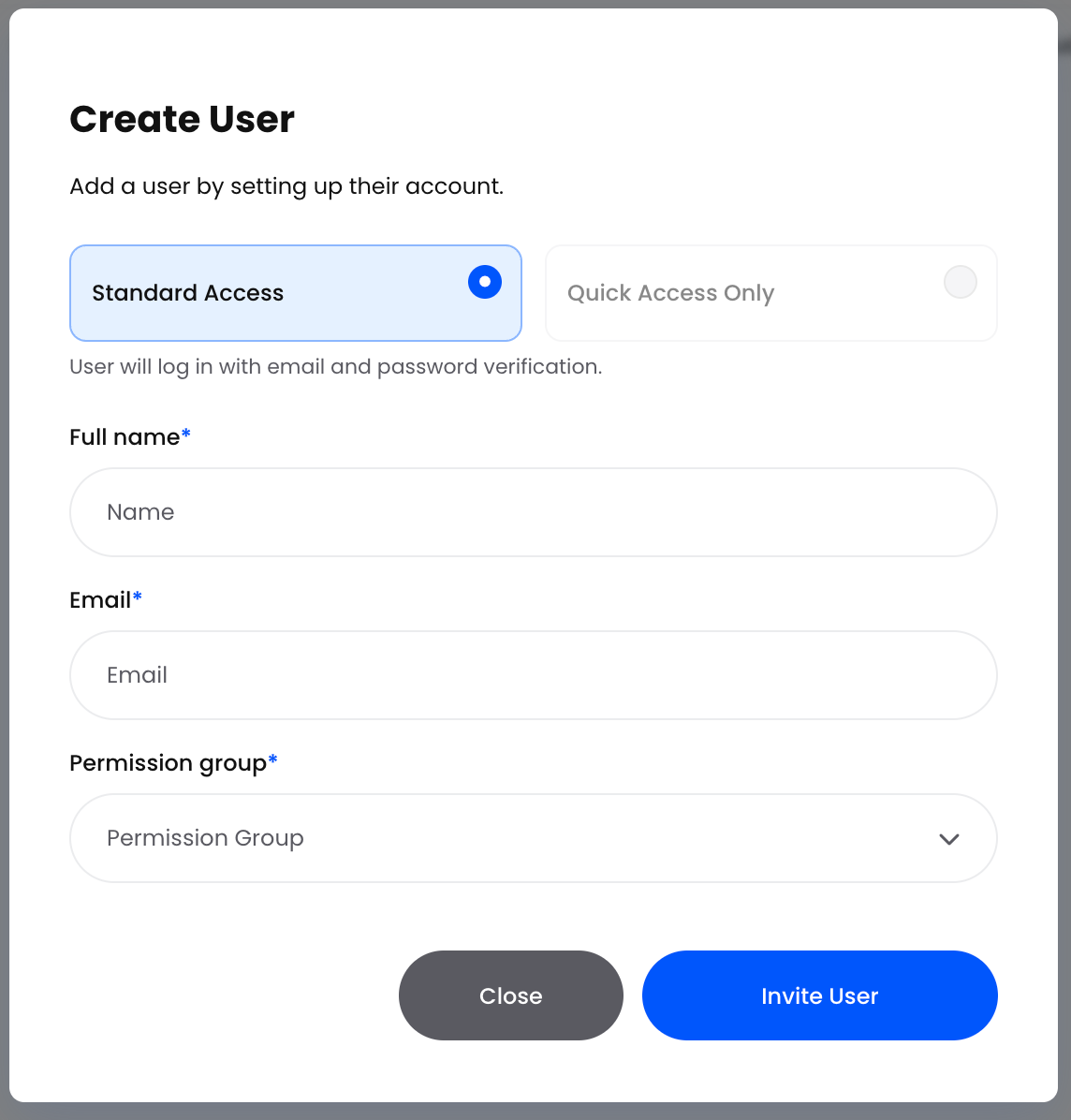
View, add, and manage the users who interact with your Helm account
Assign roles, control access levels, and ensure operational security while maintaining visibility over user activity and permissions
Importing Data into Helm
Helm’s Import feature allows you to bring large volumes of data into the system in one go, eliminating tedious manual entry and ensuring consistency across your records
Step 1: Select Your Import Type
Step 2: Download and Populate the Template
Step 3: Choose or Create a Field Map
Step 4: Upload and Confirm
Best Use Cases
Bulk Product Onboarding – add thousands of new SKUs in one operation
Customer Database Migration – bring your entire customer list into Helm with contact details and tags
Order History Import – seed your system with historic or in‑flight orders to maintain continuity
Recurring Updates – schedule regular imports to update inventory levels, order statuses or supplier lists
By leveraging structured import templates and field maps, you’ll maintain data integrity, speed up setup, and keep your Helm instance perfectly in sync with your business operations
For a more detailed explanation explore the Import Page
Tax Group Settings
Helm’s Tax Group feature lets you define distinct tax rules tailored to different products, regions or customer segments - ensuring accurate tax calculation and compliance across your fulfilment operations
By carefully structuring your Tax Groups and Country Tax Rates, you empower Helm to calculate, apply and report taxes accurately - minimising compliance risk and streamlining your financial processes
For a more detailed explanation explore the Tax Page
My Warehouse Settings
My Warehouse is where you configure and manage the core details of your primary warehouse facility. From naming and describing your site, through to defining pick locations, return areas, stock control and auto-archive settings, this section ensures that Helm mirrors the way your operation runs in the real world. Keeping this information accurate optimises everything from inventory visibility to carrier collections and pick routing efficiency
Here you can edit and manage the details of your primary warehouse facility for both Full and Basic Modes:
Warehouse Modes
Warehouse Information
Location Information
Auto Archive
Stock Control / Empty Locations
Warehouse Address
Warehouse App Settings
For more in depth Detail click through to the My Warehouse section
My Store
Your My Store settings centralise all the information and integrations specific to each sales channel or brand you operate within Helm
This is where you maintain your store profile including branding and general settings
Your store data feeds into integrated channels, influencing how product and order information is displayed externally
By meticulously completing each section of My Store, you ensure that every order, communication and integration flows smoothly from this sales channel into your Helm fulfilment workflow
For a more detailed explanation explore the My Store Page
Add New Store
Create additional storefronts within your Helm ecosystem
Ideal for businesses operating multiple brands, channels, or trading entities, with individual settings per store
For further help, contact Helm Support