Pick Routines
Save the way you build picks as a pick routine in Helm WMS, so the same picks are created the same way every time, whenever you run it or on a schedule.
What Pick Routines Do
If you build the same picks every day, such as all next-day orders first thing, split between two pickers, a pick routine saves those decisions once. Running the routine creates the picks for you, either when you choose Run Pick Routine or automatically at the times you schedule.
A routine works in two layers:
The routine decides which orders it collects, using an order status and Order Filters, and how they are picked: the pick type and the multi-location rule.
Its picks divide those orders into one or more picks, each with its own name, filters and assignee.
Because the same settings are used every time, the picks come out the same way whoever runs them, including when the person who normally builds them is away.
Example: a routine called Morning Next Day collects orders at New Order whose Courier Service is your next-day service. It builds Order By Order picks of up to 30 orders, shared between two pickers, and is scheduled for 09:30 Monday to Friday. At 09:30 it finds 85 orders and creates three picks, handed to the two pickers in turn, before anyone has opened Pick Management.

Before You Start
You need pick permissions. Pick Routines sits under Processing. If it is missing, ask whoever administers Helm for your business to check your permission group.
Choose the pick type up front. Order By Order, Bulk or Tote is set when you create the routine and cannot be changed afterwards. To switch type, create a new routine.
Tote routines need totes. A Tote routine asks for a Tote Count and Orders Per Tote. If there are not enough totes for every order, Helm includes as many orders as the totes can take.
Picks still need located stock. A routine builds ordinary picks, so the same rules apply as for a pick you create by hand. See Pick Management.

How to Create a Pick Routine in Helm
Go to Processing > Pick Routines and choose Create Pick Routine. You can also start one from Pick Management, under the Create Pick menu.
Set Order Status to the statuses the routine should collect: New Order, Processing, Picking or Sorting.
To narrow the orders further, choose + under Filters. Pick a Type, such as Courier Service, Target Despatch Date, Order Value, Tag, Folder or Store And Channel (Show More lists the rest, including Main Product, Qty and Customer), then the operator and the value.
Use Add new filter to add another condition, or Add ‘OR’ Group for an alternative set of conditions. Then choose Continue.
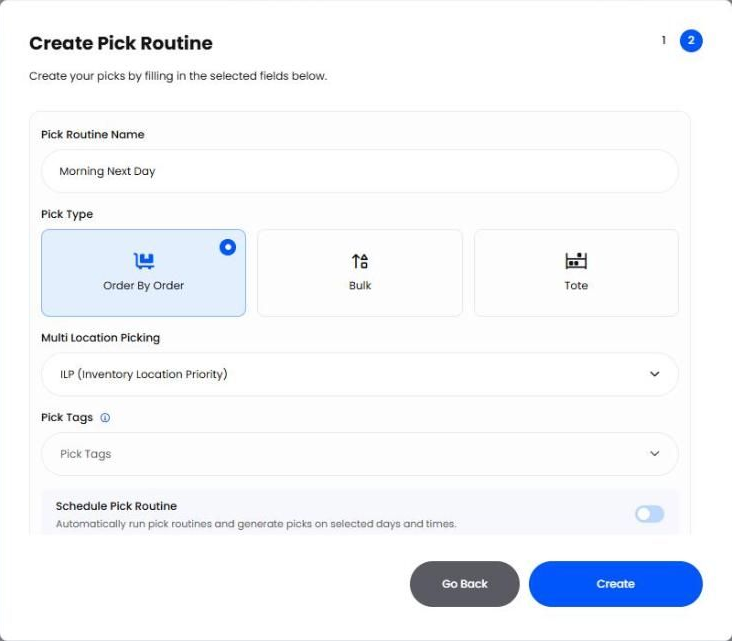
Enter a Pick Routine Name your team will recognise.
Choose the Pick Type: Order By Order, Bulk or Tote. For Tote, also set Tote Count and Orders Per Tote.
Choose Multi Location Picking (see the table below).
Add any Pick Tags. These are added to every pick the routine creates, which makes them easy to find in the Pick List later.
To run the routine automatically, switch on Schedule Pick Routine. Choose a Frequency of Daily or Monthly, the days it runs, and the Run time.
Choose Create. Helm opens the routine's page, where you set up its picks.

Setting Up the Picks in a Routine
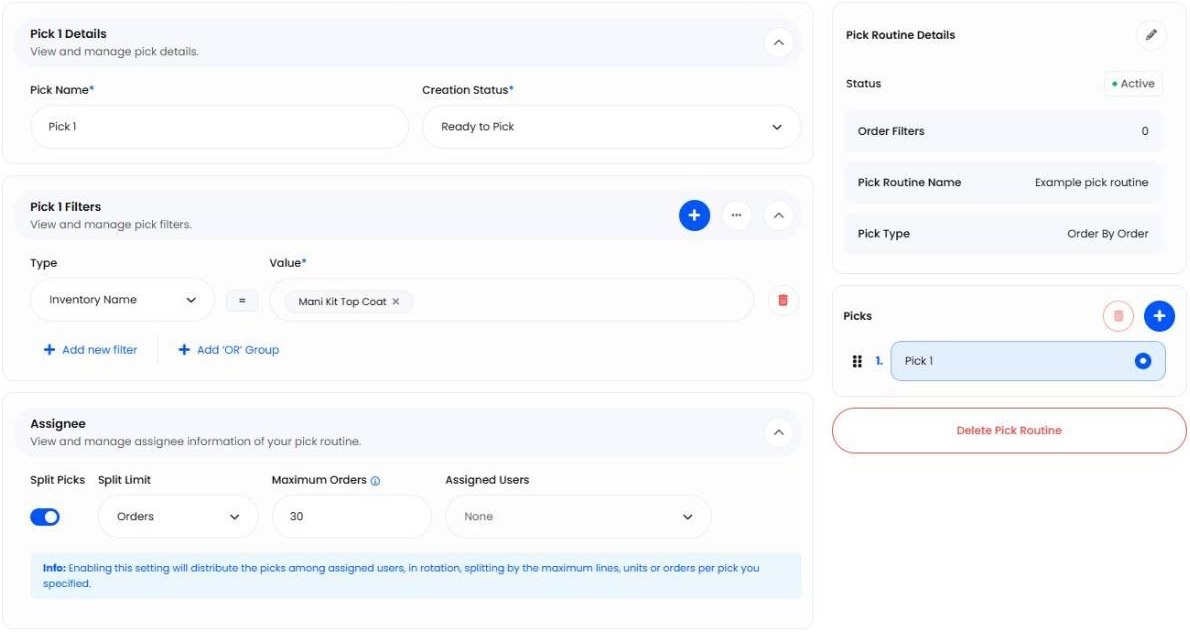
The routine's page lists its picks under Picks on the right. Select a pick to set it up in three panels:
Pick Details: the Pick Name and the Creation Status. Ready to Pick makes the pick available straight away; On Hold creates it but holds it back.
Pick Filters: extra filters for this pick only, on top of the routine's Order Filters. Use them to send different orders to different picks. To reuse a set of filters, open the … menu and choose Save as New.
Assignee: who the pick goes to. Choose an Assigned User, or switch on Split Picks to share the work out.
With Split Picks on, choose a Split Limit of Lines, Units or Orders, set the maximum per pick, and choose the Assigned Users. Helm breaks the work into picks of that size and hands them to the assigned users in rotation.
Use + next to Picks to add another pick, drag a pick by its handle to change the order, and use the bin to delete one. Choose Save Changes when you are done.
Note: to change the routine itself, such as its name, Order Filters or schedule, choose the pencil on Pick Routine Details. Edit Pick Routine has the same two steps as creating one, apart from the pick type.

Running a Pick Routine
A scheduled routine runs itself at the times you set. To run one now:
From Processing > Pick Routines, open Action on the routine's row and choose Run Pick Routine.
Or from Pick Management, open the Create Pick menu, choose Run Pick Routine, select the routine and choose Continue.
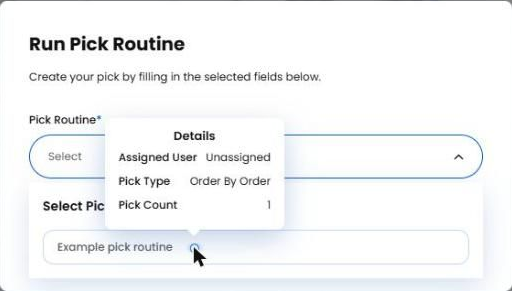
In the Run Pick Routine window, hover the i next to a routine to check its Assigned User, Pick Type and Pick Count before you run it.
Building picks is queued rather than instant. Helm shows Your pick is being processed. and lets you know when the picks are ready in the Pick List. You can follow the job in The Jobs Queue.
If no orders match the routine when it runs, Helm shows No records were found matching the filters! and no pick is created.

Managing Your Routines
The Pick Routines list shows every routine at a glance:
To delete several routines at once, tick them and choose Delete. Helm queues the deletion and lets you know when it is done.
Warning: deleting a routine cannot be undone. Its picks, filters and schedule are removed for good.

Best Practices & Notes
One Routine for Each Repeated Decision
If someone builds the same picks every morning, that is a routine. Name it after what it does, such as Morning Next Day or Afternoon Bulk Singles, so the team knows which to run.
Filter at the Routine, Divide at the Picks
Use the routine's Order Filters for what every pick shares, such as the order status and courier. Use each pick's own filters only to divide those orders between picks.
Schedule After the Order Cut-Off
A scheduled routine only collects orders that are waiting when it runs. Set the run time after your order cut-off and before the shift needs the work.
Tag the Picks a Routine Creates
Pick Tags make a routine's picks easy to filter in the Pick List, so supervisors can see at a glance which work came from which routine.
Review Routines When Things Change
A new courier service, a new product range or a change in order volume can quietly stop a routine matching what it should. Check your routines whenever any of these change.

FAQ
Can I change a routine's pick type?
Can I change a routine's pick type?
No. The pick type is fixed when the routine is created. Create a new routine with the type you want.
Why did running a routine create no picks?
Why did running a routine create no picks?
No orders matched its order status and filters at that moment, so Helm showed No records were found matching the filters! Check the filters, or run it again once orders are waiting.
Can I run a scheduled routine early?
Can I run a scheduled routine early?
Yes. Choose Run Pick Routine from the routine's row or from the Create Pick menu in Pick Management.
What is the difference between Order Filters and Pick Filters?
What is the difference between Order Filters and Pick Filters?
Order Filters decide which orders the whole routine collects. Pick Filters decide which of those orders go into one particular pick.
Are Pick Tags the same as the routine's own tags?
Are Pick Tags the same as the routine's own tags?
No. Pick Tags are added to every pick the routine creates. The routine's own tags are for organising the Pick Routines list.

For creating a single pick and working a pick through to publishing, see Pick Management. Still stuck? Contact Support and the team will help.
Was this helpful?
Still need help? Share an idea