Login & Account Security
Who can sign in to Helm WMS, from where, and at what time of day is governed by several separate controls rather than one security page. This article covers two-factor authentication, Google and Microsoft sign-in, Quick Access codes for the warehouse floor, the company IP whitelist, access time windows and session length.
Where Each Control Lives
None of these has a menu of its own, which is the main reason they get missed.
Registering, invitations and permission groups are covered by Account Registration & Login, Account Setup, Setting Up New Users and User Permission Groups. This article picks up where those leave off.

Before You Start
Access time windows do not simply stop new logins. Once a day's window closes, the next thing a non-exempt user clicks signs them out where they stand, mid-pick if that is what they are doing. Read Access Restrictions: Time Windows below before you set a time.
You need to be the Owner or an Administrator. Everything in the Access Restrictions panel is saved by one button, so it is all or nothing. Otherwise the fields load read-only.
The Owner is your way back in. The Owner is never blocked by an access window or by the IP whitelist, so keep those sign-in details with somebody who is not standing on the warehouse floor.
Adding one IP address restricts everybody. While the whitelist is empty there is no network restriction at all. The moment it holds a single address, every user except the Owner is limited to what is on it.
Two-factor is set up by the person, not for them. You can require it across the company, but only the account holder can scan the code or read the email, so plan the rollout rather than springing it on a Monday morning.

Two-Factor Authentication
Two-factor authentication asks for a six-digit code as well as a password, so a leaked password alone is not enough to reach your warehouse data. Each person turns it on for their own account, and there are two methods:
Authenticator App: codes come from an app on the phone, such as Google Authenticator, Microsoft Authenticator or Authy. The only method that issues backup codes.
Email: Helm emails a six-digit code to the address on the account, headed Your Auth Code is: and valid for 10 minutes. A poor fit for a shared mailbox.
Turning It On for Your Own Account
Open the account dropdown behind your name, top right, choose My Account, find Two-Factor Authentication and switch Enable on.
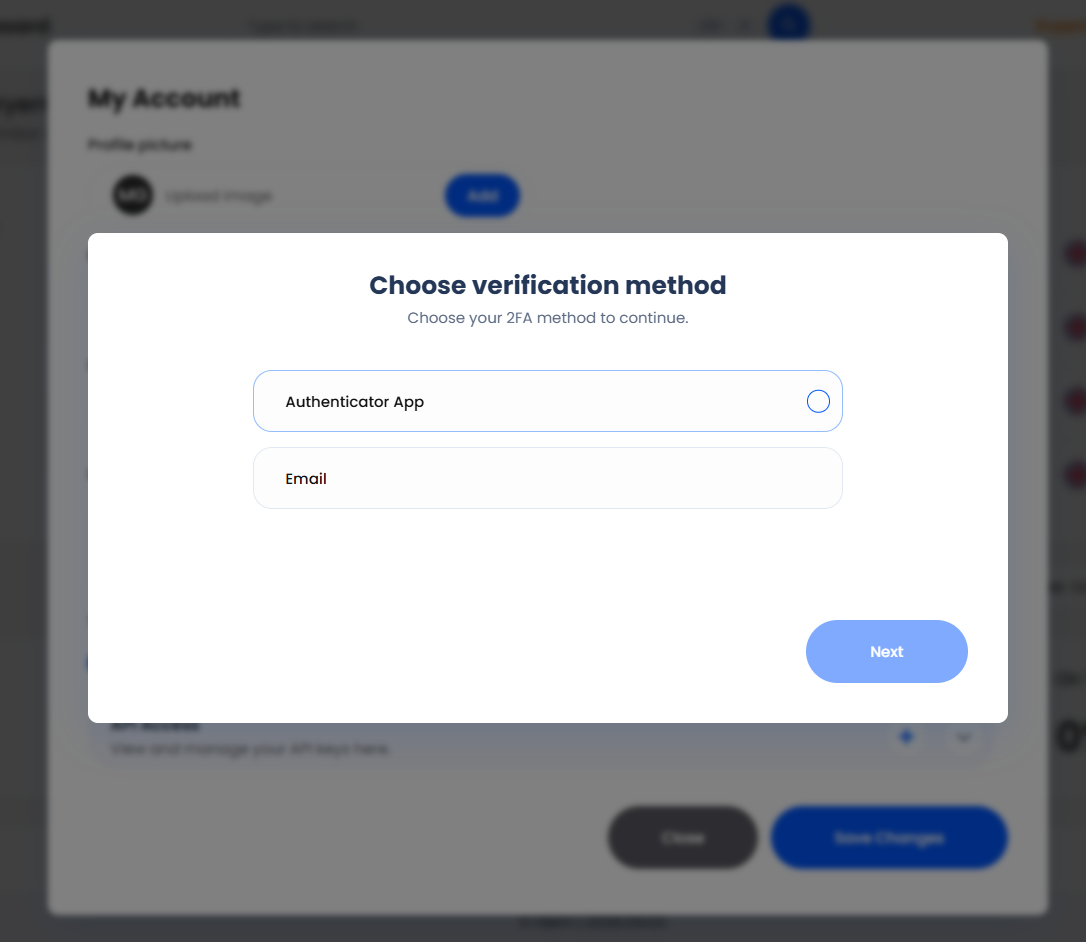
On Choose verification method, select Authenticator App or Email, then choose Next.
With Authenticator App, scan the QR code on Register Helm, or type the key printed under it, and choose Next. Enter the six digits your app shows on Verify Authenticator, choose Enable 2FA, then save the codes on Your Backup Codes and choose Complete.
With Email, enter the six digits from the message on Check Your Email and choose Enable 2FA. That finishes it.
Backup Codes
Authenticator App issues eight single-use backup codes on the Your Backup Codes step. Copy Codes puts all eight on your clipboard, and this is the only time Helm shows them in full, so store them where you can get at them without signing in.
At the sign-in prompt, Use Backup Code swaps the six-digit field for a backup code field. Helm then confirms Backup Code Used, says how many are left, and offers Reset Authenticator App to register a replacement phone.
Requiring It for Everybody
Go to Settings > Company Settings > Company Settings and expand Access Restrictions.
Under 2FA Login, switch Require For All Users on.
Choose Save Changes.
That marks two-factor as required on every user at once. Anyone without a method gets the wizard the moment they next open Helm, and it cannot be dismissed until they finish. Switching it back off reverses that for everybody and clears every user's method, secret and backup codes, so anyone who had set it up starts again.
Resetting Somebody Who Is Locked Out
Open Settings > Company Settings > Users, click the person's row, switch Enable Two-Factor Authentication off in Edit User and choose Save Changes. That clears their method, secret and backup codes, so switching it back on gives them a clean wizard. It is the fix for a lost phone.
Four wrong codes lock the account for 30 minutes, with Account Locked and a countdown a backup code will not bypass. On Email, Resend is available once a minute, up to five times an hour.

Google & Microsoft Sign-In
The login page offers Log in With Social Login, which opens Log in With Google and Log in With Microsoft. These only work for accounts already linked from inside Helm; an unlinked provider account is refused as not registered in the system, however valid the account itself is.
Sign in with your email address and password as normal, then open My Account.
Expand Linked accounts, choose Connect next to Google or Microsoft, and approve the request with the provider.
One Helm user can hold one link per provider, and the address on the provider account must not already belong to a different Helm user. Disconnect removes a link, and you can add it again later.

Quick Access Codes on the Warehouse Floor
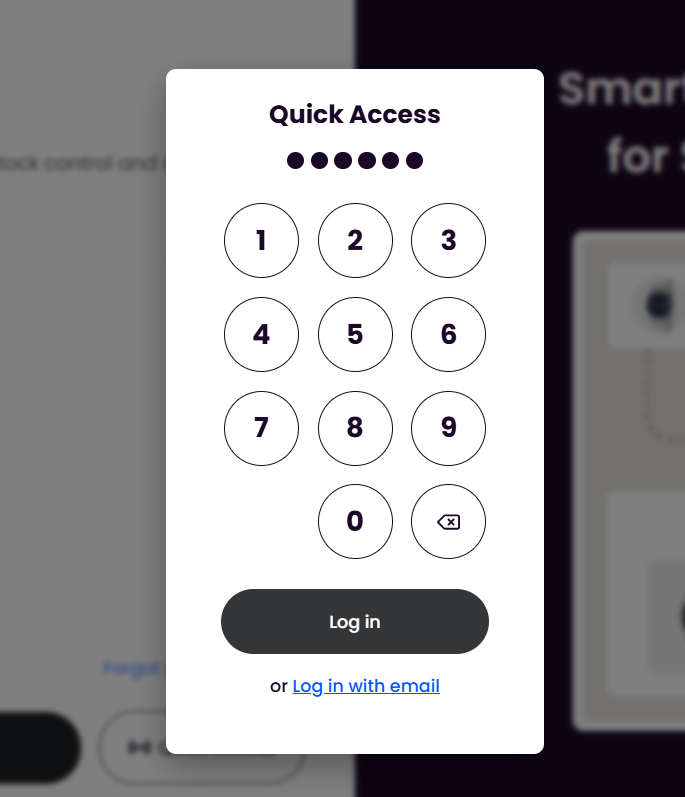
A Quick Access code is a numeric code, tapped on an on-screen keypad or scanned from a badge, that signs somebody in without an email address and password, so an operative can get on to a shared terminal without typing a password with gloves on.
It is deliberately tied to your network: Helm only accepts a code from an IP address on your whitelist, which is what stops one being useful outside the building. Three things have to be true:
Quick Access is on for the company. In Access Restrictions, switch Enable Quick Access login. on and choose Save Changes. It stays greyed out until IP Whitelist holds at least one address.
The person has a code. Add codes under Quick Access Code in My Account, or under Quick access code in Edit User for somebody else. The field only appears once Quick Access is on for the company.
The device has been switched over. Quick Access is remembered per browser, not per account. Helm offers it on a first sign-in with an Enable Quick Access prompt, and you can switch it on later from the notice in My Account.
Once all three hold, the login page shows a Quick Access button. The keypad it opens also reads a barcode scanner, showing Listening for Scan until digits arrive.
A code is four to 12 digits. Helm rejects four digits in a run, ascending or descending, and any digit repeated three times, and no two people in a company may share one.
A Quick Access sign-in is always remembered, so the terminal stays signed in until somebody actively signs out. On a shared terminal, make Log out part of the end-of-shift routine.

Access Restrictions: Time Windows
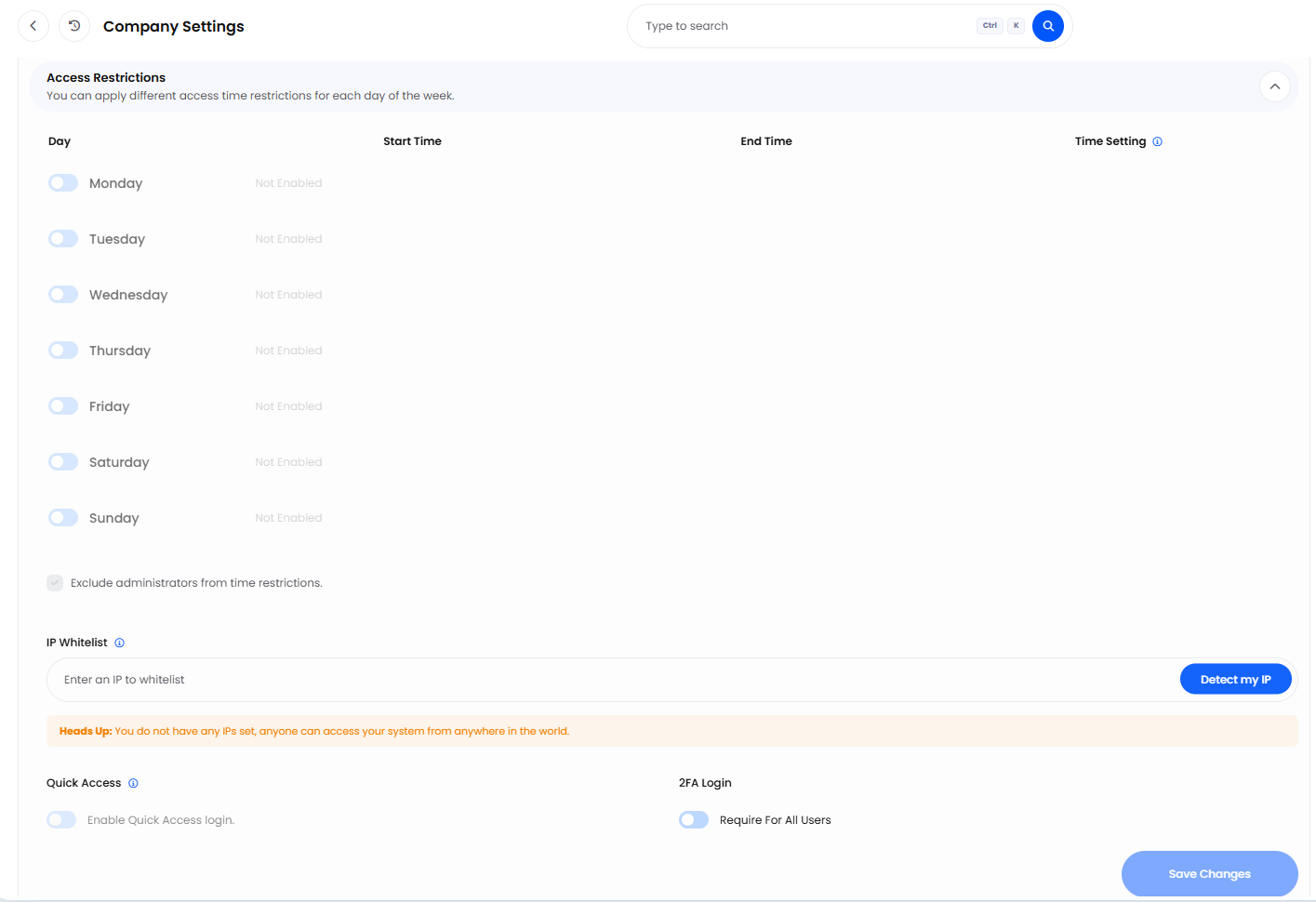
The Access Restrictions panel gives every day of the week its own row, with Day, Start Time, End Time and Time Setting. The switch in the Day cell turns that day's rule on; left off, the day is unrestricted. Time Setting decides what the window means, and this is where the costly mistake gets made:
Access Time: the window is the only period anyone may work. Everything outside it is blocked.
Restricted Time: the window is the only period that is blocked. Everything outside it is allowed.
Outside a permitted period Helm does not just refuse a fresh login. The next request from a user who is already working returns a locked response, Helm signs them out on the spot, and they see "Your session has expired." Set the window wider than your longest shift, and make changes outside working hours.
Three groups are never blocked: the company Owner, Helm's support users, and, only when Exclude administrators from time restrictions. is ticked, the Administrator permission group. Everybody else is subject to it, Supervisors and Accounts included, as are public API calls made with their keys.
Windows are read in the company's Default Time Zone, set under Localisation and Currencies on the same page, not each person's own. Both ends of a window sit in the same calendar day, so a night shift running past midnight needs two rows: the evening hours on one day, the early hours on the next. Changes apply the moment you choose Save Changes.
These windows do a second job: a despatch target rule scheduled on Company Hours is calculated against your active Access Time rows, so editing them moves those targets too.

The Company IP Whitelist
IP Whitelist, in the same panel, holds the addresses your business works from. While it is empty there is no restriction, and Helm warns that anyone can access your system from anywhere in the world. Add one address and the restriction is live. Two things to understand first:
The list is shared with Quick Access. The same addresses decide where a Quick Access code may be typed and where anyone may sign in at all, so you cannot whitelist an address for Quick Access alone: turning Quick Access on always tightens sign-in for the whole company.
Administrators are not exempt. Only the Owner and Helm's support users bypass the whitelist. An Administrator working from home, on a list that names only the warehouse, is refused with a message that the account is restricted to approved networks.
Detect my IP adds the address you are connected from now, which is the safest way to fill the first entry, and both IPv4 and IPv6 are accepted. Removals apply on Save Changes; removing the address you are using yourself asks you to type a confirmation and offers Delete IP in Use.
Ask whoever runs your network to confirm the addresses are static before you rely on them. One that rotates overnight locks everyone but the Owner out by the time the early shift arrives.

How Long a Session Lasts
Remember me is ticked by default. On a shared warehouse terminal that is usually what you want; on a laptop that leaves the building it is not. If your account belongs to more than one company, an access window block sends you to the company chooser rather than signing you out.

If Somebody Cannot Get In
Almost every ticket lands as one of the following.

Best Practices & Notes
Two-factor guards the email address and password route. Quick Access codes and linked Google or Microsoft accounts are separate ways into the same data, so when you tighten security, review who holds a code and which accounts have a provider linked, not just who has two-factor on.
Whatever you change here, change it out of hours. Access windows and the IP whitelist take effect the instant you save, with no notice to anyone working, so a Tuesday lunchtime edit is the classic way to stop a shift.

FAQ
Does Two-Factor Apply to the Mobile App and Terminals as Well?
It belongs to the account rather than a device, so any sign-in with an email address and password asks for a code. Quick Access is a separate route in, controlled by the codes and the IP whitelist instead.
What Happens to a Pick in Progress When a Window Closes?
The picker is signed out at their next action. Work already saved is safe, but anything unsaved on screen is lost, which is why the window should be wider than your longest shift.
I Chose Email for Two-Factor. Where Are My Backup Codes?
There are none. Only Authenticator App issues them, and switching to Email clears any you were holding.

If someone still cannot sign in after working through the table above, contact support with the exact message on their screen and the time it happened in your company's time zone. Those two details separate a time window from a network block in seconds.
Was this helpful?
Still need help? Share an idea