Company Settings
Company Settings in Helm WMS holds your company's name, logo, contacts, address and financial details, plus the currency, time zone and login rules that apply across your business.
What This Page Controls
Company Settings is where your business introduces itself to Helm. The name, logo, contacts, address and financial details you enter here appear on emails, invoices and customs paperwork, so getting them right once saves fixing documents later.
The same page also sets how Helm handles money and time for everyone in your company, and who can log in, when and from where.
Example: a new client is going live next week. Their admin adds the company logo and brand image, sets the billing contact to the finance inbox, enters the VAT and EORI numbers, then restricts logins to the warehouse and office networks. From the first order, every invoice carries the right details and nobody can sign in from an unknown location.

Before You Start
Where to find it: go to Settings and, under Company Settings, choose Company Settings.
Have your details to hand: registered address, company number, VAT or Tax ID, and your EORI and IOSS numbers if you ship internationally.
Know your network addresses before you set up an IP whitelist, so you do not lock your own team out.
Note: each store has its own logo and details, set in Store Settings. Company Settings holds the details for the business as a whole.
Reading the Page
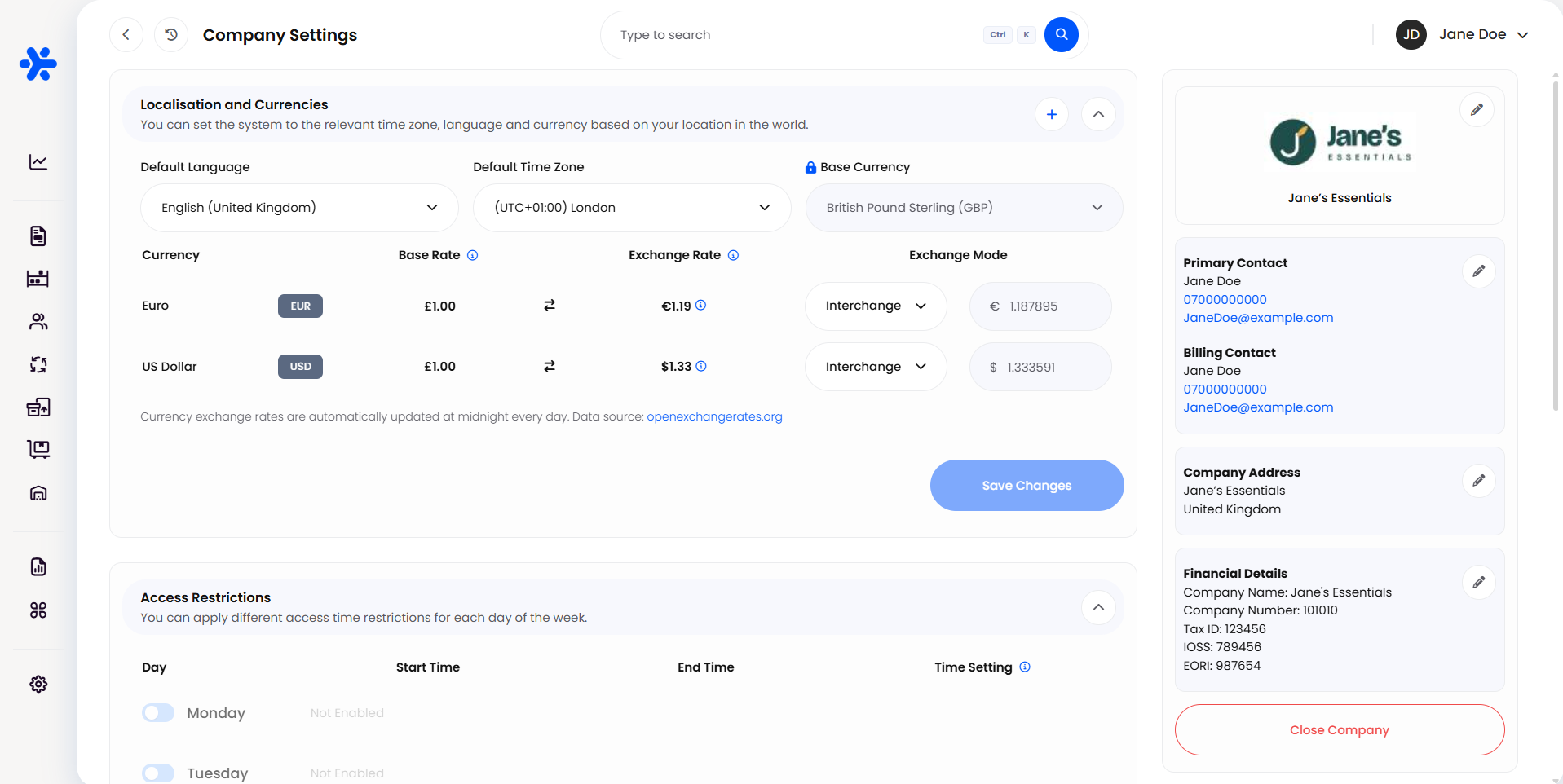
How to Set Up Your Company Details in Helm
Each card on the right has a pencil icon. Click it, fill in the window, then save.
Company Name, Logo & Brand Image
Click the pencil on the company card to open Edit Company Details.
Enter your Company name.
Optionally enter your Company URL. Helm checks the address automatically and can fill in your company name from it.
Click Change Logo to upload your logo. The recommended size is 500 x 500px.
Under Brand Image, upload a wide banner. It appears at the top of relevant emails and print templates; the recommended size is 1000 x 100px.
Click Save Changes.
Contacts
Click the pencil on the contacts card to open Edit Company Contact.
Fill in the Primary contact name, Primary contact number and Primary contact email: the person who looks after Helm day to day.
Fill in the Billing contact name, Billing contact number and Billing contact email: the person or team who handles invoices.
Click Save Changes.
Company Address
Click the pencil on Company Address to open Edit Company Address.
Type a city, street name or postcode into Search Address and pick your address, or fill in the fields yourself: Address line 1, Country, City and Postcode are required.
Click Save Changes.
Financial Details
Click the pencil on Financial Details to open Add Financial Details.
Enter your Company name, Company number, Tax ID, IOSS and EORI as they apply to you. Leave a field blank if your country does not issue that number.
Click Add Details.
Heads up: until financial details are added, the card shows Warning: This company does not have financial details assigned. Documents such as invoices and customs paperwork rely on these details, so complete them before you go live.
Which Logo Appears Where
Some emails and documents use your company logo; others use the logo of the store the order came from.
Tip: after uploading a new logo, print a sample invoice and packing slip to check it looks right before customers see it.
Localisation & Currencies
Default Language: the language Helm uses for your company. Each user can still choose their own language in their account settings.
Default Time Zone: used for times on orders, logs and reports.
Base Currency: the currency your prices and reports are based on. It is shown with a padlock and cannot be changed here.
Below these, each extra currency you use is listed with its Base Rate, its Exchange Rate against your base currency, and an Exchange Mode:
To add a currency, click + in the panel header, switch on the currencies you need in Add Currency, then click Go Back and Save Changes.
Note: exchange rates are provided for information. Any fixed rate or formula you set is your own responsibility, and market rates may differ from those used by tax authorities such as HMRC.
Controlling When & Where People Log In
Access Restrictions
Switch on the day you want to control. Helm fills in a start and end time, which you can change.
Choose the Time Setting: Access Time means users can only log in between those times; Restricted Time means they cannot log in between those times.
Tick Exclude administrators from time restrictions. if your admins must always be able to get in.
Click Save Changes.
A day left as Not Enabled has no time limits.
IP Whitelist
The IP whitelist limits logins to networks you trust, such as your warehouse and office. Add IPv4 or IPv6 addresses, or wildcard patterns such as 192.168.1.*. Detect my IP adds the network you are on now, and the bin icon removes an address.
Warning: before saving a whitelist, make sure it includes every network your team logs in from, including your own. Anyone on a network that is not listed will be turned away.
Quick Access
Switch on Enable Quick Access login. to let warehouse staff sign in with a Quick Access code instead of an email address, using the Quick Access button on the login screen. It needs at least one whitelisted IP. Use Manage Users to set up each person's access.
Best Practices & Notes
Use a Shared Inbox for Billing
A finance mailbox outlasts any one person, so invoices keep arriving when someone leaves.
Whitelist Before You Restrict Hours
Set up and test the IP whitelist from each site first, then add login hours once you know everyone can get in.
Check Documents After Any Change
A new logo, address or Tax ID shows up on paperwork straight away. Print one of each document type to confirm.
FAQ
Why can't I change the base currency?
Why can't I change the base currency?
The base currency is locked on this screen because your prices and reports are built on it. Contact Helm support if it needs to change.
Why does a store's email show a different logo from my company logo?
Why does a store's email show a different logo from my company logo?
Most customer emails use the store logo, so each brand looks like itself. Check the table above, and set store logos in Store Settings.
How often do exchange rates update?
How often do exchange rates update?
Currencies set to Interchange update automatically at midnight every day.
Can an administrator log in outside the allowed hours?
Can an administrator log in outside the allowed hours?
Yes, if Exclude administrators from time restrictions. is ticked.

If something on this page does not look right and you are still stuck, contact Helm support with a screenshot of the section in question.
Was this helpful?
Still need help? Share an idea