Warehouse Settings
How to set up your warehouse in Helm WMS: its name and structure, default locations, auto-archiving, address and the rules your team follows in the Warehouse App.
What This Page Controls
Your warehouse page tells Helm how your building works: what the site is called, where picked items, returns and deliveries land, how long finished jobs stay on screen, and what your team has to scan in the Warehouse App before Helm accepts their work.
Most of it is set once when you go live and then left alone. The scanning rules are the part worth coming back to, because they are how you tighten accuracy on the floor without retraining anyone.
Example: a warehouse picking 400 orders a day keeps finding the wrong size in parcels. The manager opens the warehouse page, turns on Require Location Scan and Require Item Scan in Warehouse App Settings, and sets Count Injection Percentage to five. From the next pick onwards, pickers must scan the shelf and every item, and a small share of items is counted as part of normal picking, so stock errors surface within days rather than at the next full count.

Before You Start
Where to find it: go to Settings and, under Company Settings, click Warehouse. The page heading shows your warehouse's name, which is My Warehouse until you rename it.
Your warehouse needs to run in Full mode for most of this page. In Basic mode the page holds only the name, description, address, mode, stock control and barcode settings; those are covered in Warehouse Settings in Basic Mode.
Create your locations first. The default locations are chosen from the locations already in your warehouse, so set up your picked, sort, delivery, assembly and returns locations before you fill in Location Information. Mastering Stock Locations in Helm shows how.
Changing the Warehouse Mode is for an owner or an administrator. Everything else on the page depends on your permission group.
Note: each site you run is its own Helm company with its own warehouse page. To set up a second site, read Adding a Warehouse, then switch into the new company and come back to this article.

Reading the Page
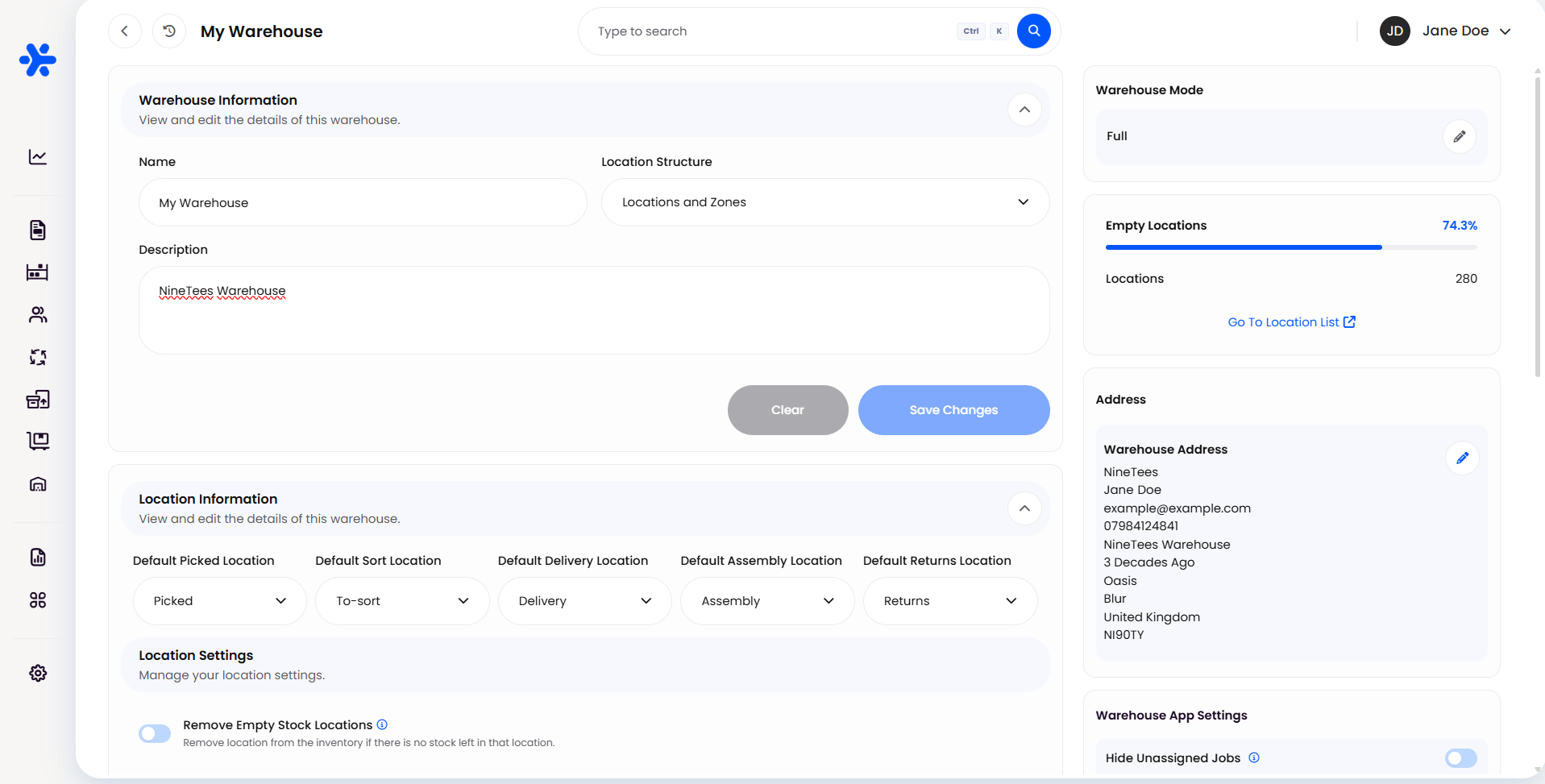
The page is split into two columns. The left column holds the settings you edit and save in blocks; the right column holds the mode, a summary of your locations and the panels for the Warehouse App and tracking rules.

How to Set Up Your Warehouse in Helm
Work down the left column first, saving each block as you go, then set the panels on the right.
Go to Settings and, under Company Settings, click Warehouse.
In Warehouse Information:
Enter a Name your team already uses for the site.
Choose a Location Structure: Locations if your stock sits in one open space, or Locations and Zones if the building is split into areas such as a chilled room, a mezzanine or a bulk store.
Add a Description if it helps new starters or anyone switching between sites.
Click Save Changes.
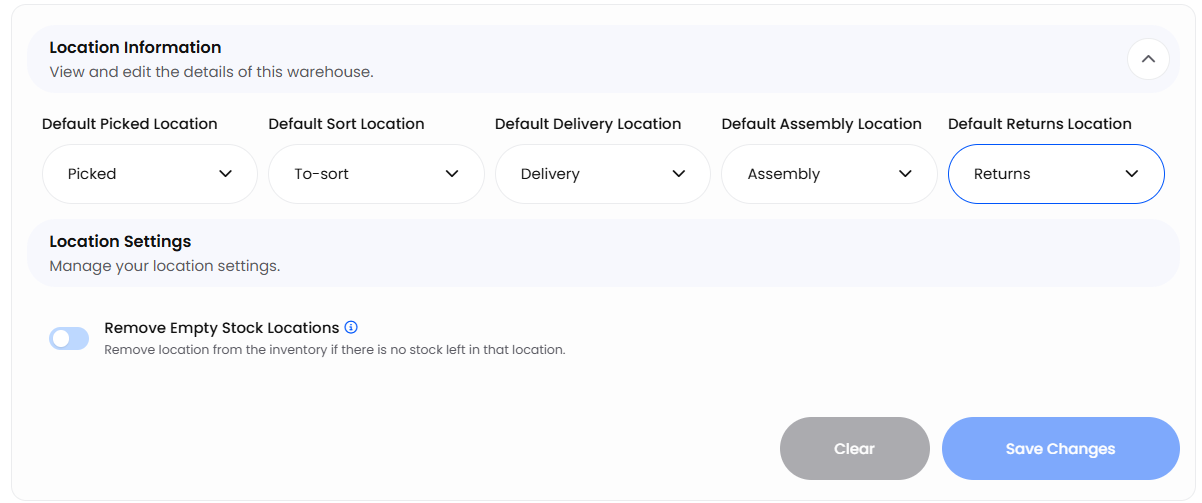
In Location Information, choose a location for each default (see Default Locations below), decide whether to switch on Remove Empty Stock Locations, then click Save Changes.
In Auto-Archive, switch on each job type you want tidied away automatically, choose when its completed jobs are archived, then click Save Changes.
In Address, click the pencil icon on Warehouse Address and check the contact name, email, phone number and full address. Couriers collect from this address, and it is what prints on a transfer sent to this site.
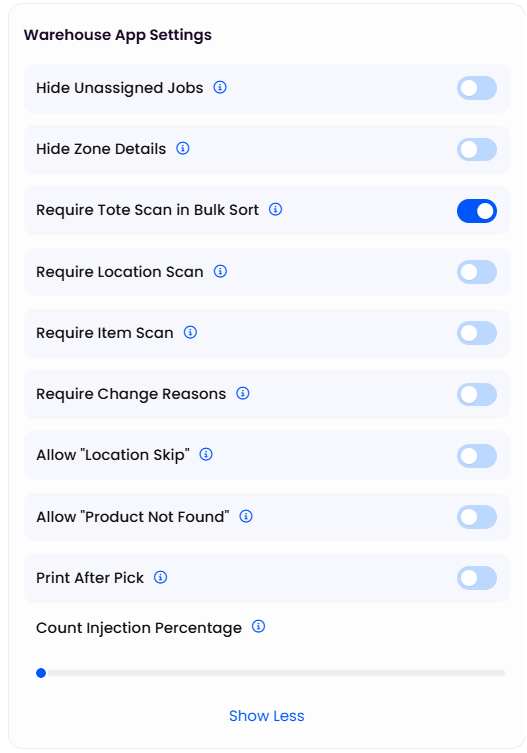
In Warehouse App Settings, click Show More and set the rules your team should follow on the floor.
Set Serial Validation Mode, Enforce Single Batch Per Location and Allow Barcode Reuse to match how you track stock.
Heads up: Clear beside each Save Changes button discards what you have typed in that block since you last saved. Save each block before moving to the next.

Default Locations
Default locations are where Helm puts stock automatically at each stage, so nobody has to choose a location every time. Each one is picked from the locations already set up in your warehouse.
Remove Empty Stock Locations
With this switched on, when a product has no stock left in a location, Helm removes that location from the product's list of stock locations. The location itself stays in your warehouse, ready for the next stock to go in. It keeps product records tidy in warehouses where stock moves around a lot, such as pallet spaces that hold a different product each week.

Auto-Archive
Auto-Archive moves completed jobs off your working lists after a set time, so your team sees today's work rather than last month's. Archived jobs are not deleted: they stay in Helm for history and reporting.
Switch on Picks, Delivery or Movement and choose when its completed jobs are archived: midnight on the same day, after three days, one week, one month or one year.
Tip: busy sites usually archive picks at midnight so each shift starts with a clean list, and keep deliveries for a week or a month so purchasing can still check what arrived.

Warehouse App Settings
These switches decide what the Warehouse App asks of your team. Click Show More to see the full list.
Tip: a low Count Injection Percentage, such as five, builds counting into everyday picking. Your stock gets checked a little at a time without stopping despatch for a full count.

Serial, Batch & Barcode Settings
For how batches and serial numbers work day to day, read Batches & Expiry Dates and Serial Numbers.

Changing the Warehouse Mode
The Warehouse Mode panel shows whether this warehouse runs in Full or Basic. To change it, click the pencil icon, choose the mode and click Change. Understanding Warehousing Modes in Helm compares the two in full.
Warning: moving from Full to Basic permanently deletes this warehouse's picks, movements, locations and deliveries. Helm lists how many of each will go before you confirm. Agree the change with whoever runs the warehouse first.

Getting the Most Out of Your Warehouse Settings
Name the Site the Way Your Team Says It
The warehouse name appears wherever stock and locations are shown. A name your team already uses out loud saves confusion, especially once you run more than one site.
Add Scanning Rules One at a Time
Switch on one rule, such as Require Location Scan, and give the team a week with it before adding the next. Accuracy improves without the floor slowing down all at once.
Keep the Address Current
Couriers collect from the Warehouse Address, so update it before a move rather than after the first missed collection.

FAQ
Why can't I see Location Information or Warehouse App Settings?
Why can't I see Location Information or Warehouse App Settings?
Your warehouse is running in Basic mode. Those settings appear once the mode is set to Full. Warehouse Settings in Basic Mode covers what the page holds in Basic.
Does Auto-Archive delete my jobs?
Does Auto-Archive delete my jobs?
No. Archived jobs are moved off your working lists but stay in Helm for history and reporting.
Why is a location missing from the default location list?
Why is a location missing from the default location list?
The list only shows locations that already exist in this warehouse. Create the location first, then come back and choose it.
How do I set up a second site?
How do I set up a second site?
Each site runs as its own Helm company with its own warehouse page. Read Adding a Warehouse, then switch into the new company to set up its warehouse.

If something on your warehouse page does not match this article, contact support with your warehouse name and the team can check its settings.
Was this helpful?
Still need help? Share an idea