System Notification Settings
System Notification Settings is where you tell Helm WMS how to warn you that stock has fallen to its warning level: on screen, by email, how often, and with what sound. This article covers the one activity on the page, the way its interval is timed, and how to pause it for a shutdown, under Settings > System Settings > System Notification Settings.
What This Page Controls
Helm ships one activity here, Stock level warning, and it is the only thing these settings reach. The row decides whether the warning is raised at all, whether it also arrives by email, how often, and what it sounds like.
Helm raises plenty of other alerts as you work, and none of them are configured on this page. Knowing which is which saves a lot of time when something either will not stop or will not arrive.
Example scenario: an order comes in for the last few units of a fast-moving line and its physical stock drops to the level you set. Because Push is ticked, an alert appears in Helm straight away and the person on the floor knows. Because Email is ticked with an Interval of Daily, one email also lands the next morning listing every product that has fallen to its level, instead of one email per product.

System Notifications, Customer Notifications & Banners
Three separate things in Helm use the word notification. This page is Helm telling your own team about your own stock. Notifications, under Settings > Despatch Settings > Notifications, covers the emails you send your customers as their orders progress, and has its own article. Banner Settings, under Settings > System Settings > Banner Settings, controls the message bars that run across the top of Helm for chosen roles. Changing one has no effect on the other two.

Before You Start
The stock warning is already on. Helm ships the activity switched on, with Email and Push both ticked and an Interval of Daily. If low stock emails are reaching your account owner and nobody remembers setting them up, this is why, and this page is where you change it.
These settings belong to the company. Helm holds one row per company, so what you switch on or off applies to everyone who works in your Helm account rather than to your own inbox. There is no personal version of this page.
You need the right permissions. Opening the page needs the permission titled System Notification Settings Listing and saving needs System Notification Settings Create. If the page will not open, ask whoever administers Helm for your business to check your permission group.
There is no save button. Every switch, tick box, list and date range saves the moment you change it. Clear at the foot of the Notifications section puts the page back to the last saved state, which is why it is usually greyed out. One control is an exception, covered under the holiday below.
A product needs a warning level. Helm can only warn about a product with a threshold set, either Stock Warning Level in the product's Stock Control section or Warning Level under its Purchase Order Controls with the tick box beside that field enabled, depending on whether your warehouse runs in advanced mode. The level has to be above zero. Service products are left out of the email, though the on-screen alert does not exclude them.
Stock control has to be switched on. If stock control is off on your default warehouse, no stock warning is raised however this page is configured.

How to Set Up the Stock Warning in Helm
Go to Settings > System Settings > System Notification Settings. The page opens as Notification Settings, with the Notifications list on the left and the Notification Preferences card on the right.
In the Notifications section, find the single row in the list. The columns across the top are Activity, Email, Push and Interval, and the row itself carries the activity name with a line describing what it covers.
Check the toggle beside Stock level warning. It is on unless somebody has switched it off, and switching it off stops the warning reaching anyone, on screen or by email.
Tick Email to have the warning emailed, and Push to have it appear inside Helm as an alert. Push means an alert in the Helm window you are working in, not a notification on your phone.
Set the Interval. The list only appears once Email or Push is ticked, and it has to be filled in.
Move on. The change is already saved, so there is nothing to confirm.
The tick boxes drive the toggle in one direction: unticking both Email and Push switches the activity off, and ticking either switches it back on.
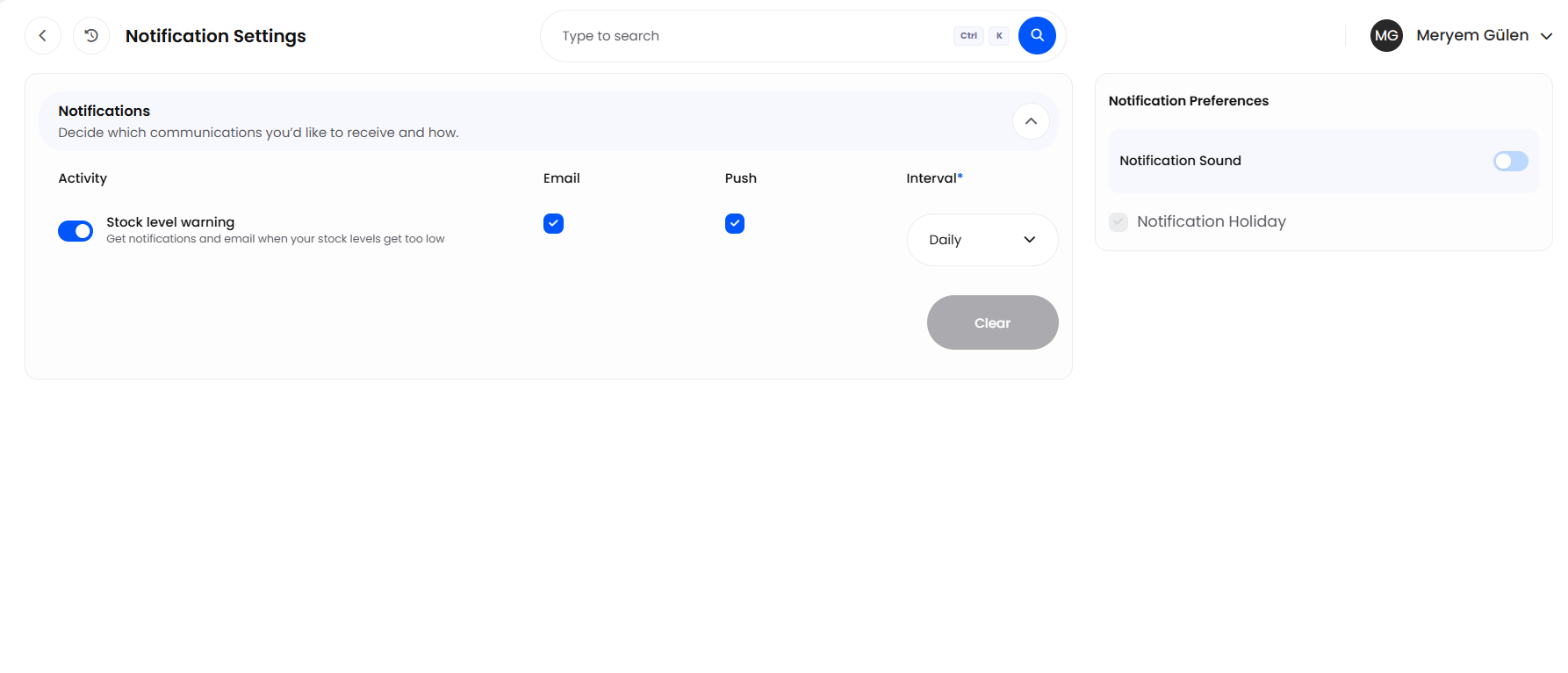
The toggle does not work the other way round. Switching the activity on while both Email and Push are unticked leaves it sitting as active with nowhere to send anything, and the Interval list does not appear at all. Always leave at least one of the two ticked.

How the Interval Works
The Interval governs the email only. The on-screen alert appears as soon as stock is triggered, whatever the interval says. Helm sends the email at 08:00 in your company's Default Time Zone, set under Localisation and Currencies in Company Settings, and it counts from the last time the activity was raised rather than from a fixed calendar slot.
If the activity has never been raised for your company, the scheduled time is 08:00 on the day you switch it on, so the first email can land the same morning, or within minutes if you switch it on later in the day. That applies to the first send only.
The clock is stamped any time the activity is raised, not when an email goes out, and it is stamped whether or not Push is ticked. On Weekly, a stock trigger in the small hours of the Monday itself moves the slot to the following Monday, and Monthly behaves the same way on the first of the month, so an overnight import can defer a summary again and again. Daily is the interval that behaves most predictably.

Choosing a Notification Sound
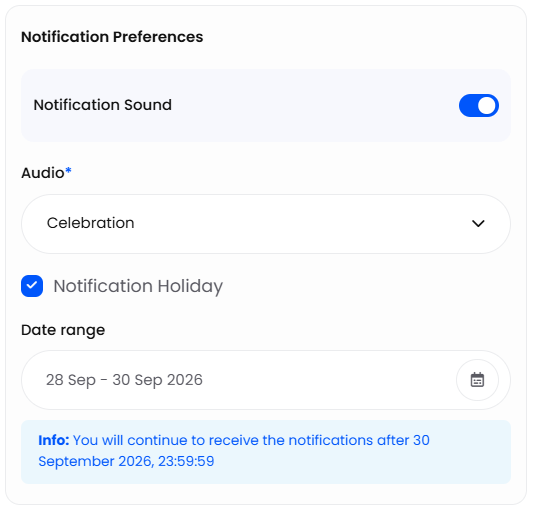
The Notification Preferences card carries two settings, the first of which is Notification Sound. Switch it on and an Audio list appears with seven sounds: Alert, Celebration, Intensity, Simple, Basic, Confirm and Tab. Switching the sound on before you have chosen one selects the first in the list for you.
The sound belongs to the stock warning alert. Every other alert in Helm stays silent whatever is set here, and there is no preview on this page, so the first time you hear your choice is the next time stock is triggered.

Pausing the Stock Warning with a Notification Holiday
Notification Holiday suppresses the stock level warning for a set period. It is built for a genuine shutdown, a stocktake week or a Christmas close, where warnings would otherwise pile up against nobody. It does not quieten Helm as a whole: job, download and bulk action alerts carry on through a holiday exactly as normal, because they are not governed by this page.
Tick Notification Holiday. A Date range field appears, reading Select a Timeframe until you set one.
Pick the first and last day of the quiet period, then choose Apply. Helm saves the range at that point, as long as both ends are set.
Read the confirmation line underneath, which states the date and time notifications resume.
A ticked Notification Holiday with no dates set suppresses nothing at all. Helm only holds the warning back when the tick box is on, both ends of the range are filled in, and the current moment falls between them.
Nothing is stored up while a holiday runs. Warnings raised inside the window are dropped rather than delayed, so there is no backlog when it ends.
To end a holiday early, untick Notification Holiday. Using Clear inside the date picker empties the field on screen but does not save, so the stored range stays where it was and so does the suppression. Helm unticks the box for you within about ten minutes of the end date passing, but it leaves the old dates stored, so if you tick it again months later set a fresh range before you rely on it.

Example: A Weekly Low Stock Email
You want the office to get one low stock summary a week, while the warehouse sees warnings on screen as they happen.
You set a Stock Warning Level on the lines that matter.
You open Settings > System Settings > System Notification Settings and check that Stock level warning is switched on.
You tick both Email and Push, then change the Interval from Daily to Weekly.
You switch Notification Sound on and choose Simple from Audio, so an alert is noticed on the floor without being startling.
The first email goes out at 08:00 that same morning, or within minutes if you set this up later in the day, because nothing has been raised for the company before. Only after that does it settle into the Monday pattern.
The email arrives with the subject Stock Warning, headed Low Stock Warning Alert, listing each product with its Item Code, Item Name, Physical, Available and Warning Level.
Each row reads WARNING under Status where stock has reached the level, or CRITICAL where it has fallen below it, so the worst lines are obvious at a glance.
View Inventory Details at the foot of the email opens your inventory list in Helm, ready for whoever raises the purchase orders.

Best Practices & Notes
Agree Changes With the Team
Because there is one row per company, switching the activity off to quieten your own inbox switches the warning off for the person who was relying on it. If the volume is the problem, lengthen the Interval or untick Email and leave Push on, so the warning still reaches the floor at the moment somebody can act on it.
Keep the Holiday for Real Shutdowns
Using a Notification Holiday to quieten a noisy setting hides the genuine problems along with the noise, and nothing raised during the window comes back afterwards. If warnings are firing constantly, the levels on the products are usually what needs revisiting.
The Email Has One Recipient
Helm sends the stock warning email to the account owner's address, not to everybody who can see this page, and the recipient is not set here. If the person who plans purchasing is not the account owner, forward it or set up a rule in your mail client.
Who Sees the On-Screen Warning
When a signed-in user's own action takes stock to the warning level, the alert goes to that person alone. When the same thing happens through an integration or a background process with nobody signed in, it goes to every user in the company who has an email address on their account. A warning a colleague saw and you did not is usually this, rather than a fault.

FAQ
Why Has the Stock Warning Email Not Arrived?
Work through it in order. Is the activity switched on with Email ticked; is a Notification Holiday currently running; does the product have a warning level above zero; is stock control on for your default warehouse; and are you looking in the account owner's inbox? On Weekly or Monthly, also allow for the slot having been pushed back by a recent trigger.
An Alert Disappeared Before I Read It. Where Did It Go?
Nowhere. The stock warning alert clears itself after about six seconds and is not kept anywhere, so treat the email as the record of what breached. The list behind your avatar holds jobs and downloads, and reads Inbox Zero! when there are none.
Do Job & Download Alerts Stop During a Holiday?
No. A Notification Holiday reaches the stock level warning and nothing else, so everything Helm raises about jobs, downloads and bulk actions carries on as normal.

If a stock warning still is not behaving as you expect, check the activity's toggle and any running Notification Holiday first. If it still looks wrong, contact support with the product code and the date and time you expected the warning.
Was this helpful?
Still need help? Share an idea