Storage Cost Groups
Storage cost groups are how you put a daily cost against your warehouse locations in Helm WMS, so that storage appears as a real number alongside your picking, packing and courier costs. This article covers creating a group, assigning locations to it, and how that daily figure becomes the storage cost you see reported.
What a Storage Cost Group Does
A storage cost group is a name and one figure: a fixed daily cost, held in your company's base currency. On its own it does nothing at all. It starts costing money when you assign warehouse locations to it.
Once a location belongs to a group, Helm records that location's daily cost once per day, whether the location holds one item or a thousand. That daily figure is then divided between the products sitting in the location, in proportion to the quantity each of them has there. This is what lets Helm report a storage cost per product, per supplier and per store rather than one lump sum for the building.
Example scenario: a pallet position in your racking costs far more per day to rent than a shelf bin, so you set up a group for each kind of space and assign every location to whichever one fits. Nobody has to maintain a price on individual locations.

Before You Start
Check your cost group permissions. Reaching the page needs storage.cost.group.index, and the Create Cost Group button needs storage.cost.group.store: without it the button is disabled and shows a Permission Required tooltip. Editing and deleting need storage.cost.group.update and storage.cost.group.delete, but the row Actions menu is not gated, so without those you can open Edit or Delete and will only find out when saving fails.
The location list has permissions of its own. Both routes for assigning locations run through it, and it needs warehouse.location.index: without that the Go To Location List button is hidden and the page will not open. The Actions button in the selection bar, which is where bulk assignment lives, is disabled without warehouse.location.update.
Decide your cost bands before you create anything. A group is a shared price, so you want a handful of bands that describe the space you rent, such as pallet positions, shelf bins, bulk floor and cold store. One group per location defeats the point.
The fixed cost is held in your company's base currency. That is the currency flagged as Base Currency in your company settings. The field accepts up to two decimal places and cannot be negative. Zero is allowed, which is useful for a group you want to keep but not charge for yet. Helm shows a currency symbol beside Fixed cost for a base currency of GBP, EUR or USD, and a three-letter currency code for any other.
Bulk assignment needs the full stock structure. If your company is not using it, the bulk action fails with the message "You cannot do this because you do not use the full stock structure!" Assign locations individually from the location record instead.

How to Create a Storage Cost Group
Go to Settings > Storage Cost Groups.
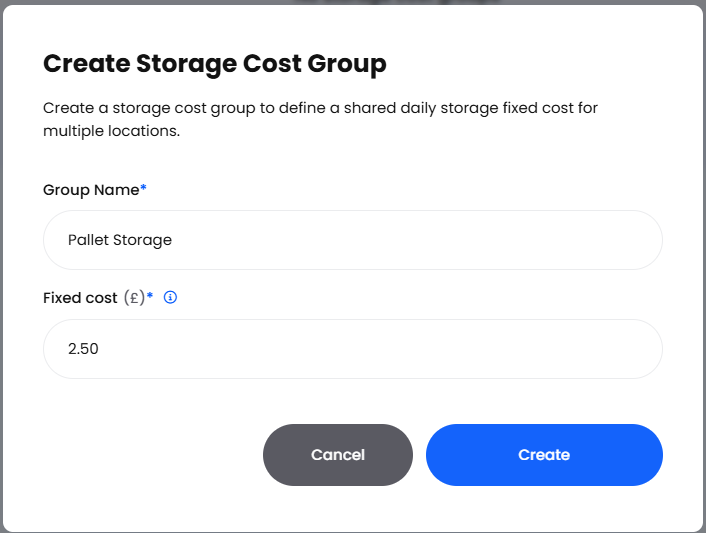
Choose Create Cost Group.
Enter a Group Name. Names have to be unique within your company, so name the group after the kind of space it describes rather than after an aisle.
Enter the Fixed cost. This is what one location in this group costs for one day. It is not a cost per item.
Choose Create. The group is created as Active and can be assigned straight away.
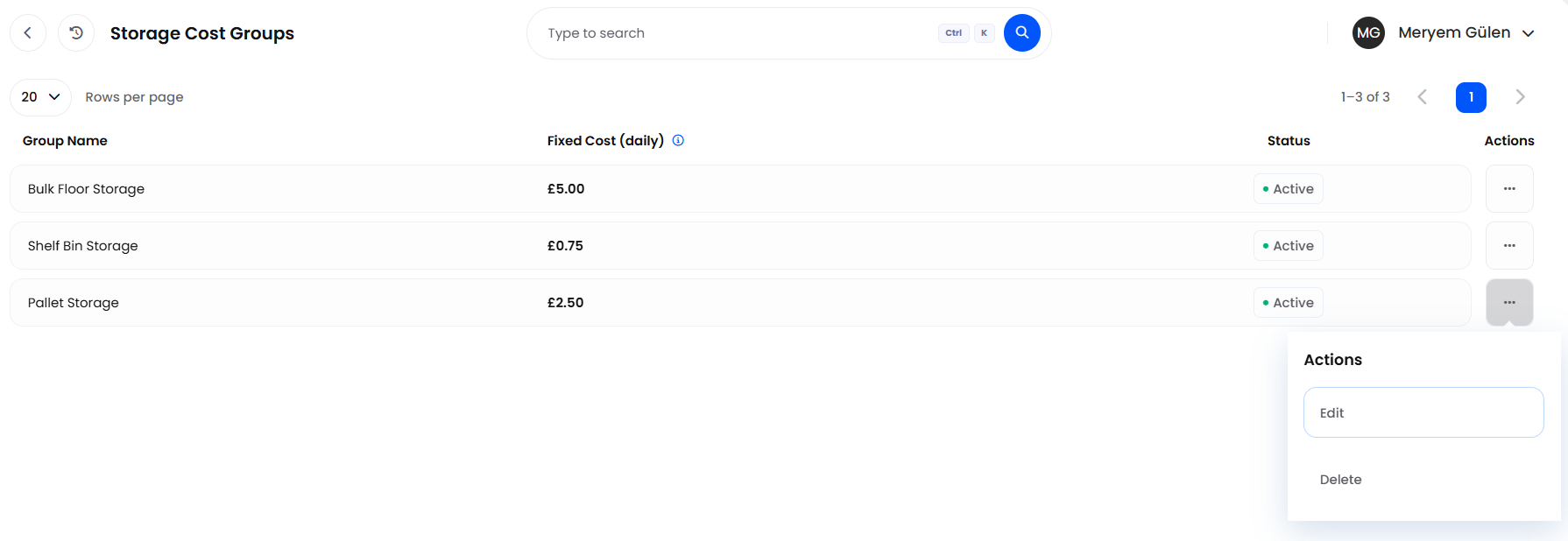
The list itself carries four columns:
If you are setting Helm up from another system, the same operations are available on Helm's public API under the storage-cost-groups endpoints: list, create, read, update, change status and delete, using the storage-cost-groups:read and storage-cost-groups:write abilities.

Assigning Locations to a Group
A group costs you nothing until locations belong to it. There are two routes in, and one difference between them that matters: only the single-location route can also take a location back out of a group.
One Location at a Time
Go to Settings > Warehouses, open the warehouse, then choose Go To Location List.
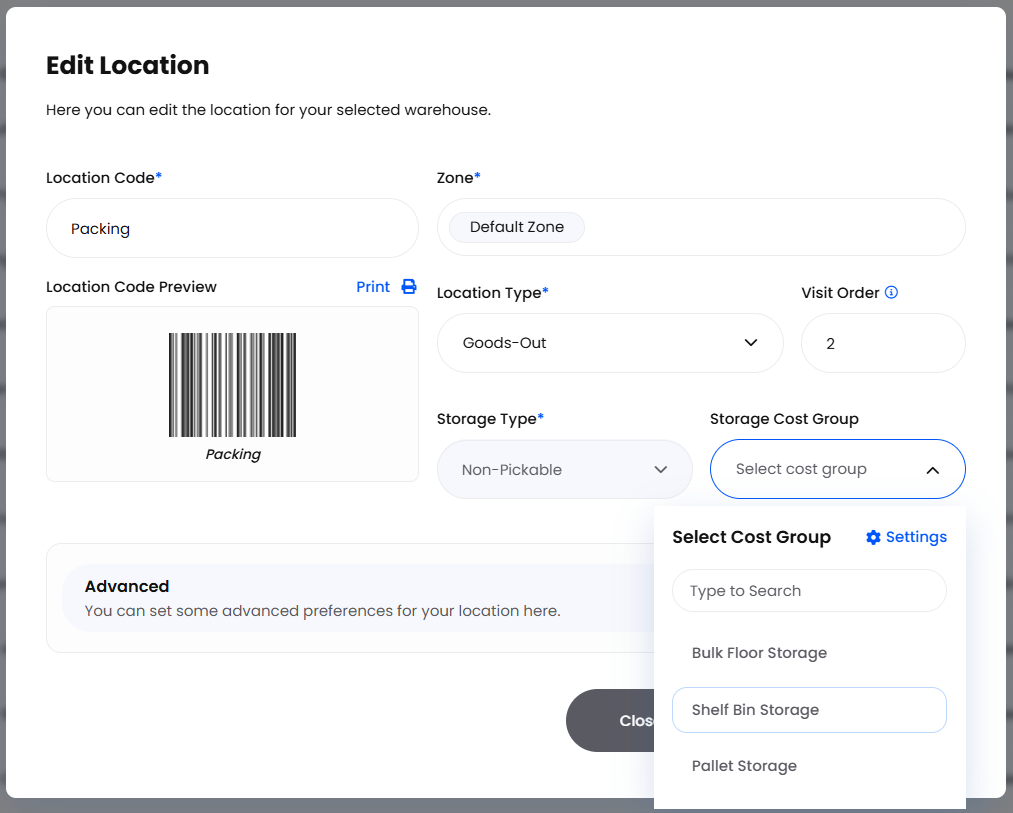
Open the location you want to change. The Storage Cost Group field also appears on Create Location and on the Duplicate Location dialog, so you can set the group as you add locations, and a duplicate carries the original's group over.
To assign: set the Storage Cost Group field, then choose Save Changes. Only active groups appear in the list, and the Settings link on the field opens Settings > Storage Cost Groups in a new tab if you need to create one first.
To unassign: clear the Storage Cost Group field instead, then choose Save Changes.
In Bulk from the Location List
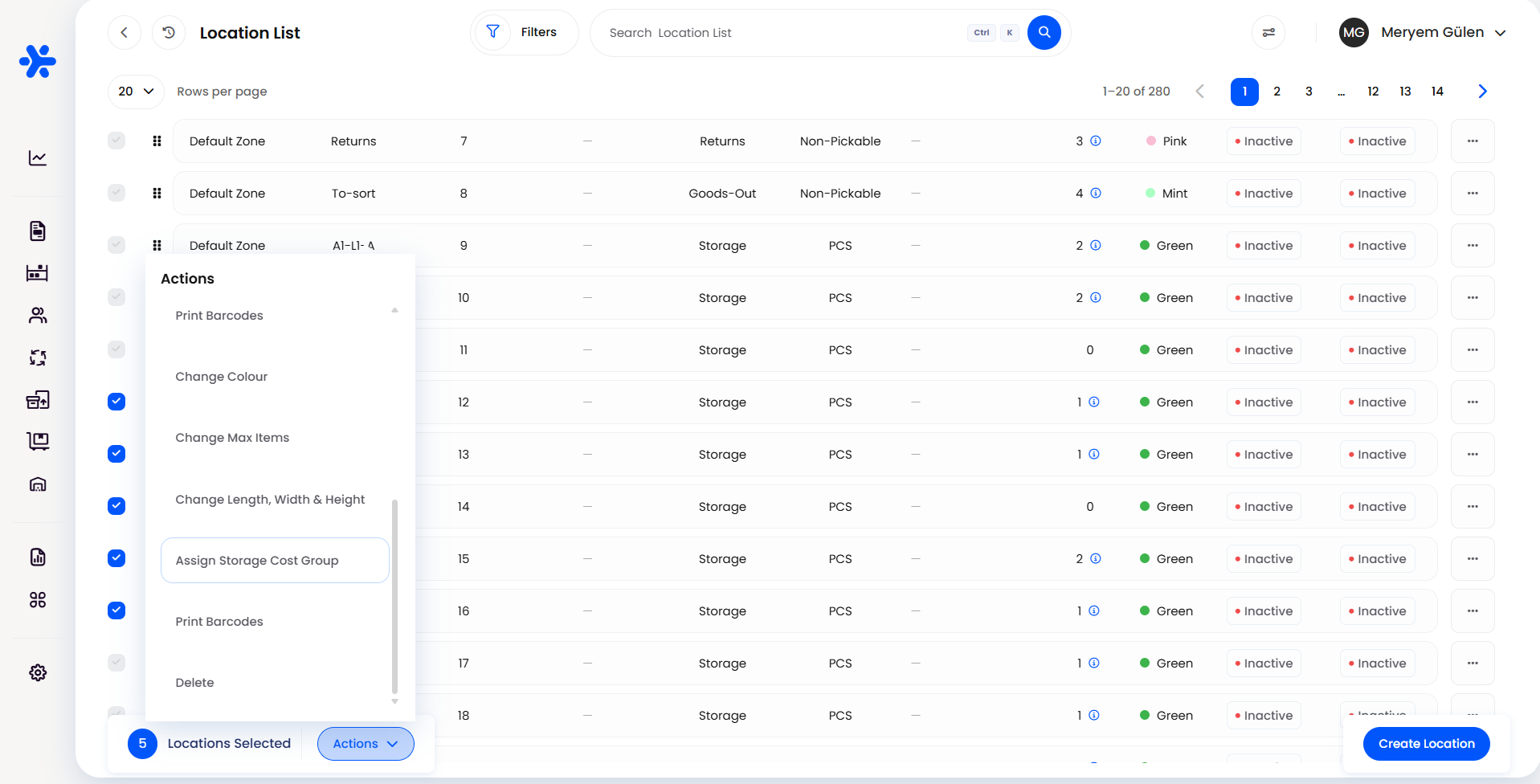
On the location list, tick the locations you want. Selecting everything across pages works, and any rows you untick afterwards are left out.
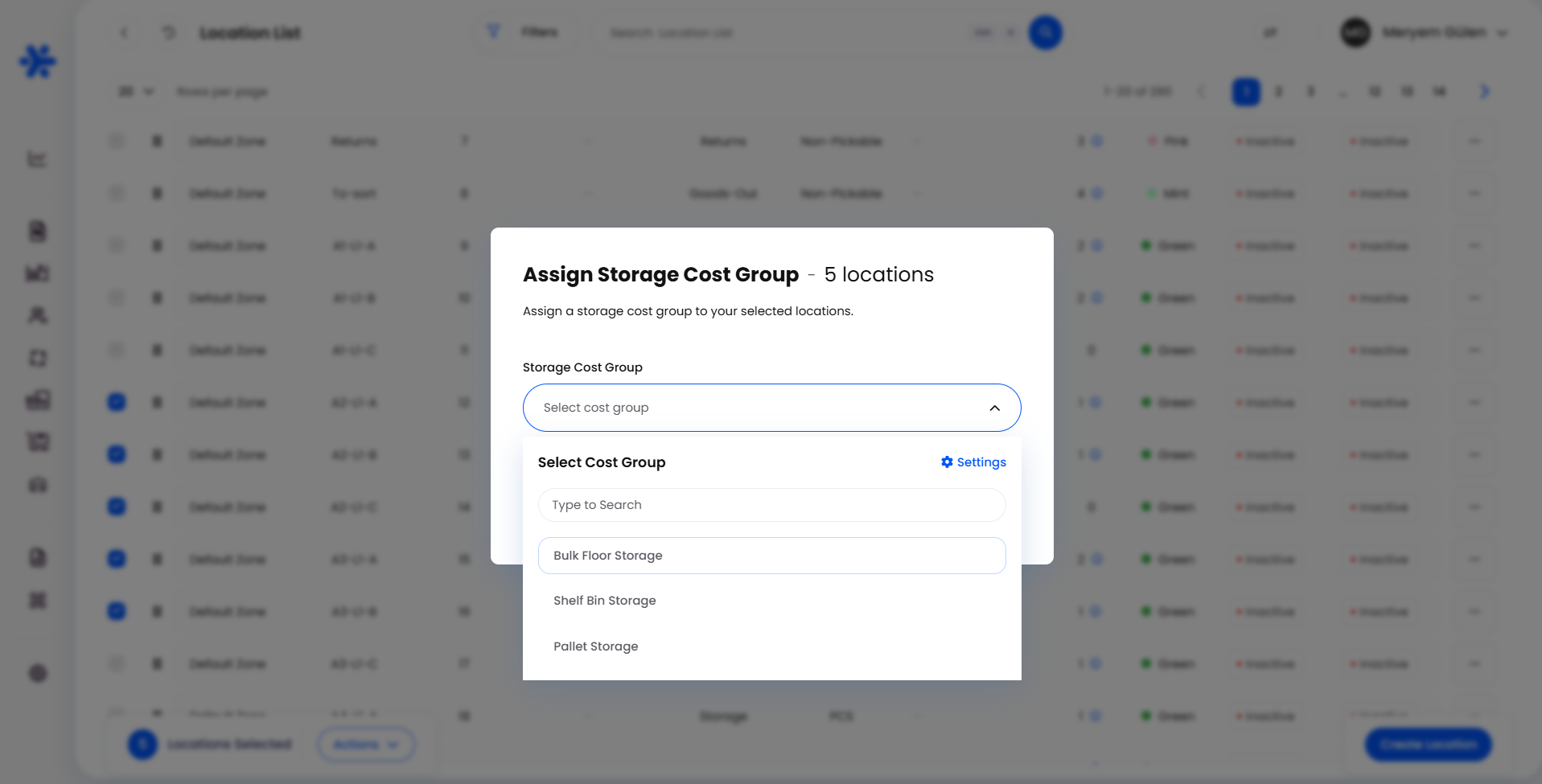
In the selection bar, choose Actions, then Assign Storage Cost Group.
Pick a group in the Storage Cost Group field.
Choose Save Changes. The button stays disabled until a group is picked.
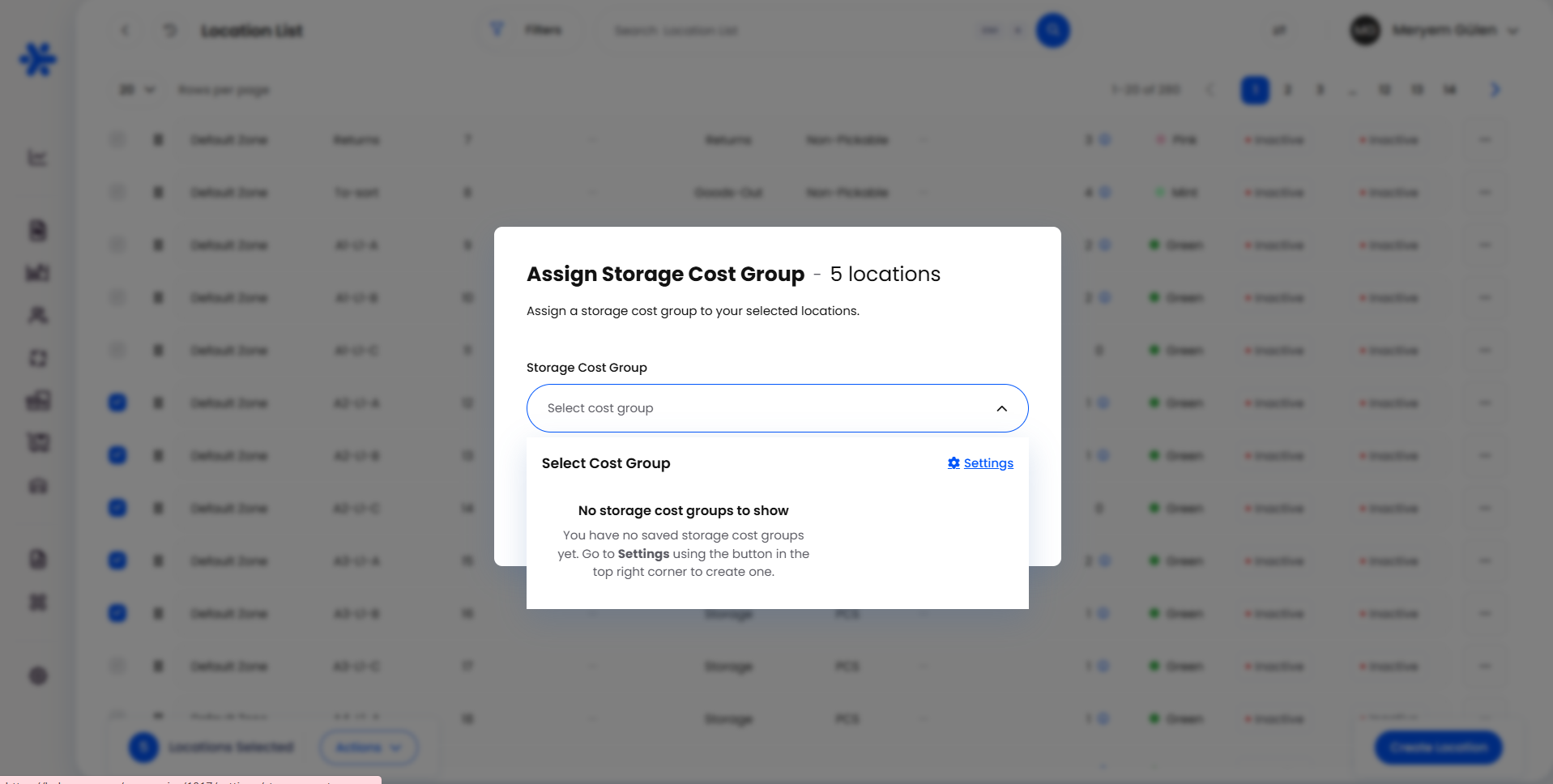
If the field shows No storage cost groups to show, you have no active groups yet. Create one from the Settings link and reopen the dialog.
Helm always queues this work as a background job rather than making you wait, so a selection of thousands of locations does not tie up your screen. It is listed under Assign Storage Cost Group in the Name column of the jobs queue, and the location list refreshes itself once the job finishes. If another location job is already running over the same locations, Helm asks you to wait for it to finish rather than starting a second one.
A job that comes back as partly complete is usually not a fault. The most common reason a location is reported as failed is that it was already in the group you picked: "Selected storage cost group is already assigned to this Location." The assignment you wanted is already in place.
Check your selection before you save. The bulk action cannot remove locations from a group, and it moves locations that are already in a different group into the new one silently. It also assigns system and deletion-protected locations, which cannot be opened for editing at all, so a group left on one of those can never be cleared and will block that group from being set to Inactive for good. The location list is per warehouse, so you can only bulk assign within one warehouse at a time.

How the Daily Cost Becomes Reported Cost
Helm snapshots every location that has a cost group, along with what is stored in it, every three hours, then rebuilds the storage figures from those snapshots. Two useful things follow from that.
A new group or assignment is not instant. Allow a few hours before you go looking for it. Expect today's per-product split to keep moving as stock moves in and out; the day's total does not change unless an assignment or a cost does.
Editing a cost does not rewrite history. Each snapshot keeps the cost that applied when it was taken, so last month's storage cost stays as it was reported. A new price applies from the next snapshot onwards.
Storage then shows up in Dashboard > Cost Dashboard in three places of its own, and is folded into Total Cost and Cost as a Percentage of Revenue along with every other cost:
An assigned location that is empty still carries its full daily cost. That is intended, because rented space costs the same whether you fill it or not, but it does mean your total storage cost can be higher than the sum of the per-product figures. Empty assigned locations are the first thing to check when a storage total looks too high.

Editing, Deactivating & Deleting
Deleting is the one action here that can change your figures quietly. It is not blocked while locations are still assigned, and those locations then stop contributing any storage cost at all and show an empty Storage Cost Group column. Move or clear the locations first, then delete the group.

Example: Charging for Two Kinds of Space
You rent racking and shelving, and your accounts tell you a pallet position costs 1.20 a day and a shelf bin 0.30.
In Settings > Storage Cost Groups you create two groups with those Fixed cost values.
You open the warehouse's location list, narrow it down to your racking locations, tick them, and use Actions then Assign Storage Cost Group to put them in the pallet group.
You repeat that for the shelf locations, and the Storage Cost Group column shows every location's group at a glance.
A rack holding 400 units of one product and 100 of another carries 1.20 for the day; that day's cost is split 0.96 and 0.24 between the two products by quantity.
Within a few hours, Storage Cost per item and the Storage Cost column in Operational Costs both start reporting against your products.

Best Practices & Notes
Set the Cost to Zero Rather Than Unassigning
If you want a set of locations to stop costing anything for a while, edit the group's Fixed cost to zero. It is far quicker than unassigning every location one at a time, and it keeps the grouping intact for when you start charging again.
Scan the Storage Cost Group Column
Locations with no group show an empty cell in the Storage Cost Group column on the location list, and locations that have one show the group name as a link through to Settings > Storage Cost Groups. New locations are not added to a group automatically unless you set the field as you create or duplicate them, so it is worth scanning that column after any racking change; otherwise your storage cost quietly understates what the warehouse is costing you.
Keep the Group Count Down
Every group is a price you have to keep current. A handful of bands that map to how you actually buy or rent space is easier to review than dozens of near-identical groups, and it makes the Cost Dashboard easier to read.

FAQ
Does a fuller location cost more?
No. The location's daily cost is flat. What changes with quantity is how that cost is divided between the products stored there, which affects the per-product figures rather than the total.
Can I reuse the name of a group I deleted?
Yes, straight away. Name uniqueness only counts groups you still have, so a tidy-up does not tie up the names you were using.
Are groups shared across warehouses?
Yes. Groups belong to your company, so the same group can be used by locations in any warehouse. Assignment happens per location, and bulk assignment works one warehouse at a time because the location list is per warehouse.

If a storage figure looks wrong, the Storage Cost Group column on the location list is the fastest place to start. If it still does not add up, contact support with the group name and the date you are looking at.
Was this helpful?
Still need help? Share an idea