Scheduled Replenishments
How to put a replenishment movement on a schedule in Helm WMS, so pick faces are topped up automatically on the days and at the times you choose.
What Scheduled Replenishments Do
Pick faces run down as orders are picked, and someone has to bring stock forward from bulk storage before pickers reach an empty shelf. A scheduled replenishment does that job for you: you build a replenishment movement once, choose the days and times it should run, and Helm creates the movement automatically at each run time, ready for your team to work.
Each run looks at your stock at that moment, so the movement only contains what actually needs moving then. Combined with the Days of stock remaining filter and the Minimum days of stock option, your team tops up the products that are running out, by the amount each one really sells.
Example: your busiest day is Friday. You schedule a replenishment for Friday at 06:30 and again at 14:30. Before the first pick of the day, Helm creates a movement for every product with less than 20 days of stock left, sized to cover a week of sales, and assigns it to your replenishment lead. After lunch it does the same again, so the afternoon wave never finds an empty pick face.

Before You Start
Replenishment set up on your locations: a scheduled replenishment uses the same settings as one you create by hand. Each product needs Source and Replenish locations under Stock Locations, a Replenish Multiple and a Max Level. See Stock Levels & Replenishment and Movements.
Sales history for days of stock: the Days of stock remaining filter and the Minimum days of stock option both work from average daily sales over the last 30 days. A product with no sales in that time has nothing to measure against, so these two options leave it out.
An active user to run it: each run is created on behalf of the user who saved the schedule. Save schedules from an account that will stay active.

How to Schedule a Replenishment in Helm
Go to Warehousing > Movements, choose Create New, then Replenish Movement.
On Choose a Replenish Type, choose Filter Location And Inventory and click Continue. The Create Replenishment Movement window opens.
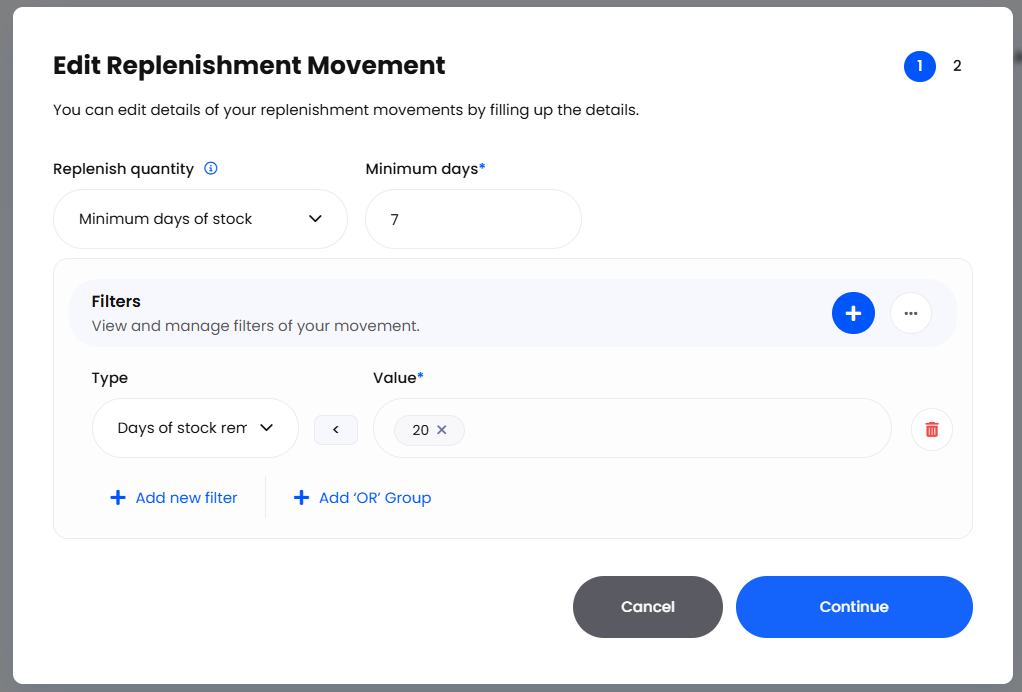
Under Replenish quantity, choose how much each location should receive:
Fill destination tops each location up to its Max Level.
Minimum days of stock adds enough stock to cover a set number of days of sales. Enter the number of days in Minimum days.
Under Filters, click the + button to add a filter, choose a Type, an operator and a Value. To replenish only what is running out, open Show More, choose Days of stock remaining, then Less than and a number of days. Use Add new filter to narrow it further, for example to one zone, or Add 'OR' Group for an alternative set of conditions.
Click Continue.
Under Split Options, choose whether to Split per Zone or Set Maximum Lines, and pick the Assigned Users who should receive each movement.
Turn on Schedule Replenishment Movement.
Choose a Frequency:
Daily: choose the weekdays under Day selection.
Monthly: choose the dates under Day of the month.
Set one or more times under Run time, using the 24-hour clock.
Click Create.
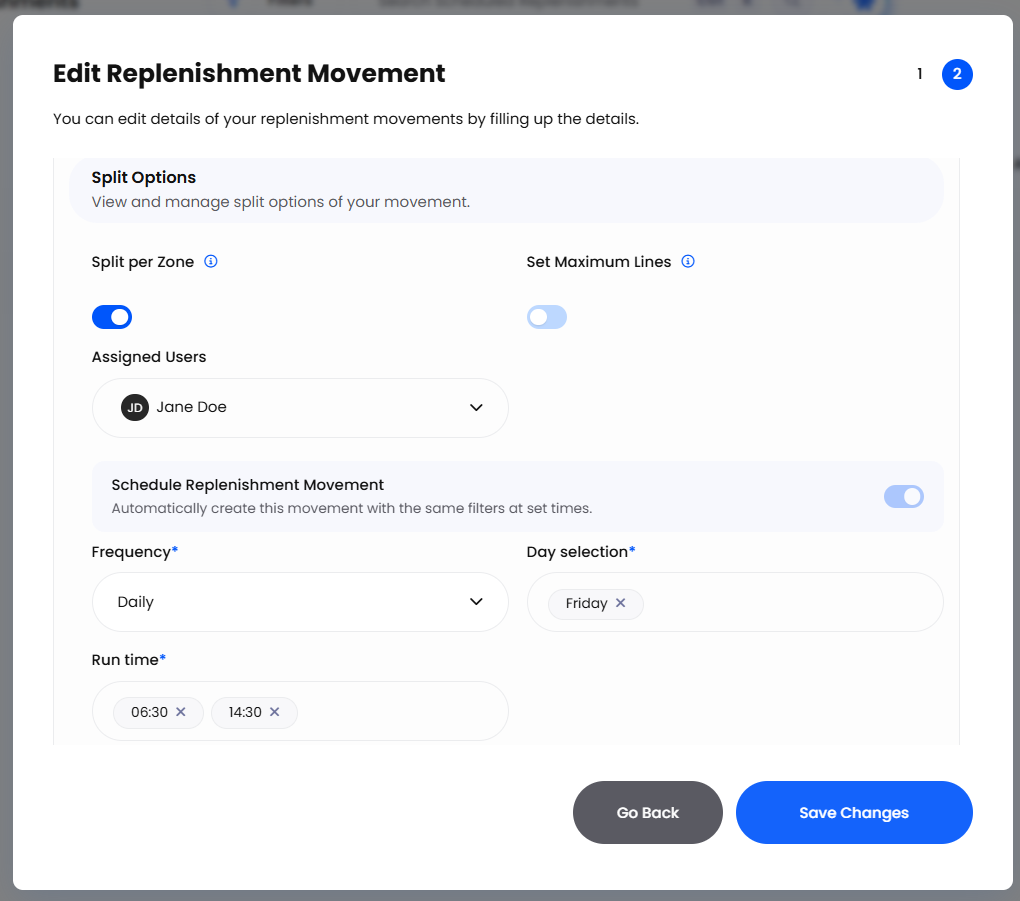
Note: with the schedule turned on, Create saves the schedule and does not create a movement straight away. The first movement appears at the next run time. With the schedule turned off, Create builds a movement immediately, exactly as before.

Choosing How Much to Move
The Days of stock remaining filter divides each product's available stock by its average daily sales over the last 30 days, which tells you how long the stock will last. It is the same figure as the Days Stock Remaining column on the Inventory page.
Tip: pair Days of stock remaining with Minimum days of stock. The filter picks the products that are running out, and the option sizes each top-up to how fast that product sells, so shelves do not fill up with products that barely move.
If there is not enough stock in your Source locations to reach the target, Helm moves as much as there is, as it does for any replenishment.

Managing Your Schedules
On Warehousing > Movements, click Scheduled Replenishments at the top right to see every schedule. Click Movements on the same spot to go back.
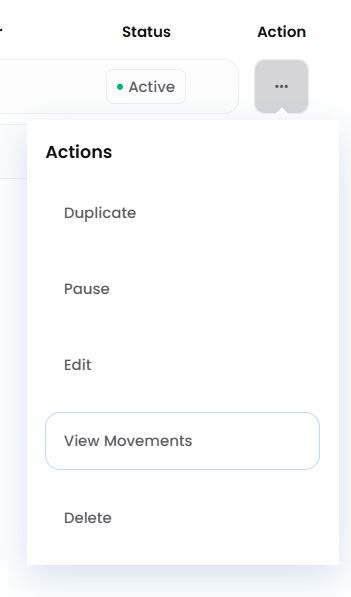
Open the Action menu on a schedule to:
Duplicate it, to start a similar schedule for another zone or another time.
Pause it, to stop it running for a while without losing its settings.
Edit its filters, quantity, users or timing.
View Movements, to see every movement it has created.
Delete it.

What Happens at Each Run
At each run time, Helm checks your filters against the stock at that moment and creates a new Replenish movement with the products it finds. The movement arrives as a Draft, assigned to the users you chose, and your team works it the same way as any other movement: check it, choose Mark as Ready, move the stock and publish.
Time zone: run times follow your company's time zone.
Short months: a monthly schedule set for the 29th, 30th or 31st runs on the last day of any month that is shorter.
Skipped runs: a run is skipped when there is nothing to replenish, when the previous run from the same schedule is still being prepared, or when the user who saved the schedule has been deactivated. Each skip is recorded in the system logs as Scheduled Replenishment Skipped, with the reason.
Note: a scheduled movement is not released to the floor on its own. Make sure someone checks the new Draft and marks it as ready, especially before an early pick.

Example: Morning and After-Lunch Top-Ups
A face serum sells around 30 units a day. Its pick face has a Max Level of 240 and a Replenish Multiple of 24, and a pallet sits in bulk storage.
You create a replenishment with Minimum days of stock set to seven, and a Days of stock remaining filter of less than 20.
You schedule it Daily on Monday, Wednesday and Friday, at 06:30 and 14:30, assigned to your replenishment lead.
On Wednesday at 06:30 the pick face holds 90 units. Seven days of sales is 210 units, so Helm adds a line for 120 units: five cartons of 24, well under the Max Level.
Your lead opens the Draft, marks it as ready and moves the stock before the first pick.

Best Practices & Notes
Run Before Your First Wave
Set the first run time early enough for the movement to be checked, released and worked before picking starts. A second run after your busiest wave keeps the afternoon covered.
Keep Each Schedule Focused
Smaller schedules, such as one per zone, give each person a manageable job. Duplicate a schedule and change its zone filter rather than building each one from scratch.
Pause Rather Than Delete
For a stocktake, a quiet week or a layout change, Pause the schedule. Its filters and timing are kept for when you need it again.
Keep Location Settings Up to Date
A schedule is only as good as the Max Level and Replenish Multiple on your locations. Review them when a product's sales change or it moves to a new pick face.

FAQ
Why did my schedule not create a movement?
Why did my schedule not create a movement?
Either nothing matched your filters at that moment, the previous run was still being prepared, or the user who saved the schedule has been deactivated. Check the system logs for Scheduled Replenishment Skipped to see which.
Does saving a schedule create a movement straight away?
Does saving a schedule create a movement straight away?
No. With Schedule Replenishment Movement turned on, Create only saves the schedule. The first movement is created at the next run time.
Can I stop a schedule for a few days?
Can I stop a schedule for a few days?
Yes. Choose Pause from the Action menu on the Scheduled Replenishments list. Nothing is created while it is paused, and its settings are kept.
Why is a product I expected missing from the movement?
Why is a product I expected missing from the movement?
It may already be at or above its target, it may have had no sales in the last 30 days, or there may be no stock in its Source locations. Check the product's Stock Locations panel and its Days Stock Remaining figure.
Which time zone do run times use?
Which time zone do run times use?
Your company's time zone, so 06:30 means 06:30 in your warehouse.

If a schedule still is not behaving as you expect, contact the Helm support team with the schedule's details and the time of the run.
Was this helpful?
Still need help? Share an idea