Welcome to Helm
Your first steps in Helm: register, confirm your account from the welcome email, complete the company setup, try demo mode and work through the Setup Wizard.
What Happens When You Join Helm
Getting started with Helm takes five stages: you register, confirm your account from the email Helm sends you, complete a three-step company setup, try demo mode if you want to, and then work through the Setup Wizard to connect your channels, couriers and warehouse.
Example: a small online shop registers on Monday morning, sets its password from the welcome email, adds its logo and units, invites its warehouse manager and spends half an hour in demo mode trying orders on sample data. In the afternoon it connects its sales channel and its courier through the Setup Wizard.

Before You Start
An email address you can open straight away, because Helm sends your setup link there.
Your company name, exactly as you want it to appear in Helm, and your website address.
Your logo (best at 500 x 500 px).
Your country, language, time zone, currency, and the weight and dimension units you work in.
The email addresses of colleagues you want to invite, and the permission group each person needs.
Step 1: Register Your Account
Open the Helm registration page. You can also reach it from the Helm login page by clicking Not registered yet? Create an account.
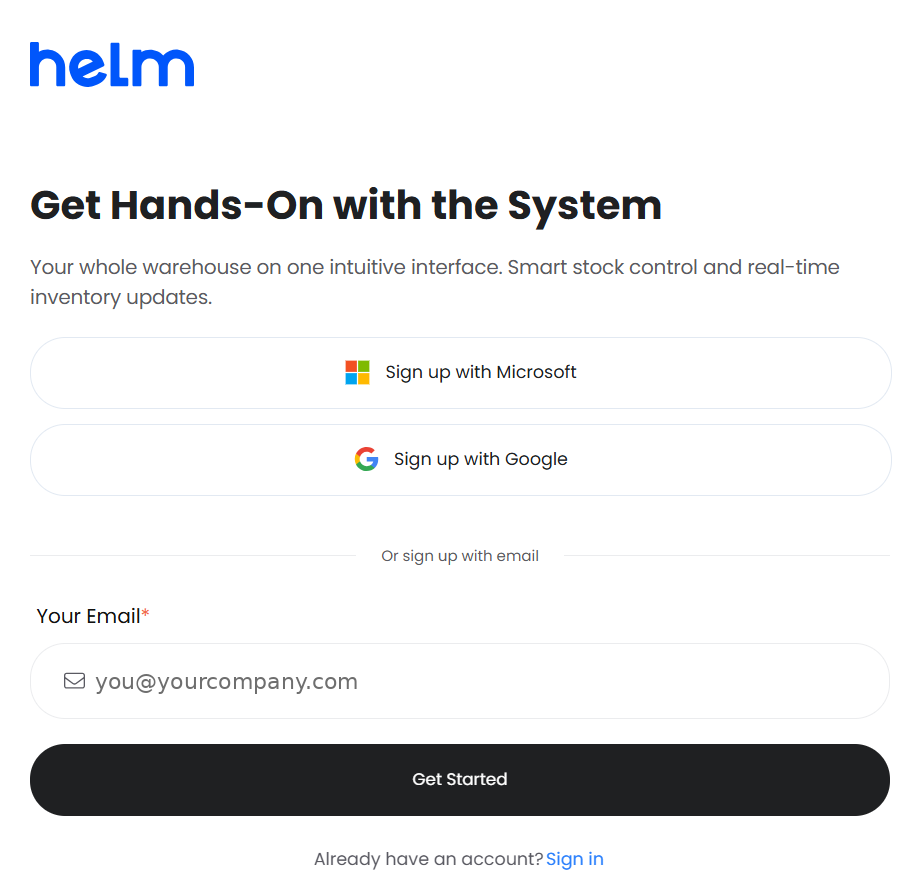
Choose Sign up with Microsoft or Sign up with Google, or enter your email address and click Get Started.
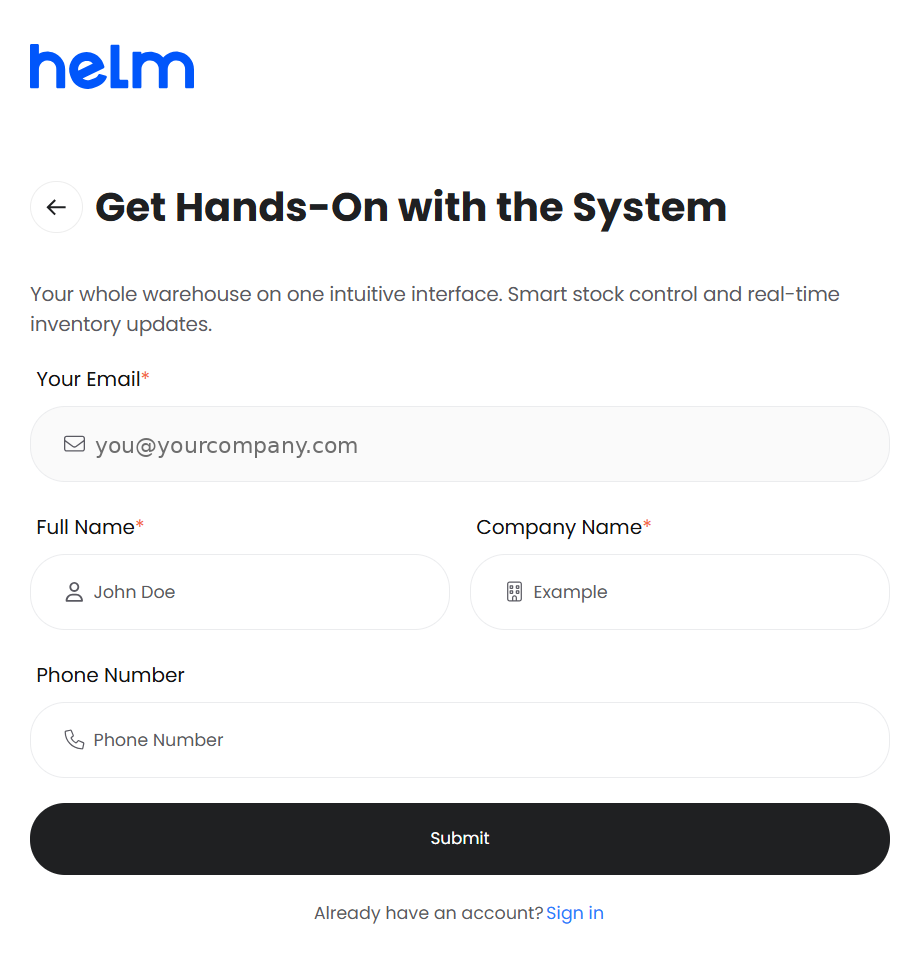
Enter your Full Name and Company Name. Phone Number is optional.
Click Submit. A thank-you page asks you to check your inbox.
Step 2: Confirm Your Account from Your Email
Helm sends you two emails:
Welcome to Helm - Get Started, which takes you on to set up your account.
Welcome to Helm - Book a Session, with a Book a Time button if you would like a 45 to 50 minute call with the Helm team.
Open the Get Started email and click Get Started. Then:
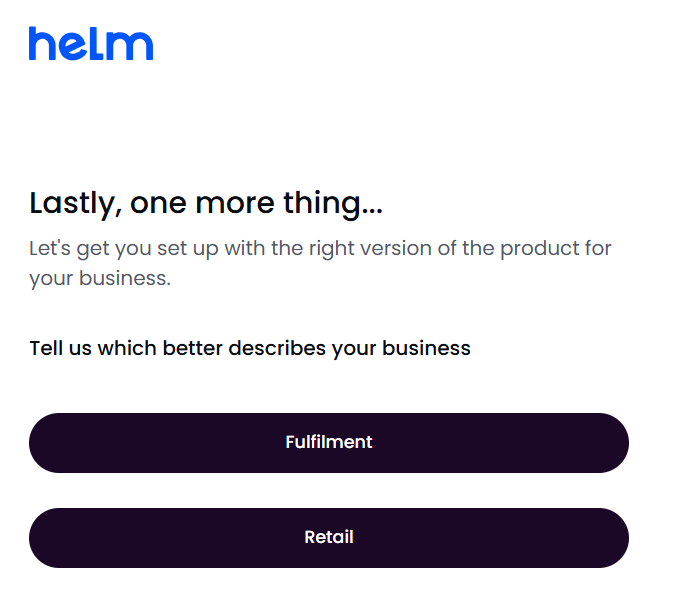
Under Tell us which better describes your business, choose Fulfilment or Retail.
On Set Password, enter and confirm your password.
Check your company name under Final Opportunity to Edit Your Company Name. Click Change if it needs correcting.
Tick the box to accept the terms and conditions, then click Confirm.
On the All done! page, click Get Started and sign in with your email address and new password.
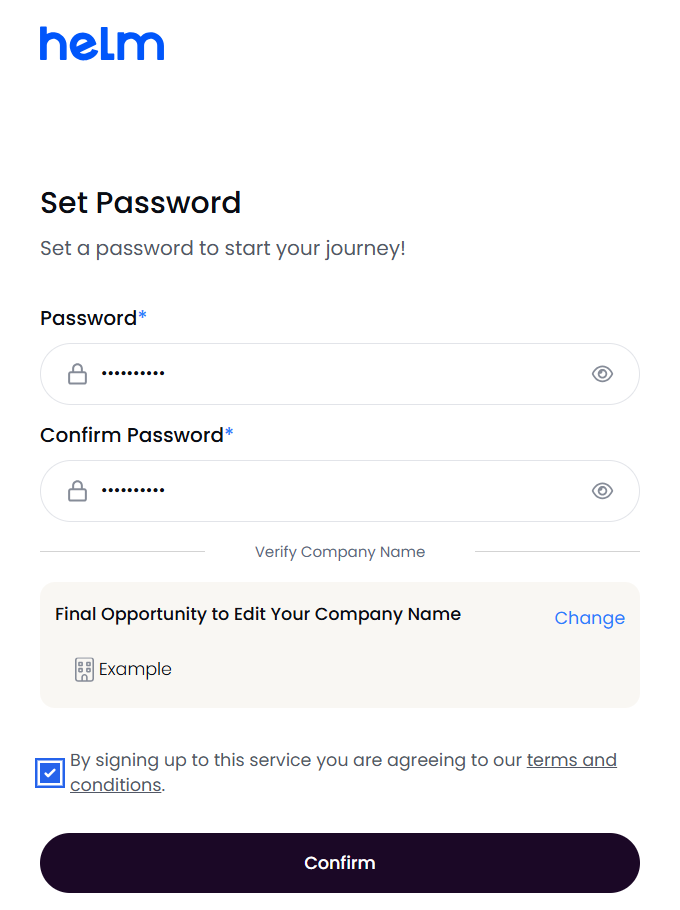
Check your company name before you confirm. The Set Password page is your last chance to change it during registration.
24-hour demo period: once your password is set, Helm tells you that your 24-hour demo period has begun. If you would like help deciding what comes next, use the Book a Session email to arrange a call with the team.
Step 3: Complete the Company Setup
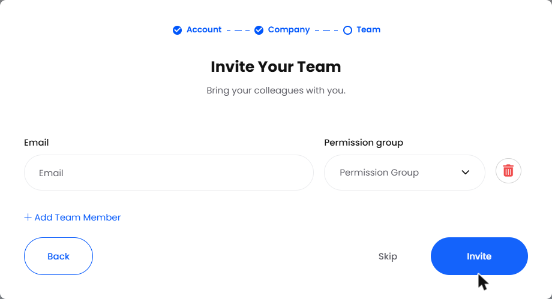
The first time you sign in, Helm welcomes you with the message that your WMS is three steps away. Click Get Started and work through the three screens. A progress bar at the top shows Account, Company and Team.
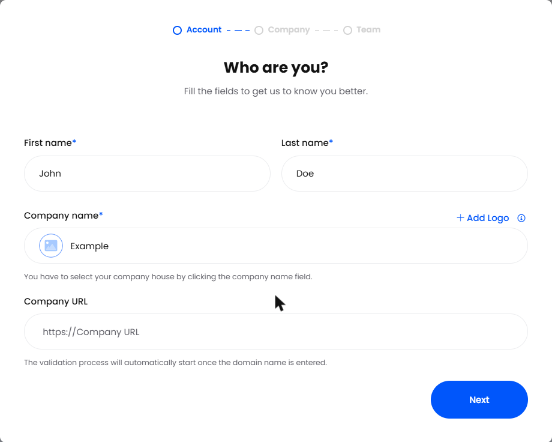
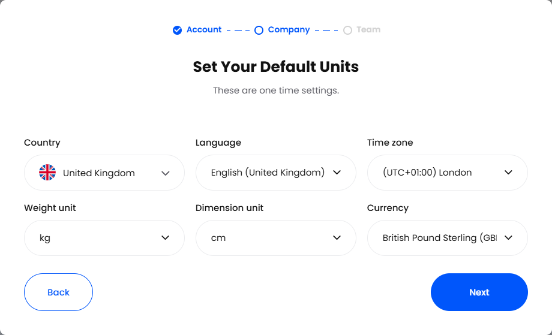
Check your units carefully. Helm treats the default units as one-time settings, and they are used for weights, dimensions and prices across the system.
Choosing a Permission Group
Each person you invite needs a permission group. It decides what they can see and do:
For more on inviting and managing people, see Users.
Step 4: Explore Demo Mode (Optional)
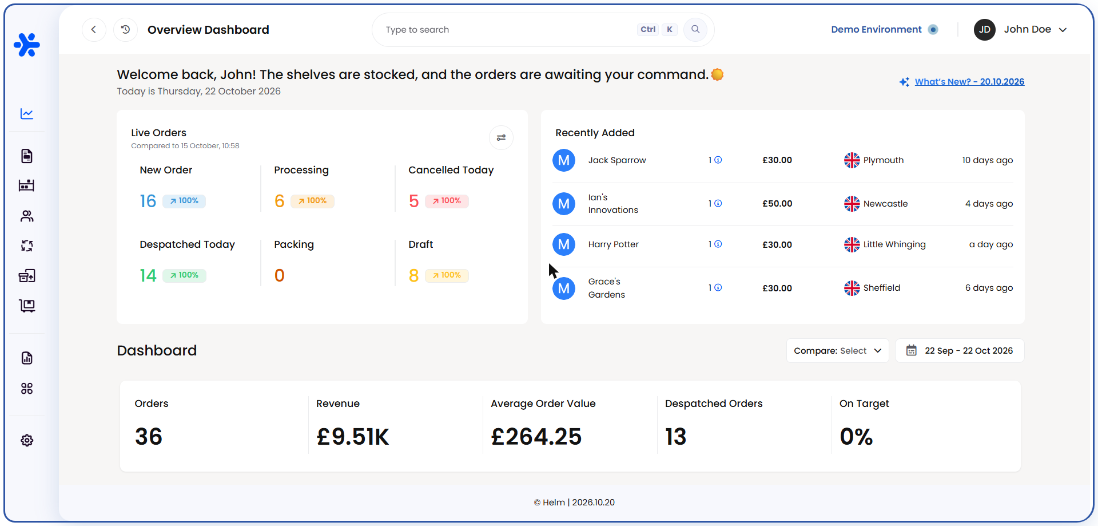
Next, the Welcome to Helm! window offers a short video and a button to enter demo mode. Click Start Exploring to switch to a separate demo environment filled with sample orders, customers and stock.
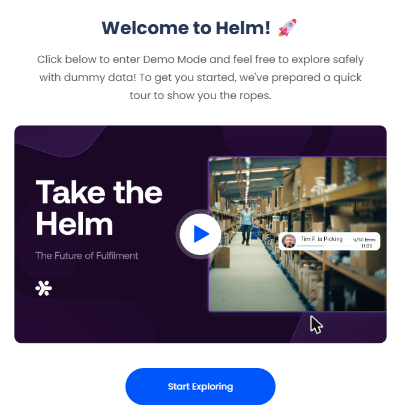
A three-step tour shows you the sidebar, the search bar and the account menu.
A blue border around the screen and a Demo Environment label at the top show that you are in demo mode.
Everything you do in demo mode stays there. Your real account and data are not changed.
The sample data can take a few seconds to appear the first time.
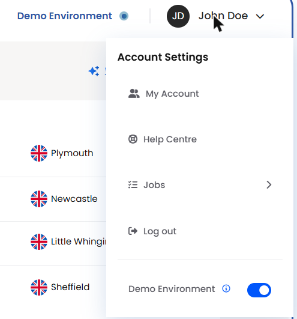
To go back to your live account, open the account menu in the top-right corner, turn off Demo Environment and click Confirm. You can switch demo mode on again from the same menu, or reset the sample data from Settings > System Settings > Demo Environment Settings.
Tip: demo mode is the safest place to try a full order journey, from a new order through picking to despatch, before you connect your real channels.
Step 5: Work Through the Setup Wizard
Back in your live account, Helm shows Time to Set Up Your Warehouse with a short welcome video from the team. Click Get Started to open the Setup Wizard.
The Setup Wizard button at the top of the screen shows your progress (for example 0/5). Click it at any time to see the checklist and jump to a step. Each step opens the right page and shows tips, with Learn More for the full guide.
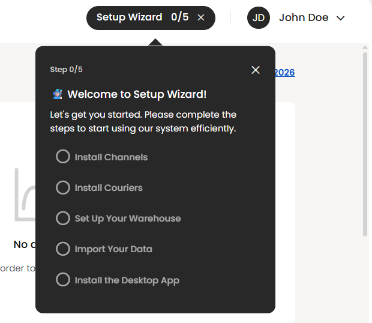
When every step is done, Helm shows a Congratulations! message and the Setup Wizard button disappears.
Skipping counts as done. Each Skip ticks off that step, and once all five are ticked the Setup Wizard closes for good. Only skip a step if you plan to do it later yourself from Settings.
Basic or Full? Your warehouse mode decides whether Helm tracks stock as one figure per product (Basic) or by location, with picks and movements (Full). Read Understanding Warehousing Modes in Helm before you change it.
Best Practices
Use an inbox you can reach. Your setup link arrives by email, so register with an address you can open straight away.
Get the company name and units right first time. Both are hard to change once setup is finished.
Give people the smallest permission group they need. You can always move someone to a bigger role later.
Practise in demo mode first. Try orders, picking and despatch on sample data before your first live order arrives.
Work through the Setup Wizard rather than skipping it. Channels bring in orders, couriers let you ship them, and the warehouse and data steps make sure stock is right.
FAQ
I did not receive the welcome email. What should I do?
I did not receive the welcome email. What should I do?
Check your spam or junk folder and make sure you entered the right address. If it still has not arrived, contact Helm Support.
Why did I get two emails?
Why did I get two emails?
The Get Started email sets up your account. The Book a Session email lets you book an optional call with the Helm team. You only need the Get Started email to continue.
Can I sign up with my Microsoft or Google account?
Can I sign up with my Microsoft or Google account?
Yes. Choose Sign up with Microsoft or Sign up with Google on the registration page instead of entering your email address.
Do I have to invite my whole team straight away?
Do I have to invite my whole team straight away?
No. Click Skip on the Invite Your Team screen and invite people later from Settings > Users. See Users.
Does demo mode affect my live data or reports?
Does demo mode affect my live data or reports?
No. Demo mode runs in a separate environment with sample data. Nothing you do there changes your real account.
I skipped the Setup Wizard. How do I finish my setup?
I skipped the Setup Wizard. How do I finish my setup?
Every wizard step has its own page: sales channels on your store page, couriers on the Couriers page, and the warehouse, import and Despatch Terminal steps from Settings. Use the Read more links in the Setup Wizard table above.
Can I change my warehouse mode later?
Can I change my warehouse mode later?
Yes, from Settings > Company Settings > Warehouse. Moving from Full to Basic permanently deletes warehouse data such as locations, picks and movements. See Understanding Warehousing Modes in Helm.
Once these steps are done, Helm is connected to your sales channels and couriers, your team is in, and you are ready to process your first orders.
Was this helpful?
Still need help? Share an idea