Document Rules
Document rules in Helm WMS decide which template each order's paperwork uses, and can print it automatically alongside another document, such as a shipping label or packing slip. This article shows how to set one up and switch it on.
How Document Rules Work in Helm
Document rules make sure the right paperwork goes in the right parcel without anyone having to think about it. A rule ties a document, in a set size and template, to the orders that need it, and can print it automatically alongside another document, such as a shipping label or packing slip.
Every document rule has two parts:
The document: its Document Type, Document Size and the Print Template to use.
The parameters: Filters deciding which orders get this document, and optionally Print on other actions, which prints it automatically alongside another print job.
Example: your gift orders arrive tagged "Gift". A document rule assigns a Gift Note on your branded template to every order with that tag and prints it with the packing slip, so the note is ready to go in the parcel with the slip.

Before You Start
Where to find it: go to Settings > Despatch Settings > Document Rules.
Templates ready: a rule uses one of your existing print templates. Create or edit templates in Settings > System Settings > Print Template Settings, or follow the Template Settings link inside the rule.
Printers connected: for documents to print automatically, the printers at your packing benches need to be connected to Helm.
Heads up: a new document rule is saved as Inactive. It does nothing until you switch it on, which gives you a chance to check it first.

How to Create a Document Rule in Helm
Creating a rule takes two short steps in one window.
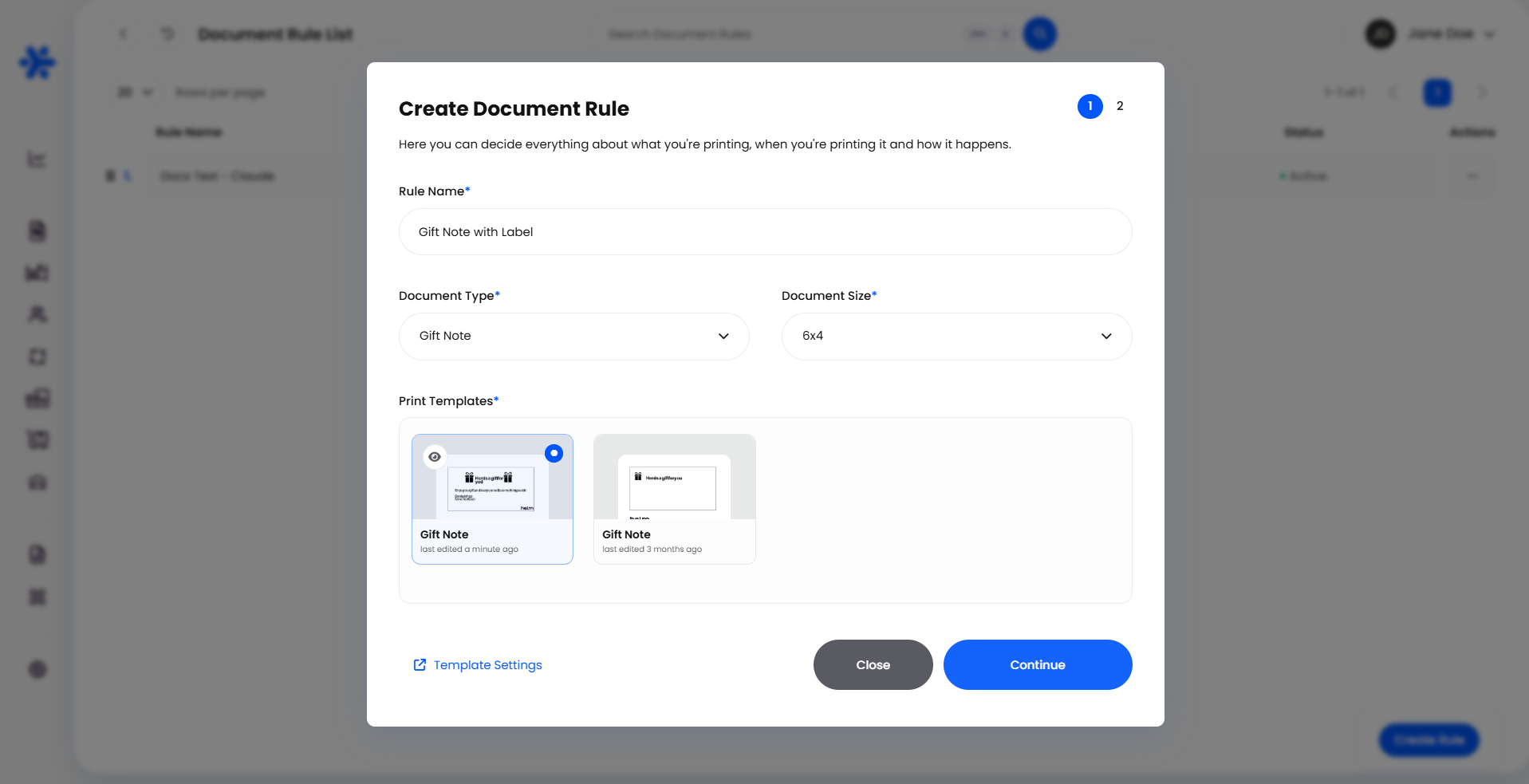
Step 1: Choose the Document
On the Document Rule List, click Create Rule.
Enter a Rule Name that says what the rule does, for example "Gift Note with Packing Slip".
Choose the Document Type.
Choose the Document Size. Helm then shows the available Print Templates.
Click the template you want. Use the eye icon on a template to preview it first.
Click Continue.
Step 2: Add Document Parameters
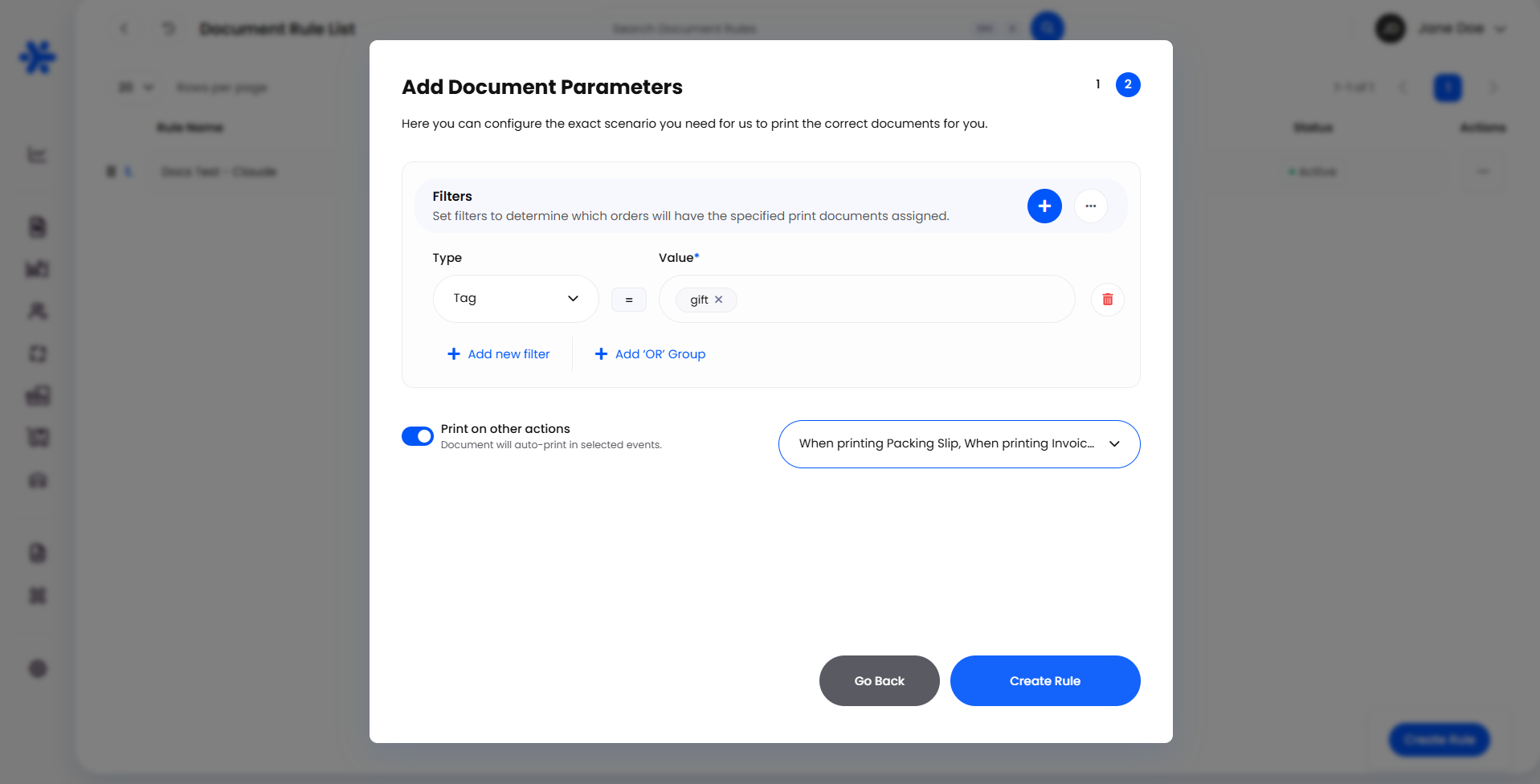
Under Filters, choose a Type, an operator and a Value for each condition an order must meet.
Use Add new filter for another condition the order must also meet, or Add 'OR' Group for an alternative set of conditions.
To print the document automatically, turn on Print on other actions and choose one or more events from Select Event.
Click Create Rule.
Back on the list, click the rule's Status to set it to Active.

Document Types & Sizes
Note: pick the size that matches the paper or labels in your printer. A 6x4 packing slip can share a label printer with your shipping labels, while A4 needs a standard printer.

Printing Automatically
With Print on other actions turned on, the document prints by itself whenever one of the events you select happens for a matching order. The events on offer depend on the Document Type, so only the ones that apply are listed:
Tip: When printing a Shipping Label is often the most useful choice where it is offered, because the label is printed at the packing bench at exactly the moment the paperwork is needed.

Building Filters
Filters decide which orders the document is assigned to. They work the same way as in shipping and order rules:
Filters in one group must all be true. Each Add new filter narrows the rule further.
'OR' groups are alternatives. The rule applies if any one group matches in full.
One filter can hold several values. Tick as many as you need, then click Apply.
Filters that are especially useful for paperwork include Shipping Country (for example, customs paperwork on international orders), Store And Channel (a branded slip per store), Courier, Tag, Gift Note, Order Total, Item Country of Origin and Item HS Code. Click Show More at the bottom of the Type list to see every filter available.

Managing Your Document Rules
The Document Rule List shows each rule's Rule Name, Rule Parameters, Type, Size and Status.
Switch a rule on or off: click its Status to move between Active and Inactive. An inactive rule keeps all its settings.
Change a rule: click the ... button in the Actions column and choose Edit. The same two steps open with your settings filled in; finish with Save Changes.
Try a variation: choose Duplicate from the same menu and adjust the copy.
Reorder: drag a rule by its handle.
Remove a rule: choose Delete.
Note: if you might need a rule again, set it to Inactive rather than deleting it.

Example: A Gift Note With Every Gift Order
Click Create Rule and name it "Gift Note with Packing Slip".
Set Document Type to Gift Note, choose the Document Size your gift cards are printed on, and select your gift note template.
Click Continue.
Add a filter with a Type of Tag, the operator Is and a Value of "Gift".
Turn on Print on other actions and select When printing Packing Slip.
Click Create Rule, then set the rule's Status to Active.
From then on, every gift order's note prints at the bench with its packing slip, and orders without the tag are left alone.

Best Practices & Notes
Check Before You Activate
New rules start Inactive. Use that moment to preview the template and reread your filters before the rule reaches the packing bench.
One Rule per Document Need
A rule called "Customs Paperwork, Non-UK" is easy to find and fix. A single rule trying to cover several documents is not.
Match Size to Printer
Choose sizes your packing benches can actually print, so an automatic print never waits on the wrong paper.

FAQ
Why is my new document rule not doing anything?
Why is my new document rule not doing anything?
New rules are saved as Inactive. Click the rule's Status on the Document Rule List to make it Active.
I cannot see the template I want. Where is it?
I cannot see the template I want. Where is it?
Helm shows the templates available for the type and size you have chosen. Check both, or open Template Settings to create the template you need.
Can one document print on more than one event?
Can one document print on more than one event?
Yes. Tick as many events as you need in Select Event.
How do I change a rule after creating it?
How do I change a rule after creating it?
Click the ... button on its row, choose Edit, make your changes and click Save Changes.

If your documents are still not printing as expected, contact Helm support with the rule name and an example order number.
Was this helpful?
Still need help? Share an idea