Suppliers
Set up the suppliers you buy from in Helm WMS and link them to your products with their codes, costs and order rules, so every purchase order starts out right.
What Suppliers Do in Helm
A supplier record holds everything about a business you buy from: how to contact them, where they are, and the terms they trade on. Linking that supplier to a product adds what applies to that one product: their code for it, what it costs, the smallest quantity they accept and the pack size they ship in.
Purchase orders read from both. Set the details once and every order for that product fills in the right code and cost, and warns the buyer when a quantity does not suit the supplier.
There are two places to work:
Purchasing > Suppliers for the supplier themselves.
The Suppliers section on a product for that product's link to each supplier.
Example: you buy a cotton T-shirt from Northfield Textiles. They charge £9.36 a unit, ship in inner packs of 10 and only take orders of 24 units or more. You set those three things once on the T-shirt's supplier row. From then on every purchase order for it fills in their Supplier Code and the £9.36 cost, and if someone types 25 Helm flags it, because 25 is not a whole number of packs.

Before You Start
You need access to Purchasing. Suppliers sits under Purchasing in the main menu. If it is missing, ask whoever administers Helm for your business to check your permission group.
Set up pack sizes first if you buy in packs. The Order Multiple on a product's supplier row is chosen from that product's containers, such as 1-PCS, 10-Inner or 60-Outer. See Group Products, Families & Containers.
Have the supplier's terms to hand. Their currency, usual delivery time, minimum order value, delivery charge and payment terms all have a place on the supplier record.

How to Add a Supplier in Helm
Go to Purchasing > Suppliers and choose Add Supplier at the bottom right.
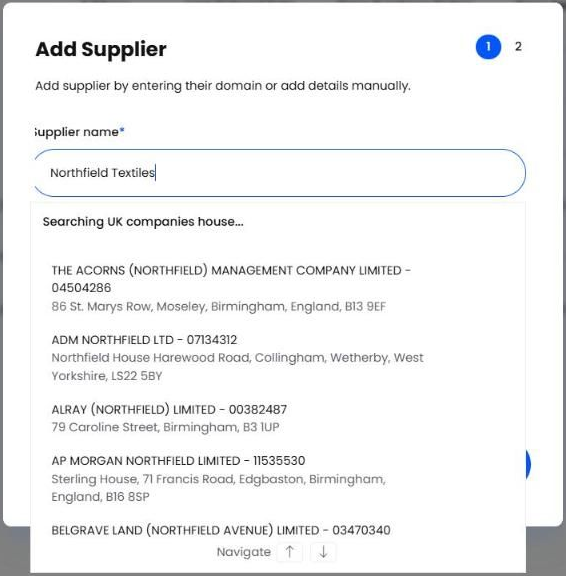
In Supplier name, start typing. Helm searches the official register of UK companies as you type: pick the right result and Helm fills in the name, company registration number and registered address for you. Otherwise, type the name in full to add it by hand.
Enter the Supplier URL if they have a website. Helm checks the domain as soon as you enter it and shows Verified or Not Found.
Add an Email and Phone number.
Choose Add Supplier. Helm creates the supplier and moves on to the address.
Check the address, or use Search address to find it, then choose Add Address. If you do not have it yet, choose Skip and add it later.
Helm then opens the supplier's page, ready for the rest of their details.
Note: add the address before you raise purchase orders with this supplier, because Helm uses it on them.

Completing the Supplier's Page
Open any supplier from the list to see their page. Four tiles across the top give you the headline figures: Open Purchase Orders, Open Deliveries, Total Order Value and Value Due for Delivery. Below them, each part of the record has its own section; use the pencil to edit and the + to add.
Purchasing Settings
These are the supplier's standing terms. Choose the pencil on Purchasing Settings to open Edit Purchasing Settings.
Tip: add the people you deal with under Supplier Contacts, and anything worth remembering, such as a cut-off time for next-day orders, under Internal Notes. Whoever picks up the account next has it all in one place.

Linking a Supplier to a Product
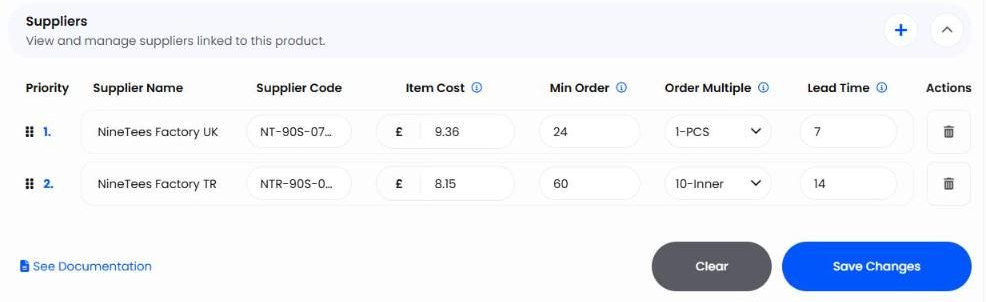
A product can be bought from more than one supplier. Each one gets its own row in the product's Suppliers section, with terms that apply to that product only.
Go to Inventory and open the product.
Scroll to Suppliers and choose + in the section header.
Search for the supplier and choose Add Supplier.
Fill in the row: Supplier Code, Item Cost, Min Order, Order Multiple and Lead Time.
Choose Save Changes. Clear throws away anything you have not saved.
Note: the supplier has to exist under Purchasing > Suppliers before you can link it, and each supplier can only be linked to a product once.

How Helm Uses Supplier Priority
Priority decides which supplier a product is ordered from when Helm suggests a purchase order from your stock levels. Go to Purchasing > Purchase Orders, choose Create and set Purchase order type to Inventory Demand. Helm lists the suppliers with products to reorder, with the Estimated Demand for each.
Priority Supplier Only is ticked by default, so each product counts only towards its priority 1 supplier. If your main supplier cannot deliver, clear it: Helm then counts each product against every supplier it is linked to, so you can order it from a back-up instead.
Reorder levels themselves are set in Purchase Order Controls on the product. See Stock Levels & Replenishment.

Archiving & Removing Suppliers
Archive a supplier you no longer buy from. Their history stays with your purchase orders and deliveries, and they drop out of your everyday list.
On Purchasing > Suppliers, open Actions on the supplier's row and choose Archive Supplier. To archive several at once, tick them and choose Archive Suppliers.
If the supplier is still linked to products, Helm says how many. Choose View linked items to check them, or Remove from Linked Items & Archive to unlink them and archive in one go.
Heads up: archiving a linked supplier removes it from those products' Suppliers sections. If you bring the supplier back, link them to the products again.
Archived suppliers sit behind the archive icon next to Filters. From there you can Unarchive Supplier or delete the record. If Archive Supplier is greyed out, the supplier still has open purchase orders or deliveries: close those off first.

Best Practices & Notes
Search Before You Add
One record per supplier keeps their purchase orders, deliveries and spend together. Search the list first, especially when several people add suppliers.
Keep Costs on the Product
Item Cost on the product's supplier row is what every new purchase order picks up. Update it when the supplier's prices change, rather than correcting each order by hand.
Match Order Multiple to How the Supplier Packs
If a supplier only ships in cartons of 60, set up a 60-unit container on the product and choose it as the Order Multiple. Buyers then see a warning before an order goes out in odd quantities.
Keep a Back-Up Supplier Linked
Link a second supplier at priority 2 for products you cannot afford to run out of. When the main supplier is out of stock, clear Priority Supplier Only on an Inventory Demand purchase order and order from the back-up instead.
Fill In Purchasing Settings Early
Lead time, minimum order value and payment terms all feed into purchase orders. Setting them when you add the supplier means the first order is as accurate as the hundredth.

FAQ
Can a product have more than one supplier?
Can a product have more than one supplier?
Yes. Add each one in the product's Suppliers section and drag them into your order of preference. Priority 1 is your main supplier.
Where does the Unit Cost on a purchase order come from?
Where does the Unit Cost on a purchase order come from?
From the Item Cost on the product's row for that supplier. You can still change it on the purchase order line.
Will Helm stop me ordering below the minimum or outside the pack size?
Will Helm stop me ordering below the minimum or outside the pack size?
No. Helm warns you on the purchase order line but lets you carry on, because sometimes a supplier agrees to an exception.
Why can't I add the same supplier to a product twice?
Why can't I add the same supplier to a product twice?
Each supplier can be linked to a product once. To change their terms, edit the existing row and choose Save Changes.
Why is Archive Supplier greyed out?
Why is Archive Supplier greyed out?
The supplier still has open purchase orders or deliveries. Close those off, then archive.
What happens to old purchase orders when I archive a supplier?
What happens to old purchase orders when I archive a supplier?
Nothing. They keep the supplier's name and details, so your history stays complete.

For raising and sending orders, see Purchase Orders. Still stuck? Contact Support and the team will help.
Was this helpful?
Still need help? Share an idea