Inventory Checks
How inventory checks work in Helm WMS: creating a count manually or in bulk, splitting and assigning it, recording what your team finds, and what happens to your stock when the count is confirmed.
How Inventory Checks Work in Helm
An inventory check is a stock count: a list of products at locations, handed to someone to count, then confirmed against your live stock. Counts live under Warehousing > Inventory Checks and each carries a Count Number, so you can see who counted what and what changed.
Every line is one product in one location, or one batch in one location for batch tracked products. Helm records what it believes is there as Current Qty, the counter enters what they physically found as Action Qty, and once the line is confirmed the difference shows as Change Qty.
Counts move through three statuses:
Ready: created and waiting to be counted. Nothing has touched your stock yet.
Partially Completed: some lines have been confirmed, others have not been counted.
Completed: every line confirmed. The count is closed and its Completion Date recorded.
Example scenario: Helm expects 250 units of a product in a pick face, but the team finds 248 on the shelf. They enter 248 as the Action Qty, you confirm the count, and Helm sets that location to 248 and records the shortfall of two against the product's stock history. Nobody makes a manual adjustment, and the reason for the change is on record.

Before You Start
Your warehouse has to be on Helm's full stock structure. Inventory checks are part of advanced stock control. On a warehouse still set up for basic stock, Inventory Checks is not in the sidebar at all and every inventory check action is refused, so nothing in this article is available to you. Moving a warehouse onto the full structure is an administrator change that cannot be reversed, so raise it with whoever administers Helm for your business rather than switching it to try a count.
You need inventory check permissions. Creating, assigning, entering quantities, confirming, deleting and archiving are separate permissions. If a button is disabled with a Permission Required tooltip, ask whoever administers Helm for your business.
Counts are built in the background, one job at a time. Helm assembles the lines after you press create, and asks you to try again if another count creation is still running.
The same product and location cannot sit in two open counts. Helm leaves out any product and location that is already on an open count and reports that the location has an open inventory check. Finish or delete the existing count first.
Stock reserved for a pick can block a line. As the count is created, Helm checks the quantity is genuinely available. If the product has stock allocated to an open pick, the line can be rejected for not having enough stock available. Deal with the pick first; our Pick Management article explains how pick reservations work.
Zones only matter if your warehouse uses them. Split Per Zone is only offered when your warehouse location structure is Locations and Zones. On a locations-only warehouse Helm ignores it.

Watching Counts in the List
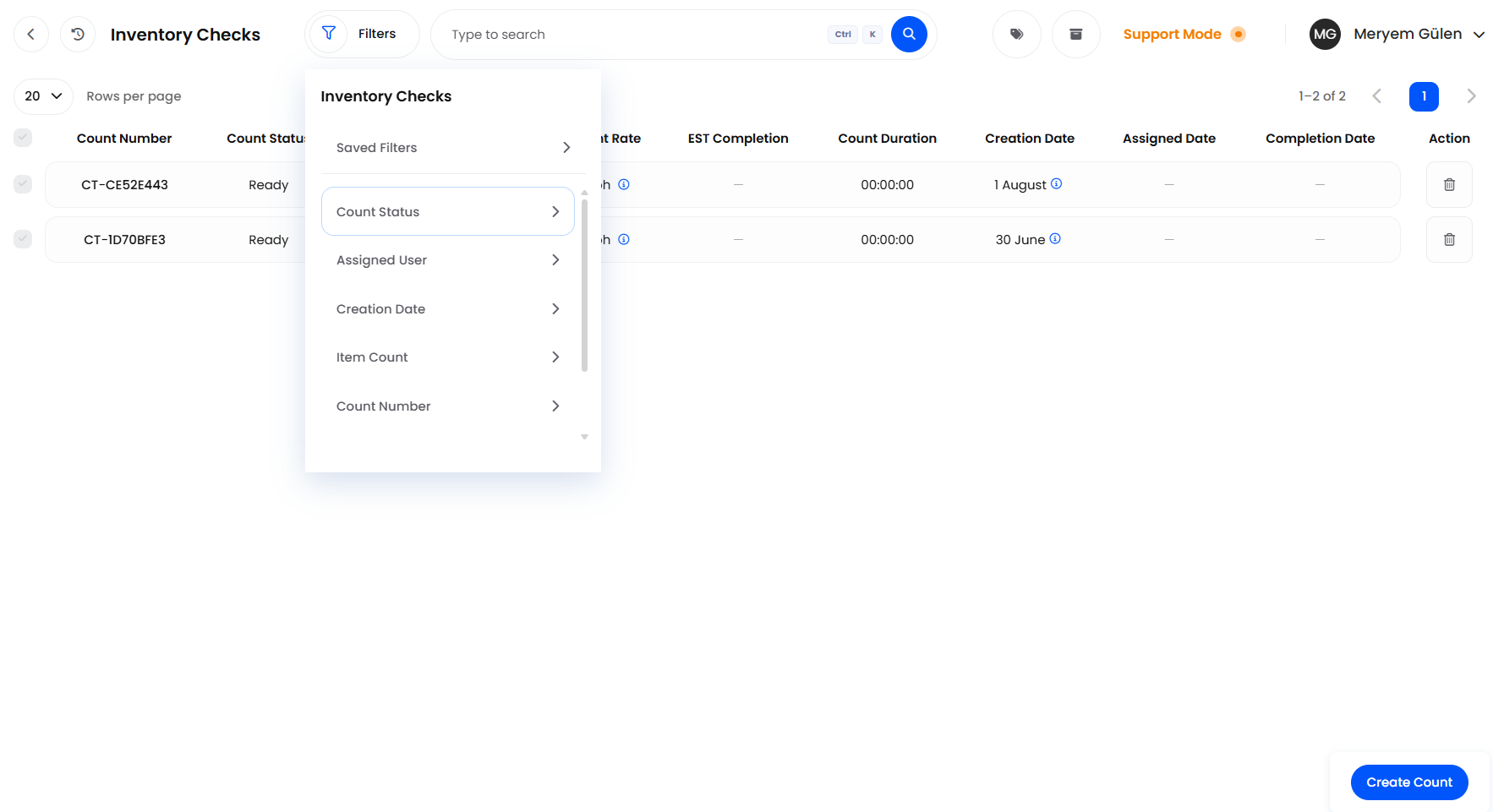
Warehousing > Inventory Checks opens on every count that has not been archived. This is the manager's view: which counts exist, who has them, and how far along they are.
Count Number and Count Status: which count it is, and how far through it is.
Items: how many lines are on the count. The number opens an Inventory Check Items list of the products on it.
Assigned User and Assigned Date: who is counting it, and when they were given it.
Count Rate: how quickly the assignee is working, in lines per hour.
EST Completion: how much longer Helm expects the count to take at that rate.
Count Duration: how much time has been tracked against the count so far.
Creation Date and Completion Date: when the count was built, and when it closed.
Filter the list on Count Number, Count Status, Assigned User, Item Count and Creation Date; Assigned Date and Completion Date sit under More Filters. A combination you use every week can be kept with Save as New and reopened from Saved Filters, which is worth doing for a recurring cycle count review.
Two more toggles in the page header show tags against each row and switch the page to Archived Inventory Checks.

How to Create a Count in Helm
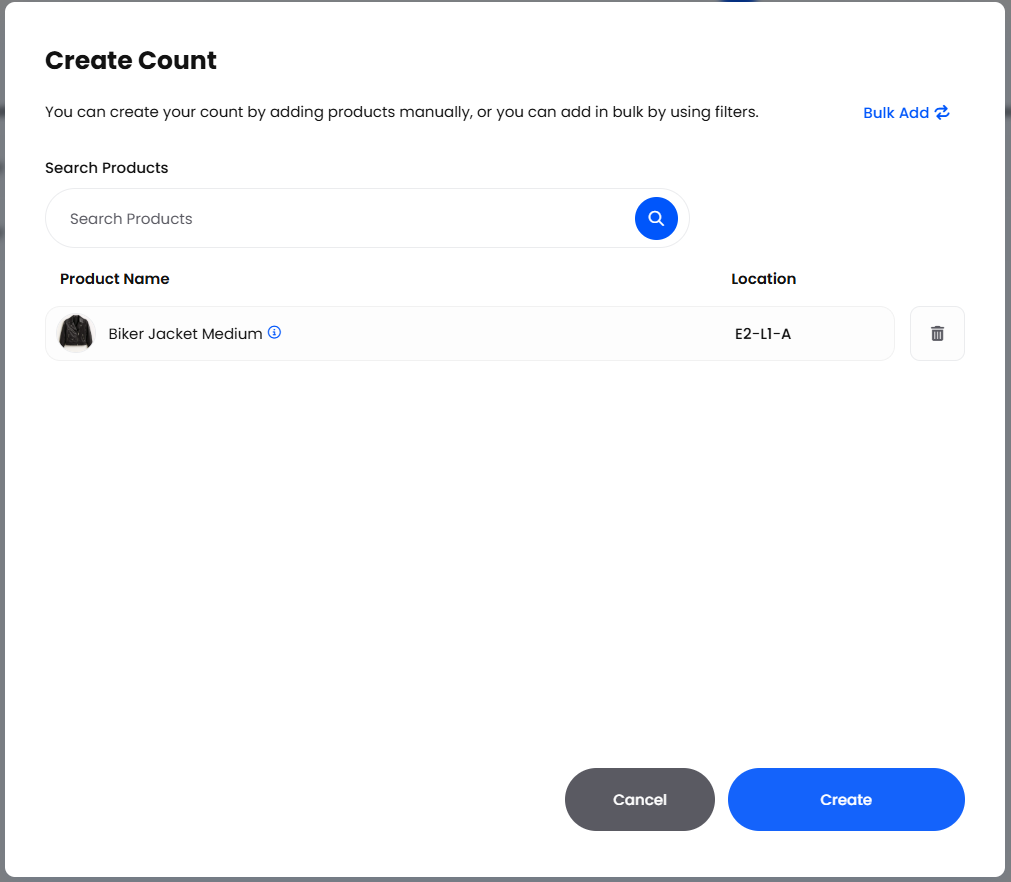
Go to Warehousing > Inventory Checks and choose Create Count. There are two ways to build the list, Manual Add and Bulk Add, and you can swap between them in the dialog. Switching clears what you have already added, so Helm asks you to confirm first.
Manual Add
Use Search Products to find a product by name or code.
Pick the location you want counted, or use All Locations to add every location holding that product. Only storage locations where the product already has a stock record are offered, whether or not that record is down to zero.
Check the list underneath, which shows Product Name and Location, and remove anything you did not mean to add.
Choose Create.
Manual counts suit a spot check on a shelf that looks wrong. They are never split, and they cannot be assigned while you are building them: open the count afterwards and assign it from the Assigned User panel.
Bulk Add
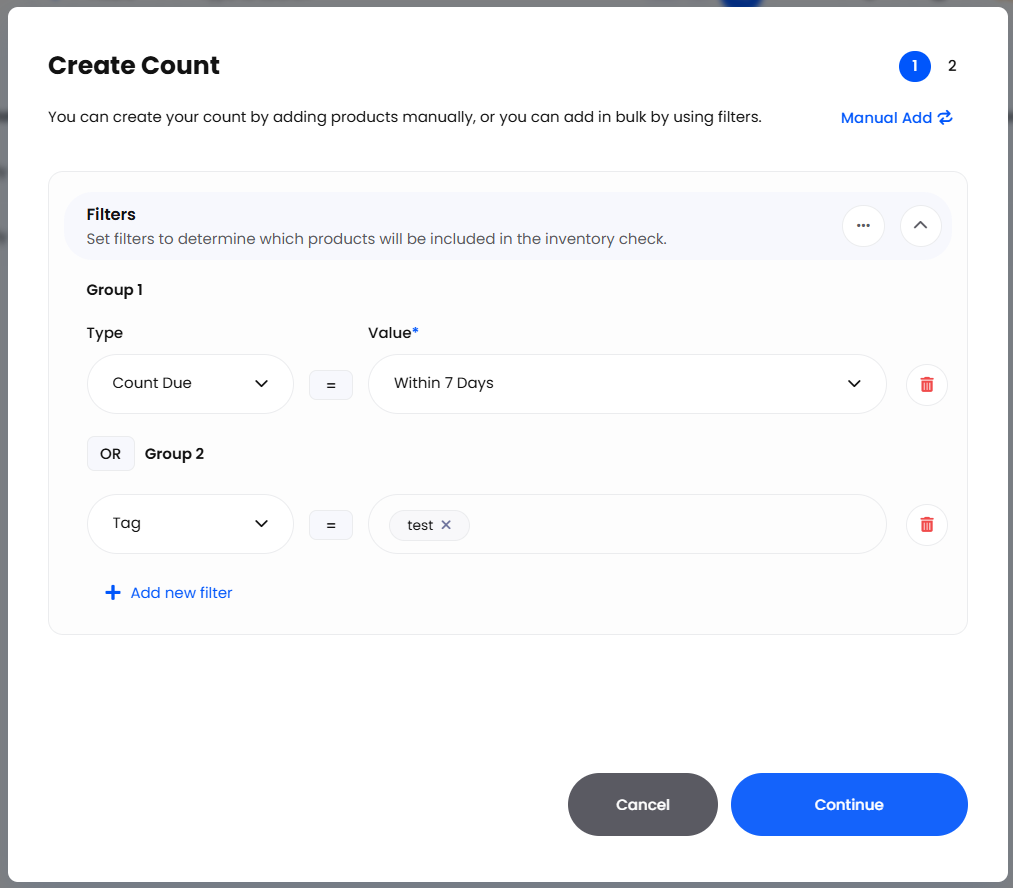
Switch to Bulk Add and build your conditions with Add Filter. Filters decide which products are pulled in, on product details such as name, code, tag, category and supplier, or warehouse details such as zone, location code and storage type.
For a cycle count, filter on Count Due. That works from the Count Period set on each product under Advanced Settings, so products come round on a schedule instead of being chosen by hand.
Choose Continue to reach the second step, set your Split Options, then choose Create.
Choose Continue with no filters at all and Helm asks Proceed Without Filters?, warning that every item will be included. On a real catalogue that is an enormous count.
Creation is not instant, and there is no success message. The dialog closes as soon as Helm has accepted the job, the lines are assembled in the background, and the count appears in the list when the job finishes. Lines Helm could not add are left off rather than flagged, so check the finished count is roughly the size you expected.
Split Options
Split Options is the second step of Bulk Add and exists only there. One count with thousands of lines is unusable on a warehouse floor, so this is where the work is broken up as the count is created. A manual count has no split step.
Split Per Zone: a separate count for each zone, so nobody walks the whole building.
Set Maximum Lines and Maximum Lines: caps the size of each count. Helm groups the pulled-in work by product and location, then puts no more than that many groups on one count. A batch tracked product with several batches in one location is one group but several lines, so read the number as a size guide rather than an exact line count.
Assigned Users: choose who will do the counting. When you split by zone and nothing else, Helm deals the counts out between them in turn. In every other case the first person you picked gets all of the resulting counts, so open them afterwards and reassign from the Assigned User panel.

Assigning a Count & Tracking Time
The Assigned User panel controls who is doing the count. The button at the top of the panel opens Assign User: pick the person under User and choose Save. Assigning is worth doing even for a one-person warehouse, because a count also reaches the Helm mobile app through its assignee.
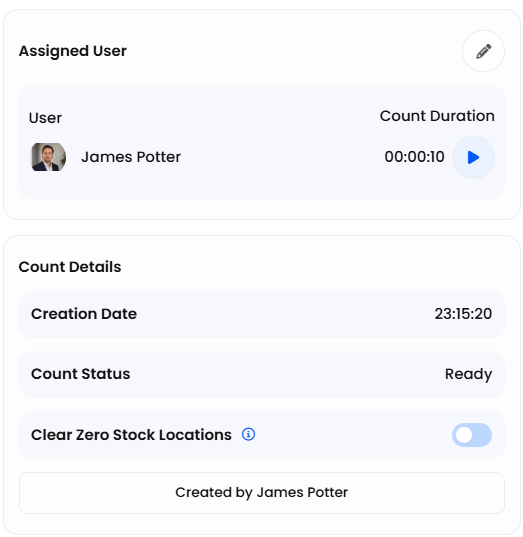
Time is tracked against whoever is assigned, and the timer beside Count Duration has start and stop controls. Reassigning stops the current assignee's tracking and starts a fresh record; earlier assignees stay listed under Show All with the Count Duration each of them spent.
Think twice before stopping the timer on someone who is counting on the mobile app. Helm asks you to confirm first, because they can carry on counting on the device after the timer has stopped, and the time recorded against the count then no longer matches the work done.
Complete Percentage is the progress panel: EST Completion and Count Rate while the count is live, Completed in once it is finished. EST Completion reads Calculating until there is enough tracked time to work from. Its tooltip splits progress into Lines Completed and Units Completed.

Recording the Count
The Count Items panel is where the numbers go in. Each line shows Product, Location, Current Qty, Action Qty and Change Qty.
Enter what was physically found in Action Qty. Current Qty beside it is what Helm expected, captured when the count was created.
Leave a line blank if it has not been counted; a blank line is never confirmed and does not change stock.
To add something you found that is not on the list, use the add button in the panel header to open Add Items to Count, then Add Items.
To fix one line, open its row menu under Action and choose Clear Action Qty, or Delete to take the line off the count altogether.
To fix several lines together, tick them and use Reset Count to clear the quantities, or Delete to remove the lines.
Confirmed lines cannot be reset or deleted, and both row actions are greyed out on them. Select a mixture and Helm tells you how many of your selection it can act on, leaving the rest alone.
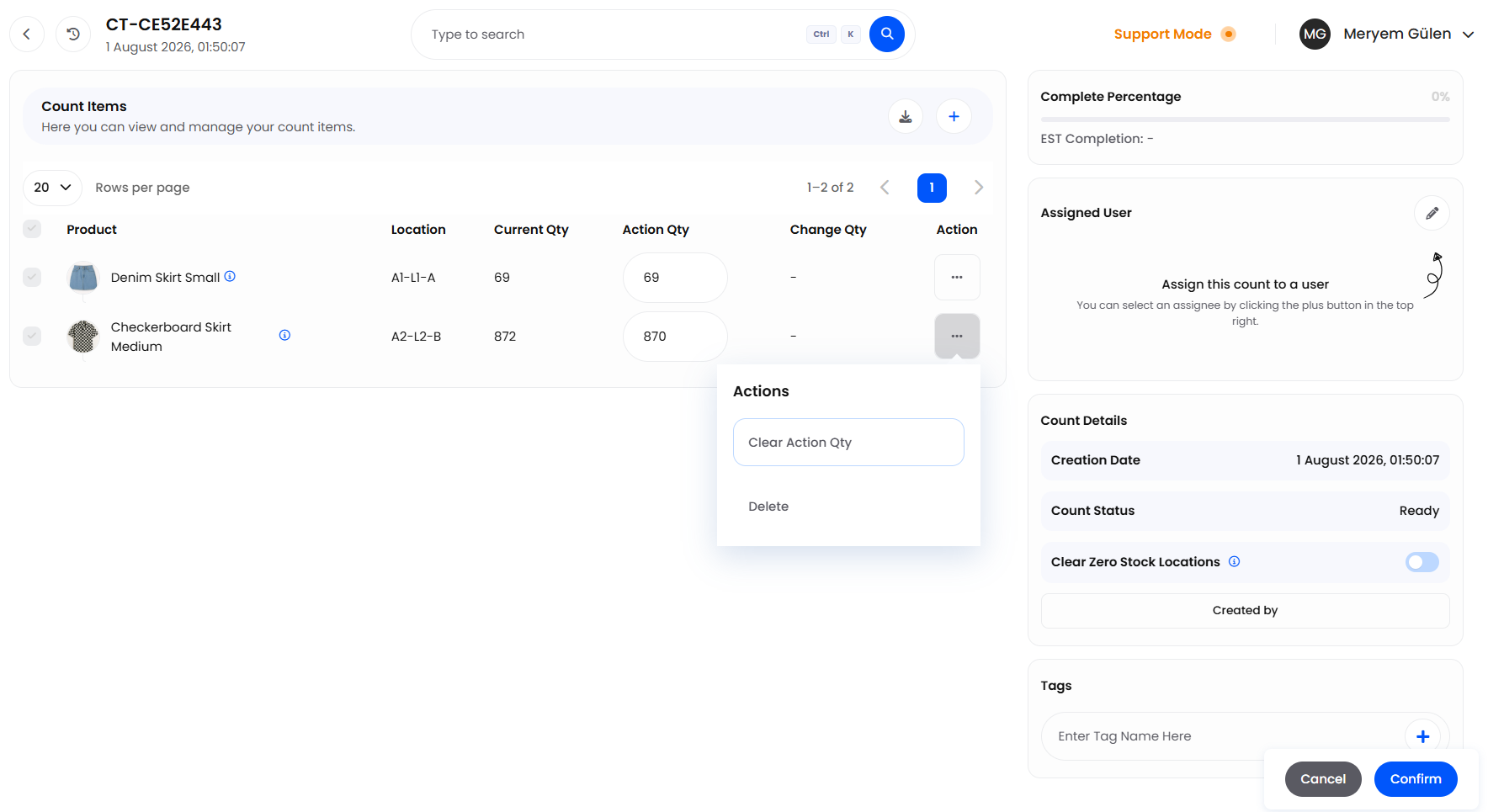
Batch tracked products are counted one batch per line, with Batch Info giving the Expiry Date and Qty for the batch on that line.
There is no filtering or searching inside the panel; it loads more lines as you scroll. That is the practical argument for splitting a large stocktake into several smaller counts as you create it, rather than handing someone one enormous list.
Action Qty is an absolute figure, not an adjustment: entering 40 means there are 40 units in that location, not add 40. Entering zero sets the location to zero, which is why Helm asks you to approve every zero line by name when you confirm.
Printing or Downloading the Count Sheet
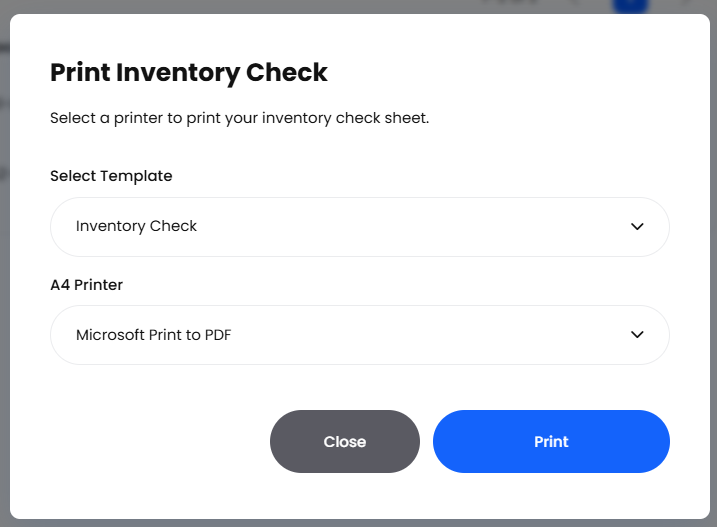
Counters who work from paper get their lines from the button in the Count Items panel header. It opens a dialog where you choose a print template, then either send the sheet straight to a printer, if you have Silent Printing set up, or download it as a PDF. The template needs to be one of your Inventory Check print templates.

The Count Details Panel
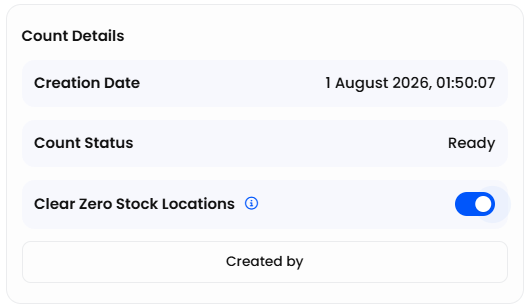
Count Details records the Count Number, Count Status, Creation Date, Completion Date and who created the count. It is also where the Clear Zero Stock Locations toggle lives, which changes what confirming does.
With Clear Zero Stock Locations on, confirming also tidies up empty location records. For every product on the count, Helm removes each of that product's locations that is left holding nothing and has no stock reserved for a pick, including locations this count never visited. It is worth using after a stocktake that has emptied a lot of bin locations, but treat it as housekeeping across every product on the count rather than a change limited to the lines you counted. The toggle only appears if your warehouse is not already removing empty locations for you.
The Tags panel tags the count itself, which is the easiest way to pull a whole stocktake back out of the list months later. Counts can also be tagged from the list.

Confirming the Count
Nothing you type changes stock until the count is confirmed. Confirm is what writes it, and it works line by line: every line carrying an Action Qty is processed, blank lines are left alone.
Choose Confirm.
If any line has been counted at zero, Helm asks you to approve each one with Confirm Zero Quantity, naming the product and the location it is about to empty.
If anyone still has time tracking running, Helm then shows Confirm Publish Inventory Check and warns that confirming stops all active time tracking.
Helm sets the stock in each counted location to the figure entered, and writes each line to your stock history with an Activity Type of Inventory Check and a reason of Stock Count.
If every line has been counted, the count moves to Completed, its duration and completion date are recorded and any timers still running are stopped. If some lines are still blank it moves to Partially Completed and stays open for a second pass.
If Confirm is disabled with a Cannot Confirm tooltip, the count has no items on it. A Permission Required tooltip instead means confirming is not one of your permissions.
When only some lines go through, Helm shows Partial Success and marks the errors against the lines that failed. The usual cause is a counted figure lower than the quantity already allocated to a pick: Helm will not let stock at a location drop below what a pick has reserved. Resolve the pick first, which our Pick Management article covers, then confirm again.

Cancelling, Archiving & Deleting Counts
Cancel on an open count deletes it. Helm confirms with Cancel Inventory Check and warns that the action cannot be undone.
A count can only be deleted while it is Ready. As soon as one line has been confirmed the count is Partially Completed, and both Cancel and Delete are refused with a message naming the status. Finish the count instead.
A count can only be archived once it is Completed. Select counts in the list and use Archive, or Delete to remove several at once. Archiving anything unfinished is refused with a message naming the status.
Archived counts are read only. The archived view is titled Archived Inventory Checks and each count opens as an Archived Count. There is nothing to select and no actions on the rows, so treat archiving as filing a finished count away rather than a step you can walk back.

Example: A Zone Cycle Count
You want the pick faces in both ambient zones counted this week, with one counter on each zone.
You choose Create Count, switch to Bulk Add, and filter on those two zones plus Count Due, so only products actually due a count are pulled in.
In Split Options you turn on Split Per Zone and pick your two counters under Assigned Users.
The dialog closes, and when the background job finishes two counts appear in the list, one per zone, each Ready and assigned to one of your counters.
Your counters open their count in the mobile app and enter what they find as Action Qty, while you watch Count Rate and EST Completion in the list.
One count returns Partial Success: a line was counted below the quantity a pick had reserved, so you release that pick and confirm again.
Each count closes as Completed, the stock at those locations matches the shelves, and each product's next count date rolls forward by its Count Period.

Best Practices & Notes
Count the Shelf, Not the Screen
Current Qty is a snapshot taken when the count was created, so it is out of date if the location has been picked or replenished since. Enter what is physically in front of you and let the count correct the difference.
Confirm in Sessions
A count can be confirmed more than once. Confirm the lines you have finished and the count waits at Partially Completed until someone returns to it. Confirmed work is safe; an Action Qty nobody has confirmed is just a number on a screen.
Check Who Ended Up With Each Count
A split count is only as useful as its assignments. After a bulk creation, glance down the Assigned User column and move counts around before the shift starts, rather than finding out at the end of the day that every count went to the same person.
Use Count Period for Rolling Counts
Setting a Count Period on each product, under Advanced Settings on the product's own page, turns stocktaking from an annual shutdown into a routine: confirming a count moves each product's next count date forward, and the Count Due filter picks up whatever has come round since.
Prefer a Count Over a Manual Adjustment
Because every confirmed line is written as a stock movement with a reason of Stock Count, a count is a better way to correct a discrepancy than editing a figure by hand. When someone asks in six months why a stock level changed, the count answers it.

FAQ
Does entering a quantity change my stock straight away?
No. Nothing changes until the count is confirmed; until then an Action Qty is only recorded against the count. That holds on the mobile app too, where the counter enters their quantities and then confirms the count in one go.
Why did some of my lines fail when I confirmed?
Helm shows Partial Success when it could not confirm everything. The usual cause is a counted quantity lower than the amount already allocated to a pick. Resolve the pick, then confirm again.
Can I delete a count I have already started?
No. Only a count still in Ready can be deleted. Once it is Partially Completed, finish it, then archive it when it reaches Completed.
Why is a location missing from my count?
Counts built from filters only include locations with stock available to count, so empty or fully reserved locations are skipped, as is anything already on an open count. Manual Add can bring a skipped location back in, but only where the product already has a stock record for it: a location the product has never been stocked in cannot be added to a count.
Where can I see what a count changed?
On the count, Change Qty shows the movement per line. Across the business, each confirmed line appears in Inventory Stock Logging with an Activity Type of Inventory Check.

If a count is not behaving as you expect, check its Count Status first, then whether the lines you are looking at carry an Action Qty. If you are still stuck, contact support with the Count Number to hand.
Was this helpful?
Still need help? Share an idea