Cost Dashboard
The Cost Dashboard in Helm WMS shows what it costs to receive, store, handle and ship your stock, broken down by job type, supplier, store, product and courier, so you can see where your money goes and act on it.
What the Cost Dashboard Shows
The Cost Dashboard brings your warehouse running costs into one place: what you spend receiving stock, storing it, moving and picking it, packing it and sending it out. Every figure on the page relates to the date range you choose at the top, so you can look at a single day, a busy month or a full year.
It answers the questions that usually need a spreadsheet: which suppliers cost the most to store, which products are expensive to hold, and how your running costs compare with the revenue they support.
A supplier's slow-selling range has been sitting in pallet locations for months. On the Cost Dashboard, switch Operational Costs to Supplier and you can see exactly how much storage that supplier has cost you over the period, ready for your next supplier review.

Before You Start
Labour costs come from hourly wages. Picking, packing, goods-in, movement and inventory check costs are calculated from the Hourly Wage of the users who carry out those jobs.
Storage costs come from Storage Cost Groups. Storage figures are built from the daily fixed costs you set in Storage Cost Groups and the locations you assign them to. Set these up first, otherwise storage shows as £0.
Everything follows the date range. Every card, chart and table uses the period selected at the top of the page. If a section looks empty, widen the date range before anything else.
Courier costs need shipping activity in the period. The Courier Costs section shows No activity until there is courier cost data for the dates you have selected.

Setting Up Labour Costs
Each user can have an hourly wage. Helm uses it to put a cost on the jobs that user carries out, so your picking, packing, goods-in, movement and inventory check costs reflect what your team is actually paid. Without it, those job types show as £0 on the dashboard.
Sign in as the account owner and go to Settings > Company Settings > Users.
Click the user's name to open their details.
In Hourly Wage, enter what you pay that person per hour. If a wage is already set it is hidden; click Show to see it.
Click Save Changes.
You can also set the hourly wage when you add a new user, in the same form you use to invite them.
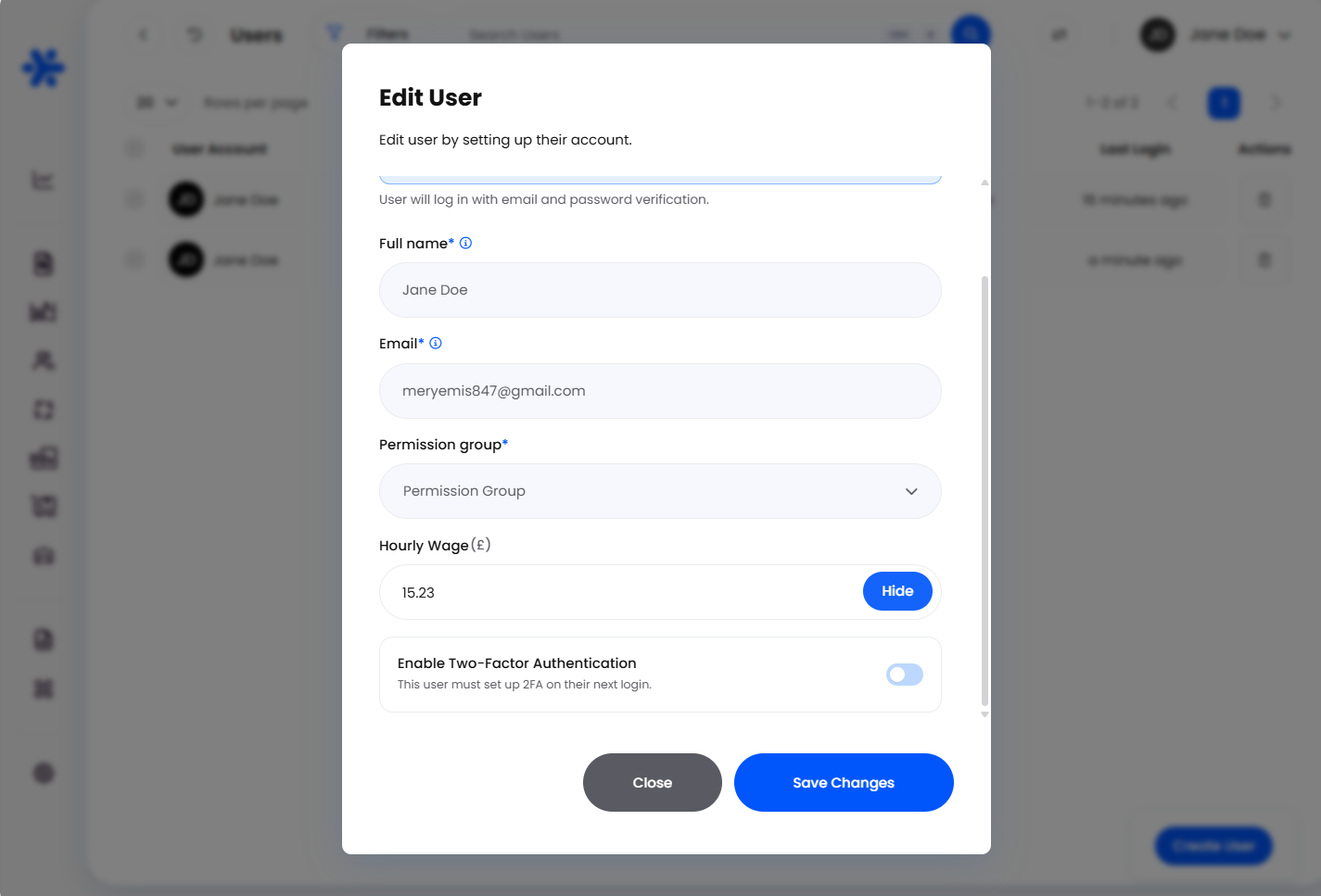
Hourly wages are only visible to the account owner. Other users, including administrators, will not see the field.

Setting Up Storage Costs
A Storage Cost Group sets one daily fixed cost that applies to every location in the group. Helm shares that cost across the items stored in those locations based on the quantity stored, so a product taking up more of a location carries more of its cost. Grouping locations this way means you set a price once for each kind of storage, rather than location by location.
Create a Storage Cost Group
Go to Settings > System Settings > Storage Cost Groups. Any groups you already have are listed with their Fixed Cost (daily) and Status.
Click Create Cost Group.
Enter a Group Name that describes the type of storage, for example Pallet Storage or Shelf Bin Storage.
Enter the Fixed cost (£). This is the daily cost of each location in the group.
Click Create. The group appears in the list with its Fixed Cost (daily) and a status of Active.


To change or remove a group later, open the ... menu in the Actions column and choose Edit or Delete.
Assign Locations to a Group
Go to Settings > Company Settings > Warehouse and click Go To Location List.
Tick the locations you want to add to the group. Use Filters to narrow the list by zone or location type first if you are assigning a lot of locations at once.
Click Actions at the bottom of the page and choose Assign Storage Cost Group.
Choose the group from the Storage Cost Group list and click Save Changes.
The Storage Cost Group column in the Location List shows which group each location belongs to, so you can check at a glance that nothing has been missed.


How to Use the Cost Dashboard
Open Dashboard in the main menu and choose Cost Dashboard.

Choose a Date Range & Comparison
Click the date range in the top right. Pick a preset such as Last 30 Days, This Month or Last Year, or choose Custom and select your own start and end dates.
Click Apply. Every section on the page refreshes for the new period.
To see how you are trending, open Compare and choose Previous Period, Last Month or Last Year.
Headline Cost Cards
The cards across the top give you the period at a glance. Hover over the information icon next to a card to see how it is measured.
Total Cost: everything recorded for the period across all job types.
Inbound Cost per item: the receiving cost for each unit received.
Storage Cost per item: the cost of holding one unit for one day (an item-day).
Outbound Cost per item: the outbound cost for each unit shipped.
Cost as a Percentage of Revenue: your total cost as a share of the revenue for the same period.
Despatch Cost Over Time
This chart shows how your costs move day by day, with a line for each job type: Picking, Packing, Movements, Storage and Goods-in. It is the quickest way to spot a spike, such as a heavy goods-in week or a sudden jump in storage.
Click Options on the chart.
Under Include, untick any job type you want to hide so you can focus on the rest.
Under Group by, choose Daily, Weekly or Monthly. Weekly or monthly is easier to read over a long date range.

Department Costs
Use the toggle in the top right of this section to switch between two views:
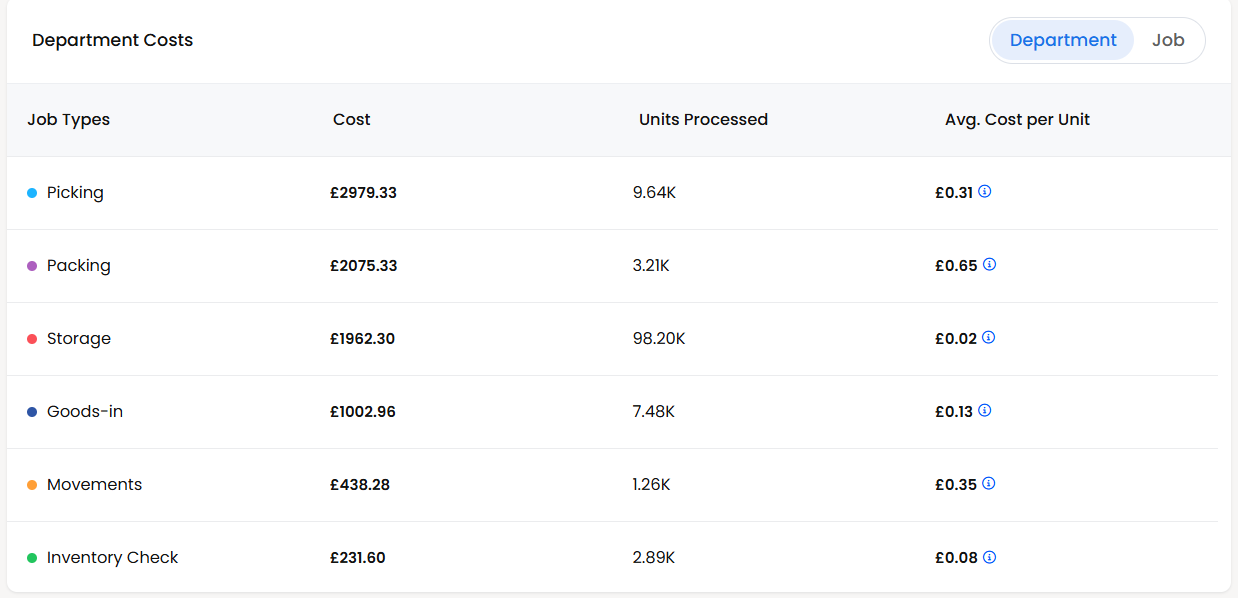
Department: one row per job type (Storage, Goods-in, Inventory Check, Movements, Packing and Picking) showing the Cost, Units Processed and Avg. Cost per Unit.
Job: the section becomes Job Costs and lists individual jobs by their Job IDs, with the same columns. Use this when a department total looks high and you want to find the jobs behind it.
Cost per Day & Cost by Job Type
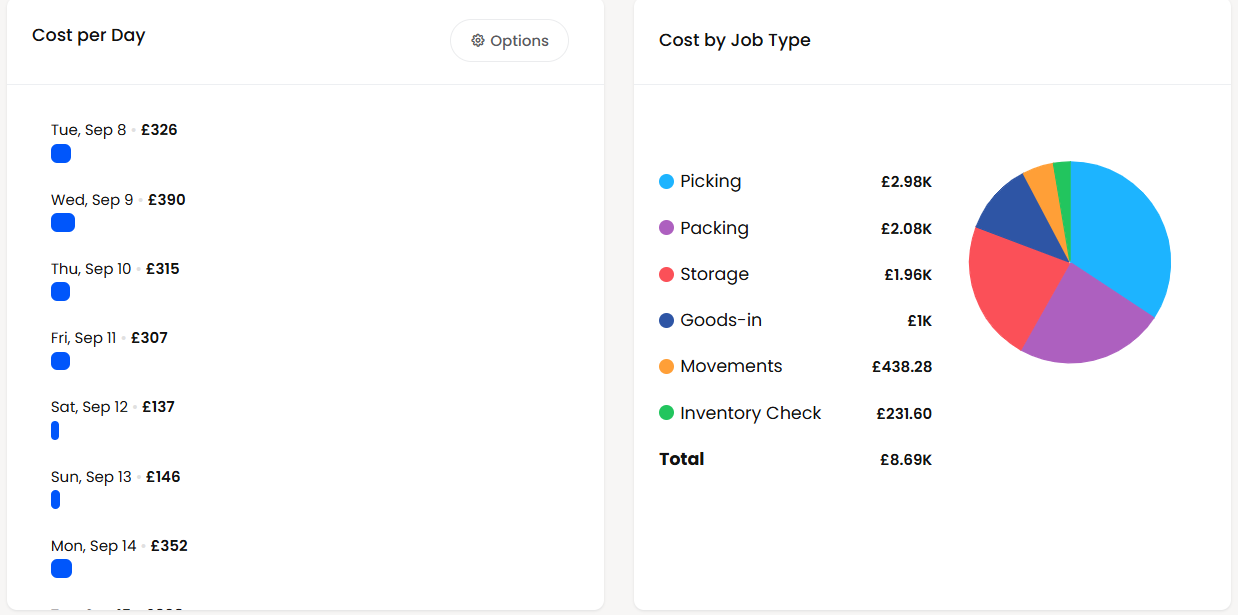
Cost per Day lists the total cost for each day in the period. Click Options to group it by Daily, Weekly or Monthly; the title changes to Cost per Week or Cost per Month to match.
Cost by Job Type shows the same period as a pie chart, with each job type's share and the overall Total. It shows at a glance where most of your money goes.
Operational Costs
This table breaks your costs down by who or what they relate to. Switch between:
Supplier: Inbound Cost, Storage Cost, Outbound Cost and Total for the stock from each supplier.
Store: Inbound Cost, Outbound Cost and Total for each of your stores.
Product: the same cost columns for each product, most expensive first. Tick Show Cheapest to reverse the order, and click a product name to open that product.

Courier Costs
This section shows what you spend on shipping. Switch between Courier, Store and Service to see it by courier, by the store the orders came from, or by courier service. The section title changes to match the view you have chosen.
Each row shows the Name, Total Shipments, Total Spend and Average Spend per shipment. Comparing average spend across services is a quick way to check you are using the most cost-effective option for each type of parcel.


Example
You run three types of storage and set them up as follows:
Pallet Storage at £2.50 a day, covering eight pallet locations
Shelf Bin Storage at £0.75 a day, covering 40 shelf bins
Bulk Floor Storage at £5.00 a day, covering two floor bays
Each day your locations cost £20 for pallets, £30 for shelf bins and £10 for floor bays: £60 a day in total. Over a 30-day period, that is £1,800 of storage, shared across the products held in those locations.
Your owner has also set an Hourly Wage for each member of the team, so every pick, pack and goods-in job now carries a labour cost.
You open the Cost Dashboard, set the date range to Last 30 Days and compare against Previous Period. Cost by Job Type shows picking is your biggest cost, with storage close behind. Switching Operational Costs to Product shows that two slow-selling jackets account for a large share of it, while their outbound cost is close to zero. That is a clear prompt to reduce reorder quantities, run a promotion, or move them to cheaper storage.

Best Practices & Notes
Match Groups to How You Really Store Stock
Create one Storage Cost Group per kind of storage (pallet, shelf, floor, cold store) and price each one realistically. The more closely your groups reflect real costs, the more useful the supplier and product breakdowns become.
Keep Hourly Wages Current
When pay rates change or someone new joins the team, update their Hourly Wage the same day. Labour is often one of the biggest costs on the dashboard, so out-of-date wages skew the totals.
Keep the Location List Up to Date
When you add new locations, assign them to a group straight away. A location with no group adds nothing to storage costs, which makes the dashboard look cheaper than reality.
Review Monthly With Compare
Set the date range to Last Month and compare against the month before. A steady rise in Cost as a Percentage of Revenue is worth looking into early, before it shows up in your margins.
Bring Supplier Figures to Supplier Reviews
The Supplier view gives you hard numbers on what each supplier's stock costs to hold, which is useful when agreeing order quantities, delivery frequency or terms.

FAQ
Why do picking and packing show £0?
Why do picking and packing show £0?
The users who carried out those jobs have no Hourly Wage set. Ask the account owner to add one for each user.
Why does storage show £0?
Why does storage show £0?
Either no locations have been assigned to a Storage Cost Group, or there was no stock in those locations during the selected period. Check the Storage Cost Group column in the Location List.
Why does Courier Costs say No activity?
Why does Courier Costs say No activity?
There is no courier cost data for the dates you have selected. Try a wider date range.
Can I hide a job type from the chart?
Can I hide a job type from the chart?
Yes. Click Options on Despatch Cost Over Time and untick it under Include.
What is an item-day?
What is an item-day?
One unit held in stock for one day. 10 units held for three days is 30 item-days, which is how Storage Cost per item is measured.

If your figures still don't look right, check hourly wages, Storage Cost Groups and location assignments first, then contact the Helm support team and we'll be happy to help.
Was this helpful?
Still need help? Share an idea