Adding Delivery Items with AI
Upload a delivery note to an Inventory delivery in Helm WMS and let AI read the items and quantities for you, ready to check and add in a few clicks.
What Adding Items with AI Does
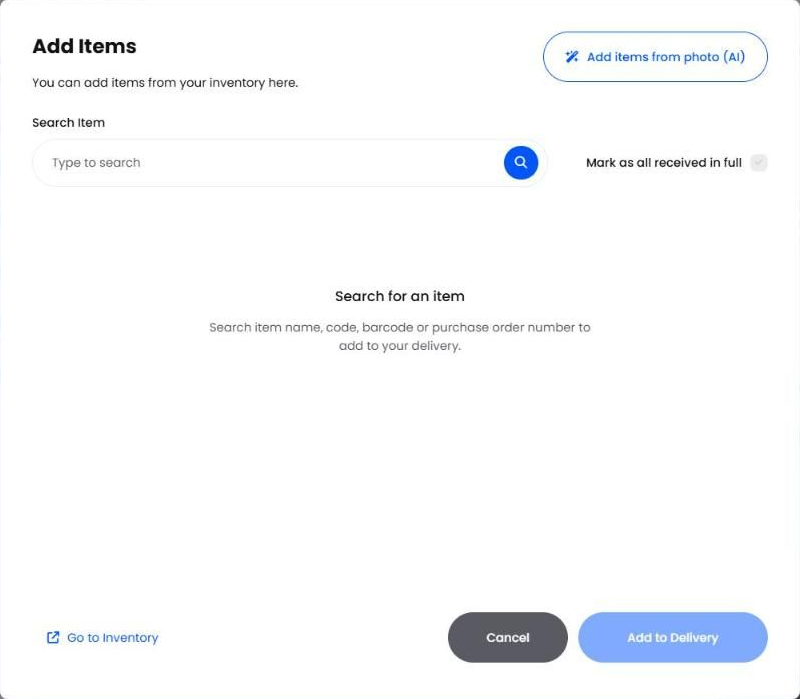
When stock arrives without a purchase order, someone usually types each line off the delivery note by hand. Add items from photo (AI) reads the note for you. Upload a photo or file of it, and Helm lists the items and quantities it found, already matched to products in your inventory.
You stay in control: you check the list, sort out anything Helm could not match, and only then add the lines to the delivery. A long note goes in in a minute or two instead of a quarter of an hour, with fewer typing mistakes.
Example: a box comes back from your repairer with a printed note listing 12 lines. You create an Inventory delivery, photograph the note and upload it. Helm matches 11 lines to products and flags one written as "BLK TEE L". You pick Black T-Shirt Large for that line, choose Add to Delivery, and all 12 lines are on the delivery ready to book in.

Before You Start
It works on Inventory deliveries. The AI option appears on deliveries with the Inventory type, the ones with no purchase order behind them. On a Purchase Order delivery, pull the lines in from the purchase order instead. See Deliveries.
Add items before you publish. Items are added while the delivery is still open, the same as adding them by search.
Have the note as a photo or file. Helm accepts JPG, JPEG, PNG, DOC, DOCX, CSV and PDF, one file at a time.
The products need to be in Helm already. Helm matches lines to products in your inventory; it does not create new ones. Anything it cannot match, you choose yourself.

How to Add Delivery Items with AI
Go to Purchasing > Deliveries and open the Inventory delivery. To start a new one, choose Create Delivery and set Delivery type to Inventory.
On Delivery Items, choose + to open Add Items.
Choose Add items from photo (AI) at the top of the window.
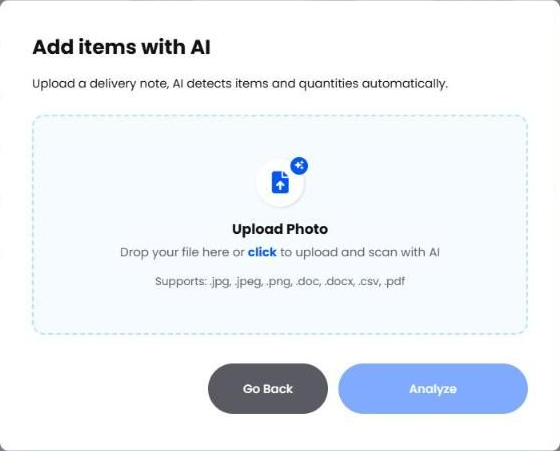
Drop the file onto the upload area, or click the area to choose a file.
Choose Analyze. Helm works through Reading document, Matching items and Preparing results, which usually takes a few seconds.
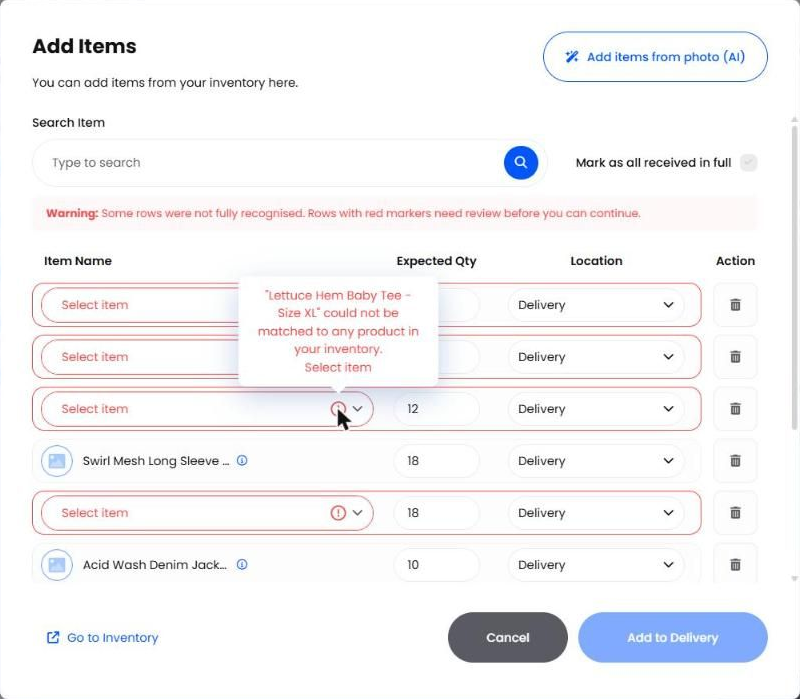
Helm takes you back to Add Items with every line it found and its quantity. Check each one, and sort out any row with a red marker (see the next section).
Choose Add to Delivery.
The lines now sit on the delivery as if you had added them by search. Book them in and publish the delivery as usual: nothing changes your stock until you publish.
Note: Go Back on the AI window returns you to Add Items without analysing anything, so you can still add lines by search.

Checking What Helm Found
Helm shows every line it read, matched or not, so nothing on the note is lost. Rows that need you are marked in red, and Helm tells you how many need your attention.
You cannot add the lines to the delivery until every red row is sorted out.
To drop a line you do not want, choose the bin under Action. Each line also has a Location you can change before adding it.

When Helm Cannot Read the Document
If the file is too blurred, dark or cut off to read, Helm shows Unable to read document, sometimes with the reason. If it can read the file but finds no item lines on it, you see No items found. Either way you are back at the upload step: try a clearer photo, or a different copy of the note.

Best Practices & Notes
Photograph the Note Flat & Well Lit
Lay the note flat, fill the frame with it and avoid shadows across the lines. A sharp, straight photo is read far more reliably than one taken at an angle.
Keep Supplier Codes on Your Products
Helm uses your products' supplier records when it matches lines, so a note that lists supplier codes matches best when each product has its Supplier Code filled in. See Suppliers.
Treat the Note as a Starting Point
The AI reads what is printed, not what is in the box. Book in the quantity that actually arrived when you receive the delivery, so your stock matches the shelf rather than the paperwork.
Use Search for One or Two Lines
For a short note, typing the items into Add Items is just as quick. The AI earns its keep on long notes with many lines.

FAQ
Why can't I see Add items from photo (AI)?
Why can't I see Add items from photo (AI)?
It only appears on Inventory deliveries. On a Purchase Order delivery, add the lines from the purchase order instead.
Which files can I upload?
Which files can I upload?
JPG, JPEG, PNG, DOC, DOCX, CSV and PDF.
Can I analyse more than one note?
Can I analyse more than one note?
One file at a time. For a second note, choose Add items from photo (AI) again and upload it.
Will it create products that are not in Helm?
Will it create products that are not in Helm?
No. It only matches lines to products you already have. Create the product first, then pick it on the red row.
Does adding the items change my stock?
Does adding the items change my stock?
No. Stock changes when you publish the delivery, exactly as it does for lines added by search.

For everything else about receiving stock, see Deliveries. Still stuck? Contact Support and the team will help.
Was this helpful?
Still need help? Share an idea