The Fulfilment Control Panel
The Fulfilment Control Panel is the first screen in the Helm Fulfilment Master Hub. It shows today's orders, SLA compliance and dispatch speed across every client hub, and points you to the hub that needs attention first.
What the Control Panel Shows
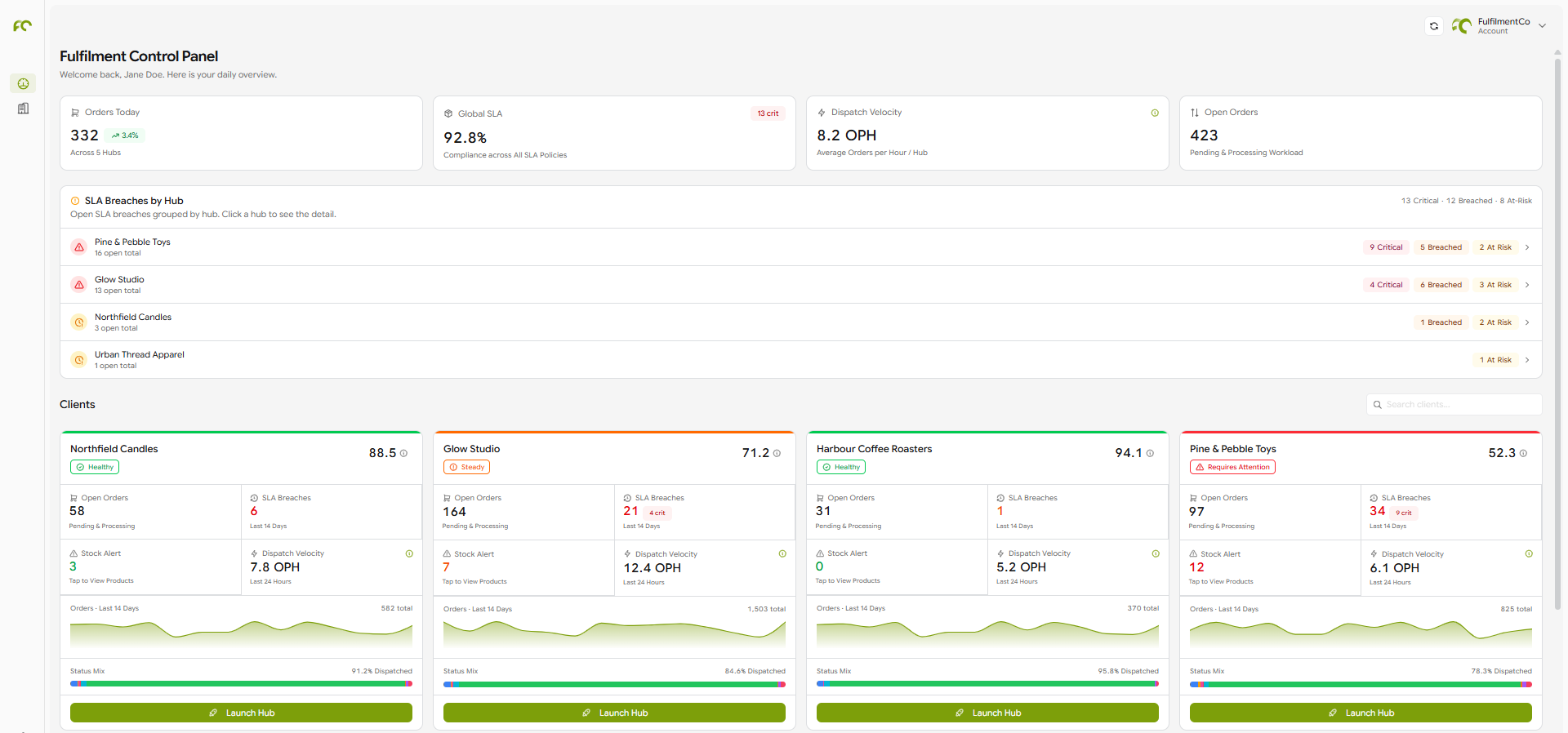
The Control Panel is the Overview page of the Master Hub, and it answers one question: is every client on track today, and if not, which one needs you first? It reads from top to bottom, from totals across all your hubs, to the hubs with SLA problems, to a card for each client.
Example: At the start of the shift the Control Panel shows 140 open orders against a dispatch velocity that will clear them by mid-afternoon. SLA Breaches by Hub lists one client with 12 critical breaches, so you click that hub to see the detail, then launch it to look at the late orders.

Totals Across Your Hubs
The four tiles at the top add up every hub in the account.
Note: A dash in a tile means there is nothing to calculate yet. Global SLA needs at least one active SLA policy, and Dispatch Velocity needs orders dispatched in the last 24 hours.

SLA Breaches by Hub
This panel lists open SLA breaches grouped by hub, so you can see at a glance where service is slipping. The line at the top right counts how many are Critical, Breached and At-Risk across all hubs. Click a hub in the list to see the detail behind its number.
The three levels come from each SLA policy. An order is at risk when performance slips towards the target, breached when it misses it, and critical when performance drops well below it. You set exactly where those lines fall when you create a policy.
Tip: Work the list from the top. A hub with critical breaches is the one most likely to be raising a support ticket with you, so it is worth looking at before anything else.

Client Cards
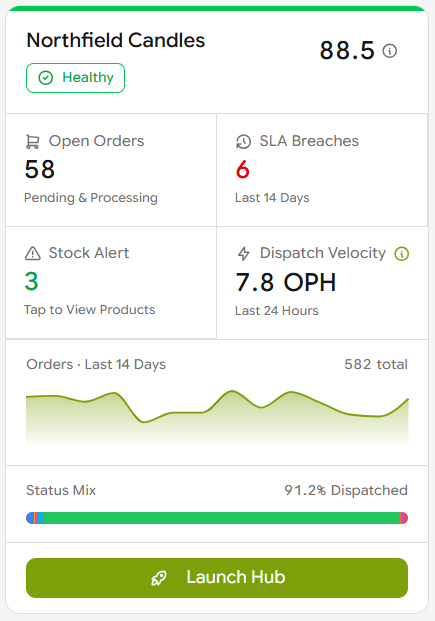
Below the breaches, Clients shows a card for every hub. With a lot of clients, type in Search clients... to find one by name.

Using the Control Panel Each Day
Click Refresh at the top right to bring every figure up to date.
Compare Open Orders with Dispatch Velocity to judge whether today's workload will be cleared in time.
Check SLA Breaches by Hub and deal with critical breaches first.
Scan the client cards for stock alerts, so you can warn clients before their orders stall for lack of stock.
Click Launch Hub on any client that needs a closer look.

FAQ
Why does a client card say No Data?
Why does a client card say No Data?
The hub's SLA policy group has no active policies, so there is nothing to score. Add or switch on a policy in Settings > SLA Policies.
Why do Global SLA and Dispatch Velocity show a dash?
Why do Global SLA and Dispatch Velocity show a dash?
There is not enough data yet. Global SLA needs an active SLA policy, and Dispatch Velocity needs orders dispatched in the last 24 hours.
How do I add a new client?
How do I add a new client?
Go to Companies and click New Company. On an account with no hubs yet, the Control Panel also shows a Create Company button.
Need more help reading the Control Panel? Contact the Helm support team.
Was this helpful?
Still need help? Share an idea