Hub Happiness
Hub Happiness in Helm Fulfilment shows how each client's team feels about working with you, combining your SLA performance with a short in-app survey. This guide covers reading the scores and setting up the survey.
What Hub Happiness Does
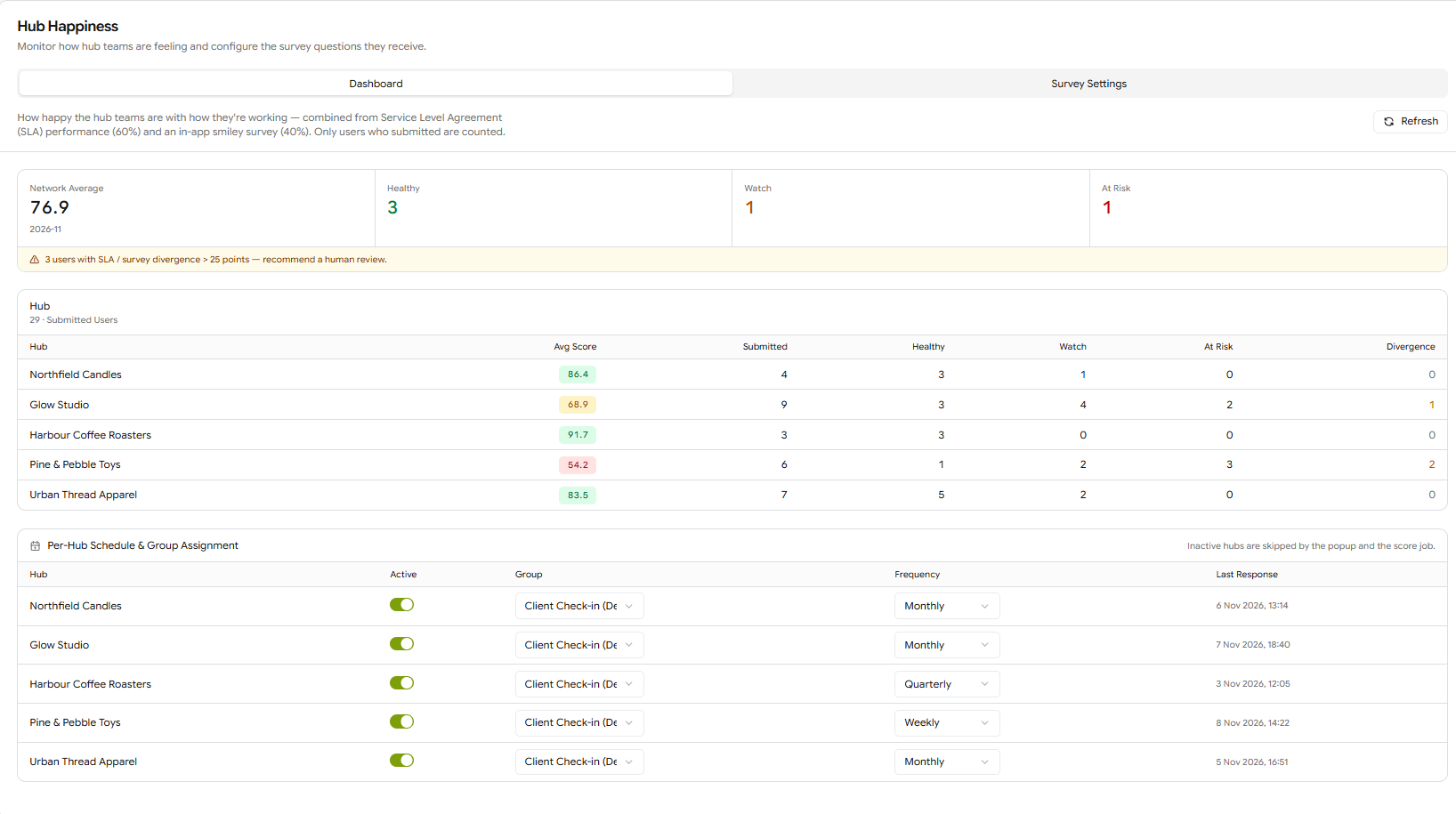
SLA figures tell you whether orders are leaving on time. Hub Happiness adds how the client's own team feels about working with you. Each hub gets a score combined from two sources: your SLA performance for that hub (60%) and a short smiley survey shown to the hub's users inside the app (40%). Only users who answer the survey are counted.
Example: A client's SLA figures look healthy, but their Hub Happiness drops into Watch for the month. The survey answers show their team is unclear on cut-off times. Your account manager calls them before it turns into a complaint, and adds the agreed cut-off to the hub's Company Notes.

Reading the Dashboard
Go to Settings > Hub Happiness. The Dashboard tab shows:

How to Set Up the Survey
Open the Survey Settings tab and click New Group. Give it a Name and optional Description, leave Active on and click Create. The first group becomes the Default, and new hubs are added to it automatically.
With the group selected, click New Question.
Type the Question Text. Click Variables to add placeholders that are filled in when the survey appears (see below).
Choose the Type: Rating (1–5 scale) or Open text.
Leave Active on and click Create. Repeat for each question.
Back on the Dashboard tab, under Per-Hub Schedule & Group Assignment, check each hub is Active, pick its Group, and set its Frequency: Weekly, Monthly or Quarterly.
Note: Hubs switched off in Per-Hub Schedule & Group Assignment are skipped: their users do not see the survey and the hub is not scored.

Question Variables
For example, "How clear were your priorities in [PeriodLong], [FirstName]?" appears to a user called Sam Patel in November 2026 as "How clear were your priorities in November 2026, Sam?"

Best Practices
Keep the Survey Short
Two or three rating questions and one open text question are usually enough. A short survey gets answered; a long one gets dismissed.
Match the Frequency to the Relationship
Monthly suits most clients. Use Weekly during onboarding, when early problems are easiest to fix, and Quarterly for long-standing, stable accounts.
Act on Watch, Not Just At Risk
A hub in Watch is the cheapest one to turn around. A quick call at that point often stops it reaching At Risk.

FAQ
Why does a hub have no score?
Why does a hub have no score?
No users in the hub have answered the survey for this period yet, or the hub is switched off in Per-Hub Schedule & Group Assignment.
Can different clients get different questions?
Can different clients get different questions?
Yes. Create a separate question group for them in Survey Settings, then assign it to their hubs on the Dashboard tab.
How much does SLA performance count?
How much does SLA performance count?
SLA performance makes up 60% of the score and the survey 40%.
Questions about Hub Happiness? Contact the Helm support team.
Was this helpful?
Still need help? Share an idea