Setting Up SLA Policies
SLA policies in Helm Fulfilment set the dispatch targets each client hub is measured against, and decide what happens when orders start to slip. This guide covers policy groups, creating a policy and assigning hubs.
What SLA Policies Do
An SLA policy turns a promise you have made to a client, such as "95% of orders leave the warehouse within 24 hours", into a target Helm measures for you. The results feed the Global SLA figure and SLA Breaches by Hub on the Control Panel, each hub's health badge, and the SLA scorecard inside the hub.
Policies sit in groups, and each hub is assigned one group. Clients on the same service level share a group, so changing the target once updates it for all of them.
Example: Most clients are promised dispatch within 24 hours, so they share a group called Standard with one policy: 95% of orders within 1440 minutes. Two premium clients are promised same-day dispatch, so they sit in a Priority group whose policy uses a shorter on-time window. Both groups feed the Control Panel, and a premium client slipping below target shows up as at risk long before it becomes a breach.

Policy Groups & Hub Assignments
Go to Settings > SLA Policies. The page has three parts:
Policy Groups, on the left: every group, with how many policies and hubs it has. A group with nothing switched on shows No Active Policies.
The selected group, on the right: its policies, an Active switch, and buttons to edit, duplicate or delete the group.
Hub Assignments, at the bottom: each hub and the group it is measured against.
One group is always the Default. New hubs are added to it automatically when they are created. To make a different group the default, select it and click Make Default.
Creating a Group
Click New Group.
Enter a Name, for example Priority hubs, and an optional Description.
Leave Active on and click Create.
Assigning a Hub to a Group
Under Hub Assignments, choose a group from the drop-down next to the hub. Choose No Policy to leave the hub out of SLA tracking altogether.

How to Create an SLA Policy
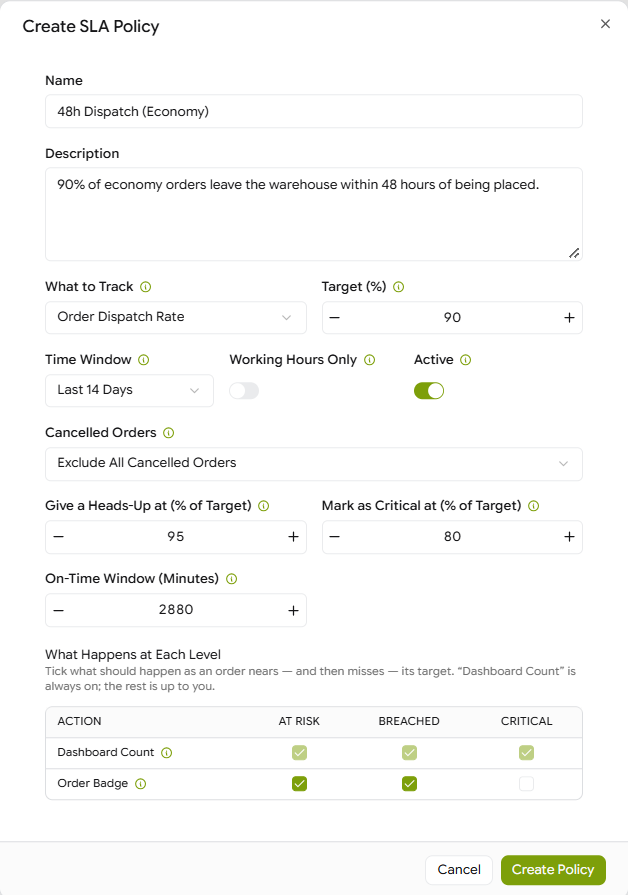
Select the group in Policy Groups and click New Policy.
Enter a Name your team will recognise, for example 24h Dispatch (Tier 1), and a short Description of what the policy promises.
Under What to Track, choose Order Dispatch Rate: the share of orders dispatched within their on-time window.
Set Target (%): the share of orders that should go out on time. 95 means 95%.
Set the On-Time Window (Minutes): how long an order can take from being placed to leaving the warehouse and still count as on time. 1440 minutes is 24 hours.
Choose the Time Window, how far back the policy looks: Live (right now), Today, Last 24 Hours, Last 7 Days, Last 14 Days or Last 30 Days.
Switch on Working Hours Only if the clock should only run during working hours, so evenings and weekends do not count against you. Leave it off for a round-the-clock clock.
Choose how Cancelled Orders are treated (see the table below).
Set the warning levels:
Give a Heads-Up at (% of Target): flags the policy as at risk once performance slips to this share of the target. 95% of a 95% target is about 90%.
Mark as Critical at (% of Target): marks it critical once performance drops below this share of the target.
Under What Happens at Each Level, tick what should happen at At Risk, Breached and Critical (see below).
Leave Active on and click Create Policy.

Cancelled Orders
A cancelled order is never dispatched, so counting it always lowers the dispatch rate. Choose the option that matches what you have agreed with the client.

What Happens at Each Level
Tip: Ticking Order Badge at At Risk gives the warehouse a visual cue to pick those orders first, while there is still time to get them out on target.

Seeing the Results
On the Control Panel: Global SLA shows compliance across all policies, SLA Breaches by Hub lists open breaches, and each client card shows a health badge.
Inside a hub: the SLA page shows the Order Dispatch Rate scorecard, with Applicable, On Time, Late and Pending orders and a breakdown By Courier Service. Filter it by warehouse connection and period.
Note: Switching a policy's Active setting off pauses it for new orders. Everything it has already tracked stays saved.

FAQ
Why does a hub's card say No Data?
Why does a hub's card say No Data?
The hub's group has no active policies. Add a policy to the group, or switch an existing one on.
Can one hub be in more than one group?
Can one hub be in more than one group?
No. Each hub is assigned one group, and its scorecard uses every active policy in that group.
How do I stop tracking SLAs for a hub?
How do I stop tracking SLAs for a hub?
In Hub Assignments, set the hub to No Policy.
Need help matching a policy to a client agreement? Contact the Helm support team.
Was this helpful?
Still need help? Share an idea