Package Type Settings
Package Type Settings is the library of parcels your business ships in: each entry holds a name, its dimensions, how its weight is decided, and the packaging materials that go inside it. This article explains how to build that library in Helm WMS, the weight rules Helm enforces when a parcel is created, and how a package type reaches a parcel in the first place.
What a Package Type Is
Every parcel handed to a courier needs a length, a width, a height and a weight. A package type is one saved answer to that, so a packer picks a box by name and the numbers the courier needs are filled in behind them. It also means the same box is described the same way on every shipment, which is what makes it worth reporting on.
The library lives under Settings > Despatch Settings > Package Type Settings, and the page itself is headed Package Type List. It holds no stock of its own: the boxes, bags and void fill are ordinary products in Inventory, attached to a package type through its Packaging section so that their stock comes down when a parcel goes out.
Example scenario: you ship in four boxes and two mailing bags. Set each one up once with its dimensions and the packing materials it uses, and your packers stop typing measurements into every shipment, your couriers stop querying declared sizes, and your box stock falls as parcels leave rather than on the day somebody notices the pallet is empty.
If what you want instead is to sell packaging as a product or add a free gift to an order, the Packaging Items & Free Gifts article covers that product side.

Before You Start
New package types start switched off. Helm sets up a starter list of 13 for a new company, and those, like every package type you create yourself, arrive with a Status of Inactive. Switching one on is a deliberate step the create dialog does not do for you.
Only active package types are offered. Everywhere in Helm that asks for a package type requests the active ones only, so a brand new company sees none at despatch even though this page looks full. On a single shipment the parcel's package button is disabled and its popover, headed Disabled, links straight back to this page.
You need permission to create. Without it, Create Package is disabled and its tooltip reads Permission Required. The row actions and the Status cell stay clickable whatever your permissions, so if one of those errors instead of working, ask whoever administers Helm to check your permission group.
Dimensions and weights follow your company units. The dimension column headings carry your Dimensions unit in brackets and the weight tooltips use your Weight unit, both set under Settings > Company Settings > System Defaults. Type plain numbers and Helm applies the unit.
Packaging materials have to be flagged first. Only a product marked as a Packaging Item under Advanced Settings on its Inventory record can be attached to a package type; the packaging search will not return anything else.

How to Create a Package Type
Go to Settings > Despatch Settings > Package Type Settings.
Choose Create Package, at the bottom right.
Enter a Package name. It has to be unique across your package types, and it is what a packer will read, so use the name they already use.
Fill in Length, Width and Height. All three are required.
Choose a Weight setting from Select Weight Type. The weight field beside it stays locked, labelled Weight/Max weight, until you have chosen one.
Enter the weight.
On Fixed the field becomes Weight and is required.
On Variable it becomes Max weight and is optional. Leave it empty for no ceiling.
Expand Packaging and add the materials this package uses, if any. Search by product name or code, then set a Qty of at least one against each line.
Add a Barcode if you use one, from the button at the bottom left of the dialog.
Choose Create Package to save it. Close discards it.
Back in the list, click the new row's Status cell to move it from Inactive to Active. Until you do, nothing will offer it.
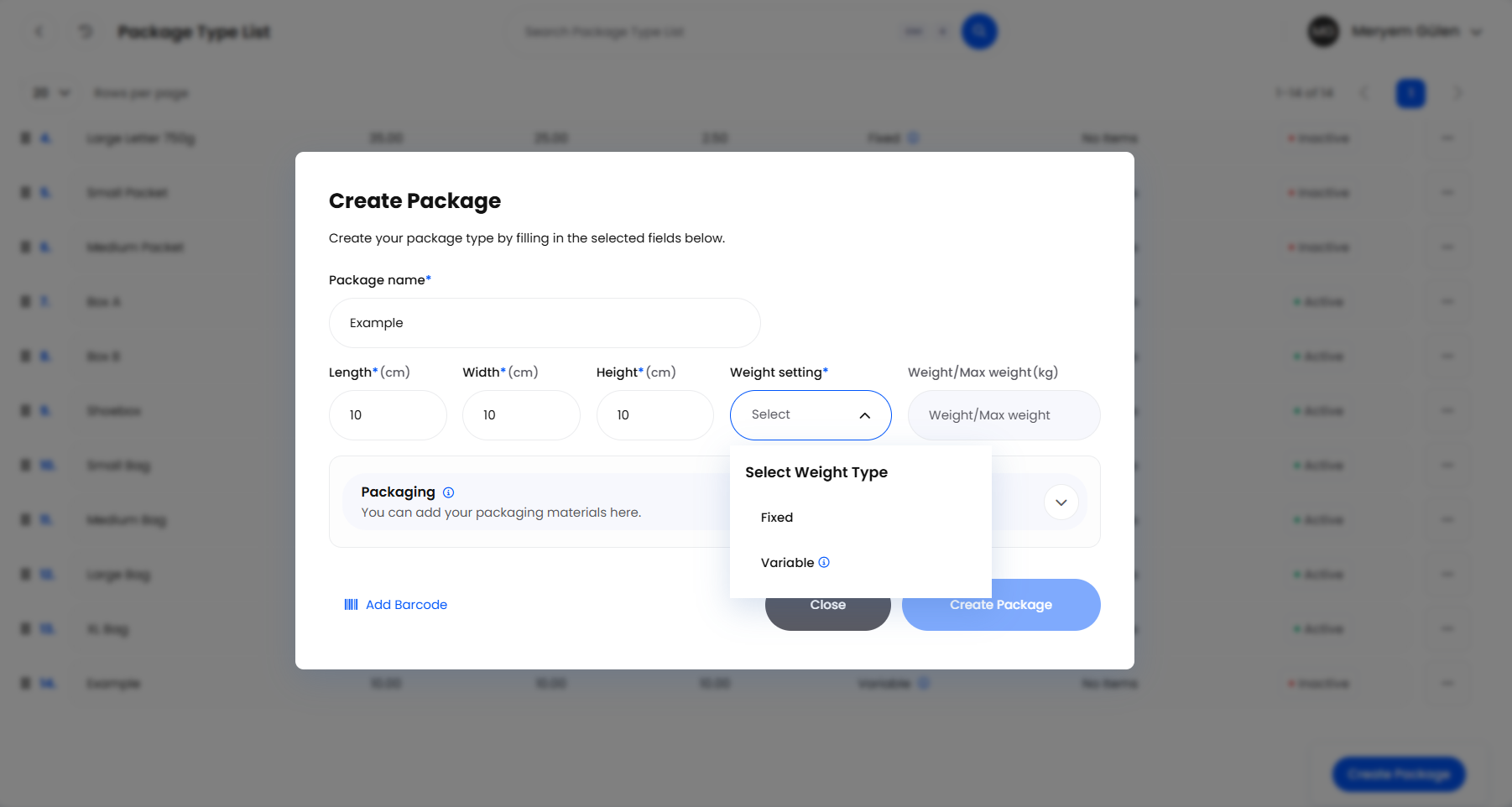

Fixed & Variable Weight
This is the one decision on the page worth thinking about, because it changes what happens to a parcel's weight and what Helm will refuse to accept.
The Weight Setting column tells you which is which at a glance, and its tooltip fills in the number. On a fixed package the tooltip is headed Fixed Weight and states the weight; on a variable one it is headed Variable Weight, says the weight is calculated from the shipment contents, and either names the maximum or reads Limitless.
Reach for Fixed only where the weight genuinely never varies, such as a pre-weighted letter rate. A fixed package rejects any parcel whose weight is not exactly the package weight, so applying one to real mixed orders will stop despatch rather than speed it up. Helm's starter package types are all fixed, which is worth knowing before you switch them on.

Related Packaging
The Packaging section is where a package type stops being a set of measurements and starts moving stock. Anything listed there counts as part of the parcel.
Stock comes down automatically. When a shipment is created with this package type on a parcel, the listed packaging items are deducted alongside the order's own products, so your box and void fill levels fall as you despatch.
Their weight counts on a variable package. Helm adds each packaging product's own weight, multiplied by its Qty, to the calculated parcel weight. A packaging product with no weight recorded on its Dimensions section adds nothing, which is the usual reason a calculated weight comes out light.
Quantity has to be at least one. A new line arrives at zero, and Helm will not save until every line has a real quantity.
Removing a line only changes this package type. The confirmation is worded strongly, but the bin icon takes the item out of this package type and leaves the product itself untouched.
The Related Packaging column shows how many are attached, reading No Items where there are none. Hover it to see each product and its quantity.
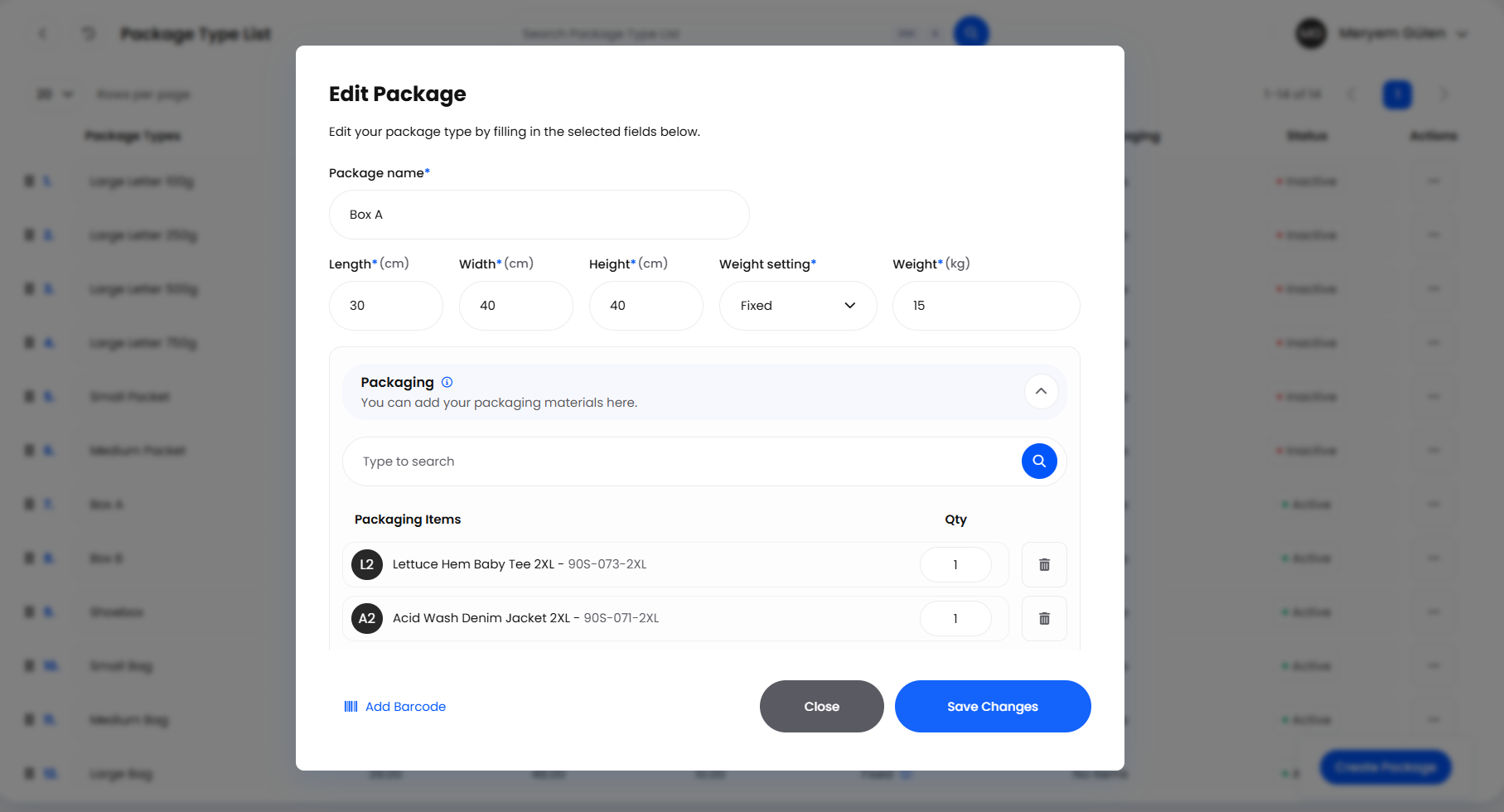

Barcodes
A package type can carry a barcode, added from the button at the bottom left of the create and edit dialogs. On a new package type that button reads Add Barcode; once a barcode is saved the button shows the barcode itself, and the dialog it opens is titled Edit Barcode. Type the value into Barcode and choose Add Barcode to keep it. The barcode is stored on the package type and returned by Helm's API, so anything integrated with Helm can read it.
Two limits are worth knowing. A barcode has to be unique across your package types, and once saved it cannot be blanked from the dialog, only replaced. A duplicated package type is copied complete with the original's barcode, so the copy will refuse to save until you give it one of its own.

Reading & Managing the List
Rows sit in an order you set yourself: drag a row by its handle to move it. That is the order package types appear in every Select Package Type list, so put your busiest packaging at the top. Reorder from the list's default view, because clicking a column heading sorts it and dragging then writes positions from whatever is on screen.
The search box matches the package name only, not the barcode, and a result opens that package type's Edit Package dialog directly.
Status is a button, not a label. One click flips a package type between Active and Inactive, with no confirmation, and it takes effect straight away.
Duplicate copies everything. Duplicate in a row's Actions menu carries across the dimensions, the weight setting, the packaging items and the barcode. Helm names the copy after the original with the word Copy added, and it arrives Inactive.
Delete is final. Helm asks you to confirm and then removes the package type; there is no restore. Shipments already sent keep their own dimensions and weights, but the name drops out of the Package Type field in Reporting, so historic despatches stop showing which packaging they went in.
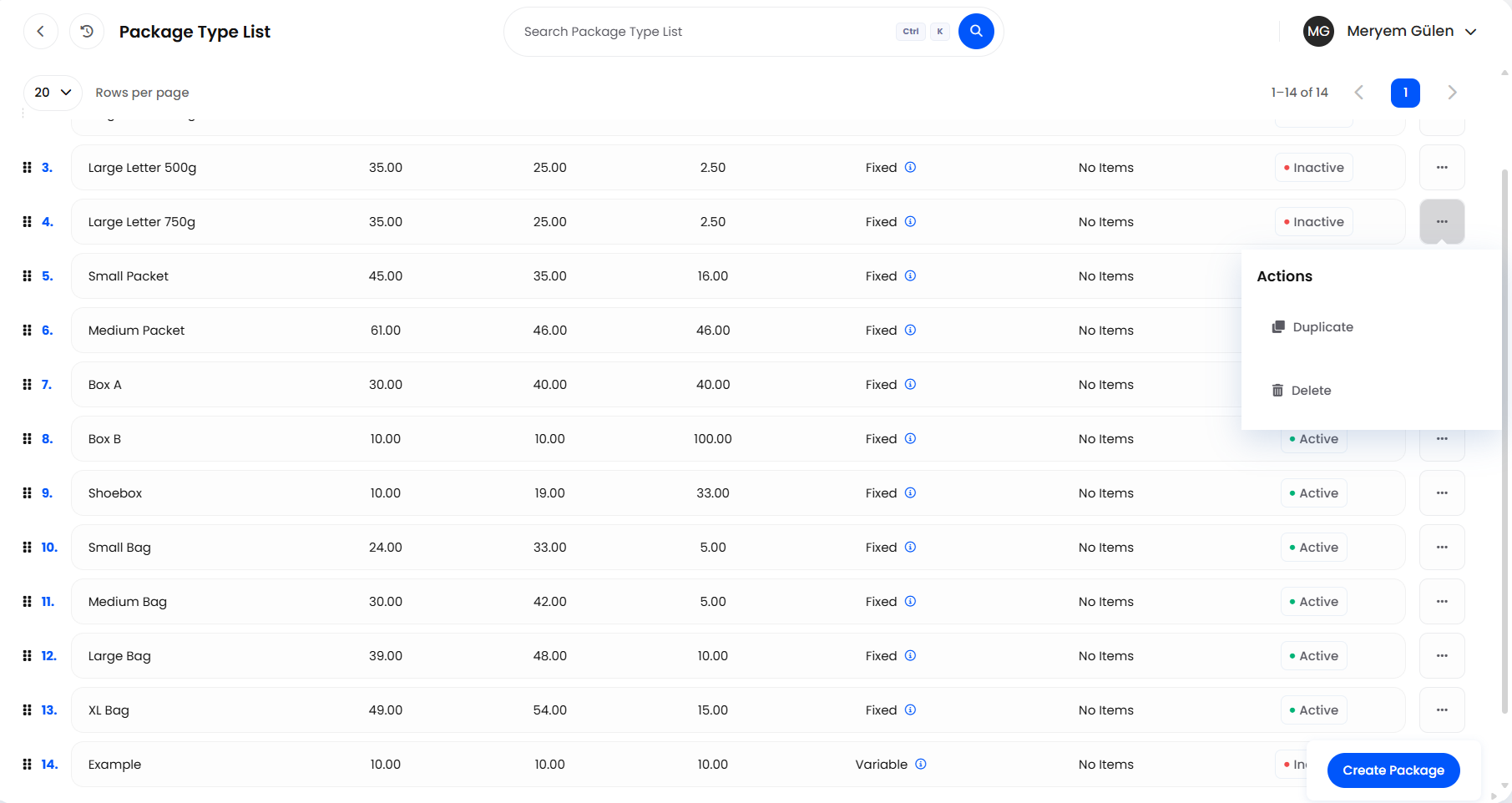

How a Package Type Reaches a Parcel
Nobody has to choose a package type by hand on every shipment. Helm works one out in a set order, and the operator can still change it.
A package type set on the order by a rule wins. That is the Set Package Type action under Processing > Order Rules.
Otherwise, a package type set on the product itself, in the Package Type field of its Overrides section. Helm reads this from the first item on the order, so on a mixed order it may not be the product you expected.
Otherwise, the Package type chosen under Settings > Company Settings > System Defaults.
Otherwise Helm works the parcel out from the items it contains.
That Package type default offers two built-in choices alongside your own package types: Inventory Calculated sizes and weighs the parcel from the products in it, and User Defined uses the dimensions and weight you type into System Defaults. The same two sit at the top of the parcel Select Package Type list. Choosing per parcel is covered in the Single Shipment and Batch Despatch articles.
A package type chosen as your Package type default is pinned. While it holds that role Helm will not delete it and will not let you change its Status, and it guards the weight: it refuses a change of Weight setting away from Variable while an Item weight is set in System Defaults, and refuses a Max weight below that item weight. Point the default at something else first, then make the change.

Best Practices & Notes
Deactivate Rather Than Delete
Inactive does everything deleting does without the cost. The package type disappears from every prompt straight away, stays in your list where you can bring it back, and keeps its name against historic shipments in your reports. Keep Delete for package types created by mistake.
Keep the Active List Short
Every active package type is an option in a dropdown a packer uses dozens of times a day. A tidy handful, in the order they get used, gets picked accurately; 20 near-identical entries do not. Treat the starter list as a menu to choose from rather than a list to switch on wholesale.
Weigh Your Packaging Products
Attaching packaging items only improves your declared weights if those products carry a weight of their own. Set a Weight on the Dimensions section of each box, bag and roll before you rely on a variable package type's calculated total.
Every Change Is Logged
Creating, editing, duplicating and deleting a package type each write an entry naming it under Settings > System Settings > User Logs. If a package type changed shape and nobody remembers doing it, that is where to look.

FAQ
Why Isn't My Package Type in the Select Package Type List?
Almost always because its Status is Inactive, including on the starter package types Helm set up for you. Only active package types are offered. If it is already active, reload the despatch screen so the list is fetched again.
Why Won't Helm Let Me Delete This Package Type?
It is the Package type chosen in your system defaults. Helm blocks both deleting it and changing its Status so despatch is never left pointing at a package type that no longer exists. Change the default first, then delete.
Why Can't I Type a Weight on the Parcel?
The parcel is using a package type whose Weight setting is Fixed, so the weight is the package's and the field is locked. Switch that parcel to a variable package type, or to User Defined, if you need to enter a weight yourself.
Why Was My Parcel Refused on Weight?
Two checks run when a shipment is created. A fixed package needs the parcel weight to match the package weight exactly. A variable package with a Max weight refuses contents, or a parcel weight, above it. Move the goods to a larger package type, or raise the ceiling on this one.
Can I Manage Package Types Through the API?
Yes. Whoever looks after your integrations can list, create, edit, reorder, duplicate, activate and delete package types through Helm's public API, under the package-template routes, and the same rules described here apply there.

,If a package type still is not behaving as you expect, contact support with its name, its Weight setting and its Status: between them those three explain most of it.
Was this helpful?
Still need help? Share an idea