Despatch Target Rules
Despatch target rules set the deadline for every order that arrives in Helm WMS: the date and time it has to leave your building. This article covers what they decide that your other rules do not, how the three schedule options differ, and why only one rule ever applies to an order.
What Despatch Target Rules Decide
Helm has four rules engines. Each owns one decision, and this is the one that owns time.
A rule writes one field, the order's Target Despatch Date. The Despatch Target panel counts down to it, the Orders list shows it in the Target Despatch Date column, and order rules, shipping rules, document rules and pick routines can all filter on it, so the rest of Helm can prioritise work against the deadline you set here.
Each rule holds five things: the channels it covers, optional filters, the hours the order gets, the schedule those hours are counted against, and any further actions.
Two panels from order rules are missing here on purpose. There are no Triggers to choose, and no Test Rule panel, so a rule is checked by reading the timeline on a real order.
Example scenario: orders from your own website have to be picked, packed and gone within eight hours, while wholesale orders from the same warehouse have three days. Two rules, one per channel, give both an honest deadline, and your pick queue can then be worked in deadline order.

Before You Start
A new rule is created Inactive. Nothing happens until you switch it on in the list, which gives you a chance to check the schedule first.
You choose channels, not stores. Selecting a store selects its channels, and the rule remembers the channels, so a channel added to that store later is not covered until you edit the rule.
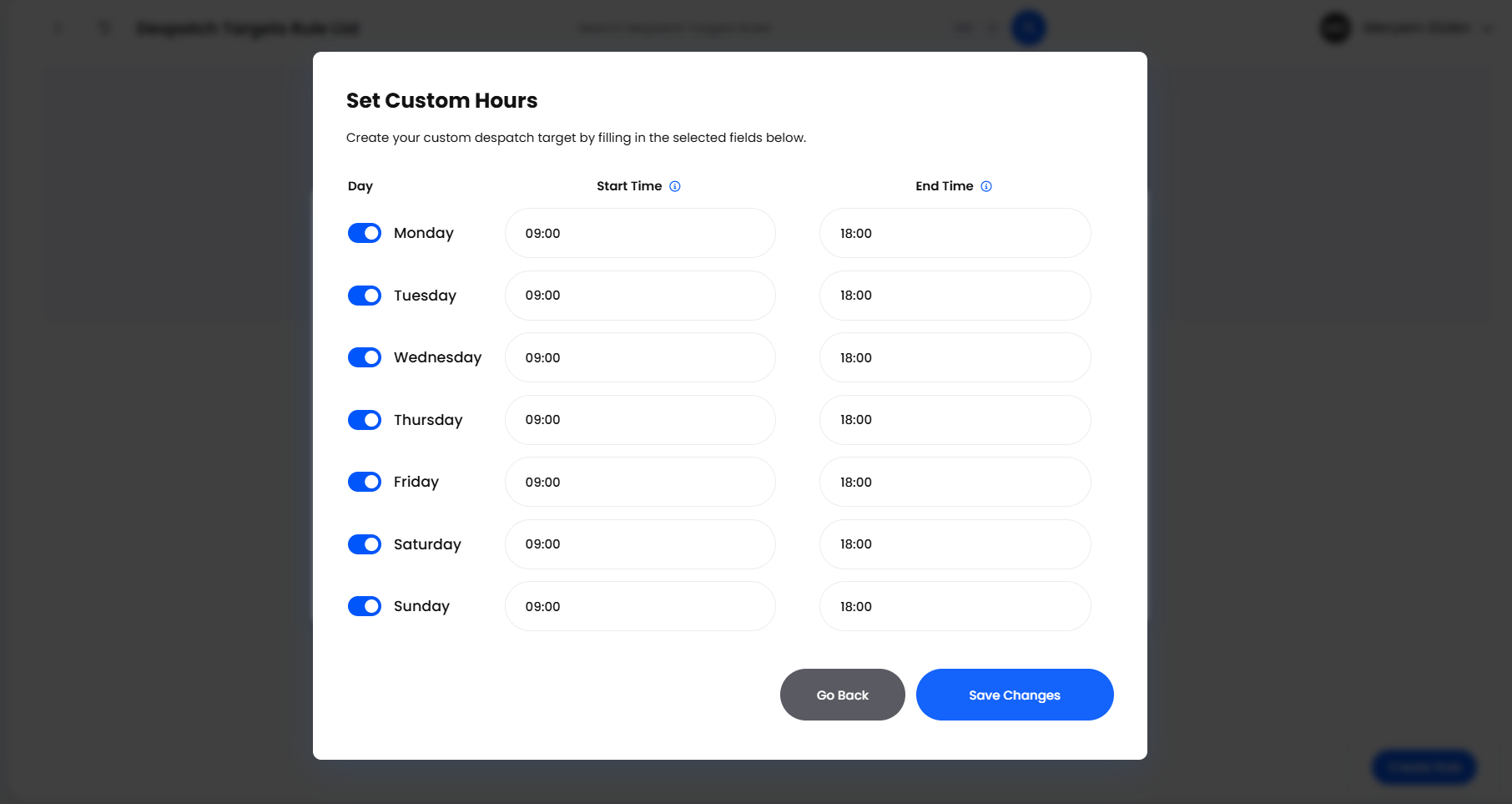
A Custom schedule has to be saved before the rule can be. Create Rule stays unavailable until you have opened Set Custom Hours and saved your days.
Company Hours reads your Access Restrictions. The option unlocks as soon as one active row exists under Access Restrictions in Settings > Company Settings, but only Access Time rows are used when a target is worked out, so a business running only Restricted Time rows can pick it and never match a window.
A folder must exist and be active before Add Folder can put orders in it. Tags are the exception: type one that does not exist yet and Helm creates it.
You need despatch rule permissions. If Despatch Target Rules is missing from Settings > Despatch Settings, ask whoever administers Helm about the Shipment Despatch Rules Create permission and its siblings.
Access Restrictions is a login control first and a set of business hours second. An active Access Time row stops everyone except owners, and optionally administrators, from using Helm outside its hours, and logs them out if they are already signed in; a Restricted Time row does the same inside its hours. Never add rows there just to unlock Company Hours: use Custom instead.

How to Create a Despatch Target Rule in Helm
The rule is built over two steps, and the second is where the thinking is.
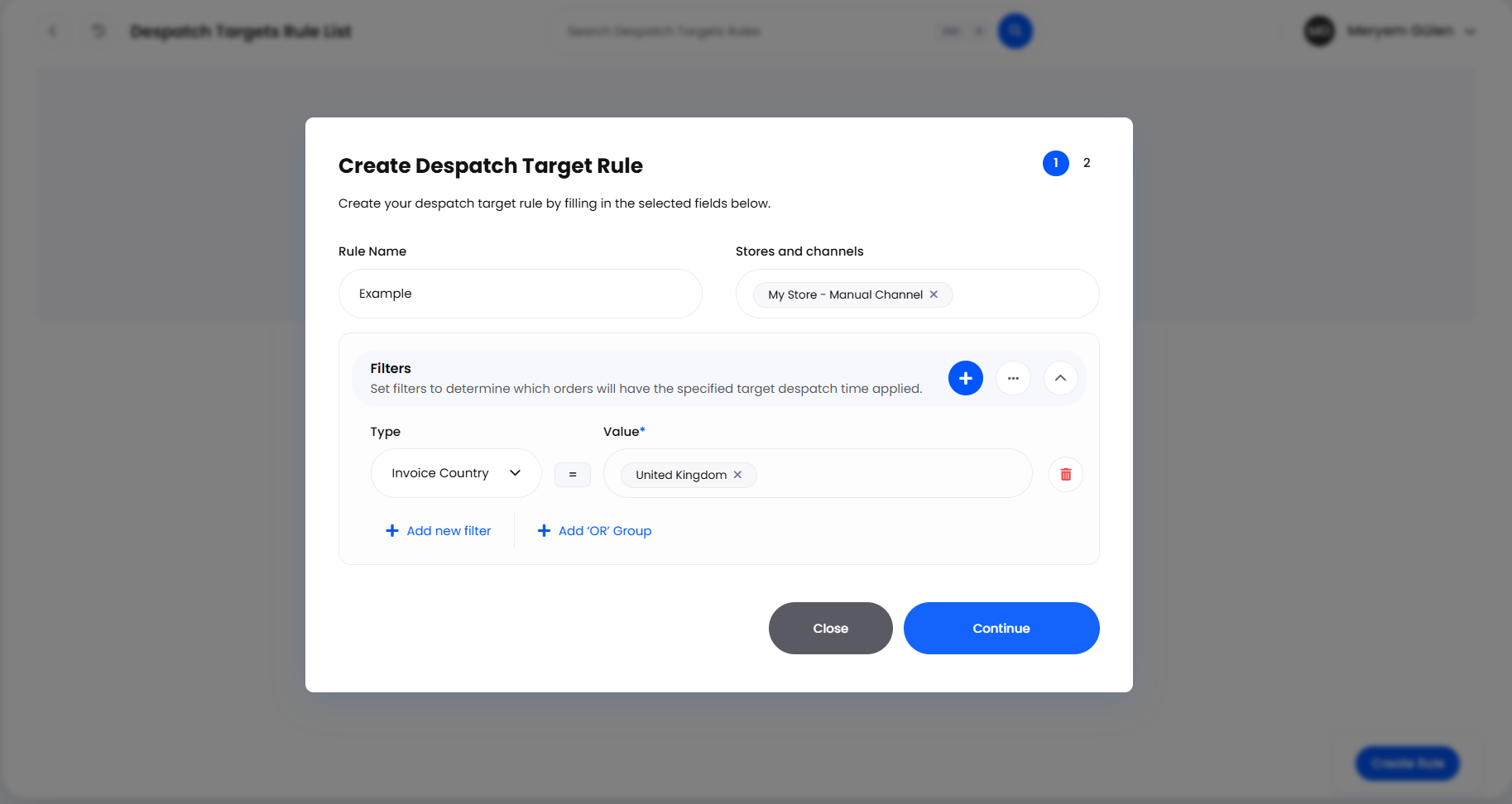
Go to Settings > Despatch Settings > Despatch Target Rules and choose Create Rule.
Fill in Rule Name. It has to be unique, and it appears on an order's timeline when the rule runs, so name it for the deadline it sets.
Choose the channels it covers under Stores and channels; Select All takes the lot. A rule with no channels cannot be saved.
Add filters. Use the Filters panel if the rule should not cover every order on those channels; leave it empty if it should.
Choose Continue.
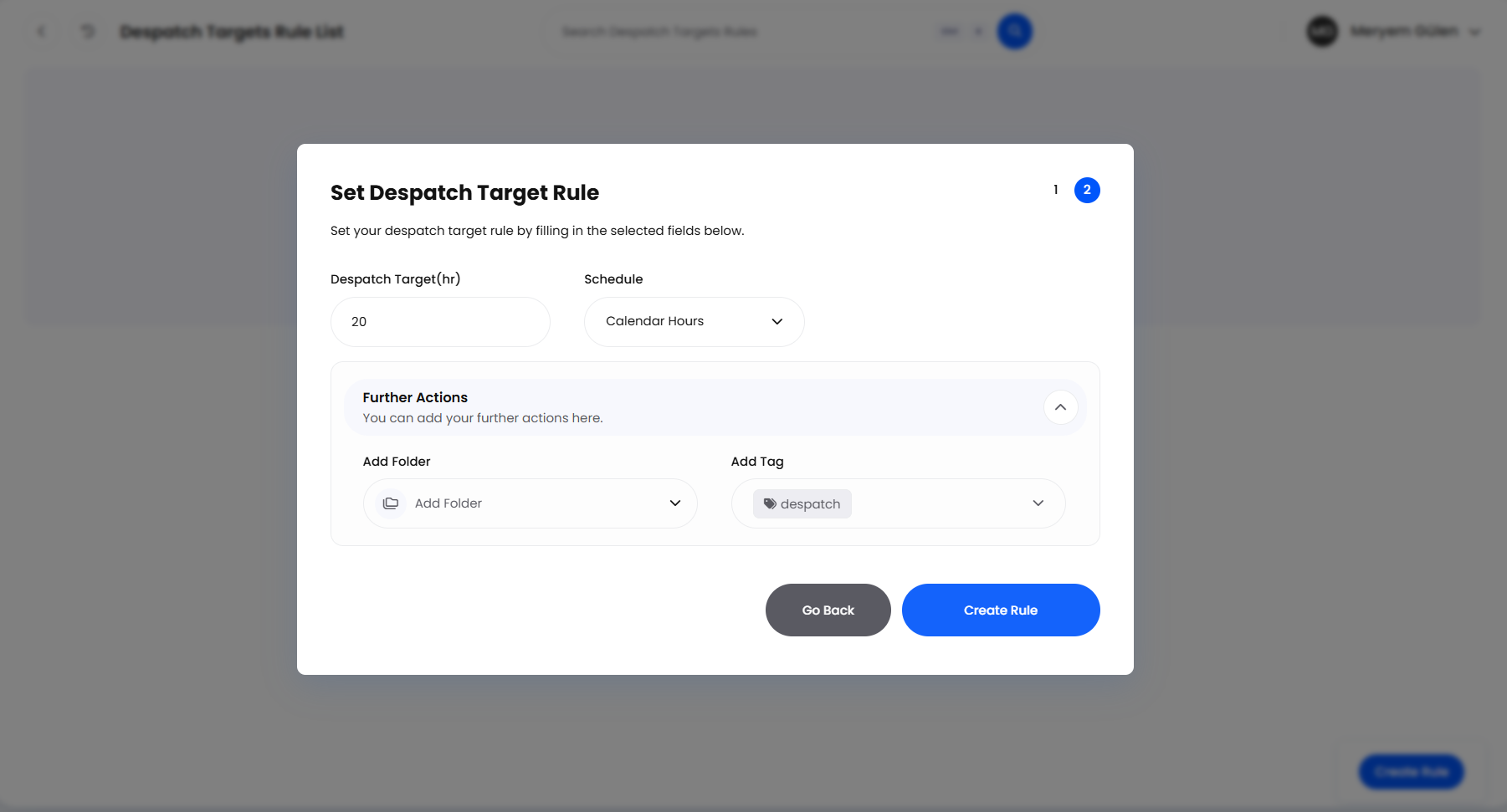
Set Despatch Target(hr). The hours the order gets, counted from the time it was placed: whole hours only, at least one. Anything over 24 shows in the list as days rounded down, so 36 hours reads as one day.
Choose a Schedule. This decides what those hours are counted against, and the three options behave very differently.
Set your days if you chose Custom. A circular pencil button beside Schedule opens Set Custom Hours: switch on each Day you work and set its Start Time and End Time, then Save Changes. Start must be before end, and all seven days are stored with the rule.
Add Further Actions. Tag the order or drop it into a folder as well.
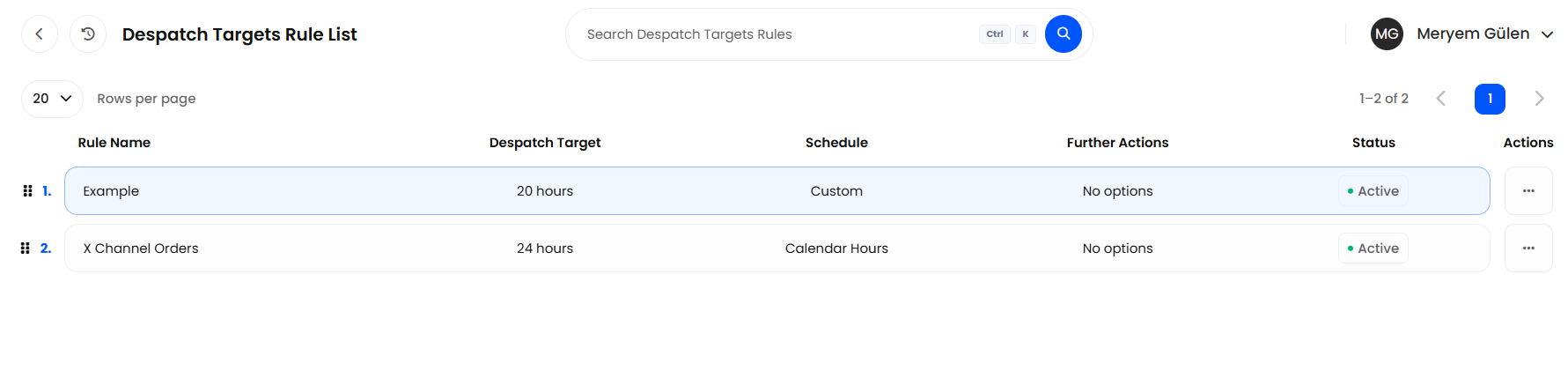
Choose Create Rule, then click the Status cell in the list to move the rule from Inactive to Active. Only Active rules run.

Choosing a Schedule
Neither Company Hours nor Custom spreads the hours across your working day. An order arriving inside the window for its own day has its hours added exactly as Calendar Hours would, even if that lands after hours. What the window changes is what happens to the orders that arrive outside it.
Helm looks through the rest of that week for a day whose window covers that time of day. If it finds one, the target is mid-afternoon that many days on, with the rule's hours added on top, so it can land a day later again where those hours cross midnight. If nothing matches, the target is mid-afternoon on the next weekday and the rule's hours are ignored.
Two details catch people out. Mid-afternoon means the hour is set to 15 with the order's own minutes kept, so an order placed at 23:23 reads 15:23. And the fallback weekday is always Monday to Friday, whatever days your own schedule has switched on, so a Friday evening order on a six-day operation is due on Monday rather than Saturday.

Which Rule Applies to an Order
This is the biggest difference from order rules, where every matching rule runs. Helm works down the list from the top and stops at the first match: one order, one target.
The rule has to be Active. Inactive rules are skipped entirely.
The order's channel has to be in the rule's list. That is checked before the filters.
The filters have to match. A rule with no filters matches every order on its channels, which makes it a good catch-all.
Order is meaningful. Specific rules belong above general ones: a catch-all at the top wins before anything below it is looked at.
The Despatch Target panel and the Orders list's Target Despatch Date column both show the result, and there are five readings.
Nothing stops a rule recalculating the target on an order that has already gone, so Shipped On Time can turn into Shipped Late! later if a tag, folder, note or item change moves the deadline.

Filters & Further Actions
Filters
Filters works as it does in your other rules, and the Order Rules article covers the panel in full: a Type, an operator and a Value, with everything in one Group having to be true. Add new filter narrows the rule; Add ‘OR’ Group adds an alternative set of conditions. There is no store or channel filter here: the first step did that job.
The Type list covers the order, the customer, both addresses, payment, totals, the shipping service and the order's items, so Order Total, Requested Shipping Service and Fulfillable are all there. An item filter matches when any one item matches it: the Any item and All items choice you get in order rules is not part of this engine.
The Saved Filters menu beside the panel keeps sets of conditions for reuse. Save as New stores what is on screen, and a saved set can be deleted and then taken back from the message that confirms it. Each of those needs its own permission.
Further Actions
There are two, both optional. Add Folder puts the matched order into an order folder and Add Tag adds one or more tags, which is how a deadline becomes visible on the floor: a rule that sets a four-hour target can also drop the order into the folder your pickers work first. An order sits in one folder at a time, so Add Folder replaces the old one.
The list's Further Actions column reads Tag & Folder, Tag, Folder or No options.

When the Target Is Recalculated
A rule does not only run as the order arrives. Helm recalculates the target when an order is created or imported, when its status changes, when it is held or released, when tags, folders, items, notes, attachments, addresses or the shipping service change, and on the new orders produced by splitting, copying or resending one.
Two consequences follow. The hours are always counted from the order's own date, not from the moment of the recalculation, so a rule applied to an order placed three days ago produces a target that is already overdue. And because a different rule can win once the order has changed, a tag, a folder or a note can move a deadline; so can a comment, since Order Comments and Order Comment Count are filter types.
There is no bulk action for applying these rules to a backlog, so a new rule reaches existing orders only when one of those changes happens to them. Switching a rule off or deleting it leaves the targets it has already set alone.

Example: An Express Rule & a Catch-All
Express orders have to be out within four hours of arriving; everything else from the same website gets a day.
Choose Create Rule and name the first rule for its deadline, for example Express four hours.
Under Stores and channels, select your website channel.
Add one filter: Requested Shipping Service, the operator Contains, a Value of Express. Choose Continue.
Set Despatch Target(hr) to four and Schedule to Custom, then in Set Custom Hours give Monday to Friday a Start Time of 08:00 and an End Time of 18:00, weekend switched off. Choose Save Changes.
Add an Add Tag action, then choose Create Rule.
Create the second rule with no filters, Despatch Target(hr) set to 24 and Schedule set to Calendar Hours.
Drag the express rule above the catch-all, which would otherwise match first and stop it ever running.
Switch both rules from Inactive to Active.
An express order placed at 09:00 on Tuesday is due at 13:00 the same day. One placed at 19:00 falls outside every window on that schedule, so it is due at 15:00 on Wednesday. The catch-all would have made it 19:00 on Wednesday, since Calendar Hours counts straight through.

Managing Your Rules
The list shows Rule Name, Despatch Target, Schedule, Further Actions and Status, with a drag column at the start and an Actions column at the end.

Best Practices & Notes
One rule with no filters, covering every channel, sitting last in the list, means no order ever ends up Not assigned: everything above it is an exception you have chosen to make.

FAQ
Why is my target mid-afternoon when I asked for eight hours?
The order arrived outside the hours on your Company Hours or Custom schedule, so it was given a mid-afternoon target on a later day instead. The hour is set to 15 and the order's own minutes are kept, which is why it can read 15:23 rather than 15:00.
Why is Company Hours greyed out?
Your business has no active rows at all under Access Restrictions in Settings > Company Settings. Those rows control who can log in to Helm and when, so do not add them just to unlock the option: use Custom instead.

If a deadline looks wrong, read the order's timeline to see which rule set it, then check that rule's position in the list and its schedule. The Order Rules, Shipping Rules and Document Rules articles cover the other three engines. If you are still stuck, contact support with the rule name and an order number.
Was this helpful?
Still need help? Share an idea