Getting Started with the Packing Terminal
Install the Helm WMS Packing Terminal on a packing bench computer, sign in, and choose whether to pack orders or process returns.
What the Packing Terminal Does
The Packing Terminal is a desktop app that runs on the computer at each packing bench. It connects to Helm WMS, its scanner and its printers, and gives the person at the bench one screen for the job in front of them.
You choose what the bench is used for when you sign in. On the Choose your terminal screen these appear as Packing Terminal and Returns Terminal:
Packing orders: find an order, check the items, pack them into parcels and despatch them with a courier label.
Processing returns: find the original order, inspect what came back and put the stock away.
While it is running and signed in, the terminal also acts as that bench's print point, so documents and labels sent from Helm print on the right printer for their size.
Example: A warehouse has three benches. Benches 1 and 2 are set up for packing, next to their label printers. Bench 3 sits by the goods-in door and is set up for returns. Each packer signs in with their PIN at the start of the shift and the bench opens straight into its usual mode.

Before You Start
A computer at the bench: a Windows computer with a barcode scanner, and a printer for each paper size you use, for example a 6×4 label printer and an A4 printer.
A Helm user for each person: owners and admins count as supervisors automatically. Everyone else can still pack and return; some actions ask for a supervisor to sign in.
Quick Access for PIN sign-in: to let packers sign in with a PIN or badge, an admin turns on Quick Access in Helm under Settings > Company Settings, in the Access Restrictions section. Without it, the terminal can only sign in through the browser.
Package types (optional): box sizes saved in Settings > Package Type Settings, ideally with a barcode on each, so packers can scan the box they use.
A webcam (optional): needed only if you want Packeye to film the bench while orders are packed. Any standard webcam works; see What Packeye Needs.
Note: When you create a user in Settings > Users, you can choose Quick Access Only for packers who only ever sign in at a bench.

Installing the Packing Terminal
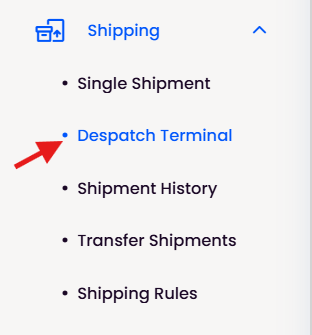
In Helm, go to Shipping > Packing Terminal and download the Packing Terminal installer onto the bench computer.
Run the installer. When it finishes, the Packing Terminal opens on the Terminal Login screen.
Connect the scanner and printers if they are not already plugged in.
Closing the window does not quit the app. It carries on in the system tray so Helm can still print to the bench. Right-click the tray icon for Open Packing Terminal, Printer Settings and Exit.
Keeping It Up to Date
The Packing Terminal updates itself. When a new version is ready you see Update ready: choose Restart now, or Restart later and it installs the next time the app closes. Release notes shows what changed. If an update is required, the terminal downloads it straight away and then asks you to Restart now.

Signing In for the First Time
A new install only shows Log in with browser. That is expected: the PIN keypad appears once the terminal knows which company it belongs to.
On the Terminal Login screen, select Log in with browser. Your web browser opens the Helm sign-in page.
Sign in with your Helm email and password. The browser hands you back to the terminal automatically.
If your user belongs to more than one company, choose the right one under Select company.
On Choose your terminal, pick Packing Terminal or Returns Terminal. The terminal remembers the choice for next time.
Tip: Not ready to pack yet? Select Printer settings on the Choose your terminal screen to assign printers first.

Signing In Each Shift
After that first browser sign-in, the Terminal Login screen shows a PIN keypad.
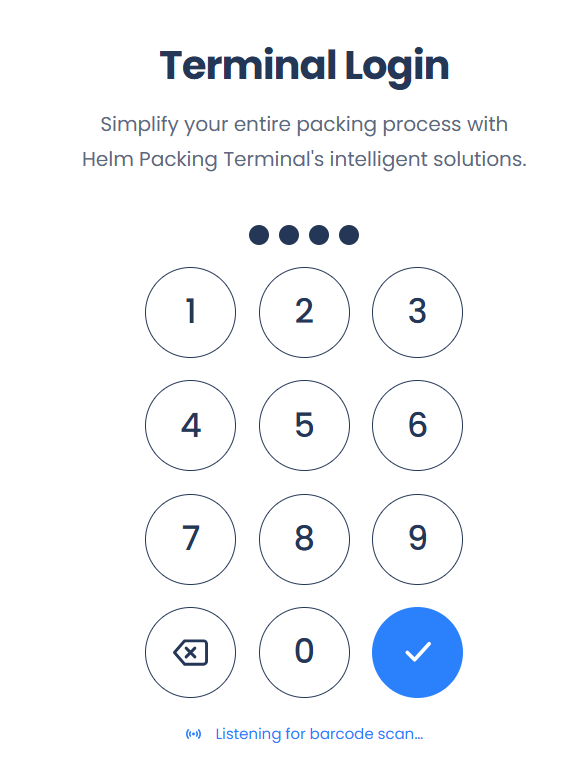
Type your Quick Access PIN on the keypad, or scan your staff badge while the screen shows Listening for barcode scan…
The terminal opens in the mode chosen last time, ready to scan.
At the end of the shift, open the user menu and choose Log out.
Note: If Auto-logout when idle is on in Settings, the terminal signs the packer out after the chosen time with nothing scanned or pressed.

The User Menu
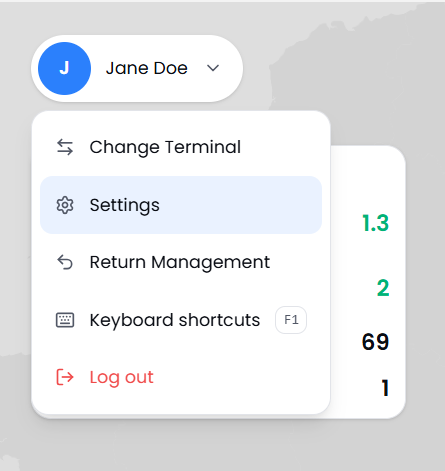
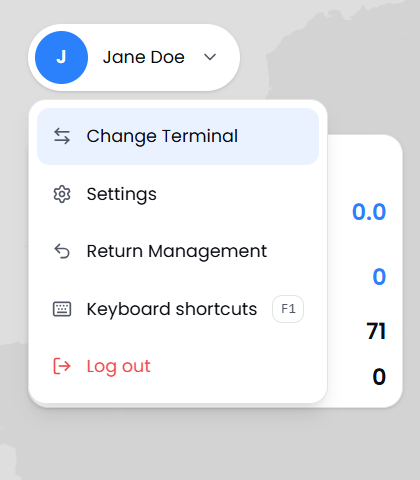
Select your name in the top-left corner to open the user menu. It holds everything you need between orders.

Supervisor Sign-In
Some actions need a supervisor's say-so, such as changing a delivery address when address changes are turned off, skipping the item check or accepting a late return. When a packer tries one, the terminal asks a supervisor to sign in with their PIN, a badge scan or their email and password.
The packer stays signed in throughout: the supervisor only approves that action, and the terminal records who did. Owners and admins never see the prompt, because they already count as supervisors.
Tip: If a team leader is standing at a bench for a while, turn on Supervisor Mode from the user menu so they are not asked to sign in for every override.

Practising with Sandbox
Sandbox is a practice mode for training. Once it is turned on in Settings > Sandbox, a Sandbox switch appears in the top bar. While the switch is on, an orange border runs round the screen, nothing reaches the live system and labels print as test pages. It switches itself off when the user logs out.
Heads up: Check for the orange border before packing live orders. If it is there, turn off the Sandbox switch first, or the parcels will go out without real labels.

FAQ
Why is there no PIN keypad on the login screen?
Why is there no PIN keypad on the login screen?
The keypad appears after the first sign-in with Log in with browser, once the terminal knows its company. If it is still missing, check that Quick Access is turned on in Helm.
I closed the window. Is the terminal still running?
I closed the window. Is the terminal still running?
Yes. It keeps running in the system tray so Helm can still print to the bench. Choose Exit from the tray icon to quit it completely.
Can one computer do both packing and returns?
Can one computer do both packing and returns?
Yes. Use Change Terminal in the user menu to switch, or Return Management from the home screen to jump into returns.
Do I need to update the terminal myself?
Do I need to update the terminal myself?
No. It downloads updates by itself and asks you to restart when one is ready.

Need help getting a bench set up? Contact the Helm support team, or read Packing Terminal Settings for every option on the terminal
Was this helpful?
Still need help? Share an idea