Pick Totes
See every tote holding orders after a tote pick in Helm WMS, and free a tote for its next pick without opening the pick it belongs to.
What the Pick Totes Page Does
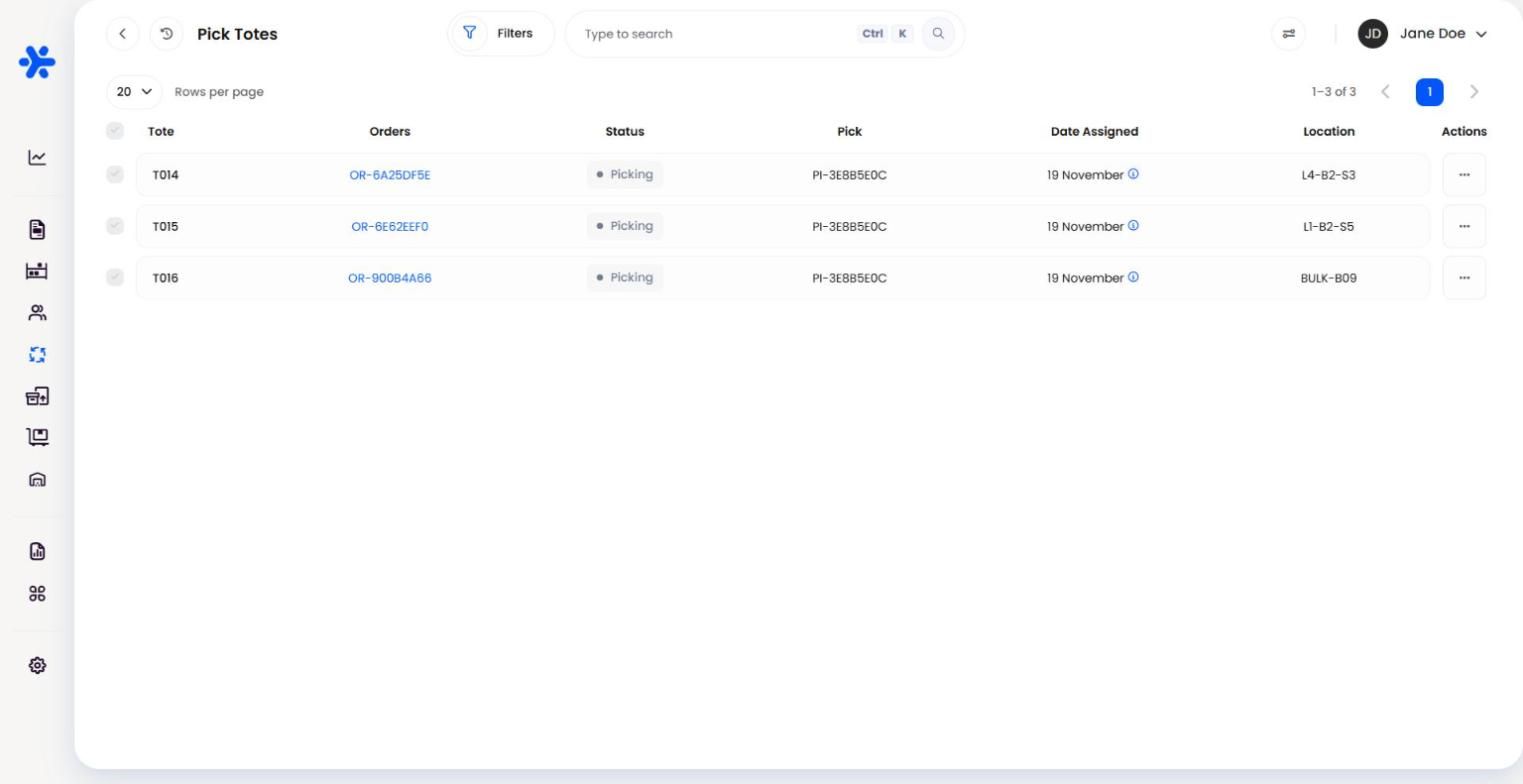
After a tote pick, each physical tote carries its orders until they are packed. Pick Totes, under Processing, lists every tote in use across all your picks, so a team leader can see what each tote is holding and free one that is stuck, without opening the pick it belongs to.
Freeing a tote releases its barcode for the next pick. You choose what happens to the orders inside it: they can stay in their pick as they are, or go back to New Order to be picked again, with the picked stock either left where it is or returned to the shelf it came from.
Example: a picker ends a shift with tote T014 still holding two orders from an unfinished tote pick. Next morning the supervisor opens Pick Totes, finds T014, unassigns it and sends both orders back to New Order with their stock returned to the shelf. The orders are picked again in the morning wave and T014 goes back on the trolley.

Before You Start
Full mode only: Pick Totes is part of picking, so it appears under Processing only when your Warehouse Mode is Full.
Permissions: viewing and unassigning totes is included in the Senior Warehouse Operative permission group and every group above it.
Totes appear once they are in use: a tote shows on the page as soon as a tote pick assigns a physical tote barcode to it, and leaves it once it is freed. An empty page reads No totes in use.
Reading the Pick Totes Page
Each row is one tote that is holding orders right now.
Use Filters to narrow the list by pick, tote barcode, status, date assigned or order number, or type a tote barcode, pick reference or order number into the search box.

How to Unassign a Tote in Helm
Go to Processing > Pick Totes.
Open the row menu on the tote and choose Unassign.
Affected orders lists every order in that tote with its status and location. Untick any order that should stay in the tote, then click Confirm. At least one order must stay ticked.
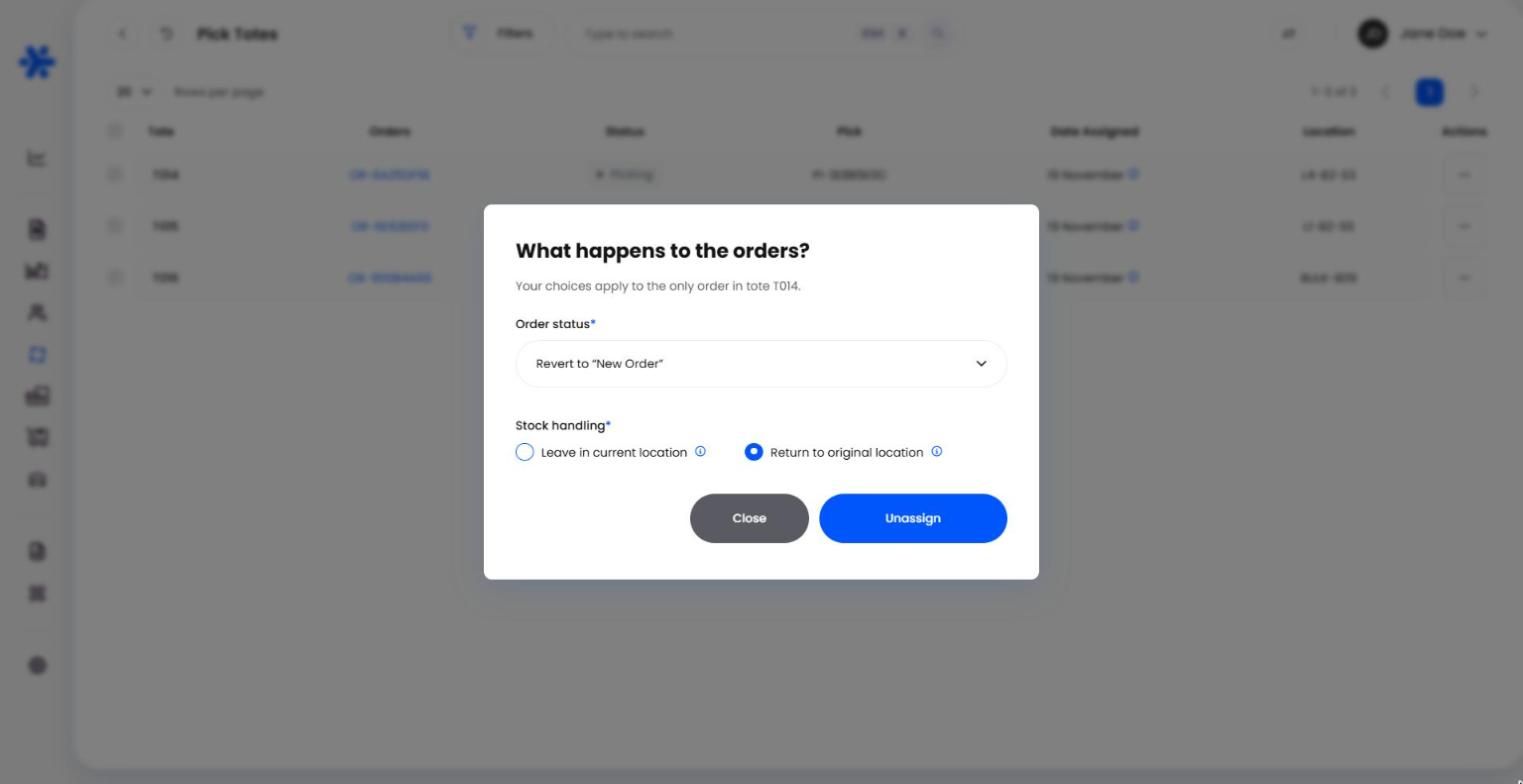
Under What happens to the orders?, choose the Order status:
Leave as-is frees the tote only. The orders stay in their pick with their current status, shown in brackets, and no stock moves.
Revert to "New Order" takes the ticked orders out of the pick and back to New Order, ready to be picked again.
Under Stock handling, choose what happens to units already picked. Leave in current location keeps them in your Picked location and only releases their reservation. Return to original location moves them back to the shelf each line was picked from; it is available with Revert to "New Order".
Click Unassign. Once the tote has no orders left it leaves the list, and its barcode is free for the next tote pick.
Note: an order that is Cancelled, Despatched or already has a shipment cannot go back to New Order, because it has already left the warehouse or been stopped. Helm refuses it and tells you which order it was.

Unassigning Several Totes at Once
Tick the totes you want to free. To take every tote in the list, tick the header checkbox and choose Select All.
Click Unassign in the bar at the bottom.
Read the warning and click Continue.
Affected orders lists every order in the selected totes. Check the list, then click Confirm.
Choose the order status and, with Revert to "New Order", whether stock returns to its original location, as for a single tote. Your choices apply to every order in the selected totes.
Click Unassign. The totes are freed in the background; Helm shows a notification when they are queued and again when they are done, and the job appears in the Jobs Queue.
Warning: a bulk unassign acts on every order in every selected tote and cannot be undone. Freeing a tote that a picker is still working from can leave its pick out of step with what is physically in the tote, so check with the floor before you continue.

Best Practices & Notes
Match the Choice to What Happens on the Floor
Choose Return to original location only when someone is putting the items back on their shelves. If the items stay on the trolley or at the packing bench, leave them in the Picked location so Helm's stock matches where they really are.
Use Leave as-is to Swap a Tote
When a tote is damaged or needed elsewhere, Leave as-is frees its barcode without touching the orders, so the pick carries on as before.
Batch-Tracked Stock Goes Back to Its Batch
When batch-tracked units return to their original location, they go back into the batch they came from. If a stock count or a manual movement has changed the Picked location since the pick, Helm leaves those units where they are rather than moving stock it can no longer find.
For how tote picks are created and worked, see Pick Management, Pick Routines and Sorting Orders with the Sort Wall.

FAQ
Why is the Pick Totes page empty?
Why is the Pick Totes page empty?
No tote is holding orders at the moment. A tote appears as soon as a tote pick assigns a tote barcode to it.
Does unassigning a tote cancel the orders?
Does unassigning a tote cancel the orders?
No. With Leave as-is the orders stay in their pick; with Revert to "New Order" they go back to New Order, ready for the next pick.
Can I choose which orders to unassign when I select several totes?
Can I choose which orders to unassign when I select several totes?
Not in bulk: a bulk unassign covers every order in the selected totes. To keep some orders in a tote, unassign that tote on its own from its row menu.
Where can I see which totes were freed and by whom?
Where can I see which totes were freed and by whom?
Every unassign is recorded in the company log, naming the tote and the number of orders it held.

Still stuck? Contact the Helm support team with the tote barcode and the pick reference, and we will take a look.
Was this helpful?
Still need help? Share an idea