Creating a Map
How to add a new warehouse map in Helm Warehouse Mapping: choosing between the AI builder and manual setup, entering the building size, adding a floor plan to trace over, and what happens once the map is created.
Before You Start
Set a default warehouse in Helm. A map belongs to the warehouse Helm reports as current. If Helm has no default warehouse the dialog shows No warehouse in Helm and the build options are hidden until one is set.
Know the inside dimensions. You need the internal width and length in metres, wall to wall. Pacing it out is fine; everything can be adjusted in the editor afterwards. The internal clear height is optional.
Have a floor plan to hand, if you have one. PDF, PNG, JPEG and WebP files are accepted. A plan can either be read automatically by the AI builder or laid faintly under the grid for you to trace over.

How to Add a Map
On the Maps page, click Add map. The Add a map dialog opens.
Check the Warehouse shown at the top. It is read from Helm and cannot be changed here. While it loads you will see Checking which warehouse you’re working in….
Choose how to build the map:
Build with AI (marked Recommended): upload a floor plan per floor, or answer a short interview instead. See Building a Map with the AI Builder.
Set it up manually: enter the building size and add everything yourself, optionally tracing over a floor plan. The rest of this article covers this route.
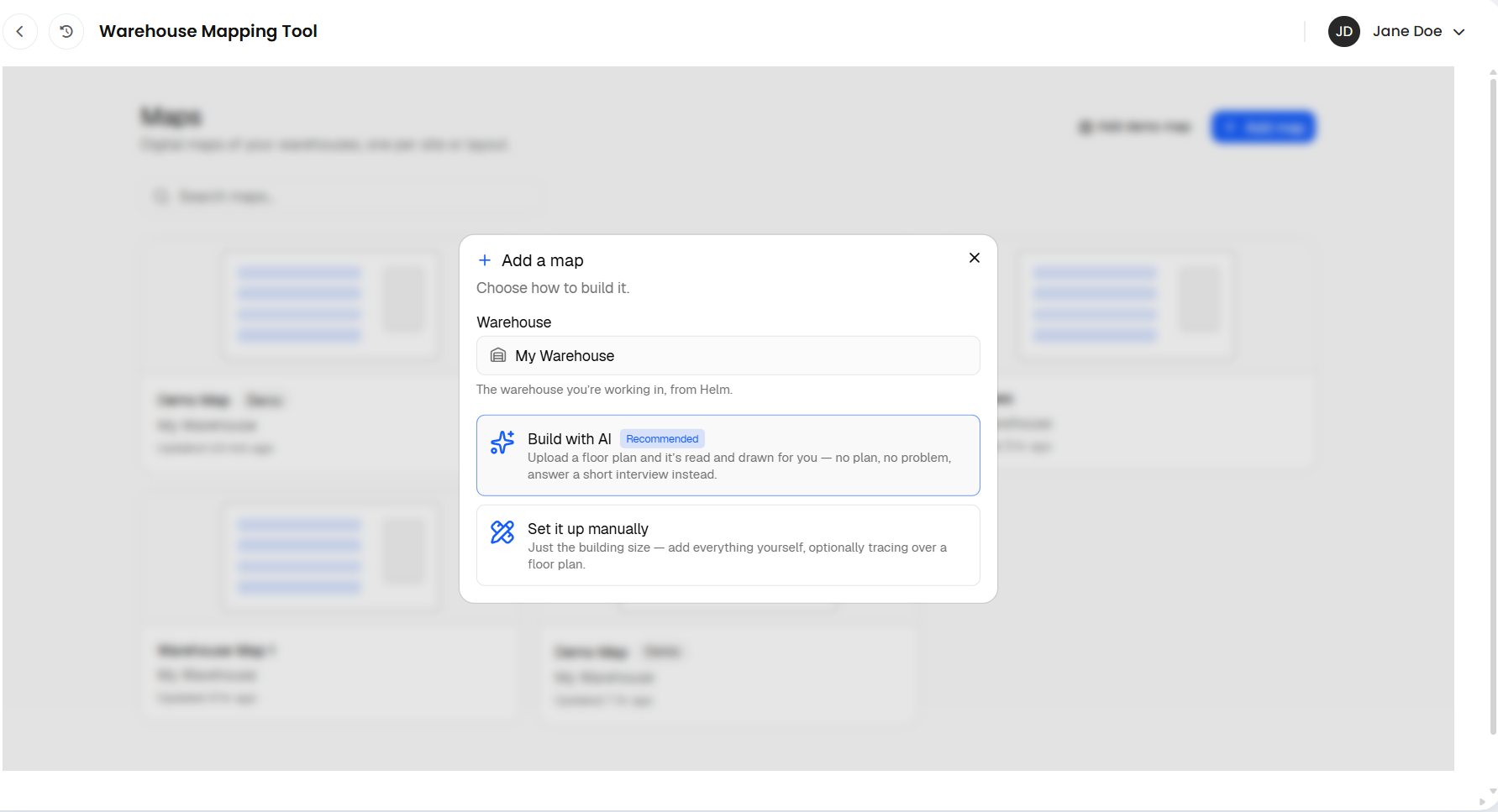
If you close the dialog partway through the AI builder you are asked Cancel this warehouse build?. Choose Keep going to carry on or Discard to abandon the answers so far. Nothing is created until the build finishes.

Setting It Up Manually
Enter the Width (m) and Length (m) of the building, measured inside the walls. Both must be between 2 m and 2000 m.
Optionally enter the Height (m). This is the internal clear height and it becomes the default height for racking and pillars. Leave it blank to use standard heights.
Optionally choose a file under Floor plan to trace (optional). The drawing is shown faintly under the grid so you can build over it. Nothing is read from it automatically; you set its scale and position in the editor.
Click Create map. The button shows Creating… while the map is set up, then the editor opens.
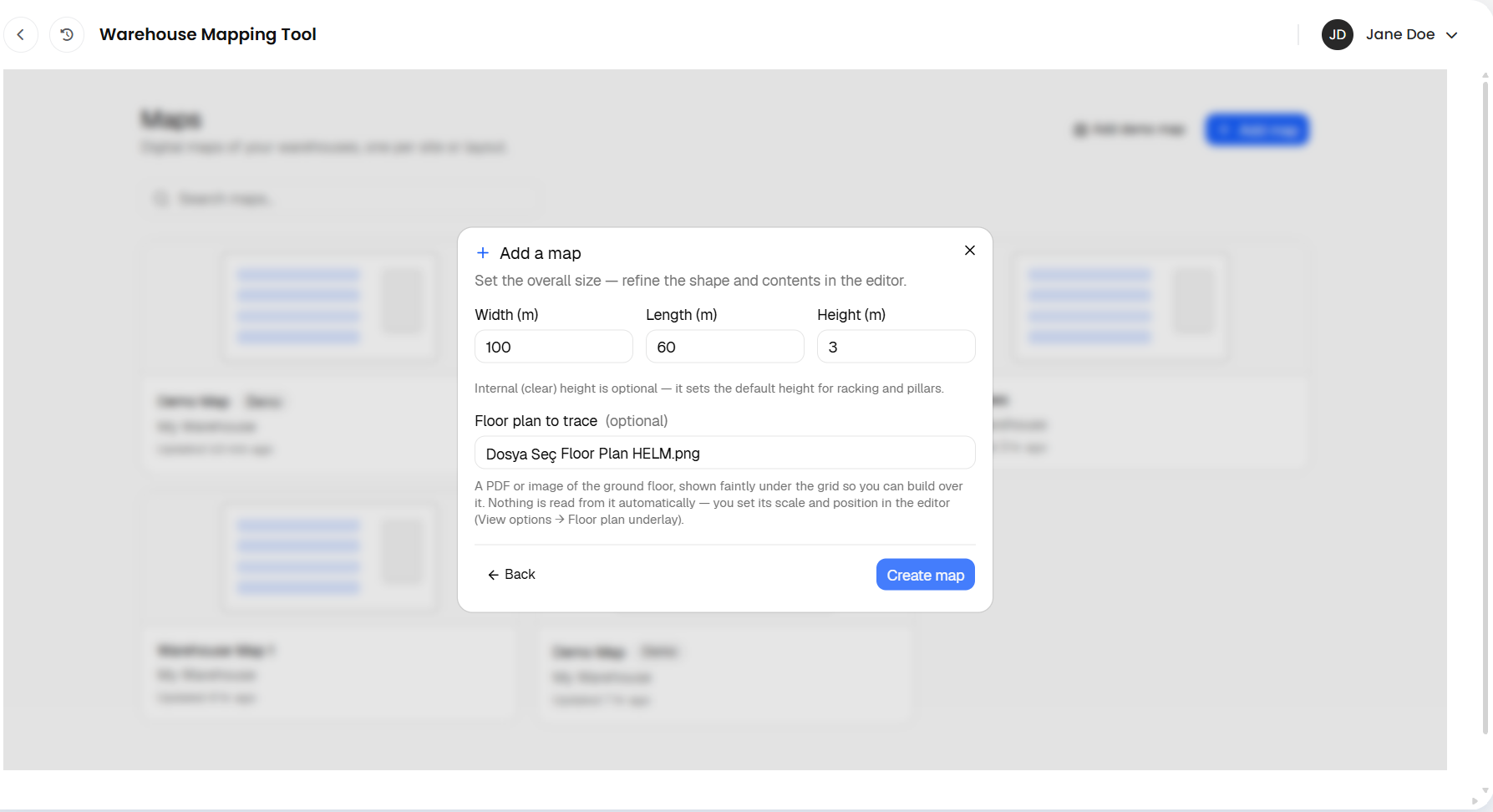
New maps are named Warehouse Map 1, Warehouse Map 2 and so on. Click the name in the editor header to rename it at any time.

What You Get
A manual map starts as an empty rectangular floor at the size you entered, on a single level called Ground floor, with the grid and rulers showing. From here:
Open the Build tab and drag racking, walls, doors, benches and areas onto the floor. Using the Map Editor covers placing and arranging.
If the building is not a plain rectangle, use Edit shape, Extend floor and Cut floor under Building to reshape the footprint. Mezzanines and extra floors are added from Manage levels. See Levels, Layers & Floor Plan Underlays.
If you attached a plan, open View options and use the Floor plan underlay controls to position it and set its scale before you start tracing.
Once the racking is in, open the Locations tab to place your Helm location codes. See Assigning Helm Location Codes to Your Map.

Example
A regional depot is a plain 30 m by 20 m shed with a 6 m clear height. The manager chooses Set it up manually, enters 30 and 20, sets the height to 6 m and attaches the landlord's PDF plan to trace. The editor opens with an empty 30 m by 20 m floor. They set the plan's scale by measuring a known 2.7 m bay on the drawing, then drag two runs of Pallet racking along the plan's rack lines, add two Loading dock doors on the south wall and a Packing bench by goods-out. The whole job takes about 20 minutes.

Best Practices
Measure Inside the Walls
Everything is drawn to the size you enter, so use the clear internal dimensions rather than the external footprint or the site boundary. If in doubt, go slightly larger; you can trim the floor with the floor tools later.
One Map per Site or Layout
Keep one map per physical warehouse. To try a redesign, open the existing map's card on the Maps page and duplicate it rather than editing the live map.
Use the Clear Height
If your racking runs close to the roof, enter the clear height. The editor then warns you if you try to place or stretch a rack taller than the space above it.

FAQ
Can I change the size later?
Yes. Use Edit shape, Extend floor and Cut floor in the Build tab to reshape the footprint at any time. The size you enter at creation is only the starting rectangle.
Can I change which warehouse a map belongs to?
The warehouse is fixed when the map is created, from Helm's default warehouse. To map a different warehouse, set it as the default in Helm and add a new map.
Can I name the map when I create it?
Maps are named automatically as Warehouse Map 1, 2, 3 and so on. Rename it by clicking the name in the editor header once it opens.
I chose manual but now want the AI to draft it. What now?
Delete the empty map from the Maps page and add a new one choosing Build with AI, or keep the manual map and trace over a floor plan underlay instead.

If the Add a map dialog cannot find your warehouse, check the default warehouse setting in Helm first, then contact Helm support if it still does not appear.
Was this helpful?
Still need help? Share an idea