Testing Pick Routes & Simulating Helm Jobs
How to check that every rack on a Helm Warehouse Mapping map can be reached, and how to replay one of your own Helm picks or movements across the map to see the walking distance and time, stop by stop.
What It Does
Once the racking is placed and the location codes are assigned, the map knows every aisle, doorway, staircase and pick face. The routing tools use that to answer two questions: can a picker reach everything, and how far does a real job make them walk?
Test the routing engine checks the whole map: it builds the walking network, confirms the start and finish points, and reports any pick face a picker could not get to.
Simulate a job draws a route across the map for one job: either one of your company's own picks, movements or stock counts from Helm, in Helm's stop order, or a demo run.
Example: a manager suspects the new bulk area has made afternoon picks longer. They open Test routing, pick yesterday's largest pick from Your Helm jobs and see the route: 23 stops, 412 m, about seven minutes of walking, with the long leg to the bulk area obvious on the plan. They move the drop-off point on a duplicate of the map and replay the same job to compare.

Before You Start
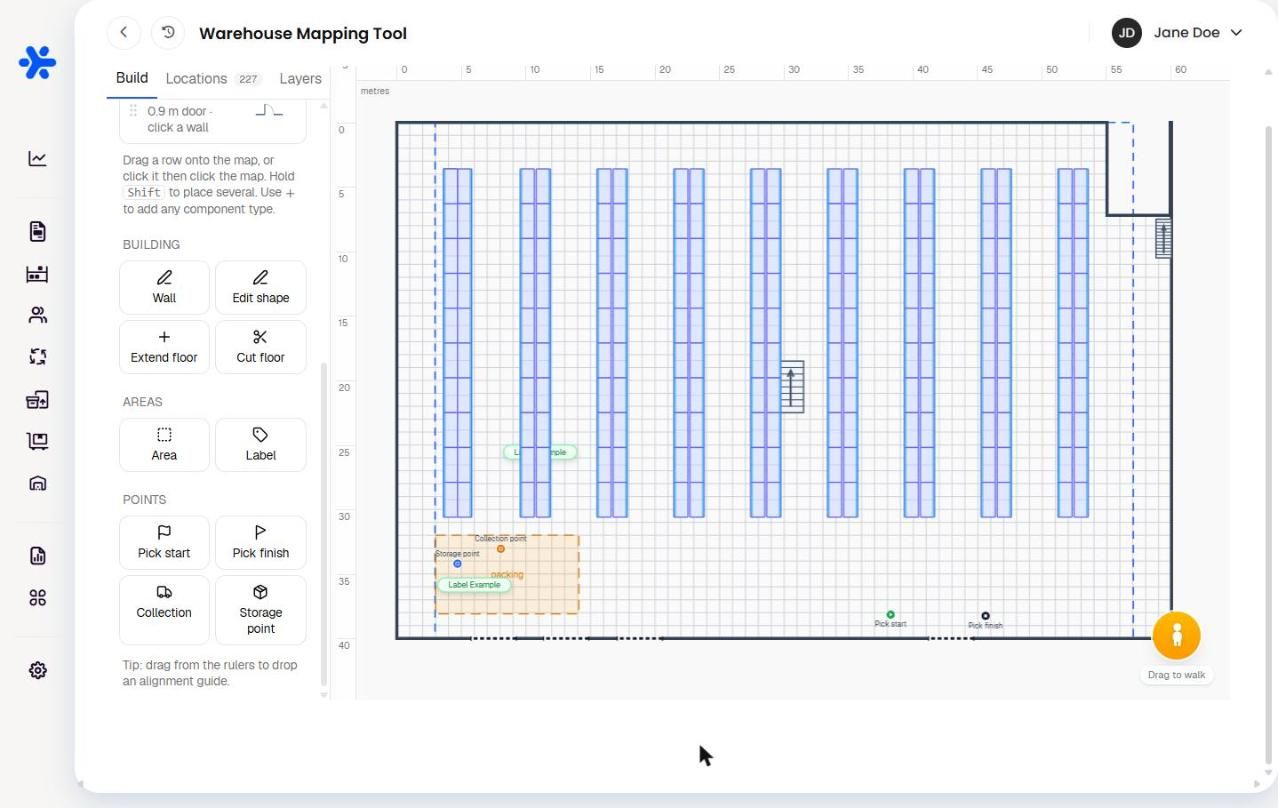
Place a Pick start and a Pick finish point. Both are in the Points section of the Build tab. There is one of each per map. Without them the tools stop with Add a pick start and finish point to simulate a job.
Assign location codes. A Helm job is a list of location codes. Stops whose codes are not on the map are skipped and named, so the more codes you have assigned the more of the job routes.
Put doors in walls. Routing passes through doors and openings and is blocked by walls. Any doorway pickers use needs a door on the map.
Mark no-go areas by ticking Blocked for routing on an area. Pickers route around them.
Connect the floors. Stairs and lifts are the only way between levels. Set their steps and times so the travel estimate is realistic.

Running the Routing Test
Open the header menu (the warehouse icon at the top left) and choose Test routing.
Choose Test the routing engine.
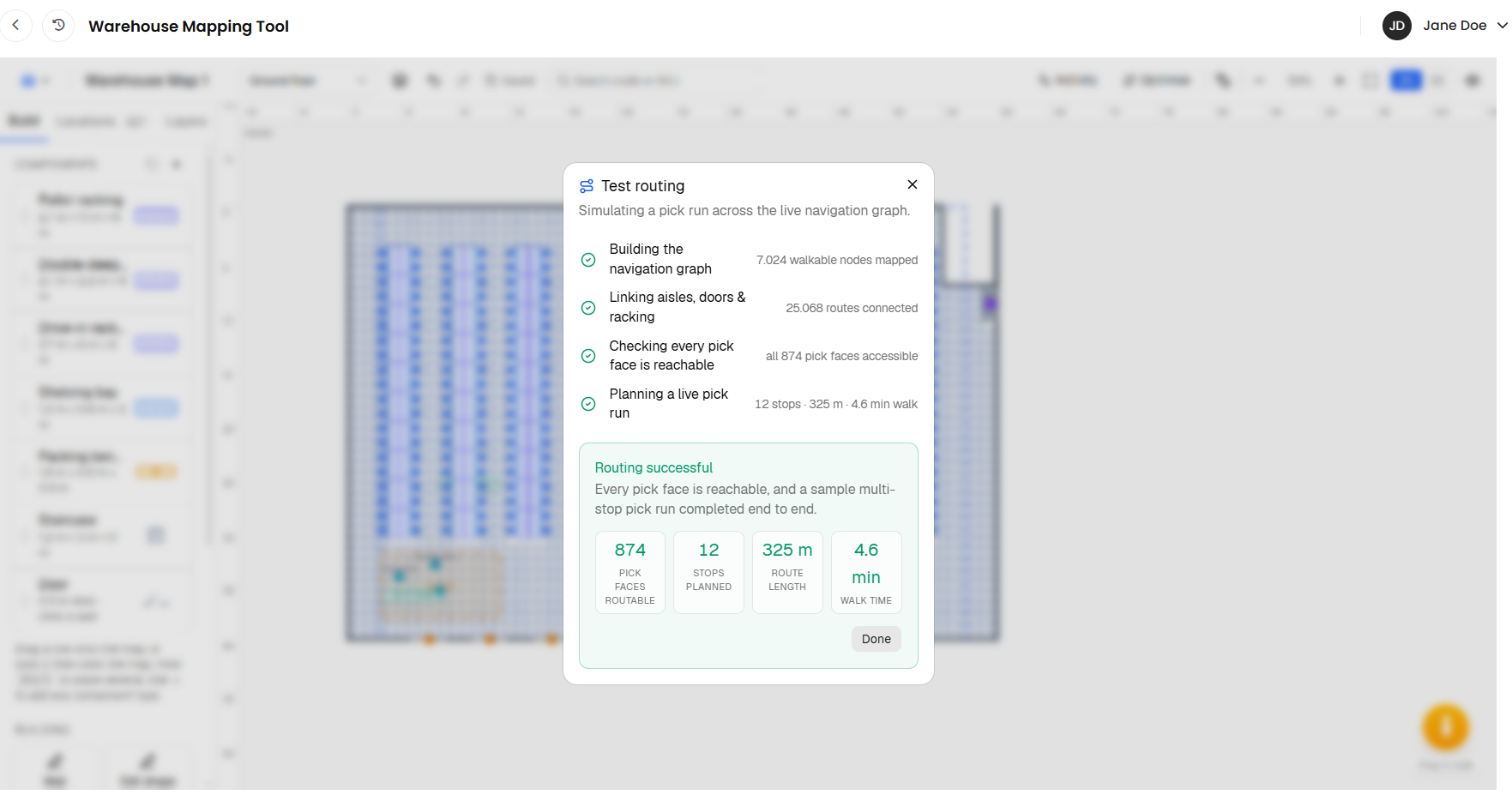
Watch the checks run in turn:
Building the navigation graph
Linking aisles, doors & racking
Verifying the route endpoints
Checking every pick face is reachable
Planning a live pick run
Read the result:
Routing successful: every pick face is reachable and a sample multi-stop run completed. The panel shows how many pick faces are routable, the stops planned, the route length and the walk time.
Routing works - with blind spots: some pick faces cannot be reached, or a full run could not complete. The unreachable faces are listed.
Routing blocked: the engine could not start, usually because a pick point is missing or sits on racking. Fix the issue named and run again.
While the report is open the Routing points overlay is switched on so you can see the walking network on the plan. Unreachable rack faces are drawn in red.

Simulating a Job
Open the header menu, choose Test routing, then Simulate a job.
Under Your Helm jobs, pick one of your company's picks, movements or stock counts. Open jobs are listed first; click Show completed to include finished ones. Each row shows the job, who it is assigned to and its stop count.
Or choose a Demo run: Pick run, Put-away, Movement or Stock count. These invent a plausible job across your racking, useful on a map that has no Helm jobs yet.
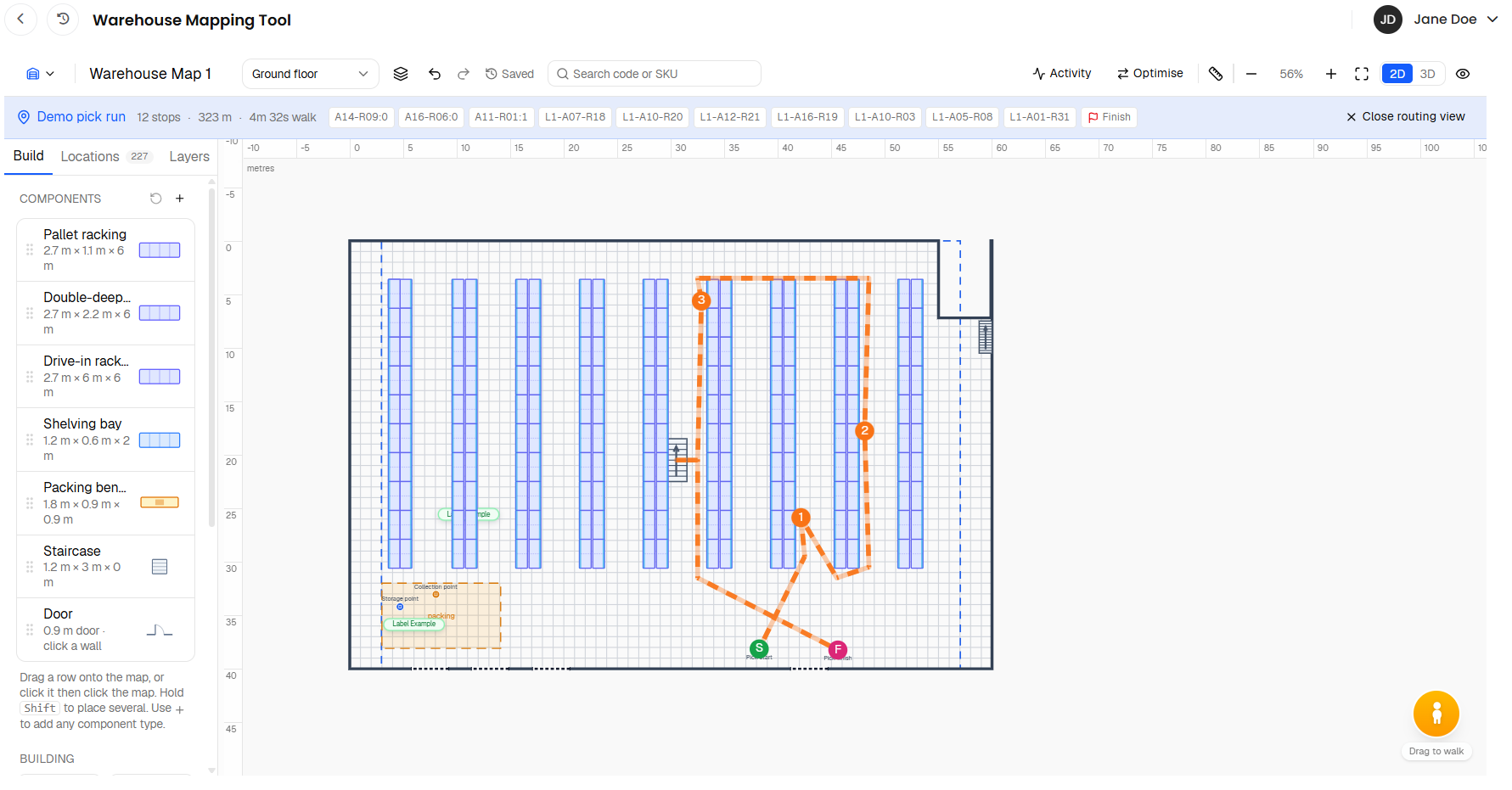
The route is drawn on the plan and a bar appears under the header showing:
the job title, with a Helm badge for a real job;
the number of stops, the total distance and the walking time;
one chip per leg. Hover a chip to see that leg's distance and time; the flag marks the last leg;
for a Helm job, how many stops were routed, for example 21/23 stops routed · 2 not on map. Hover it to see which codes are missing or unreachable.
Click Close routing view to clear the route.
A toast also tells you if stops were skipped. If none of a job's codes are on the map yet, you are told to assign its location codes first.
Routes follow Helm's own stop order. The tool measures the job as Helm issued it; it does not reorder the stops.

The Routing Points Overlay
You can switch the walking network on at any time from View options > Show > Routing points. It draws faint lines for walkable edges and coloured dots for the points the router uses: blue for rack access points, amber for doors, purple for stairs and lifts, green for the pick start, pink for the pick finish and cyan for areas, storage and collection points. Red marks a rack face that cannot be reached. The overlay is for viewing only.

Best Practices
Run the Test After Every Layout Change
It takes seconds and catches the classic mistakes: a run of racking that seals off an aisle end, a wall drawn across a doorway, a mezzanine with no stairs.
Compare Layouts with the Same Job
Duplicate the map, change one thing, and replay the same Helm job on both. Two routing bars side by side tell you more than any argument in the office.
Keep Pick Points off the Racking
The start and finish must sit on clear floor. If you drop one on a rack the editor moves it into the aisle for you, but check it landed where pickers actually start.

FAQ
Why does a Helm job show fewer stops routed than it has?
Some of its location codes are not assigned on the map, or a code is on a rack the router cannot reach. Hover the stops-routed figure to see which, assign or fix them, and replay.
Are the times real?
They are estimates from the route distance at a steady walking pace, plus stair and lift times you set. Use them to compare layouts rather than as a promise to a customer.
Can I see a route on a level other than the one I am viewing?
The route is drawn on the current level. Switch level in the header to follow a multi-floor job.
The list says it could not reach Helm.
The app could not load your jobs from Helm just then. Try Refresh, or use a demo run while you wait.

If a job that is clearly on the map reports unreachable stops, run Test the routing engine to find the blocked face, and contact Helm support with the map name if the cause is not obvious.
Was this helpful?
Still need help? Share an idea