Managing Your Maps
Renaming, duplicating and deleting maps in Helm Warehouse Mapping, restoring an earlier version from the autosave history, and using the built-in demo map to explore safely.
Renaming a Map
Open the map. In the editor header, hover the map name and click it (a pencil icon appears on hover).
Type the new name, up to 80 characters, and press Enter or click away. Esc cancels.
The name Demo Map is reserved for the built-in demo, so it cannot be used for your own maps and the demo map itself cannot be renamed.

Duplicating a Map
Duplicating is the safe way to try a redesign, or to start a second site from a similar layout.
On the Maps page, hover the map's card and click the Duplicate map icon.
A copy appears named {name} (copy), then (copy 2) and so on. It carries every level, component, location code and floor plan underlay, but not the original's version history.

Deleting a Map
Hover the card and click the Delete map icon.
Confirm Delete "{name}"? with Delete.
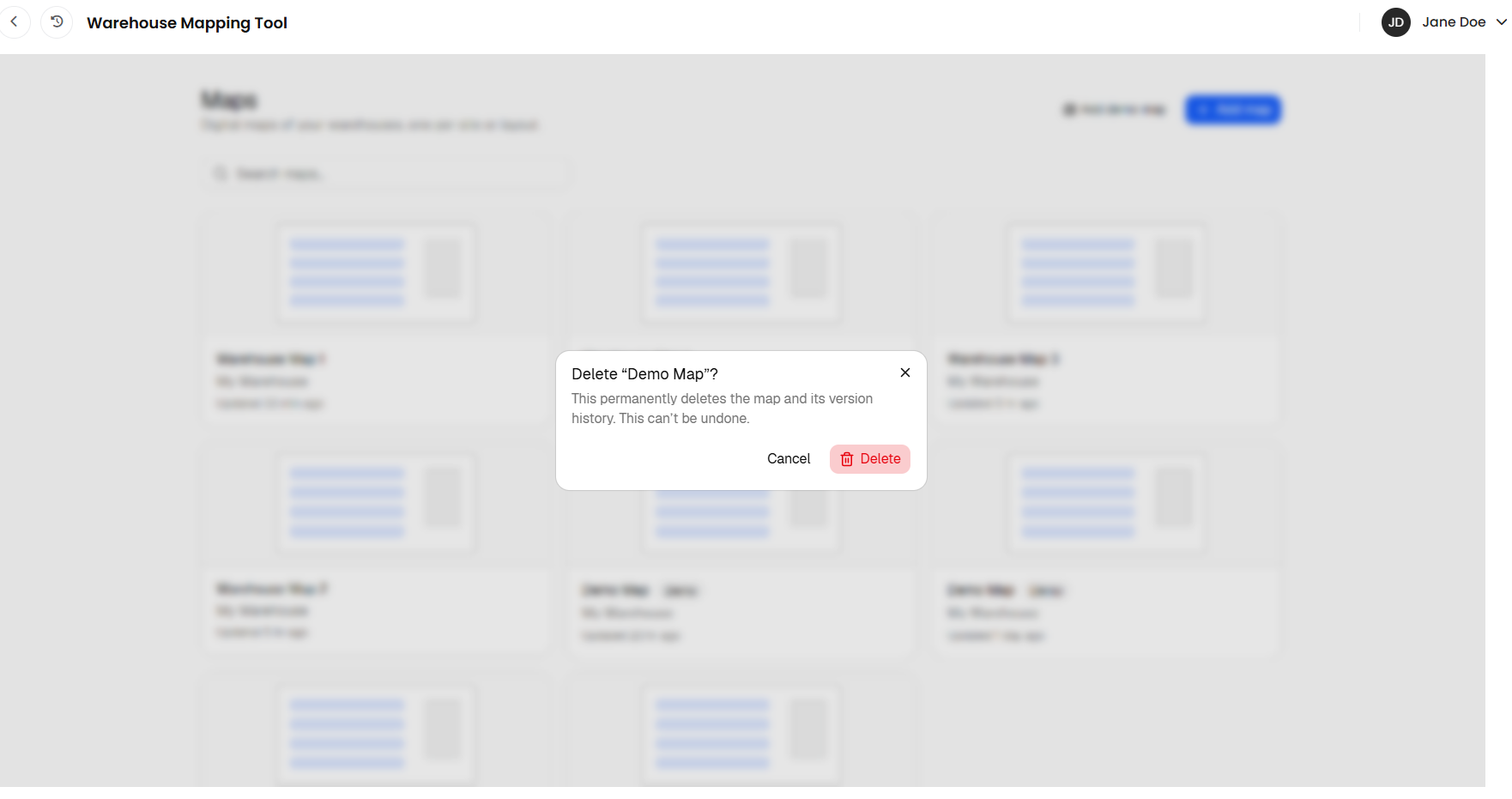
Deleting a map permanently removes it and its version history. It cannot be undone. If in doubt, duplicate it first or leave it and rename it "OLD".

Version History & Autosave
Every change saves itself about a second after you make it. The indicator in the header reads Saved, Saving…, Unsaved or Save failed; a failed save keeps retrying, and you are warned before closing the tab with unsaved work.
Alongside the live save, the app keeps snapshots of the map: an autosave every few minutes while you work, plus named snapshots before big operations such as a demo reset or a scale correction. Up to 50 snapshots are kept per map.
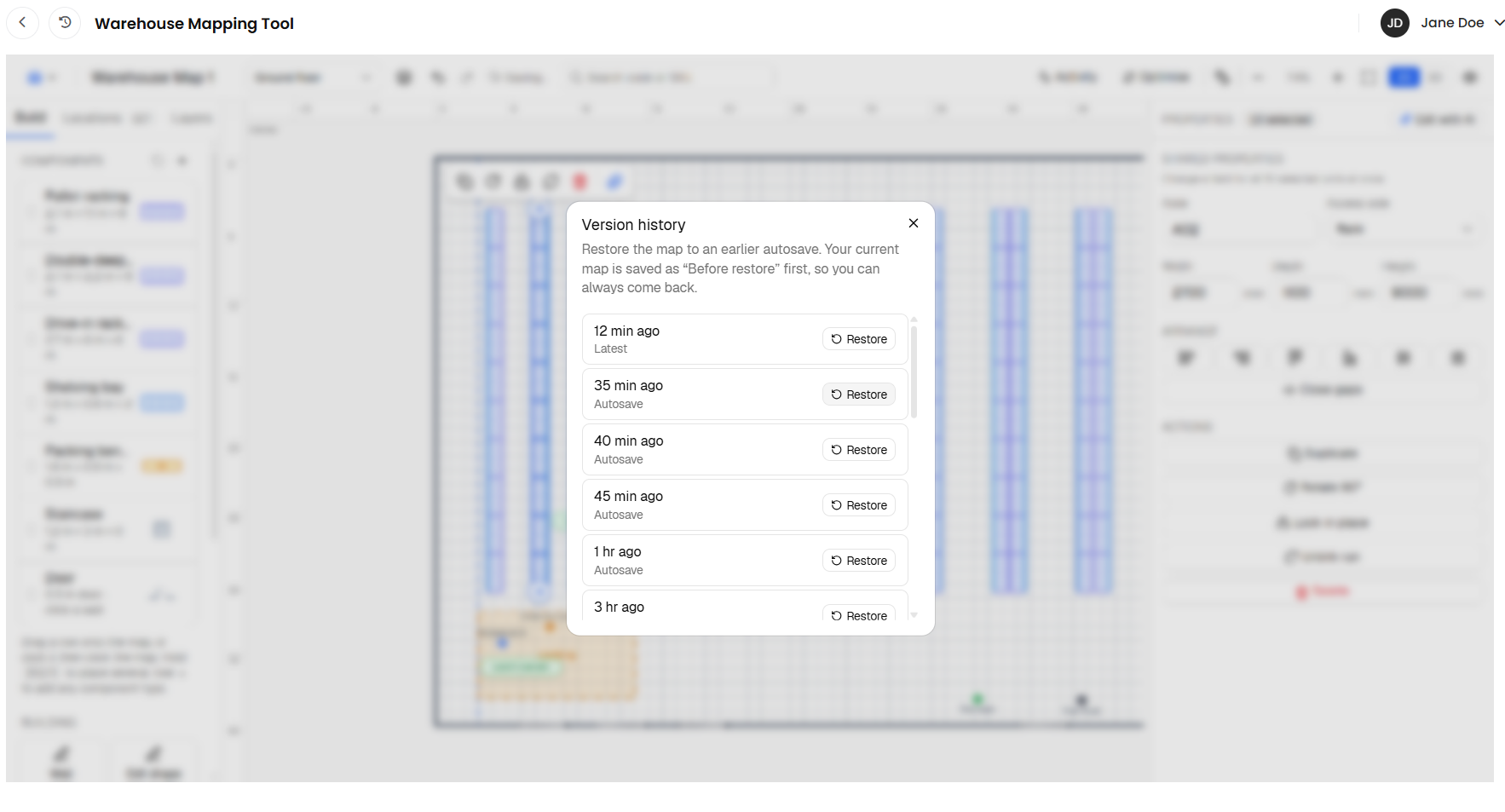
Click the save indicator in the header (its tooltip reads Click for version history).
In Version history, find the snapshot you want. Each row shows when it was taken and a label such as Autosave or Before restore.
Click Restore, then Confirm.
Before restoring, the current map is saved as Before restore, so you can always step back again.

The Demo Map
Add demo map on the Maps page creates a ready-built sample warehouse named Demo Map, useful for learning the editor without touching your own site. Maps built from the sample carry a Demo badge on their card.
Edit it freely. It is your copy.
To put it back as it was, open it, open the header menu and choose Reset demo map to original layout, then confirm Reset. A snapshot is saved to version history first.
Delete it like any other map when you no longer need it.
The demo map's location codes belong to the sample warehouse, not to your Helm warehouse, so its Locations tab will show your real codes as unassigned. Use it to learn the tools; use your own map for real work.

FAQ
Can I recover a deleted map?
No. Deletion removes the map and its history. Duplicate before deleting if there is any doubt.
Does duplicating copy the version history?
No. The copy starts a fresh history from the moment it is created.
How far back does version history go?
The most recent 50 snapshots are kept, and older snapshots are pruned over time. For anything you may want to return to much later, duplicate the map and keep the copy.
Can two people edit the same map at once?
The map saves whoever made the last change. Agree who is editing a map at any one time, and use duplicates for experiments.

If a save keeps failing, check your connection and reopen the app from Helm; contact Helm support if the indicator stays on Save failed.
Was this helpful?
Still need help? Share an idea