Single Shipment
How to ship one consignment in Helm when there is no order behind it: what the Single Shipment screen needs before it will book a label, how parcels, items, stock and customs detail are handled, and what to do when a booking is refused.
What Single Shipment Does
Single Shipment books one consignment from a blank form. There is nothing to pick and no order to dispatch: you say where it is going, describe the parcel, choose a service, and Helm books it with the courier.
It lives at Shipping > Single Shipment and suits parcels that never came through a sales channel: a replacement part, a sample, a supplier return, or something a customer asked for by phone.
Example scenario: a customer calls to say the wall bracket was missing from an order that has already gone out. You want the stock off and the parcel tracked, but not a second sales order in your figures. Raise a single shipment to their address, add the bracket, and the label prints while they are on the phone.
Where it sits against the rest of shipping:

Before You Start
You need two shipment permissions. Shipment Listing puts Shipping and Single Shipment in your menu, so a missing menu item is that one. Shipment Create books the label: with listing but not create you can fill the screen in and still be refused at Create Shipment.
You need a store with a Manual channel, because no marketplace or webstore order sits behind the parcel. With none anywhere in your company, the screen opens into a sender address warning that no address will clear.
Your warehouse or store needs a sender address, or Helm cannot tell the courier who the parcel is from, or work out whether it is domestic. The warning links to Add to Warehouse and Add to Store.
Sending abroad needs a VAT or EORI number on the store you are booking against or on your company. Helm checks the store first, and books nothing international without one.
Package types are optional, but they save typing, and live under Settings > Package Type Settings. With none set up you type weight and dimensions yourself, though your System Defaults can prefill a User Defined parcel and set a default type.
Have your printer ready. The label prints as soon as the shipment books, so Helm warns you here when the printing app or printer is offline.
The first time anyone opens the screen a guided tour runs by itself, pointing out Shipment Header, Parcel Details, Add or Scan Item and Courier Services. Skip Tour turns off page guides everywhere, not only here.

How to Create a Single Shipment in Helm
Go to Shipping > Single Shipment. Check the store and channel in the header is right for this parcel. A pencil button beside it opens the Edit Manual Channel dialog, and shows only where you have more than one manual channel.
Fill in the Shipping Address.
Type the customer's name or email into the search at the top. Picking an existing customer pulls in their address and contact details, and asks which to use where there are several.
For a one-off recipient, type the address instead. Full name, Email, the first address line, City, Postcode and Country are required; Phone number and County are not.
Use Add Company Name for a business delivery, which brings out the tax fields the destination needs.
Describe the parcel. Every shipment starts with one parcel. Enter a Weight, then either type the Length, Width and Height or switch the row to Package and pick from Select Package Type.
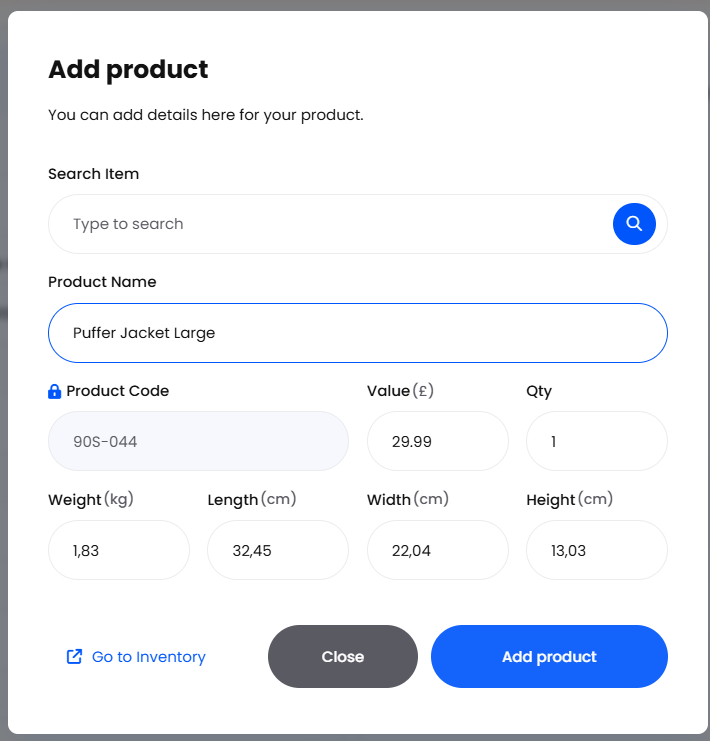
Add what is inside. Choose Add or Scan Item to open the Add product dialog.
Search Item finds a product by name or code; scanning a barcode selects the match.
For something you do not hold, type a Product Name and Product Code.
Set the Qty and Value, plus the Customs Description on an international shipment, then choose Add product or Add another product.
Check the courier service. Helm runs your shipping rules as you fill the shipment in and sets Courier service for you. To override it, search the field: the list separates Matching Services, the ones your rules calculated, from All Services.
Add any delivery instructions. The Delivery Instructions box on the courier panel takes anything the driver needs, such as a safe place to leave the parcel, and appears once a courier service is selected.
Choose Create Shipment. Helm books with the courier and opens the shipment record, where the label prints.
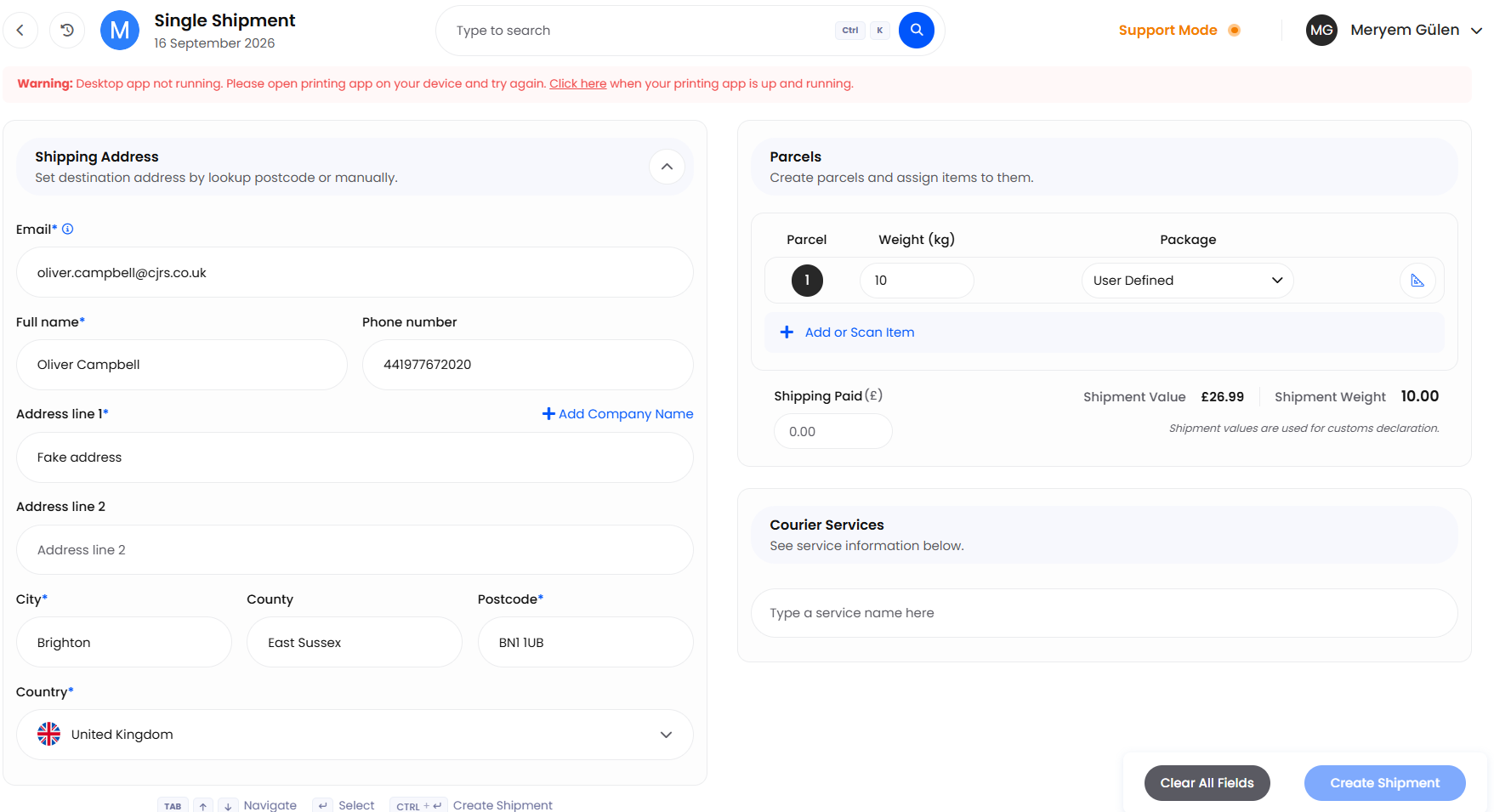

There is no draft stage: the shipment either books or it does not. Clear All Fields empties the form, but puts the channel back to the one the screen picked on load rather than one you switched to, so check the header again.

Parcels & Packages
The parcel row is where the courier gets the numbers it charges on.
Helm suggests a package type once a parcel has items in it, by reading the type recorded on each product and taking the largest by volume. It is not measuring your items against your boxes, so products with no package type of their own produce no suggestion. Anything you type by hand is kept.
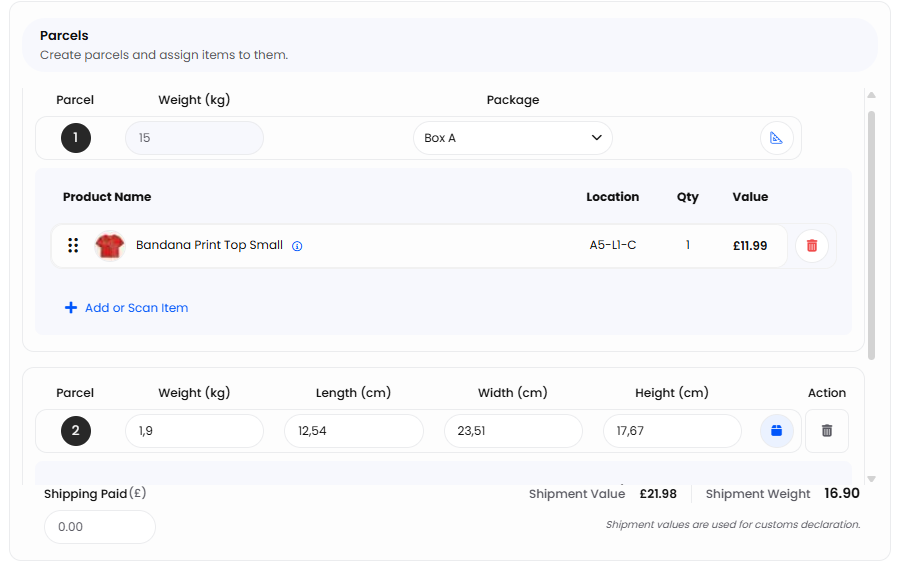
The strip under the parcels totals it up: Shipment Weight adds the parcel weights together, and Shipment Value is each item's Value times its Qty plus anything in Shipping Paid. That figure goes on the customs declaration.
To split a consignment across parcels, drag an item onto the empty parcel below. Where the line has several units, Helm asks how many to move and leaves the rest.
Products with Single Parcel Per Item set in their Advanced Settings are separated for you. Add one with a quantity above a single unit and you get a parcel per unit, not a parcel for the line, and everything added afterwards goes into a new parcel too, with a message saying why.

Adding Items & What Happens to Stock
An item line is either a real product or a typed one. Searching pulls in the product's price, weight, dimensions and customs detail; a typed line ships as a one-off.
Location: on warehouses in Full mode, each line shows where the stock will come from. A product sitting in several places creates one line per location, so what comes off matches where it is.
Select Serial Numbers: where your warehouse has serial validation on, serial tracked products need a serial per unit before the shipment can be created. The dialog lists what is available and can pick them for you.
Batch tracked products: Helm picks the batch as the item is added, taking the earliest expiry with enough free stock, and ties the line to that batch's location.
Group products: with Split group items on export on, a group arrives as its component items rather than one line, and an empty group cannot be added.
Lines are not fixed once added. Choosing one reopens it as Edit Product, or Edit Group for a group, where you can correct the Qty, the Value or the customs fields and Save changes. The delete button on the line removes it.
A single shipment takes stock out of your warehouse. Nothing was reserved beforehand, so your available figures drop the moment it books. Helm takes the stock from the location on the line, or where none is shown, from your warehouse's own stock selection rules. Batch tracked stock goes closest expiry first, and packaging items inside a package type come off too. With stock control switched off, nothing moves and the shipment is purely a courier booking.

Domestic & International Shipments
Helm decides which it is by comparing the destination country with your sender address, and that changes what the form asks for. Northern Ireland is the exception worth learning: a BT postcode only makes a UK shipment international when it is at one end of the journey. Great Britain to Belfast is international and so is the reverse, but Belfast to Belfast is domestic: both ends are BT.
The exception: whenever the destination postcode starts with BT, every parcel needs at least one item, even though the form is the domestic one. A Northern Ireland to Northern Ireland shipment counts as domestic on screen and says items are optional, then is refused when you book. Put an item on every parcel going to a BT postcode.

When Create Shipment Will Not Go Through
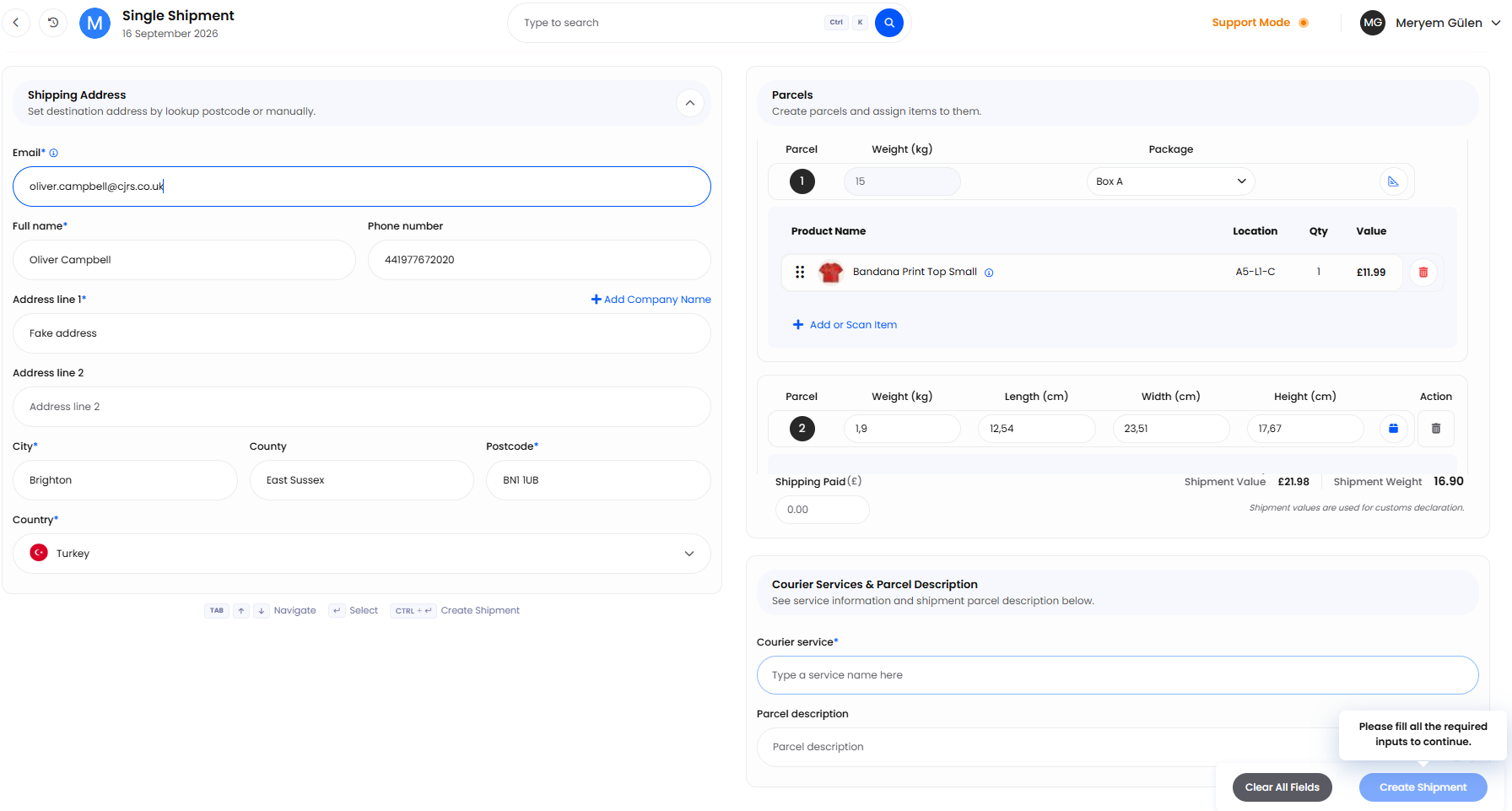
Helm will not send a shipment it knows the courier will reject, so a button that seems to do nothing is almost always a missing field, not a fault.

Best Practices & Notes
Get the Weight Right Rather Than Close
Couriers reweigh, and surcharges land weeks later on an invoice nobody can tie back to a parcel. Inventory calculated is only as good as the weights and dimensions on your products.
Cancel Labels You Do Not Use
A booked shipment cannot be edited, and a label you throw away is usually still chargeable. Cancel it from the shipment record: that returns the stock and closes the booking with the courier. Once a shipment is on a manifest it cannot be cancelled, so deal with mistakes the same day.
Book Against the Right Manual Channel
Reporting is grouped by channel, so shipments booked against whichever channel happened to be selected quietly distort it. A manual channel per reason you send parcels is worth setting up.

FAQ
Can I use Single Shipment for an order that already exists?
No. Dispatch the order itself, from the order or through batch despatch, so the order status, the customer notification and the stock reservation all follow through.
Do I have to add items to a UK parcel?
Usually not: a weight and either dimensions or a package type is enough, and Helm records a No Item line. The exception is a destination postcode starting with BT, which needs at least one item per parcel. International parcels always need items.
How do I print the label again?
Open the shipment from Shipping > Shipment History. Any shipment whose documents have already been generated shows an alert that brings the print popup back, and Print and View Label sit in its actions.

If a shipment will not book and the message is not clear, contact support with the courier, the service and the recipient postcode to hand. If one looks wrong after booking, cancel it before the manifest goes out.
Was this helpful?
Still need help? Share an idea