Creating & Using Reports
Build, download and share reports on sales, stock, warehouse performance, shipping, purchasing, returns and customers in Helm WMS, then explore the results in plain English with the Data Assistant.
What Reporting Does
Reporting turns the activity already happening in Helm into files you can download, share and act on. Pick from ready-made reports across sales, stock, warehouse performance, shipping, purchasing, returns and customers, or build your own with the columns, filters and groupings you need.
Every report you generate is kept in Report History for 30 days, so you can download it again, run it again with the same settings, or ask questions of the results in plain English with the Data Assistant.
It is Monday morning and your purchasing lead wants to know which products earned the most margin last month. You choose the Top Products report, set the date to Last Month, generate it as an Excel file with your purchasing lead added as a recipient, then ask the Data Assistant which items had the highest gross margin. The whole job takes a couple of minutes.

Before You Start
Where to find it: select Reporting in the main sidebar. This opens the Reports page, which shows your Report History.
Reports are kept for 30 days: download anything you need to keep beyond that, or regenerate it when you need fresh numbers.
Reports run in the background: you can carry on working while a report is generated, and Helm lets you know when it is ready.

Choosing the Right Report
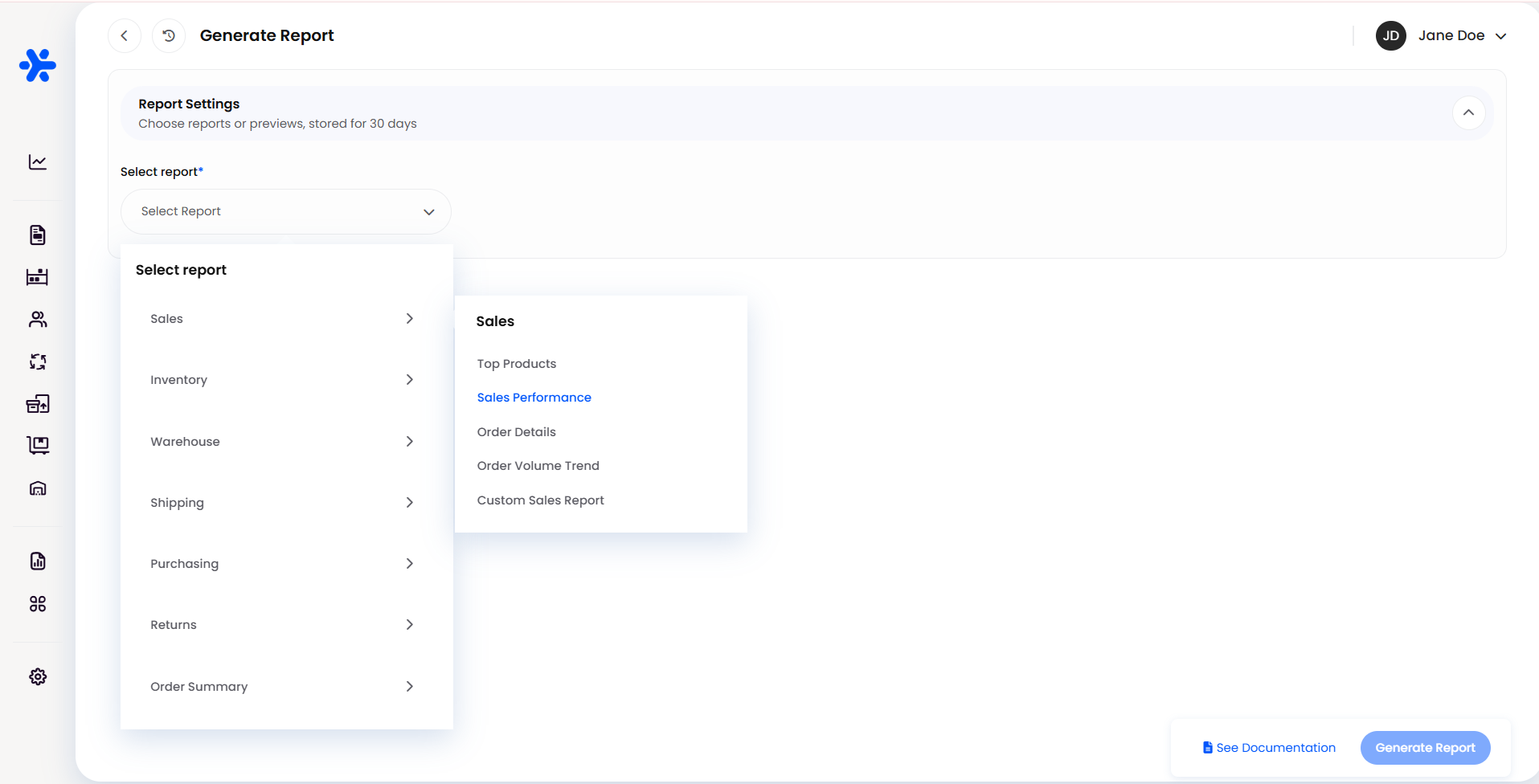
Reports are organised into nine categories. Most categories include ready-made reports, which arrive with sensible settings already chosen, plus a custom report you can shape from scratch.
If a ready-made report is close to what you need, start there and adjust it. For example, Top Products is already grouped, sorted by gross margin and set to leave out cancelled orders, so most of the work is done before you change anything.

How to Create a Report in Helm
Select Reporting in the main sidebar, then click Create Report in the bottom right of the Reports page.
In the Report Settings panel, open Select report, hover over a category and choose the report you want.
Set the date range. The date field is named after what the report measures, such as Order Placed Date, Pick Date, Shipment Date, Purchase Date or Return Date.
Click the date field to open the calendar. It defaults to Last 30 Days.
Choose a preset such as Yesterday, Last Week, Last Month or This Year, or pick Custom and select a start and end date on the calendar.
Adjust the From and To times if you need a specific window within the day, for example a single shift.
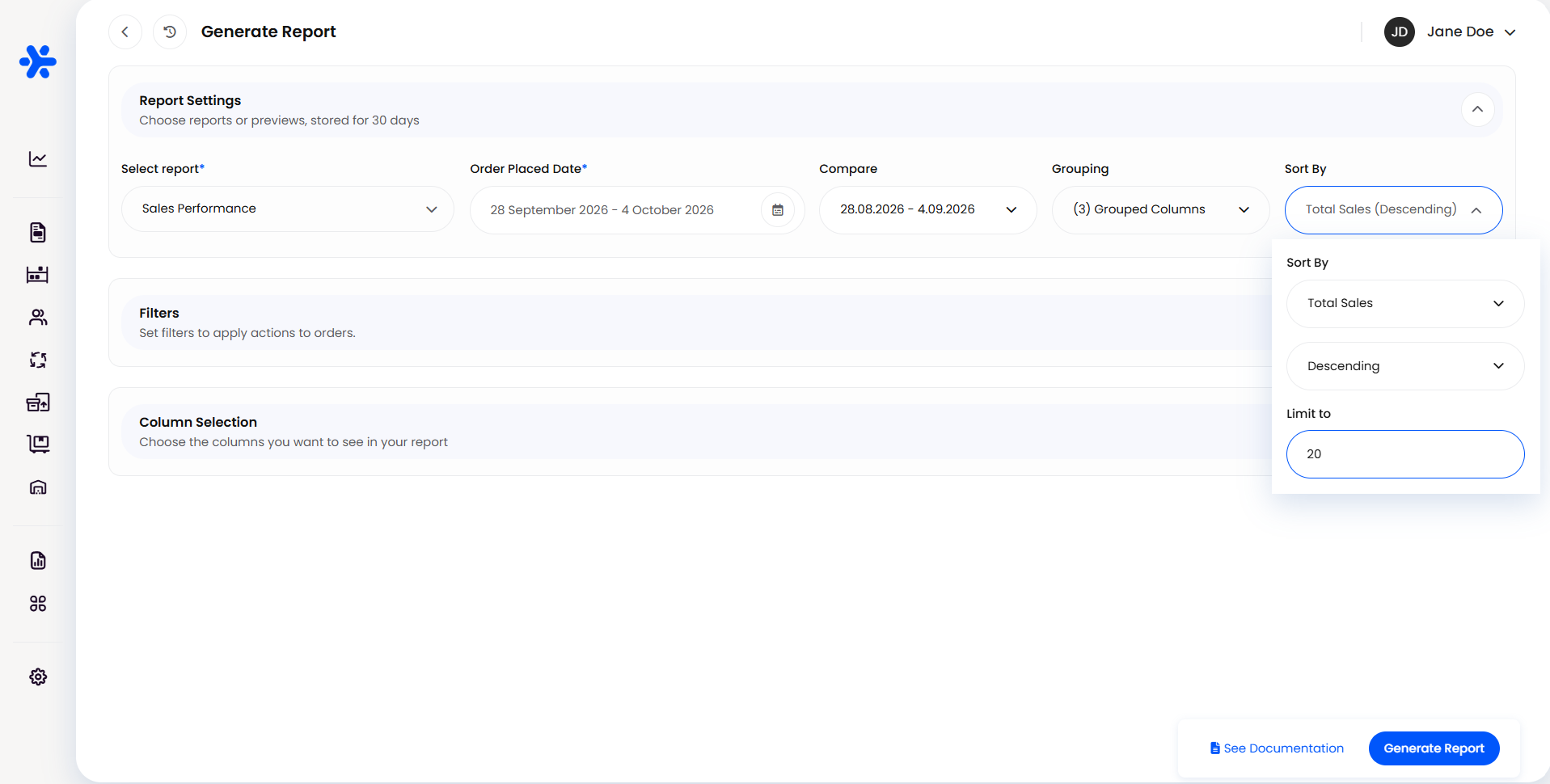
Optionally, use Compare to set your figures against an earlier period: Previous Period, Last Month or Last Year. The exact dates being compared are shown next to each option.
Optionally, use Grouping to roll your results up into totals, for example by Courier, Order Channel, Shipping Country or Item Code. You can tick more than one. Leave it on No Grouping to keep one row per record.
Use Sort By to choose the field to order results by, the direction (for example Descending), and Limit to if you only want a set number of rows, such as your top 20.
Narrowing Results with Filters
Expand the Filters panel and open Type to choose what to filter on, such as Status, Order Channel, Courier, Country or Item Code.
Choose how to match. For example, Is includes only matching records and Is not leaves them out.
Enter or select the Value.
Click Add new filter to stack more conditions. Use the bin icon to remove a filter you no longer need.
Choosing & Arranging Columns
Expand the Column Selection panel.
Under Add or Remove Columns, tick the columns you want and untick the rest. Use Select All to switch everything on or off at once. Columns with a padlock, such as Order Number, are always included.
Under Drag to Arrange Columns, drag a column by its handle to change the order it appears in the file.
Click the pencil icon next to a column name to rename it in your report, for example to match the heading your finance team already uses.
If you have chosen a grouping, each column shows how it will be summarised: Grouped for the column you grouped by, Count for things being counted, and Sum or Average for numbers. Where both Sum and Average are shown, click the one you want.
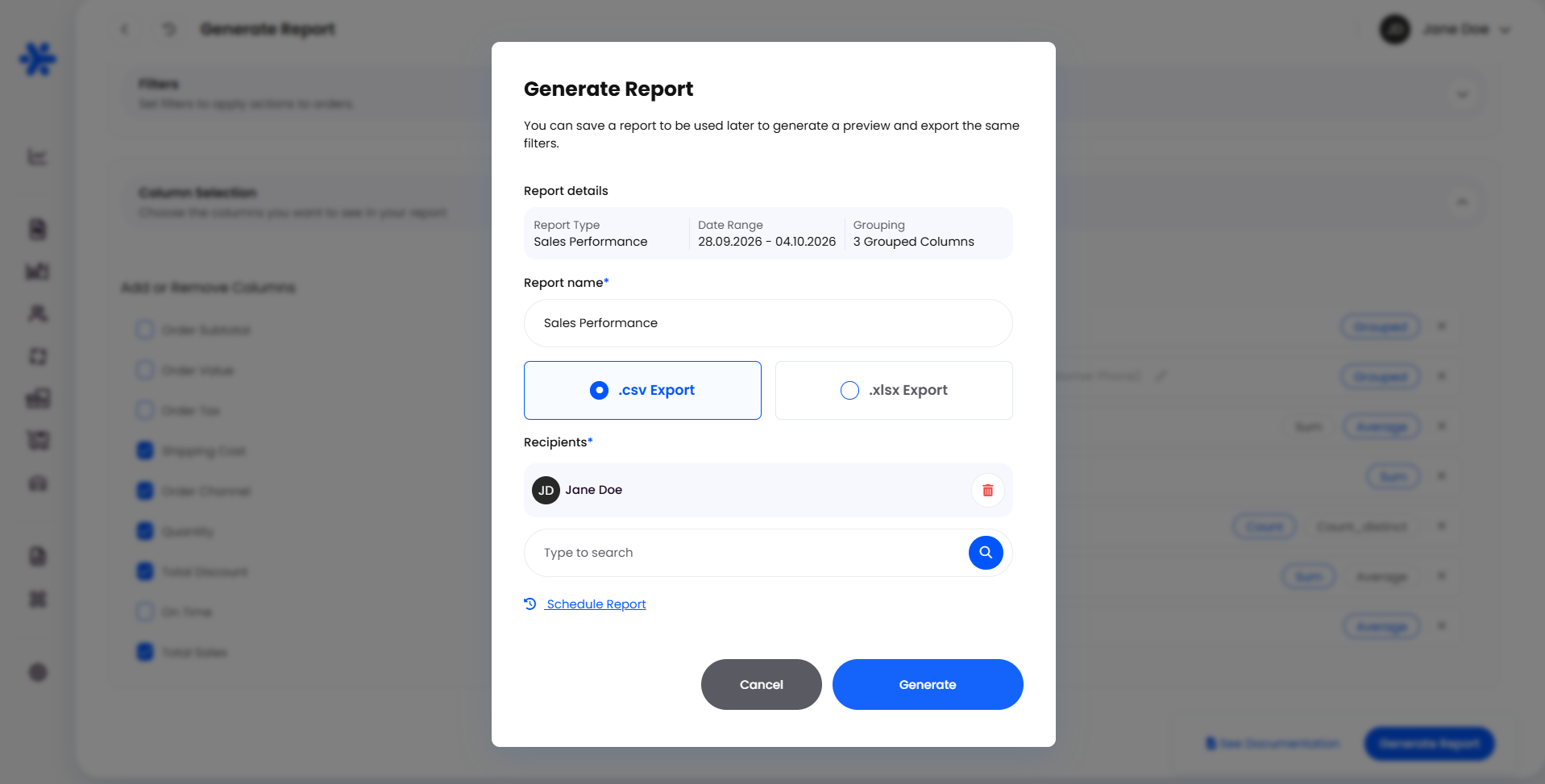
Click Generate Report. A Generate Report window opens with a summary of the report type, date range and grouping.
Check the Report name. It is filled in with the report's name, so add something that will make it easy to find later, such as the period it covers.
Choose .csv Export or .xlsx Export.
Under Recipients, you are added automatically. Search for colleagues to add them, or use the bin icon to remove someone.
Click Generate.
Helm confirms that your report is being generated and returns you to the Reports page. If you started it by mistake, click Cancel now! in that notification.

Using Report History
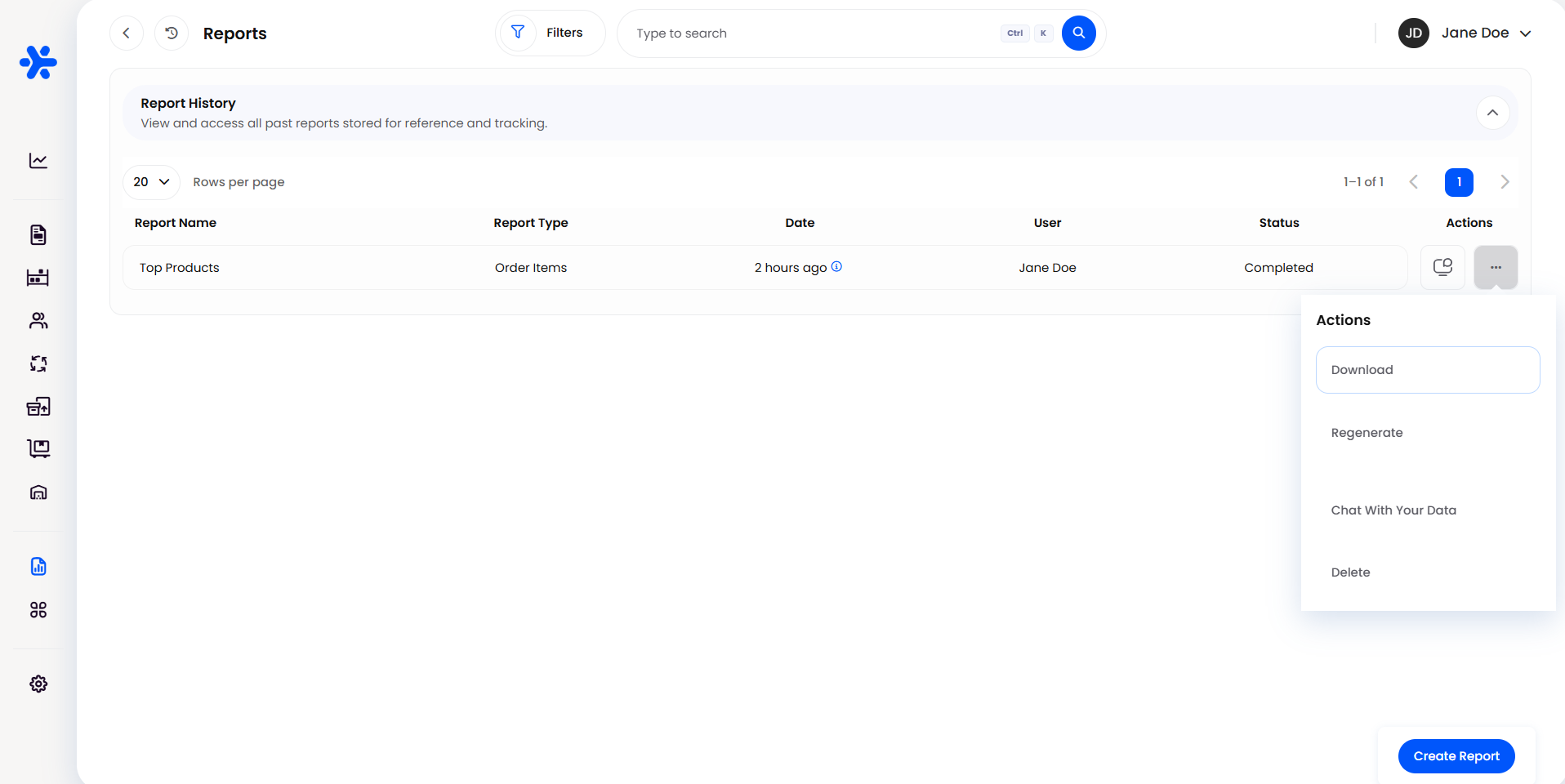
The Reports page lists every report generated in the last 30 days, with its Report Name, Report Type, Date, the User who ran it and its Status. Use the search bar or Filters (by Name or Report Type) to find one quickly.
Click the ... button in the Actions column to:
Download: save the file to your computer.
Regenerate: run the report again using the same settings.
Chat With Your Data: open the Data Assistant for this report.
Delete: remove the report from Report History.
Deleting a report removes it from Report History. Download a copy first if anyone still needs it.

Asking Questions with the Data Assistant
The Data Assistant lets you explore a finished report by asking questions in plain English, without opening a spreadsheet.
In Report History, click the chat icon in the Actions column, or choose Chat With Your Data from the ... menu.
Type a question into Ask a question about your data, or pick one of the Common Questions suggested for that report.
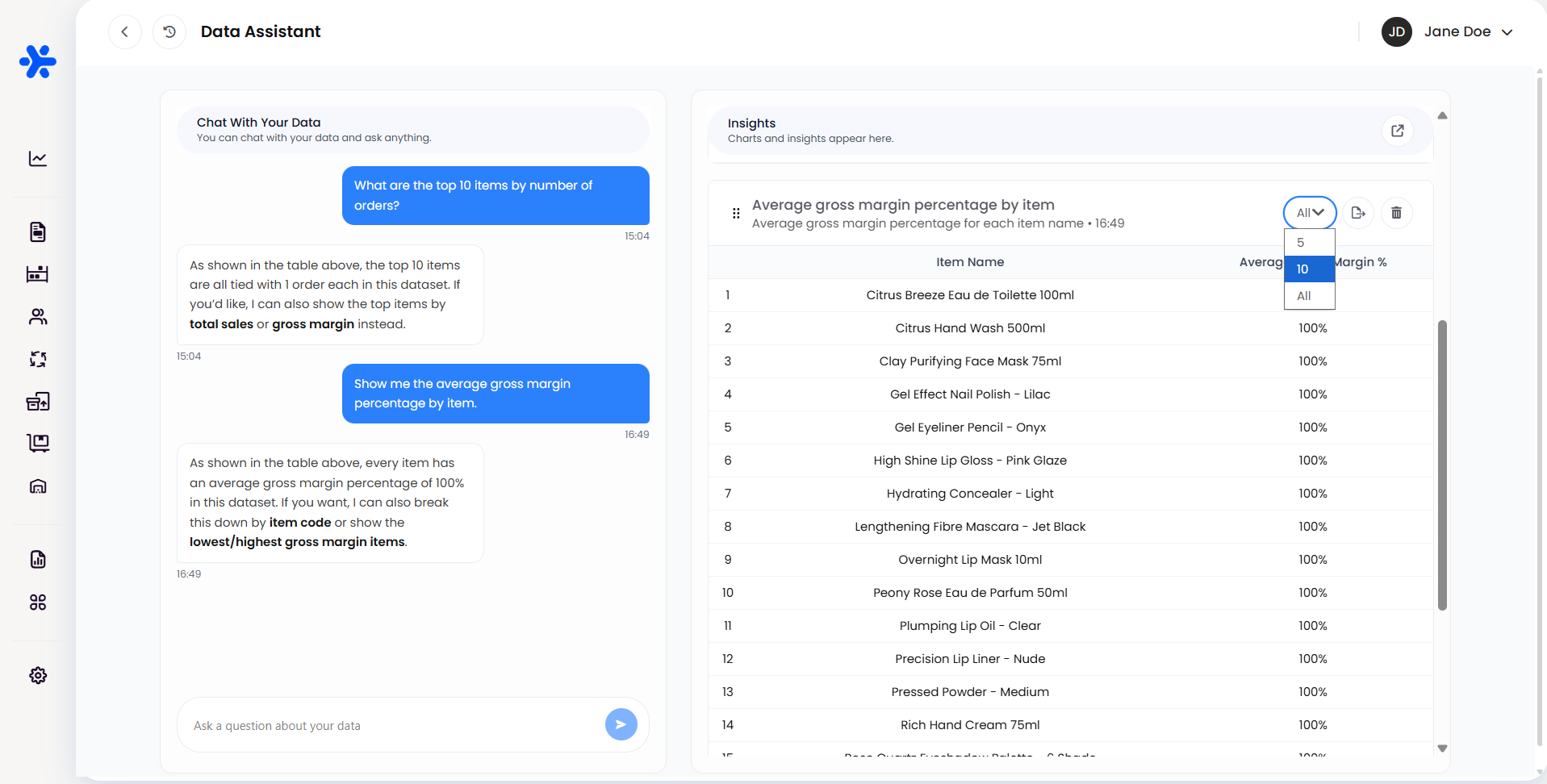
Read the answer in the chat on the left. Tables and charts appear as cards in the Insights panel on the right.
On each card, change how many rows are shown, export it, or remove it with the bin icon. Drag cards by their handle to reorder them.
To send your insights to colleagues, click the share icon at the top of the Insights panel, add a Report name and Recipients, then click Share Report.

Example: A Weekly Courier Review
An operations manager reviews courier performance with their team leader every Monday.
They click Create Report and choose Shipping then Courier Performance. The report is already grouped by Courier and sorted by Shipment Count.
They set Shipment Date to Last Week and Compare to Previous Period, so each courier's figures sit next to the week before.
They click Generate Report, name it "Courier Performance w/c 28 Sep", choose .xlsx Export and add their team leader under Recipients.
Once it shows as Completed, they open the Data Assistant and ask which courier handled the most shipments, ready to bring the answer to the meeting.

Best Practices & Notes
Name Reports So You Can Find Them
Include the period and purpose in the report name, such as "Top Products Sep 2026". Report History fills up quickly when several people use it.
Report Type Shows the Data Behind a Report
The Report Type column shows the data a report was built from rather than its name. Top Products, for instance, is listed as Order Items. Search by Report Name if you are looking for a specific report.
Use Compare to Spot Trends
A single period tells you where you are; a comparison tells you which direction you are heading. Comparing against Previous Period or Last Year is the quickest way to spot a courier slipping or a product picking up.
Pick the Right File Format
Choose .xlsx Export for anyone who will open the report in Excel. Choose .csv Export if the file is going into another system, such as accounting or BI software.
Keep Columns Focused
Fewer columns make a report easier to read and quicker to act on. Untick anything your audience will not use, and rename the rest to match the language your team already uses.

FAQ
How long are reports kept?
Reports stay in Report History for 30 days. Download anything you need to keep for longer, or use Regenerate to run it again with the same settings.
Can I stop a report I started by mistake?
Yes. Click Cancel now! in the notification that appears after you click Generate.
Why can't I untick some columns?
Columns marked with a padlock, such as Order Number, identify each row, so Helm always includes them.
Can I change a ready-made report?
Yes. Ready-made reports are a starting point. You can change the date range, grouping, sorting, filters and columns before generating.

Still need help? Contact the Helm support team and we will be happy to help you get the report you need.
Was this helpful?
Still need help? Share an idea