Serial Numbers
Serial tracking records every individual unit of a product in Helm WMS, so months later you can say which exact unit went to which customer: the answer a warranty claim or a recall needs. This article covers switching it on, getting serial numbers in, capturing them at despatch, and tracing one back to its order.
What Serial Tracking Gives You
A serial-tracked product keeps a register of individual serial numbers alongside its ordinary stock figures. Each number belongs to one product and is recorded against it once. At despatch, Helm spends a serial from that register and stamps it with the date and the order, which is what you read back months later.
Two things are worth knowing early. The register identifies units and your stock figure counts them, and Helm keeps the two separately, so adding a serial number leaves the stock figure alone. Serials are spent at despatch rather than at pick, so your pickers carry on as they do now.
Example scenario: a customer emails six months after buying a power tool, quoting the serial number on the casing. Because that serial was recorded when the unit went out, the product's Stock Logs takes you from the number to the order.
Serial tracking works from three places rather than a screen of its own: a Serial Numbers card on the product record holds the register, the capture setting sits on your warehouse page, and capture happens at despatch.

Before You Start
Your warehouse needs to be in Full mode. Go to Settings > Company Settings, open the tile named after your warehouse, and check that Warehouse Mode reads Full. Full mode is what puts the controls below on screen; Basic does not carry them.
Serial numbers belong to a product. The switch appears while Inventory type is Product. A Group or a Service carries no serial numbers of its own.
Pick the tracking type that answers your question. Serial tracking answers which unit went out; expiry dates and shelf life are batch tracking, captured at goods-in, which does change which stock Helm picks. A product is either batch tracked or serial tracked, never both, and batch tracking has its own article, Batches & Expiry Dates.
Choose the tracking type as you create the product. It is fixed from then on: the Batching Type field on the record is read only. A product whose Batching Type is empty can still be given one through the inventory import's Batching Type column; for a product that already has a type, create a new product with the tracking you want and archive the old one.
Decide whether serials should be chosen by hand at despatch. That is a separate warehouse setting, Serial Validation Mode. It is the difference between a usable audit trail and none, and it is the second job below.
You need inventory permissions. If you can see the register but cannot add to it, ask whoever administers Helm to check your permission group.

Switching Serial Tracking On
Serial tracking is chosen as the product is created.
Go to Inventory and choose Create Inventory.
Fill in the name and item code, leaving Inventory type as Product.
Turn on Batch Item. The switch appears in a Full warehouse, for a Product.
Set Batching type to Serial, then choose Create Inventory.
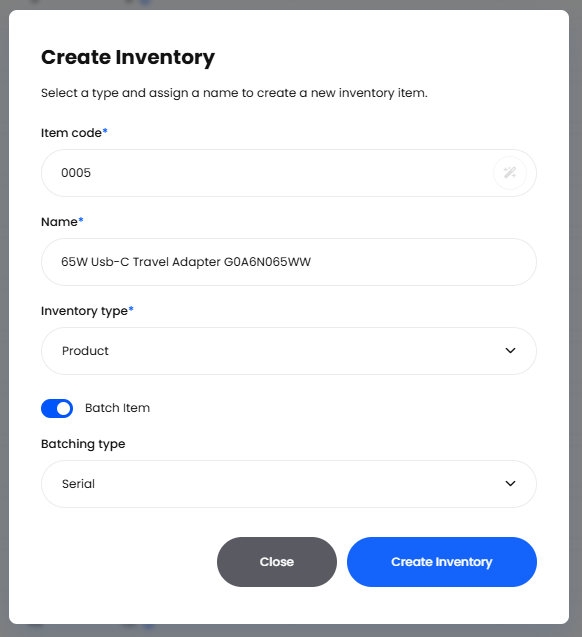
The product now shows a read-only Batching Type of Serial on its Product Information panel, and a Serial Numbers card in the right-hand column of the record. To list every serial-tracked product, add the Batching Type column to the Inventory list or use its Batching type filter.
Choosing Who Picks the Serials at Despatch
Serial Validation Mode decides whether the person despatching chooses the serials. Turn it on if it matters which unit reached which customer.
Go to Settings.
Under Company Settings, open your warehouse, listed by its own name rather than under a fixed heading.
Find the Serial Validation card and turn on Serial Validation Mode.
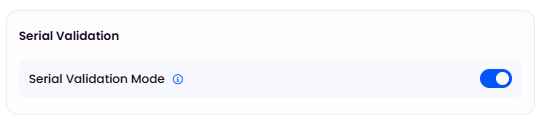
With Serial Validation Mode on, whoever despatches chooses the serials: the shipment is created once every serial-tracked line has exactly the right number selected, and those serials are linked to the shipment and to the product's Stock Logs. With it off, the despatch screens carry no serial field: Helm marks serials as used itself and records nothing about which went where. That trail cannot be rebuilt later, so turn the mode on before you rely on it.

Building the Register
Adding Serial Numbers by Hand
The Serial Numbers card holds the register, newest first, with a load-more button when it runs long.
Open the product from Inventory and use the plus button on the Serial Numbers card.
In Add Serial Numbers, type the first Serial Number.
Use the plus button in the dialog header to add another row, one per unit. The bin button removes one.
Choose Save.

A serial number can be up to 255 characters and must be unique for that product, so the same number can exist on two different products. Spaces at either end are trimmed as it saves, so padding cannot slip a duplicate past the check.
A serial in the register can be corrected or removed: each entry has an Actions menu with Edit and Delete, plus a copy icon. Once it has gone out it is the record of that despatch, struck through with its used date in the tooltip and no Actions menu, so it is neither edited nor deleted in place: cancel the shipment created in error and its serials return to the register, ready to edit.
Importing a Delivery's Worth
Typing serials one at a time is fine for a handful; for a delivery of a hundred, import them. Inventory Serial is offered as an Import type in a Full warehouse, so if it is missing from the list, check Warehouse Mode first.
Go to Settings, then Import under Company Settings.
On Import List, choose Select Import Type.
Set Import type to Inventory Serial and choose Continue.
Download the template from the link in the upload area, fill it in and upload it. It takes two columns, Inventory Code and Serial Number, one row per serial.
On Import Mapping, match the System Titles to your File Headings.
Name the run under Import Details, then choose Import.
The import only creates serial numbers; it never renames or removes one. A row whose product is not serial tracked fails, as does a duplicate, and both are listed against the run so you can correct the file and import again. Progress shows in the jobs queue as Import Item Serial.

Capturing Serials at Despatch
With Serial Validation Mode on, serials are chosen on the despatch screen, against the item on the parcel. Three routes reach it, with the same mechanics on each: Single Shipment, under Shipping > Single Shipment; the per-order despatch action on the Orders list, whose tooltip reads Despatch this Order; and Batch Despatch, reached by ticking orders on that list and choosing Create then Batch Despatch.
Open the item on the parcel with Add or Scan Item, or the edit action on an existing line.
Find the serial field. It reads No serial numbers selected until you set it.
Use its pencil button to open Select Serial Numbers. Unused serials are the ones listed.
Tick exactly as many serials as the line quantity, or use Click here to auto select. in the alert to take the first ones listed.
Choose Confirm. It comes alive once the count matches the quantity, and the serials appear on the line as chips.
If the serial in your hand is not listed, the plus button in the dialog header opens Add Serial Numbers without leaving the despatch screen, and anything you add is selected for you. If Helm says it already exists, look on the product's Serial Numbers card: a struck-through entry means that unit has gone. Serials taken by another line in the same batch are kept out of the list, so two orders never get the same unit.
Create Shipment becomes available once every serial-tracked line has its full count of serials. The order despatch screen and Batch Despatch show a warning reading Some items require serial number selection., and Batch Despatch flags the shortfall against the line. Single Shipment carries no page-level warning, so check each parcel item's chips there.
Labels for a serial-tracked order are produced at despatch, once the serials are chosen. While the mode is on, label pregeneration has no serial picker, so it does not run for an order containing a serial-tracked product, including one inside a group, and a Pregenerate Label order rule action on one reports that serial selection is required.

A Worked Example
A trade customer orders two cordless drills, item code DRL18V, on order 10482. Last week's delivery of 20 came with the supplier's serial numbers on the despatch note, imported that afternoon, so the register is in step with the shelf.
The packer opens the drill line with Add or Scan Item and the serial field reads No serial numbers selected. The two units on the bench read DRL18V-4471 and DRL18V-4472, so the packer ticks those in Select Serial Numbers and chooses Confirm. They land on the line as chips, Create Shipment becomes available, and the parcel goes out.
Nine months later the customer quotes DRL18V-4472 on a warranty claim. On the product's Stock Logs, the despatch entry shows two in the Serials column, its Serials Info tooltip lists both numbers with their Used At, and Source opens the shipment behind order 10482.

Tracing a Serial Back to an Order
On the product. The Serial Numbers card lists the whole register, newest first, with no search box, so a long one is a scroll.
On the product's Stock Logs. This is the route from a serial number to a customer. The Serials column counts the serials on an entry, and its Serials Info tooltip lists each Serial Number with its Used At. The Source on that despatch entry opens the shipment, which leads to the order.
Through the API. Whoever looks after your integrations can read a product's register from GET /companies/{company}/inventory/{inventory}/serials, filtering on the number, whether it has been used, or the order it went out on. With no serial number export, this is the route to a bulk list for a recall.
Those are the two places to look one up on screen: the header search reads order and product details rather than serial numbers, and print and email templates do not carry serials, so a despatch note shows the order's lines rather than the units behind them.

What Moves a Serial In & Out of the Register
A serial is either waiting in the register or spent. These are the events that move it.
Changing Warehouse Mode from Full back to Basic deletes every serial number for every product and removes every product's tracking type. The confirmation lists picks, movements, locations and deliveries; serial numbers go too and cannot be recovered, so treat that switch as one-way.
Two points from the table are worth stating plainly. Serial tracking leaves stock selection alone, so allocation and picking work exactly as for an untracked product. And the register need not agree with your stock figure, since Helm does not reconcile the two: a product can sit on 40 units of stock and 12 serial numbers, and the shortfall surfaces at despatch, where Serial Validation Mode holds the shipment until the serials are there.

Getting the Most Out of Serial Tracking
The register earns its keep when it stays in step with what arrives.
Add the serials as the goods land. Book the delivery in, then import its serial numbers against the product in the same visit, and despatch never waits on data entry.
Import straight from the supplier's file. Suppliers who serialise their output usually send the numbers with the despatch note, and the template takes just Inventory Code and Serial Number, so that file is a paste away from an import.
Compare the register against the stock figure weekly. Reading the Serial Numbers card next to the product's stock figure catches a delivery booked in but never serialised, while it is still easy to fix.

FAQ
How Do I Add Serial Tracking to a Product I Already Sell?
Create a new product with Batching type set to Serial and archive the old one, since the type is fixed once a product exists. A product with no type yet can be given one through the inventory import.
Do I Need a Serial Number for Every Unit in Stock?
Stock books in and picks without one, so nothing forces you to. With Serial Validation Mode on, a line is despatched once it has its serials, so keep the register in step with what arrives.
When Should I Record the Serials for a New Delivery?
Once it is booked in. A delivery records quantities, locations and, for batch-tracked products, batch numbers and expiry dates; serials are added or imported against the product afterwards.
What Do My Pickers Have to Do Differently?
Nothing at all. No pick asks for a serial number; the unit is identified at despatch instead.

If a serial number still does not add up, contact support with the product code and the serial number: together they point at the entry in Stock Logs and the shipment behind it.
Was this helpful?
Still need help? Share an idea