Transfer Orders
A transfer order moves your own stock out of the warehouse you are signed into to another of your sites, picked and despatched on the same screens Helm WMS uses for customer orders. This article covers raising one, sending it, its effect on your stock and booking it in at the far end.
Moving Your Own Stock Between Sites
One site runs out of a fast seller while another has a pallet of it. A transfer order evens that up: one site picks and sends, the other books it in, and both ends keep the paper trail. So you can hold stock closer to demand, ship from the site nearest the customer, or run a seasonal overflow site.
It is an internal order: no customer and no sales channel, but real lines, a destination, a courier service, documents and a timeline of its own. Your warehouse picks and despatches it exactly as a customer order, and where the destination is another Helm warehouse the goods land as a delivery to book in. Transfer orders live under Processing > Transfer Orders.
It replaces two workarounds: a customer order raised against your own warehouse, which puts a sale in your figures that never happened, and an adjustment at each end, which leaves nothing to pick and no audit trail.
Example scenario: your main warehouse holds 40 units of a line your smaller site has run out of. You raise a transfer order for 24, addressed to the smaller site: Available at the main warehouse drops from 40 to 16 as the line is added. The warehouse picks and despatches them, and the smaller site gets a delivery quoting the transfer order number to book in.

Choosing Between a Movement, a Transfer & a Customer Order
Three things in Helm move stock, and how far the goods are going tells you which.

Before You Start
You send from the warehouse you are signed into. The destination is the only end you set; to move stock the other way, use Switch Company in the account menu behind your name and raise it at that site.
Your permission group needs the transfer permissions. View Transfer Orders to reach the list and Create Transfer Order to raise one; picking, despatching and undoing a despatch add Create Transfer Pick, Create Transfer Shipment and Cancel Transfer Shipment. If an action is missing, ask your Helm administrator.
Have an active destination with an address ready. You can build an order before you know where it is going; the destination has to be there for the despatch. Set them up once under Settings > System Settings > Transfer Destinations, which the Transfer Destinations article covers.
Picking and despatching need Full mode. Processing > Transfer Orders is in the sidebar in either mode, so a Basic warehouse can raise an order, add lines, set a destination and write delivery instructions. The courier service, the pick and the despatch need Warehouse Mode set to Full, which is also when Processing > Transfer Picks and Shipping > Transfer Shipments appear; the mode sits on the warehouse record behind Change Warehouse Mode.
Settle the contents before you create the pick. Lines can be added, edited and removed while the order is Draft or New Order; from the pick onwards they are fixed.

How to Raise & Send a Transfer Order
Create the order.
Go to Processing > Transfer Orders.
Choose Create New Transfer Order: Helm creates a Draft with a TO- number as you click, and opens it.
Add the items.
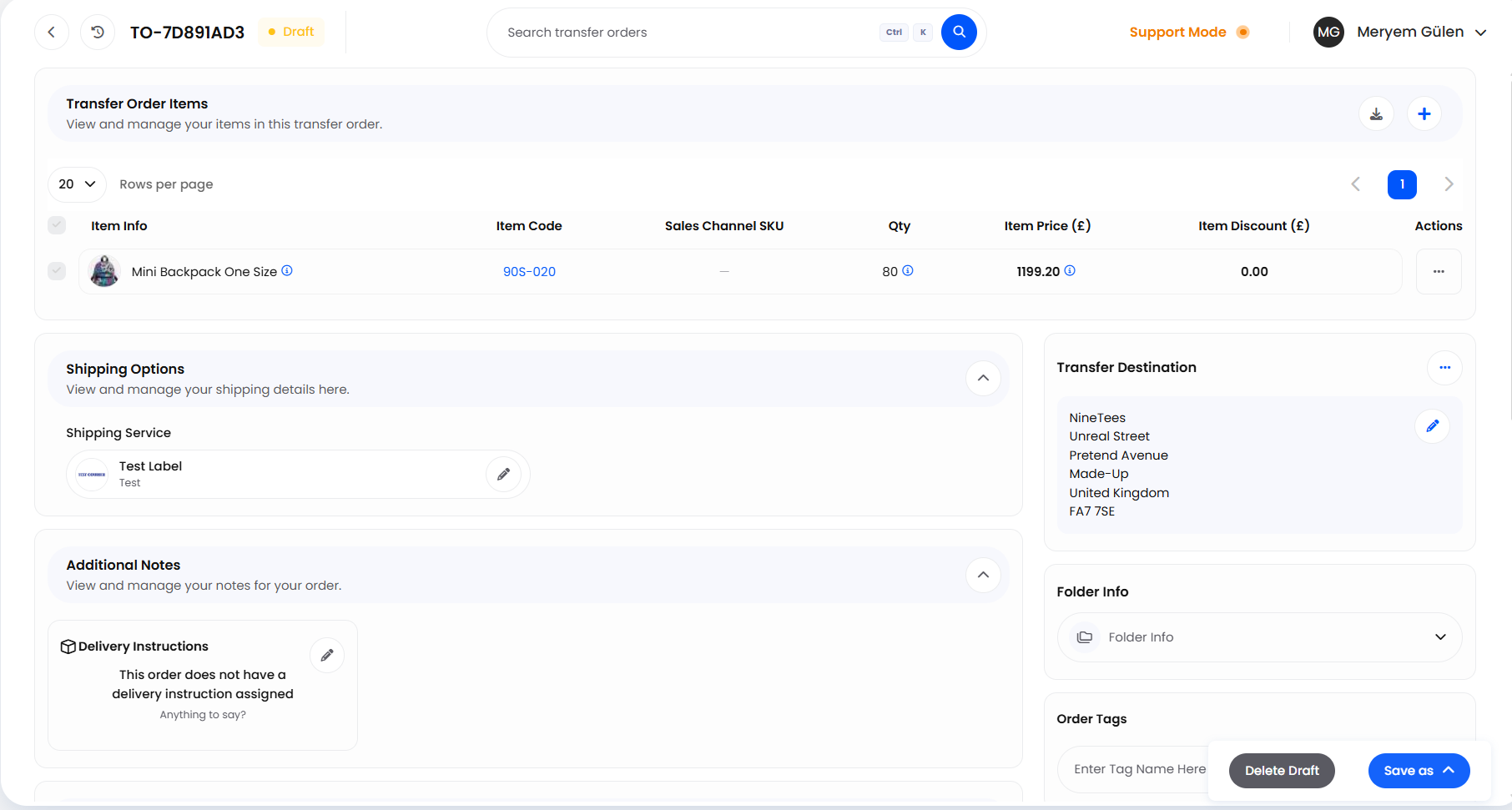
In the Transfer Order Items section, use the plus button top right to open Add Item.
Find each product with Item Search, which shows current stock as you go, set Qty on each line and choose Add.
Each line can also carry an optional Item Price and Item Discount, shown as columns headed with your base currency. Both are for your records rather than a charge: nobody is invoiced, and stock at the far end is costed from this warehouse's own cost figure.
To change a line later, use Edit on its Actions menu; Delete removes it.
Set the destination.
In the Transfer Destination card, choose Select destination, or Change Destination on its Actions menu if one is already set.
Choose the Destination, then Save Changes. It lists your active destinations, up to 100, and Helm copies that destination's address and recipient onto the order.
For a delivery point you will not use again, choose Add New Address and type it in; Helm keeps it on this order. If the place does not exist yet, Add New Destination opens the destinations page.
Choose the courier service, which needs Full mode: open Shipping Options and set the Shipping Service, since a carrier despatch needs an active one. The list offers the same per row, as Set Shipping Service on its Actions menu.
Add anything the receiving site or driver needs to know, in Delivery Instructions under Additional Notes.
Create the pick.
On the Transfer Orders list, open the order's Actions menu and choose Create Pick.
Picks are built in the background: the tab you asked from goes straight to the new pick when it is ready, and any other tab gets a notification with a Go to Pick Detail link. It then behaves like any other pick, under Processing > Transfer Picks.
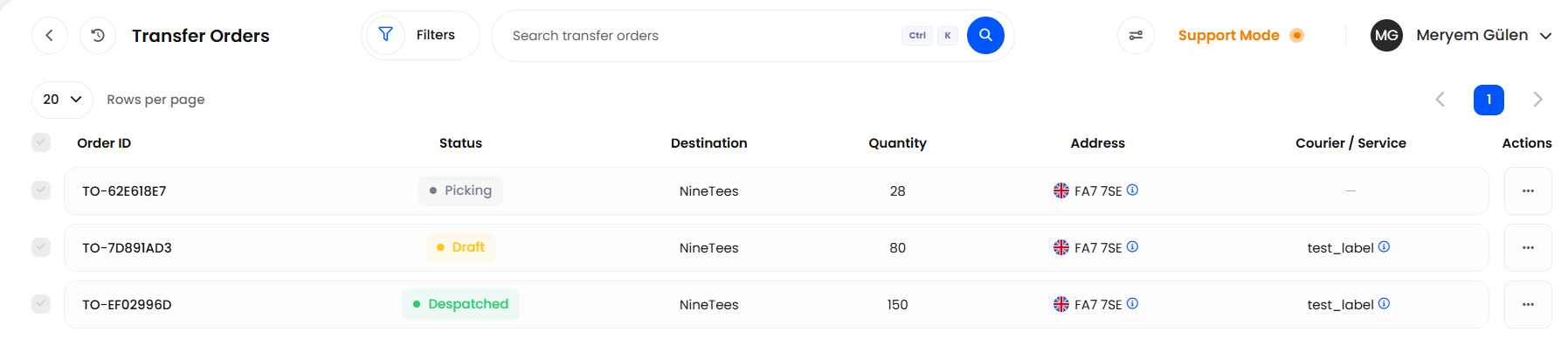
The order reads Picking while the work is on and Picked once every line is done. The Pick Details section lists its picks.
If a pick comes back short, choose Create Pick again: an order reading Picking or Partially Picked can be picked again, and the new pick claims only the units the first missed.
Despatch it.
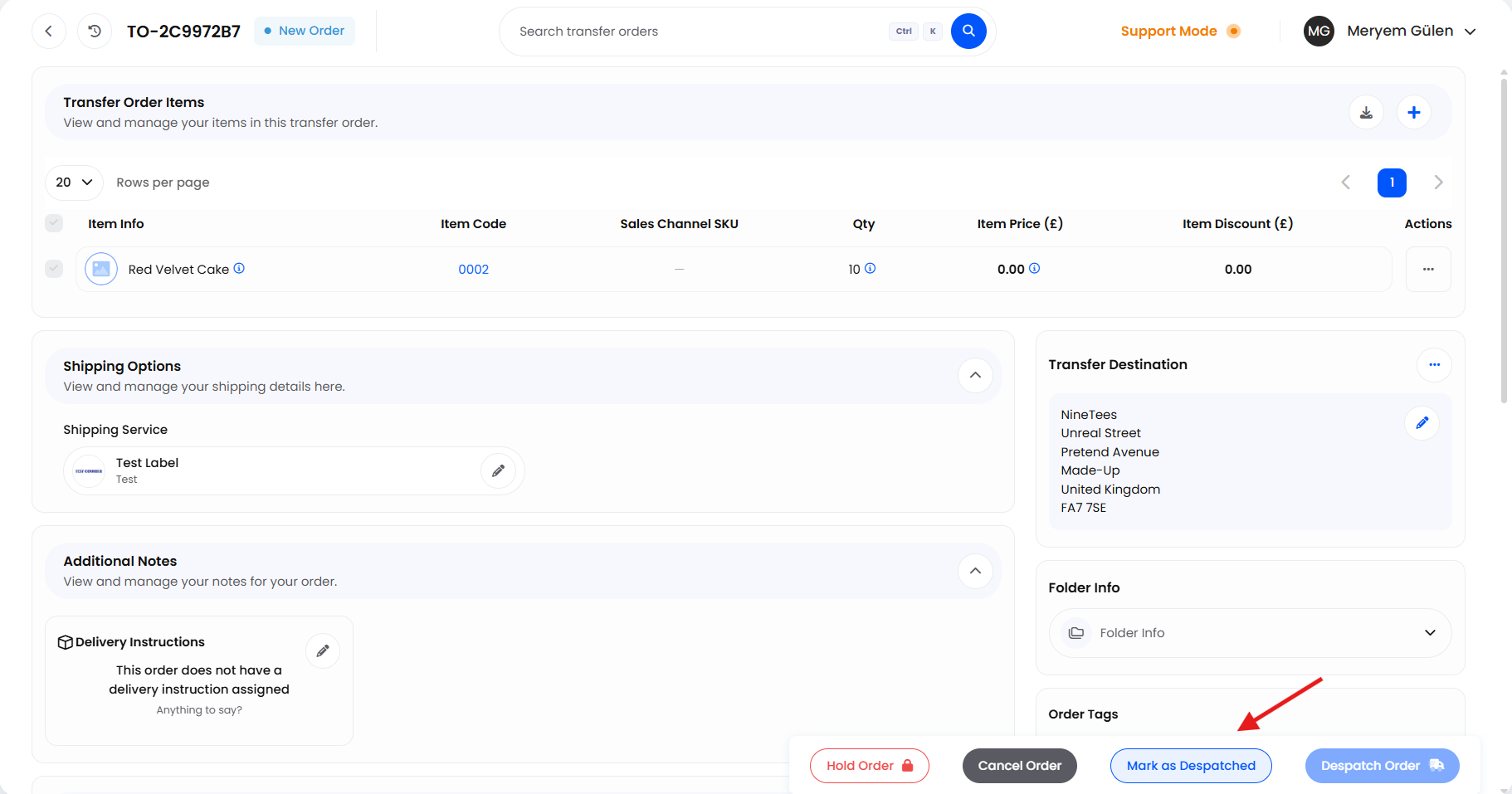
Open the order and choose Despatch Order. It is the same despatch screen a customer order uses, carrying the transfer's lines.
Build the parcels as usual and finish with Create Shipment, or Print and Despatch to print the label too.
If the goods went out in your own van, or with a carrier Helm holds no account for, use Mark as Despatched. Courier is the only field you must complete; Service (optional) and Tracking code (optional) take what you have.
The order then reads Despatched, a Shipments section appears with its tracking and label, and the despatch is listed under Shipping > Transfer Shipments.
The list shows Order ID, Status, Destination, Quantity, Address and Courier / Service; all but the first and the address are filters too.

Following a Transfer Through Its Statuses
A transfer order carries the same status names as a customer order.
Hold Order parks an order without cancelling it: it carries an amber clock badge whose tooltip reads On Hold, and picking or despatching resumes once you choose Release Hold; the row menu calls it Set On Hold. Cancel Order works from every status except the two terminal ones, including mid-pick.
A despatch can also be undone: open the despatched order, find the despatch in its Shipments section and choose Cancel on the row's Actions menu. Helm cancels any carrier booking, brings the stock back and returns the order to the status it held before, normally Picked.
Tell the receiving site when you cancel a despatch: the delivery already raised there stays on their list, so ask them to leave it rather than book it in. Helm cannot withdraw it.

What a Transfer Does to Your Stock
A transfer commits stock at the source exactly as a customer order does.
Open transfer lines count in In Orders. Helm adds open sales demand and open transfer demand into the one In Orders figure on a product's Stock Control card, and Available is what is left. A transfer holds its units from the line being added until it is despatched or cancelled, so one sitting in Draft is already reducing what customer orders can have.
A pick reserves at location level. Creating a pick reserves the exact quantity at the shelf the picker will visit, so nothing else can take those units. No figure on the product moves then: the transfer came out of Available when its line was added, so it is never counted twice.
Physical stock leaves at despatch. Nothing comes off your Physical figure until the transfer is despatched, and comes off once, by either despatch route. A picked transfer takes its units from the staging location the picker used.
Cancelling gives the stock back. The reservations and pick claims are released and the affected products are rechecked for allocation, just as on a cancelled customer order; cancelling a despatch brings the units back too.

Documents to Send With the Goods
A transfer order has its own document menu, on the order and on its list row. Each uses your company's default template for that type, or Helm's base template where you have not designed one, and every one is recorded on the order's timeline. With a printer connected, the menu prints rather than downloads.

Booking the Transfer In at the Other End
Despatching a transfer to a linked Helm warehouse creates a delivery there. It is an ordinary delivery, with no new type and no supplier, so the goods-in team books it in like a supplier delivery, which the Deliveries article covers.
It quotes the transfer order number. That number is the delivery's Delivery Reference, so both warehouses mean the same thing. Its Type is Inventory, with no supplier and no expected date.
Stock rises when somebody receives it. The delivery waits at Due In until the goods-in team books it in, and its quantities are what went into the parcels, not what the order asked for.
The cost travels with the goods. Each line carries what those units cost the sending warehouse, converted into the receiving company's base currency, and publishing the delivery values the received stock with it. Supplier and manual deliveries are unchanged.
Missing products are created. A product the receiving warehouse has never held is created from the sender's details, matched on item code; an archived one is restored rather than duplicated, and a note on the delivery records where it came from.
A typed address is a straight despatch. Where the destination is an address rather than a linked Helm warehouse, the goods leave you as normal and nothing is created at the far end; a one-time Add New Address is the same.
Each warehouse keeps its own records and nothing is reported back, so the transfer order stays Despatched whatever happens to the delivery. Where the count at the far end differs, the two teams agree it between themselves.

Getting the Most Out of Transfers
Raise the Transfer When You Mean to Send It
A Draft transfer order is already holding stock at the source, so raise one when the goods are genuinely going and cancel one that is not: an order left open for a fortnight starves the customer orders that could have had those units. Once transfers are routine, create the pick with the day's other picks and despatch on the same collection as your customer orders.
The Order Timeline Is Your Audit Trail
The Order Timeline section records the lot: who created the order, every status change and the status it came from, destinations set or changed, lines added and removed, holds, the shipping service, documents generated, the despatch and any cancellation. When two sites disagree about what was sent, look here first.

FAQ
How Do I Change the Items After a Pick Exists?
Cancel the pick. That returns the order to New Order, where lines can be added, edited and removed again, as they can in Draft.
How Do I Get a Transfer Ready to Despatch?
Despatch Order is available once the order is off hold, has items, has a destination with an address and, in Full mode, has been fully picked; hovering it shows a tooltip titled Cannot be Despatched naming whichever is outstanding. Mark as Despatched has its own tooltip and rules: it needs no finished pick and no address, and is available once the order is out of Draft, which it leaves when you create a pick.
Can I Change the Destination After Picking Has Started?
Yes. The destination and delivery address stay editable through picking, closing only once the order is Despatched or Cancelled.
Does a Transfer Order Show Up in My Sales Figures?
No. It has no customer, no sales channel and no payment, and it sits on its own records rather than among your orders. It affects stock, not sales.
Can I Cancel a Transfer That Is Being Picked?
Yes. The reservations and pick claims are released, pick lines shrink, and a pick left with nothing is removed. A live carrier label is cancelled first, and anything already carried to the picked location stays there.

If a despatched transfer cannot be found at the receiving warehouse, search that warehouse's deliveries for the transfer order number and check the destination still reads Active. If it is missing, contact support with the number and both warehouse names.
Was this helpful?
Still need help? Share an idea