Setting Up Rolling Stock Counts
Count your stock a little at a time in Helm WMS: give each product a Count Period, then build a count each week from whatever has fallen due.

What It Does
Rolling stock counts let you check your stock a little at a time, as part of the normal working week, instead of closing the warehouse for an annual stocktake. You tell Helm how often each product should be counted, and Helm brings those products forward whenever they fall due. Each week you build a count from what is due, hand it out, and confirm the results.
Example scenario: your fast movers are counted every seven days and everything else every 30 days. Each Monday you create a count from every product that is due, split it into counts of 150 lines and hand them to your counters. By Tuesday lunchtime the counts are confirmed, stock matches the shelves, and those products drop out of the due list until their next turn comes round.

Before You Start
Your warehouse needs Helm's full stock structure. Counting is part of advanced stock control. If Inventory Checks is not under Warehousing in your sidebar, your warehouse is set up for basic stock. Moving onto the full structure is a permanent administrator change, so raise it with whoever administers Helm for your business.
You need inventory check permissions. Creating, assigning and confirming counts are separate permissions. A button with a Permission Required tooltip is one your account has not been given yet.
Setting a Count Period on Your Products
The Count Period is how often a product should be counted. It is what the Count Due filter works from, so this is the step that turns counting into a routine rather than a job someone has to remember.
Go to Inventory and open the product.
Scroll to the Advanced Settings panel.
Under Count Period, choose 7 Days, 15 Days or 30 Days.
Repeat for each product you want counted on a schedule.
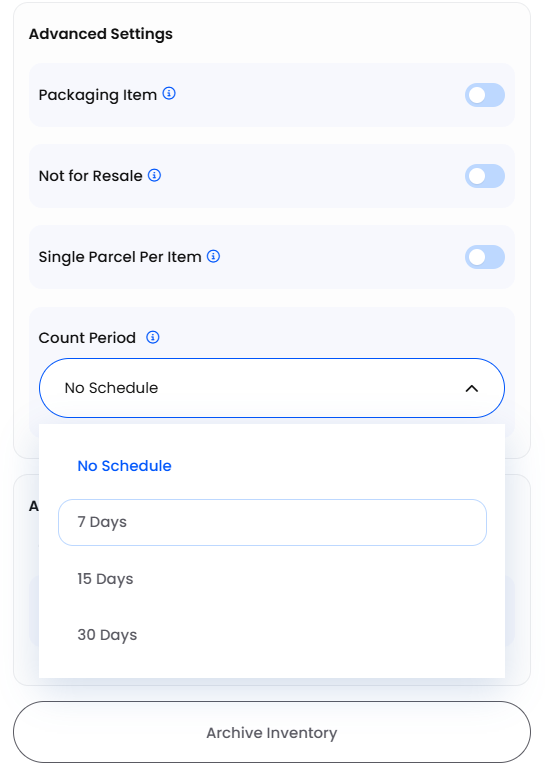
A product left on No Schedule never comes up as due. It can still be counted whenever you add it to a count yourself.
Creating a Count From What Is Due
Go to Warehousing > Inventory Checks and choose Create Count.
Choose Bulk Add, then Add Filter.
Under Type, choose Count Due, then pick a Value:
Now: products that are due today or overdue.
Within 7 Days, Within 15 Days or Within 30 Days: products that fall due in that window, so you can get ahead of the schedule.
Choose Continue.
Under Split Options, break the work into manageable counts:
Set Maximum Lines: turn it on and enter a size under Maximum Lines. Anything bigger is split automatically.
Split Per Zone: one count per zone, if your warehouse uses zones.
Assigned Users: who will do the counting.
Choose Create.
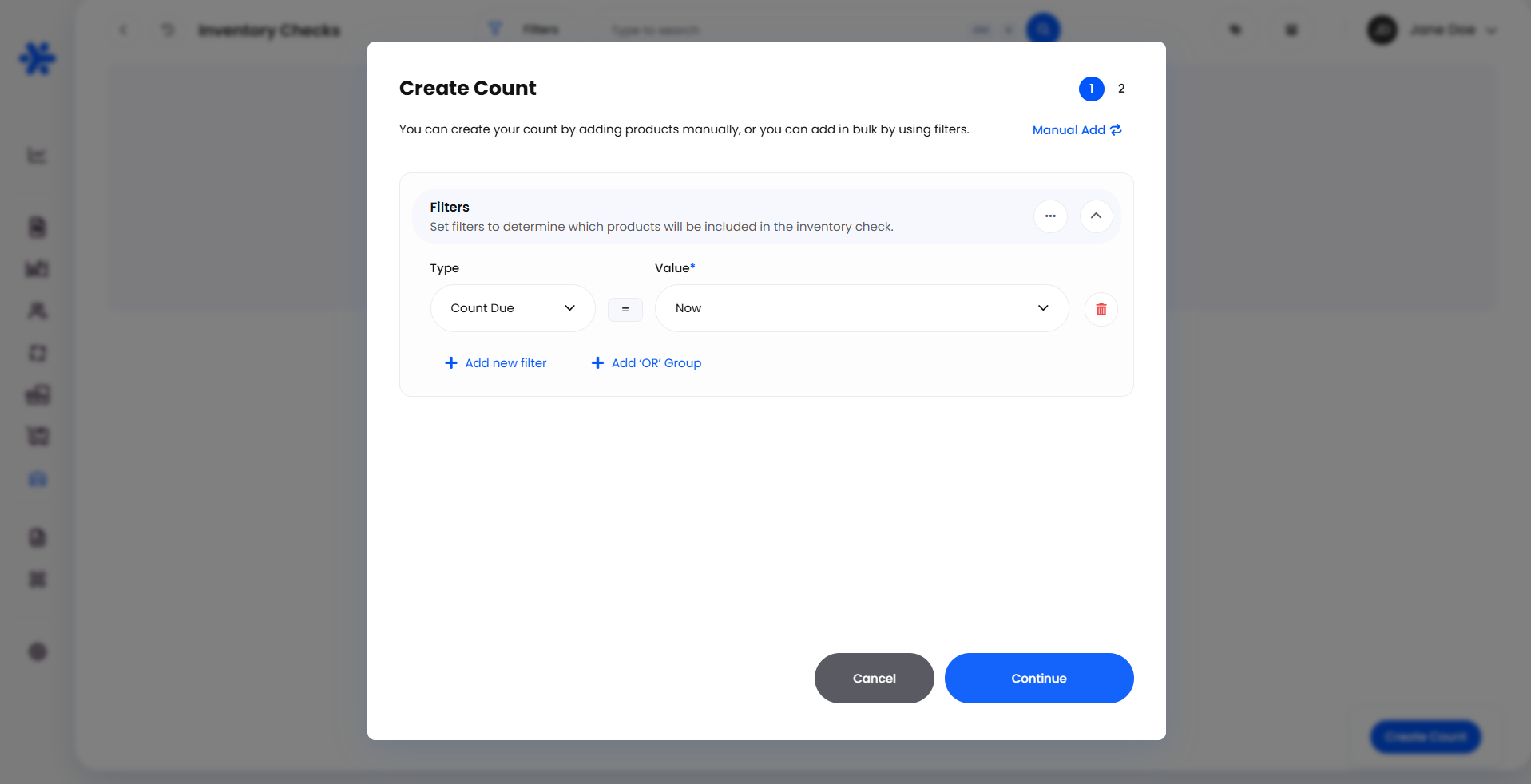
Helm builds the counts in the background, and they appear in the list when they are ready. From there, your team counts and you confirm. Our Inventory Checks article covers that part in full, from entering quantities to what confirming does to your stock.
Unless you split by zone, every count goes to the first person you pick under Assigned Users. Check the Assigned User column afterwards and reassign counts before the shift starts.
Example: A Weekly Cycle Count
Your 400 best sellers have a Count Period of 7 Days, and the rest of the catalogue is on 30 Days.
On Monday morning you choose Create Count, switch to Bulk Add and add a Count Due filter set to Now.
In Split Options you turn on Set Maximum Lines, enter 150, and pick Aylin and Tom under Assigned Users.
Five counts appear, all assigned to Aylin, so you reassign two of them to Tom.
They count on the Helm mobile app, and you confirm each count as it comes back.
Stock at those locations now matches the shelves, and those products drop out of Count Due until their next count comes round.
Best Practices & Notes
Match the Count Period to the Product
Count most often where a mistake costs most. Fast movers and high-value lines suit 7 Days, steady sellers suit 15 Days, and slow, low-value lines suit 30 Days. The aim is a weekly count your team can finish comfortably, not one that grows every week.
Keep Each Count to One Session
Use Set Maximum Lines so every count is something one person can finish in a sitting. Several smaller counts are far easier to work through on the floor than one long list.
Count on the Same Day Each Week
A fixed slot, such as Monday morning with the Now value, keeps the workload steady and makes it obvious when a week has been missed.
FAQ
Why is a product not showing as due?
Why is a product not showing as due?
Usually because it is on No Schedule, it is not due within the window you picked, or its location is already on another open count. Locations with no stock available to count are also skipped.
Can I set a different Count Period?
Can I set a different Count Period?
The options are No Schedule, 7 Days, 15 Days and 30 Days. For anything less frequent, build a count with another filter, such as Tag or Inventory Supplier, when it is due.
When does a product's next count come round?
When does a product's next count come round?
Confirming a count moves each product's next count date forward by its Count Period, so it reappears under Count Due when that period has passed.
For everything on the count itself, including entering quantities, confirming and archiving, see our Inventory Checks article. If you are still stuck, contact support.
Was this helpful?
Still need help? Share an idea