Creating Orders Manually
Create an order by hand for phone, email or trade sales: add the customer, products and shipping, then save it as a draft or a new order.
When to Create an Order Manually
Most orders reach Helm from your connected sales channels. Create an order by hand when a sale happens somewhere else, such as a phone or email order, a trade customer, a free replacement, or a test order for training.
Example: a trade customer phones to order 20 jumpers and 10 denim jackets for their shop. You create the order in Helm, pick the customer from your customer list, add the two products, choose the courier service and save it as a New Order. From there it is picked and despatched like any channel order.

Before You Start
The products must already exist in Helm. See Getting Started with Inventory if you need to add them.
Have the customer's name, email address and delivery address ready, or check whether they are already in your customer list. See Creating & Managing Customers.
Know which store or channel the order belongs to. Manual orders use the store's Manual Channel by default.
How to Create an Order
Go to Orders and click Create Order in the bottom-right corner. Helm opens a new order straight away with the status Draft.
Under Order Details, check the store and channel, and click the pencil to add a Reference if you want one.
Under Address Details, click the plus. Start typing the customer's email or name to choose an existing customer, or fill in the details for a new one, then click Continue. Check the shipping address and click Save Changes. Leave Use Shipping Address for Invoice Address ticked unless the invoice goes somewhere else.
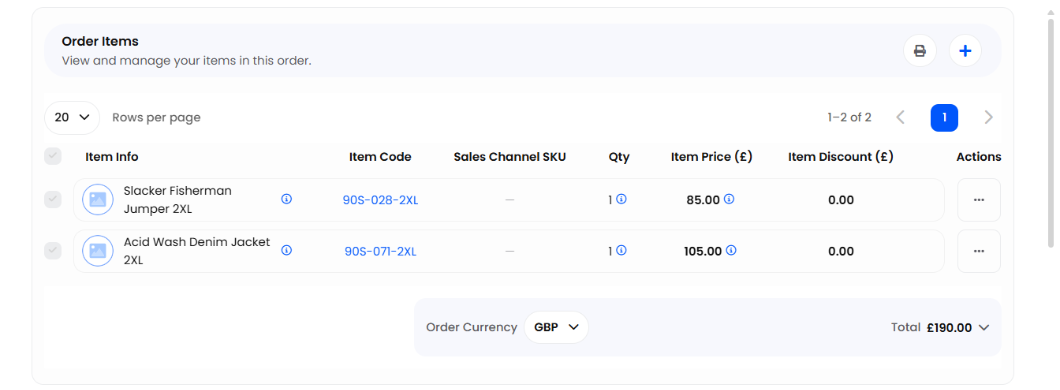
Under Order Items, click the plus. Search by product name or item code, select each product, and set the quantity, any discount and the price. Click Add.
Under Shipping Options, click the pencil next to Shipping Service and choose a service. Add a shipment reference or collection date if needed.
Add any Additional Notes, Custom Fields, folder, tags or attached files (see the table below).
Click Save as and choose Save as New Order to send it into your normal workflow, or Save as Draft to finish it later.



Drafts are saved as you go. Helm creates the draft as soon as you click Create Order. If you no longer need it, click Delete Draft so it does not sit in your order list.
Everything You Can Add to an Order

Tip: to repeat an order for the same customer, open the earlier order and click Copy Order under Order Details instead of starting from scratch.
Best Practices
Choose existing customers from the search rather than typing them again, so their order history stays in one place.
Add a reference that your team will recognise, such as the phone order number or the trade customer's PO.
Lock the shipping service when you have agreed a specific delivery option with the customer.
Use Save as Draft when you are waiting for details, so the order is not picked too early.
FAQ
Why is my new order showing as Draft?
Why is my new order showing as Draft?
Every order you create starts as a draft. It only enters picking and despatch once you click Save as and choose Save as New Order.
Can I add a product that is not in Helm?
Can I add a product that is not in Helm?
No. Products must exist in your inventory first. Use Go to Inventory in the Add Item window to create one, then come back to the order.
How do I change an item after adding it?
How do I change an item after adding it?
Click the three dots in the item's Actions column and choose Edit or Delete.
Will order rules run on a manual order?
Will order rules run on a manual order?
Yes. Once it is saved as a New Order, your Order Rules treat it like any other order. Lock the shipping service if you do not want a rule to change it.
How do I get rid of a draft I created by mistake?
How do I get rid of a draft I created by mistake?
Open the draft and click Delete Draft. Helm offers an option to undo straight afterwards if you deleted the wrong one.
Once saved as a New Order, a manual order follows exactly the same picking, packing and despatch steps as an order from your channels.
Was this helpful?
Still need help? Share an idea