Receiving Deliveries in Basic Mode
How deliveries are received in Helm WMS when your warehouse runs in Basic mode, where received stock goes straight onto each product's physical stock.
What Changes When Receiving in Basic Mode
In Basic mode, a delivery adds straight onto each product's physical stock. There is no default delivery location and no location to choose on each line, so booking stock in is a matter of entering what arrived and publishing the delivery.
Example scenario: a product shows 50 physical. A carton of 10 arrives, the delivery is published with 10 received, and the product shows 60 physical straight away.

How to Receive a Delivery in Basic Mode
Go to Purchasing > Deliveries and click Create Delivery.
Choose the Delivery type: Purchase Order or Inventory.
Fill in the Delivery reference and, if you have them, the Delivery number and Expected delivery date, then click Create Delivery.
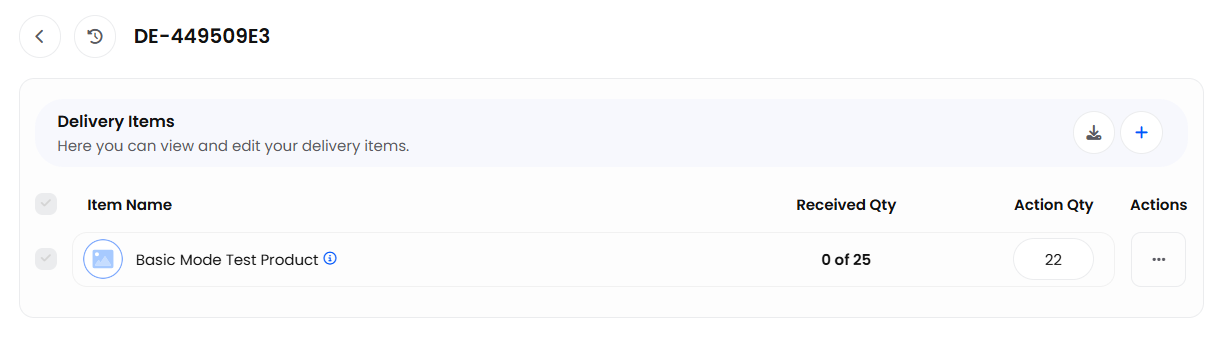
Click + on Delivery Items, search for each product and enter its Expected Qty, then click Add to Delivery.
When the goods arrive, enter the quantity received in Action Qty on each line. Received Qty shows how many have been received against the number expected.
Click Publish. The received quantities are added to each product's Physical stock, and each one is recorded in the product's stock logs as a Delivery.

What Full Mode Adds to Deliveries
In Full mode, a delivery has a Default delivery location, and every line needs a location before its quantity can be published. For the full delivery process, including purchase orders, see Deliveries.

If received stock does not appear on a product, contact support with the delivery reference and the team can check it.
Was this helpful?
Still need help? Share an idea