Transfer Shipments & Receiving a Transfer
Sending stock to another of your own sites finishes the way a customer order does: pack it, book a courier label, and the units leave your stock. At the far end it arrives as an ordinary delivery to book in, so neither team learns new paperwork. This article covers both halves in Helm WMS: despatching a transfer with its parcels, labels and tracking, recording one you moved yourself, and booking it in at the receiving site.
How a Transfer Leaves One Site & Arrives at the Other
Two teams touch a transfer, and each does something it already knows. At the sending site a transfer order says what should move and a transfer pick gathers it; the despatch team packs it into parcels, chooses a courier and books the label. That moves the order to Despatched, takes the units out of stock and produces one despatch and one carrier label under Shipping > Transfer Shipments.
At the receiving site, goods-in sees a delivery: where the destination is another Helm warehouse, despatching raises one there quoting the transfer order number, so both sites quote one reference.
Example scenario: a transfer order for 24 units has been picked and staged. You open it, choose Despatch Order, put the units into one box, pick your carrier and choose Create Shipment. Helm books the label, the order reads Despatched, and the units leave your stock. At the receiving site they are waiting in Purchasing > Deliveries under the transfer order's number.

Before You Start
Put the sending warehouse in Full mode. Shipping > Transfer Shipments, Despatch Order and Mark as Despatched need full stock control, so set your warehouse's Warehouse Mode to Full first. A Basic or Essential warehouse can still raise transfer orders under Processing > Transfer Orders, which is not gated that way, and picking and despatching follow once the mode reads Full. The mode sits on the record under Settings > Company Settings, behind Change Warehouse Mode.
Give your permission group the transfer shipment permissions. View Transfer Shipments for the list and View Transfer Shipment Detail to open one, Create Transfer Shipment to despatch, Cancel Transfer Shipment to undo one, and Renew Transfer Shipment Document for the label; View Transfer Shipment Documents covers the customs paperwork on a transfer going abroad. Groups are kept under Settings > Company Settings > Users.
A carrier despatch needs an active courier service and an address. Couriers are set up under Settings > Despatch Settings > Couriers; the address comes from the transfer order, where Full name and Email can be blank but the address cannot.
The despatch mechanics are the ones you already know. Parcels, package types, labels and tracking behave as they do on a customer despatch, so the Shipments & Shipment History article remains the reference.

Despatching a Transfer From the Sending Site
Helm works out whether an order is ready, so Despatch Order is either live or greyed out with a tooltip titled Cannot be Despatched naming the one thing to sort out next. The checks run in this order.
The last check has a deliberate way round it, for goods gathered off the paperwork rather than through a pick: choose Download Order Cheatsheet or Print Order Cheatsheet from the order's document menu and the despatch is released. Helm rechecks as the document lands, so the button comes alive without a reload.
Packing & Booking the Label
Open the transfer order from Processing > Transfer Orders, or use the Despatch button on its finished transfer pick. Its status should read Picked.
Choose Despatch Order at the bottom of the page. It opens the same despatch screen a customer order uses, headed with the transfer order's number.
Check the destination. The Shipping Address section is filled in from the transfer order; Address line 1, City, Postcode and Country all need to be complete before the despatch will go.
Pack the parcels.
The order's lines start out in one parcel. Drag items between parcels to split the consignment across boxes, and use Add or Scan Item to put anything else into the selected one.
Set the box with Select Package Type, or type Length, Width, Height and Weight in yourself. Shipment Value and Shipment Weight total as you work.
Sending abroad, every parcel needs at least one item before the despatch will go.
Choose the carrier in the Courier Services section, and add anything the driver needs in Delivery Instructions. Going abroad that section is headed Courier Services & Parcel Description and takes a Parcel description for customs, covering the whole consignment rather than one box. Helm saves your courier choice on to the transfer order as its shipping service.
Choose Create Shipment, which comes live once the address, courier and parcels are valid. The label is booked while you wait, and a carrier that refuses the consignment says why in a red banner at the top of the screen.
Print the label. Helm opens the new despatch with the print popup, titled Print Shipping Label with a printer connected and Download Shipping Label without one. Take the Shipping Label; the Commercial Invoice beside it is the carrier's customs paperwork for a transfer going abroad. A tip banner brings the popup back if you close it too soon.
Check the result. The order reads Despatched, a Shipments section appears with the tracking and the label, and the units have left your stock.

Recording a Despatch You Made Yourself
When the transfer went out on your own vehicle, or with a carrier Helm holds no account for, record it rather than booking a label. Mark as Despatched writes down a despatch that has already happened, so it asks less of the order than a carrier booking: it needs neither a finished pick nor an address, only that the order is off hold, has items on it, and has left Draft, which a transfer order does as soon as a pick is created for it.
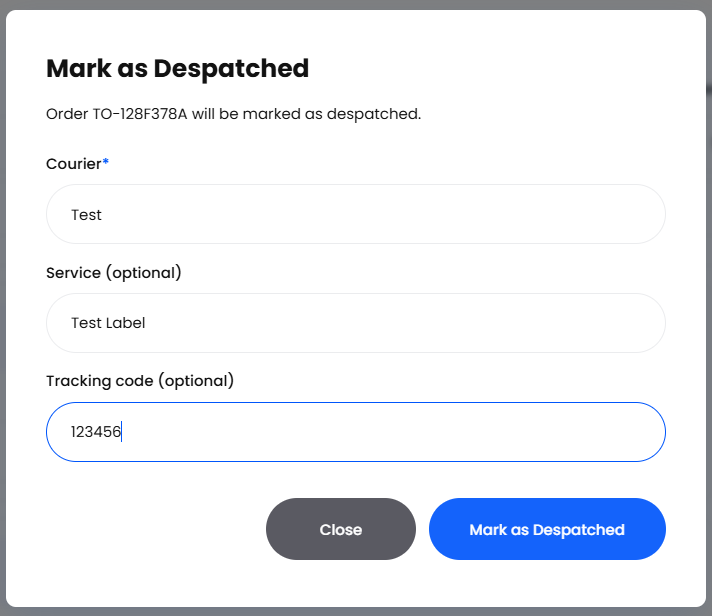
Open the transfer order and choose Mark as Despatched. Courier is the only field you must complete, with Service (optional) and Tracking code (optional) taking whatever the driver left you; the first two are prefilled from the order's shipping service if one is set.
It is a full despatch, not a flag. The order moves to Despatched, the stock leaves, one parcel holding every line is built for you, and the destination's delivery is raised. The carrier you typed shows in the despatch list's Courier Service column, without a logo beside it.
It holds the courier, service and code you typed. The code is recorded as booked and stays exactly as you typed it: it is there for anyone chasing the load to read, with no carrier feed behind it to move the status on. Labels and carrier logs come with a booked label, so Print Label and Download Label appear on carrier despatches only, and here View Shipment Request is greyed out behind a No Shipment Request tooltip.
It can still be undone. Cancel it like any other despatch and the stock comes back.

Booking a Transfer In at the Receiving Site
Despatching a transfer whose destination is a Linked Helm warehouse creates a delivery in that company. There is nothing special about it for the team receiving it, and the goods-in routine in the Deliveries article applies unchanged.
Open Purchasing > Deliveries in the receiving company, where goods-in already works; from the sending site, Switch Company in the account menu behind your name takes you over. The delivery is raised over there rather than in this company, and in the background, so allow a moment.
Find the delivery by the transfer order's number, which is its Delivery Reference. Its Type reads Inventory, it comes with no supplier, and the receiving warehouse fills in the Expected Delivery Date itself, as on any delivery.
Check the quantities against what turned up. They are what physically went into the parcels, not what the transfer order asked for, so a pick that came up short arrives short.
Set the Location and Action Qty on each line and choose Publish, exactly as for a supplier delivery. The delivery waits at Due In until somebody does this; stock rises when you publish and not before.
A few more things worth knowing.
Products you have never held are created for you. They are built from the sender's details, matched on item code, and an archived one is restored rather than duplicated. Each is a copy taken at despatch, not a live link.
Batches follow the receiving product's own setting. Batch numbers and expiry dates travel with the units where the receiving company's record for that product tracks batches; where it does not, the units arrive without them whatever the sender held.
The cost travels too. Each line carries what those units cost the sending warehouse, converted into the receiving company's base currency, and publishing the delivery values the received stock with it. Supplier and manual deliveries are unchanged.
One delivery per transfer order. Re-running a despatch never produces a second one, and where a delivery over there already uses that reference Helm leaves it alone.
A Manual destination moves the stock without raising a delivery. An address you typed has no Helm warehouse behind it, so the units leave you and the paperwork at the far end is yours. The same goes for a one-time address and for a linked destination since deactivated.
Nothing comes back the other way: the two warehouses keep separate data, often on separate servers, so the transfer order stays Despatched whatever happens to the delivery, and a shortage is agreed between the two teams.


Keeping Track of Your Transfer Despatches
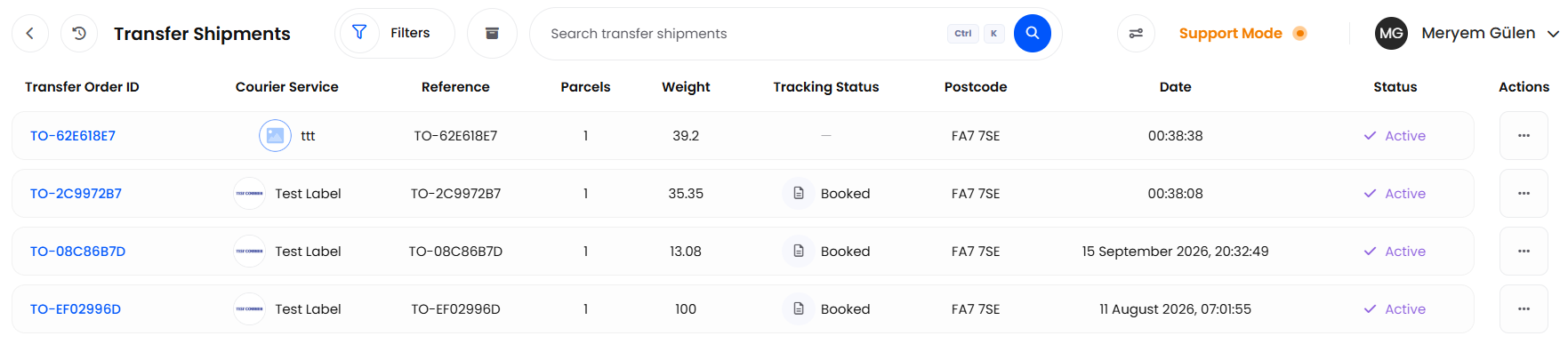
Shipping > Transfer Shipments lists every transfer despatch your warehouse has made: it is where you find one, follow it and act on it. They are separate records from the customer despatches in Shipment History, so nothing you do to a transfer can reach a customer despatch. Every record here comes from the transfer order behind it.
The grid opens on Transfer Order ID, Courier Service, Reference, Parcels, Weight, Tracking Status, Postcode, Date and Status, and all of those except Courier Service also filter the list. Reference is the transfer order number. Click a row to open the despatch, which shows Shipping Information, its Parcels and, where a carrier was used, the Courier Services it went with. Each row carries these actions.
A despatch reads Pending while the carrier is being asked, Active once the label is back, Failed where the carrier refused it and Cancelled once called off. One recorded by hand is Active straight away: there is nobody to wait for.

Cancelling a Transfer Despatch
Cancel a despatch from its row on the list, or from the Shipments section of the transfer order. Helm asks you to confirm, and once the carrier has reported the parcel moving that prompt names the status it has reached, because by then it may be on a vehicle. The carrier booking is called off first; a carrier that will not take the cancellation leaves a second prompt offering Cancel Anyway, which stops the despatch here and leaves the booking for you to settle with the carrier.
Every unit that left returns to the location it left from, re-reserved for the same transfer, and the order goes back to the status it held before the despatch, normally Picked.
Cancelling does not withdraw the delivery already raised at the receiving site, so tell that warehouse to leave it rather than book it in: published after you cancel, the same units are counted twice, once on your shelves and once on theirs.

Getting the Most Out of Transfer Despatches
Size the Box Before You Book the Label
A transfer despatch does not bring the product's dimensions on to the parcel, so unless a default package type fills it in, the box starts out unsized. Choose Select Package Type, or type the dimensions and weight in, before Create Shipment: the carrier prices on what it is given.
Read the Tracking Status for the Latest Position
The Tracking Status column carries the carrier's latest status, and the Shipments section on the transfer order shows the same in its Status column, both updating as the carrier reports. A customer despatch builds an event-by-event timeline as well; a transfer keeps the latest position only, so use the carrier's own tracking page for a parcel's full history.
Work One Number & the Deliveries Waiting to Be Booked In
A transfer only closes when the receiving site publishes the delivery, so work the deliveries sitting at Due In daily and quote the transfer order number in any conversation about a load: it is also the despatch's Reference and the delivery's Delivery Reference.

FAQ
Where Do I Find a Transfer Despatch Again?
On Shipping > Transfer Shipments, by the transfer order's number, which is the despatch's Reference, rather than in Shipment History with your customer despatches.
Can I Despatch a Transfer That Was Never Picked?
Yes. Download or print the order's cheatsheet first and the despatch is released; Helm then takes the units from locations it chooses itself rather than a staging location.
How Do I Chase a Delivery That Has Not Appeared at the Receiving Site?
Check three things: the destination on the order is a Linked Helm one still reading Active, you are in the destination company rather than this one, and no other delivery there already uses the transfer order number as its reference. A typed address has no Helm warehouse behind it, so it raises no delivery.

If Despatch Order stays greyed out, hover it and work through the reason given; if the carrier keeps refusing the consignment, open View Shipment Request to see what it was sent. Still stuck, contact support with the transfer order number.
Was this helpful?
Still need help? Share an idea