Working with the Orders List
Find, sort and act on your orders, one at a time or in bulk, from the main orders list.
What the Orders List Shows
Go to Orders to see every live order across your channels in one table. Each row shows the order's channel icon and ID, its status, the customer, order value, quantity, shipping address and shipping service, with any tags shown underneath. Scroll right for more columns, such as Date Placed, Tracking Status, Date Despatched, Folder, Events and Main Product.
From here you can find orders, open them, and act on one order or hundreds at once.
Example: it is 2pm and the courier collects at 4pm. You filter for New Orders with a Next Day service, tick them all and choose Create > Pick > Run Pick Routine. The picks are ready for the team in seconds.


Finding Orders
Search: type in the search bar at the top, or press Ctrl + K.
Filters: click Filters to narrow the list by status, channel, date, tag and more, and save the views you use often. See Search, Filters & Saved Views.
Archived orders: the archive icon next to Filters switches to your archived orders. See Cancelling, Archiving & Deleting Orders.
Rows per page: change how many orders show on each page, and use the page numbers to move through the list.
To open an order, click its order ID. To add a new one, click Create Order at the bottom right. See Creating Orders Manually.
Changing the Columns
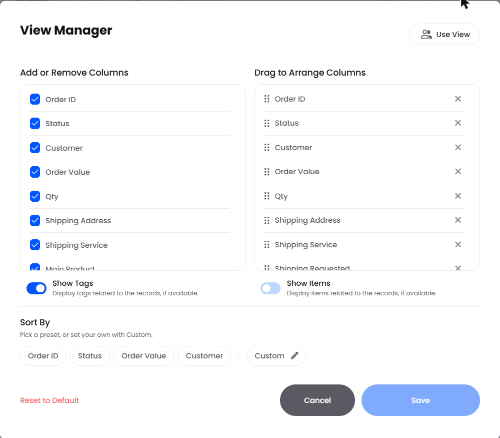
Click the View Manager icon to the right of the search bar to set up the list the way you like it.
Add or Remove Columns: tick the columns you want to see.
Drag to Arrange Columns: drag columns into the order you want, or click the cross to remove one.
Show Tags and Show Items: show the order's tags or items under each row.
Sort By: pick a preset such as Order ID, Status, Order Value or Customer, or set your own with Custom.
Click Save to keep your changes, or Reset to Default to go back to the standard layout.
Working with Several Orders at Once
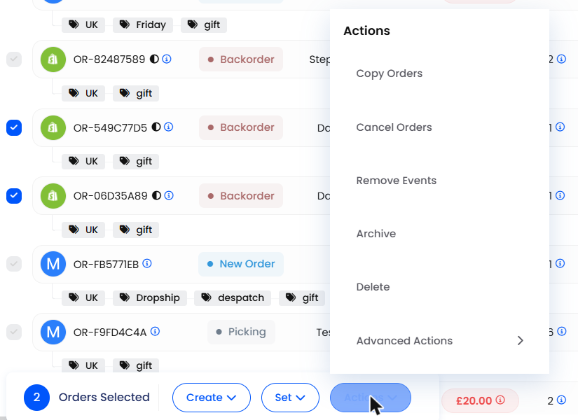
Tick the boxes beside the orders you want. A bar appears at the bottom showing how many orders are selected, with three menus: Create, Set and Actions.
Create

Set

Actions
Note: bulk actions run in the background, so you can carry on working. Check their progress in The Jobs Queue.
Quick Actions on One Order
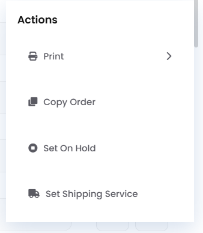
Click the three dots in the Actions column at the end of a row for shortcuts on that order, such as Print, Copy Order, Set On Hold and Set Shipping Service, without opening it.
Best Practices
Save the views you check every day, such as Backorders or orders on hold, so they are one click away.
Check the Jobs Queue after a big bulk action to confirm every order was processed.
Use Order Rules for repeat work. If you apply the same tag or service by hand every day, a rule can do it as orders arrive.
FAQ
Why are some options greyed out or missing?
Why are some options greyed out or missing?
Some actions only work for certain statuses or permissions. For example, only drafts can be deleted and only valid status moves are offered.
Why can I not see an older order?
Why can I not see an older order?
It has probably been archived. Despatched orders are archived automatically after 30 days. Click the archive icon next to Filters to see them.
Can I choose which columns I see?
Can I choose which columns I see?
Yes. Click the View Manager icon to the right of the search bar. You can add, remove and reorder columns, and choose how the list is sorted.
I ran a bulk action but nothing changed. Why?
I ran a bulk action but nothing changed. Why?
Bulk actions are processed as jobs. Open The Jobs Queue to see if the job is still running or if some orders were skipped.
Once you know your way round the orders list, most daily order work takes just a few clicks.
Was this helpful?
Still need help? Share an idea