Shipments & Shipment History
What a shipment record holds in Helm, how to find a past shipment under Shipping > Shipment History, and what you can do from the list: read tracking, re-print the label and paperwork, manifest, and cancel a booking you should not have made.
What a Shipment Is
A shipment is the record of a courier booking, created when an order is despatched. It holds what actually happened rather than what was planned: the address used, the parcels and their contents, the courier service, the tracking numbers and the label. The order records what the customer asked for; the shipment records what left the building.
Shipments arrive in Shipment History from whichever despatch route your team uses:
Despatch Terminal: packing one order at a time at a bench.
Single Shipment: booking a courier by hand, with or without an order behind it.
Batch Despatch: bulk label generation, one shipment per order in the batch. It has its own article.
Manual Despatch: a bulk action that marks orders as despatched against a courier booked elsewhere. Helm stores the Courier Name, Courier Service and Tracking Code you type in, but with no booking behind it there is no label, no live tracking and no courier request to fall back on. Helm warns that manual despatch may lead to data inconsistencies, shipping errors and delayed processing, and it means it: keep it for genuine exceptions.
Example scenario: a customer rings to say their parcel never turned up. You search Shipment History for their surname, hover the tracking status on their row, and see Failed Attempt on Tuesday followed by Returned to Sender. You have the answer and a reference to quote in a claim, without opening a courier portal.

Before You Start
Permissions. The list and the record need Shipment Listing and Shipment Detail; cancelling one needs Shipment Cancel Label.
The bulk cancel permission is an order permission. Cancel Shipments in the action bar is disabled without Order Create, and that is the tooltip you will see, so a greyed-out button is what to ask your Helm administrator about.
A shipment record cannot be edited. Once the courier has accepted a booking, fixing a mistake means cancelling and despatching the order again.
The archived view is read-only. You can open a shipment, read its courier request and get its label, but not cancel or manifest.

Shipment Status Is Not Tracking Status
Every shipment carries two statuses, and mixing them up is the most common reason one looks wrong. The shipment status describes the booking with the courier; the tracking status describes where the parcels are.
Only an Active shipment shows tracking in the Tracking Status column; for anything else it falls back to the shipment status, which is why a void booking reads Cancelled there rather than showing a scan. Status is the only column that shows the shipment status on its own, and although it is on by default the column selector does not offer it.
Tracking status is held per parcel from the courier's own feed, so a consignment with several parcels can show different tracking on each:

Finding a Past Shipment
Go to Shipping > Shipment History.
Use the search box, Search Shipment History. It matches a complete order number, or the start of a shipment reference, tracking number, postcode or customer name; partial order numbers will not match.
Or filter. Courier Service, Customer, Date, Order ID, Postcode and Reference sit on the panel by default; the rest are behind the additional filters.
Click a row to open the shipment record.
The filters worth knowing:
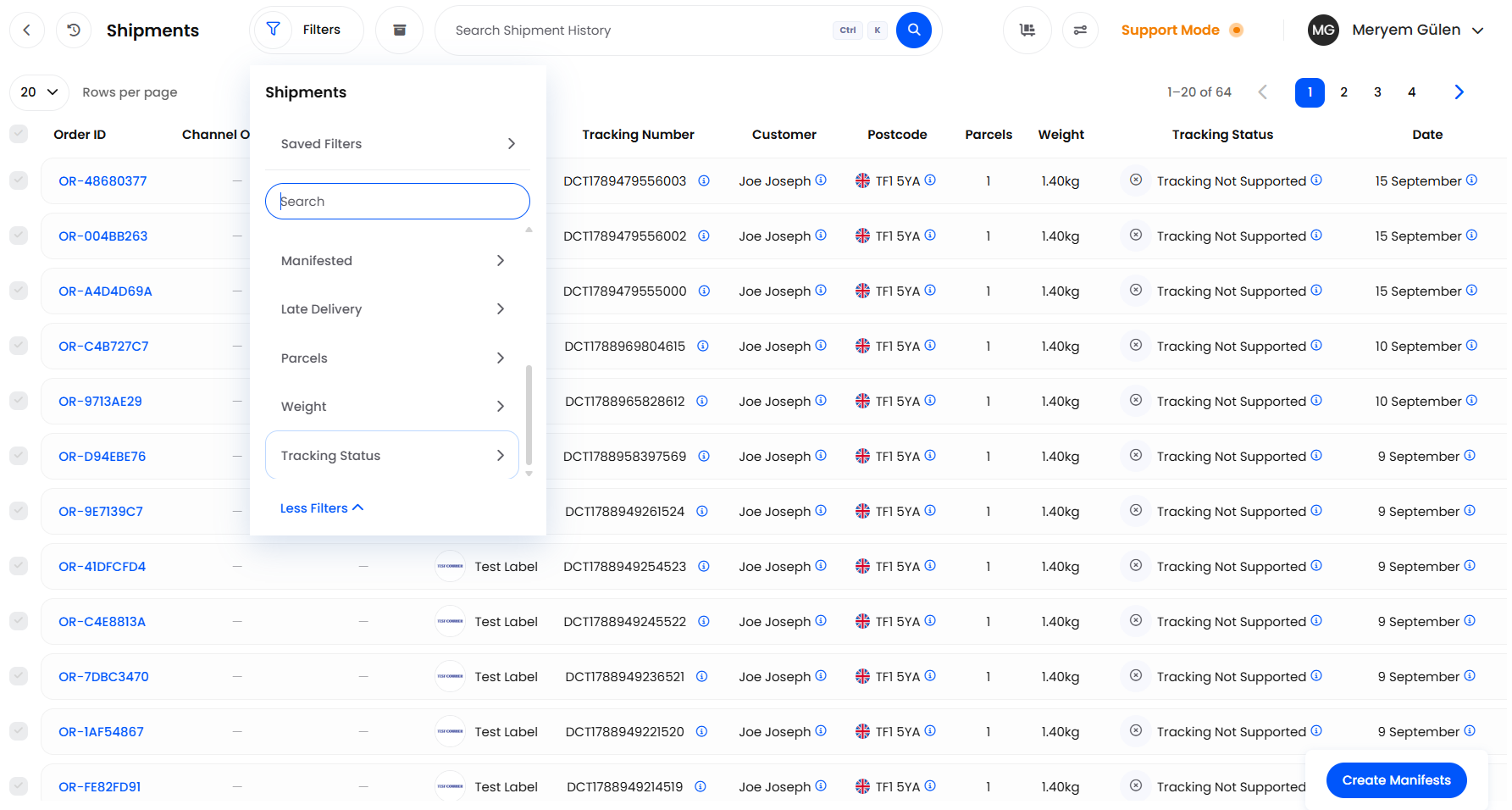
The columns worth explaining, four of which open a popover when you hover them:
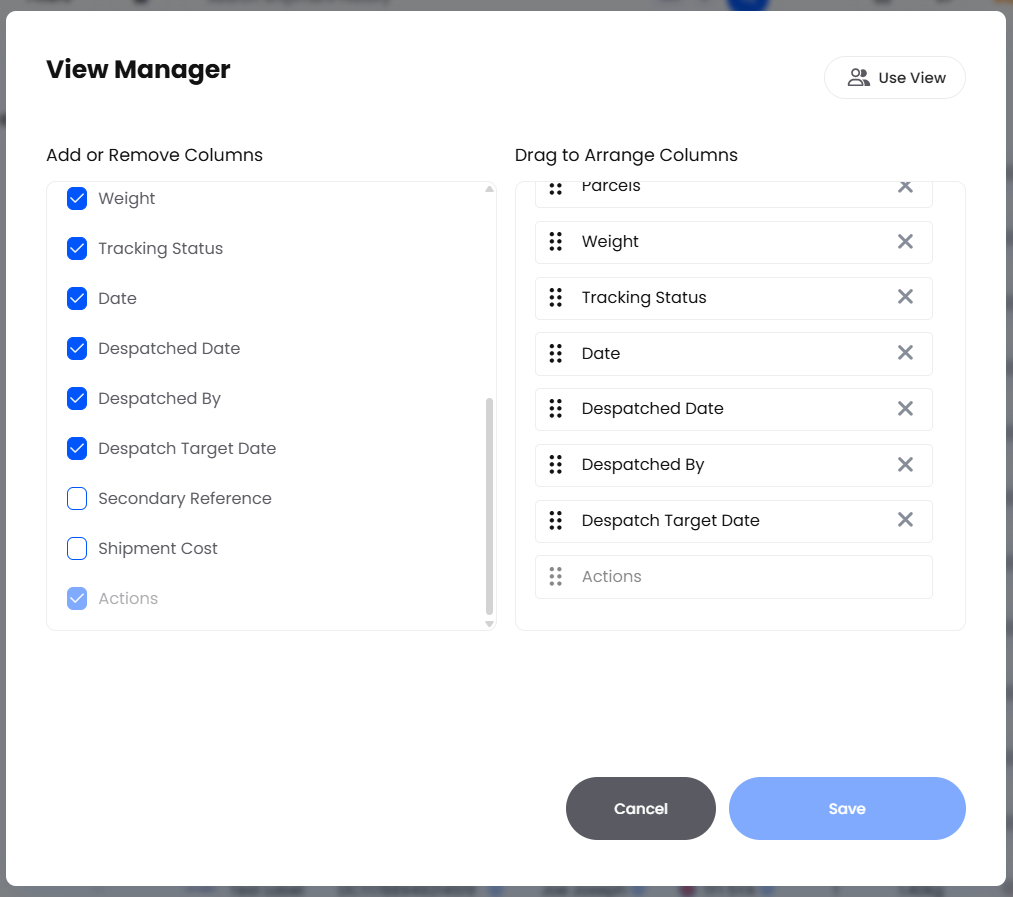
A toggle beside the column selector opens Shipment Groups, a sibling view that rolls the same shipments up per courier account, with its own columns and its own bulk Cancel. It is not covered here.
Older shipments leave the main list on their own; the archive toggle in the page header shows them under Archived Shipments. Helm's note there says archiving happens 30 days after delivery, but the rule runs on the shipment's creation date: 30 days once tracking holds any event other than Delivered, 35 days if Delivered is the only event recorded. A parcel delivered last week can already be archived if its shipment is over a month old; one with no tracking events never archives.

Reading the Shipment Record
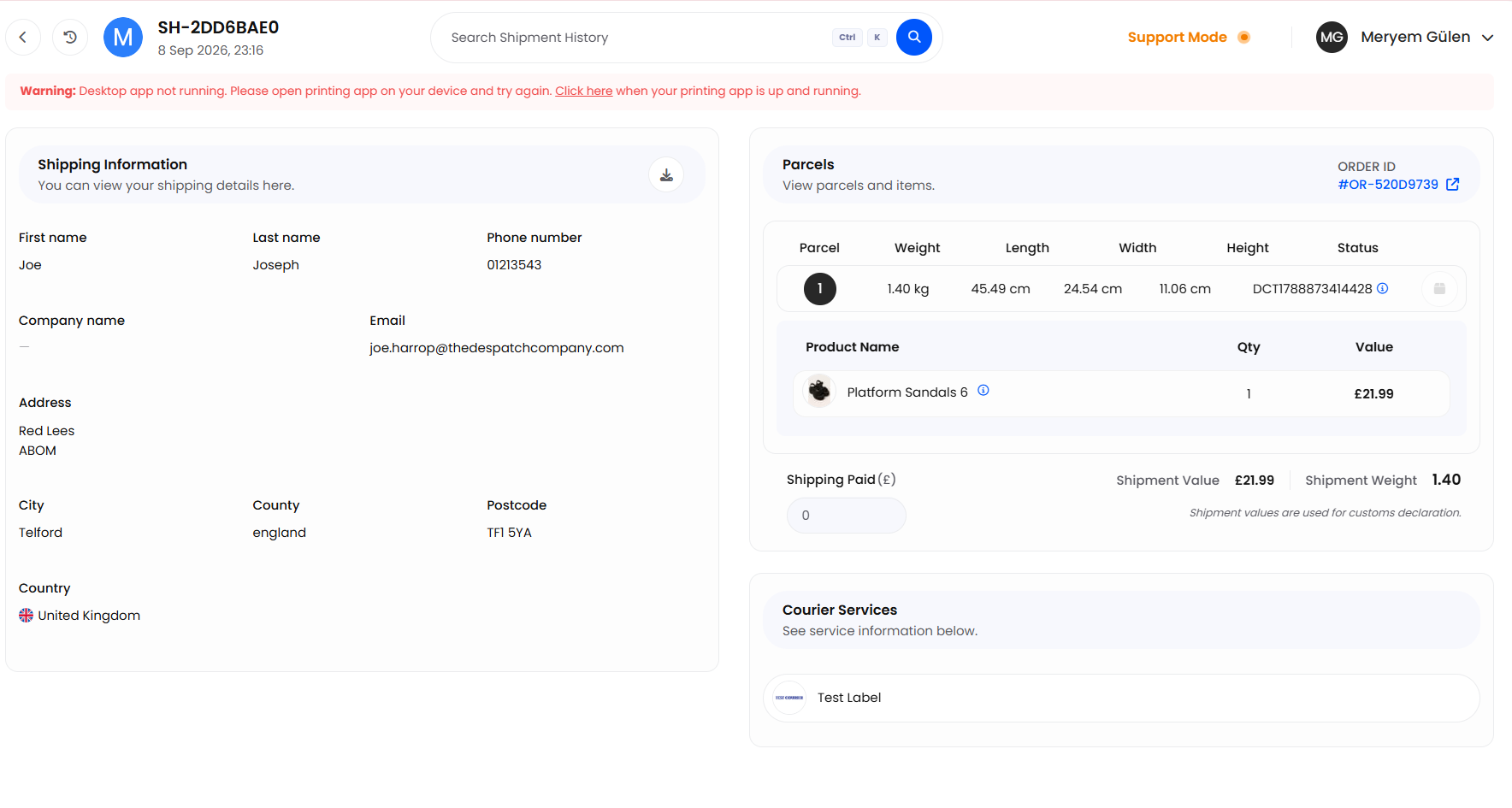
A shipment record is titled by its reference, dated by the booking, and made up of three read-only panels.
Shipping Information: the address the label was produced from, as it went to the courier, plus the customs tax fields. Its print button, like the tip at the top of the record, reopens the document popup.
Parcels: each parcel with its Package, Dimensions, Weight and Status, and the items inside by Product Name, Location, Qty and Value. Shipment Value and Shipment Weight total the consignment and feed the customs declaration.
Courier Services: the service used, plus Delivery Instructions. On an international shipment it becomes Courier Services & Parcel Description and adds the customs parcel description.
The Tracking Popover
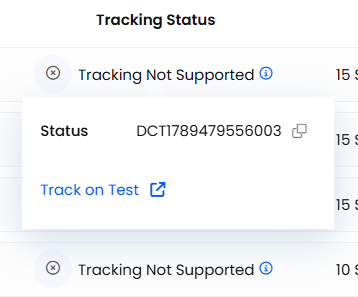
Tracking lives in the list, not on the record. Hover the value in the Tracking Status column of an Active shipment and a popover opens with:
Status, with the parcel's tracking number and a copy button.
The tracking history, newest first, each event with its mapped status, date and time.
Proof on any event with a courier photograph. Click it to show the image, then See Tracking History to go back.
A link reading "Track on" and the courier's name, opening the courier's own tracking page. Manual shipments have no booking, so no link.
The popover only ever shows the first parcel: a five-parcel consignment gives one parcel's scans, not five. For the others, take the numbers from Tracking Numbers and track them with the courier.

Labels & Documents
The row's actions menu holds up to four entries: View Shipment Request, Print or Download, Cancel, and, on accounts where it is switched on, Virtual Switch, which is off by default and not covered here.
The document entry reads Print when your printing connection is running and Download when it is not. It only appears on an Active shipment that has a label file stored against it, so it can be missing even on an Active row.
The dialog is Print Shipping Label, or Download Shipping Label. Shipping Label and Commercial Invoice are always listed; Packing Slip and Invoice come from your print templates and need an order behind the shipment, so a shipment created without one offers only those two. Extra documents set up as additional templates appear here as well.
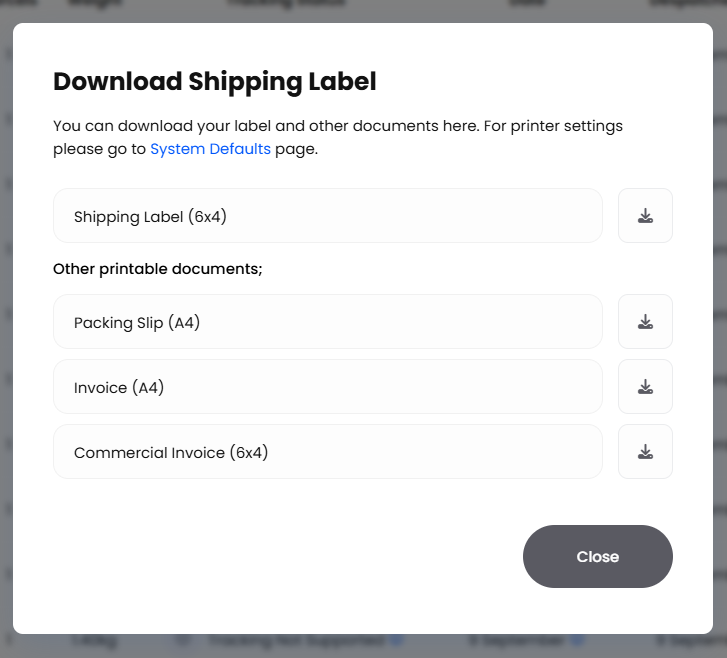
Courier label links expire, so Helm fetches a fresh one whenever the stored link has passed its expiry and a reprint weeks later still works. Fetching a label also records a shipping label print against the order whether or not it needed renewing, so an order can show label prints long after despatch.

Cancelling a Shipment
Cancelling voids the booking with the courier and unwinds the despatch in Helm. What it refuses depends on whether the shipment was booked with a courier or despatched manually, and on whether you cancel one row or many:
Open the row's actions menu and choose Cancel. Helm cancels the label with the courier straight away.
For several at once, tick the rows and use Cancel Shipments in the action bar. The dialog counts what you selected, not what is eligible, so check the selection yourself.
Bulk cancellations are queued, and Helm notifies you when the job finishes. In Jobs Queue it reads Cancel Shipments in Bulk under Name and Cancel Shipment under Specifics.
Cancelling does more than void a label:
Every parcel's tracking moves to Cancelled.
The picked stock is returned and immediately reserved against the same order again, so available quantity does not move and only stock at location does.
The order reverts to the status it held before despatch, and its despatched and delivery dates are cleared.
If it lands back on New Order, Helm re-checks coverage only where Automatic Backorder is on for that order's store or channel: the order moves to Backorder, or, with Split Partially Fulfillable Orders also on, the uncoverable lines split into a Backorder order and the rest stays a New Order. Without it, the order just sits on New Order.
Cancelling one courier shipment from its row writes the cancellation to the order timeline against your name. Manual shipments and bulk cancellations do not, so use Jobs Queue to see who ran one.
Cancelling cannot be undone. The only way back is to despatch the order again, which produces a new shipment with a new label and new tracking numbers. Tell the customer first: the tracking link they already have will stop working.


Manifests
A manifest is the summary you hand to a driver, or lodge with the courier, listing everything going out on that collection. Some courier accounts require one before they collect.
From Shipment History, choose Create Manifests.
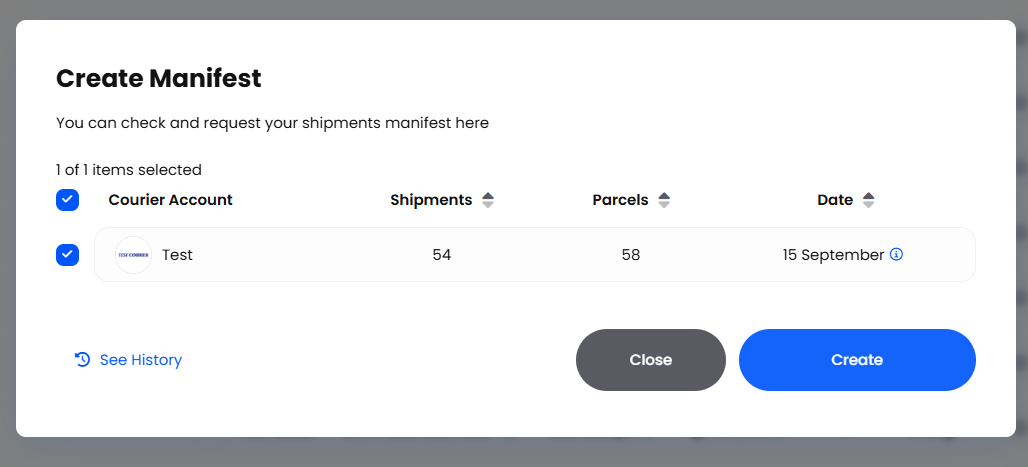
The Create Manifest dialog lists what is waiting per Courier Account, with its Shipments and Parcels counts and the Date. Tick the accounts you are manifesting.
Choose Create. The Manifesting dialog requests each manifest and shows progress, then offers Download, or Download All for more than one account.
To get one again later, choose See History in the Create Manifest dialog. That opens Manifest History, which has no sidebar entry. Rows show the Courier, the Shipments and Parcels counts and the Manifested Date, and offer a download only: manifests cannot be deleted in Helm.
Manifest at the end of the run, not during it. Manifesting removes the row's Cancel action, and although the bulk Cancel Shipments action still cancels a manifested shipment, the courier has by then been told the parcel is coming.

Best Practices & Notes
Set Your Shipment References Deliberately
The reference is the shipment's title, what is printed on the label, and one of the fields search matches on. Set Primary shipment reference and Secondary shipment reference under Settings > System Defaults, choosing from Order ID, Channel Order ID, Channel Reference, Shipment ID, Product Code, Channel Alt ID or Primary Order Reference. A courier service can override the default, and not every courier supports a second one.
Use View Shipment Request When a Courier Disagrees
View Shipment Request opens the exact request Helm sent the courier and the response that came back. When a courier says an address was wrong or a service was never booked, this is the evidence. It is greyed out on shipments whose request log has aged out.

FAQ
Why did a bulk cancel leave some of my shipments alone?
Eligibility is checked shipment by shipment as the job runs, not before you confirm. Open the job in Jobs Queue to see which rows were refused.
The customer says tracking has not moved, but the courier's own page shows progress. Why?
The popover reads the first parcel only, so on a multi-parcel consignment you may be looking at the one parcel that has stalled. Check the other numbers from Tracking Numbers.

If a shipment does not look right, check its shipment status and its tracking status separately, then open View Shipment Request to see what the courier was told. If you are still stuck, contact support with the shipment reference.
Was this helpful?
Still need help? Share an idea