Batch Despatch
How batch despatch works in Helm WMS, how to turn a selection of orders into one set of courier labels, and what to do when an order or a whole batch fails.
How Batch Despatch Works in Helm
Batch despatch books and labels a lot of orders at once. Instead of creating a shipment on each order in turn, you check every order's parcels, address and service on one screen, then process the selection into a single merged label file.
There is no menu item for it: a batch always begins with a selection of orders. There are three ways in:
From the Orders list: tick the orders, then choose Create and Batch Despatch from the bulk action bar.
From a completed pick: choose Batch Despatch from the pick's actions menu, and every order on it is loaded. The pick has to be complete; Helm will not load one that is still being picked, or one that has been archived.
From the jobs queue: Go to Batch Despatch reopens a batch you have already submitted, with each order carrying the reason it failed, so you can fix it and send it again.
Processing is queued rather than immediate. Helm tells you Batch shipment queued, says you can track it in the jobs queue, and returns you to the Orders list while the labels are bought and merged.
Two things about that queue are worth knowing before you start. A batch is all or nothing, so one bad order stops the entire run, and a batch that fails before reaching the courier is recovered from the jobs queue rather than from Batching History. Both are covered in full below.
Example scenario: 120 picked orders are ready to go out today. Instead of despatching them one at a time, you select all 120, set every parcel to the same box with one bulk change, and process them into a single 6x4 label file your printer runs straight through.

Before You Start
Three separate permissions are involved. One lets you start the bulk action from the Orders list, one lets Helm run the despatch check that loads the batch screen, and one lets you create the batch when you press Confirm. A role that carries only the first gets as far as the menu item and is then blocked, so have your administrator confirm all three. Starting a batch from a pick needs the pick update permission as well.
Orders must be in a despatchable status. New Order, Processing, Packing and Sorted orders can go into a batch. Draft, Backorder, Despatched and Cancelled orders cannot, and neither can an order on hold.
If your warehouse runs advanced stock control, orders must be picked first. That setting also lets Picking, Partially Picked and Picked orders into a batch, but an order that is not Picked or Sorted is only accepted if an order cheat sheet has already been printed against it. The cheat sheet exists to bypass picking, and it is printed from the order's own print actions, where the wording changes depending on whether the sheet has been printed before.
Every order needs a shipping address, an active channel and enough pickable stock. Helm also needs a sender address on the store or in your warehouse settings, plus your own VAT or EORI details for anything international.
Couriers, package types and despatch defaults should already be set up. Services come from your registered couriers and shipping rules, Package Type options from Settings > Package Type Settings, and each parcel's starting weight and dimensions from Order Despatch Defaults in Settings > System Defaults.
A batch holds up to 1000 orders, and a single order up to 250 parcels. Where Helm resolves the selection for you, by selecting everything, loading a pick, retrying a batch or reopening one from the jobs queue, it takes the first 1000 and shows a banner telling you how many matches were left out. Ticking more than 1000 rows by hand is rejected outright rather than trimmed, so filter first and send the rest as a second batch.
Batch History is not in the menu until you have run a batch. It appears under Shipping once your company has at least one batch and your role carries the batch history permission, so do not expect to find it before your first run.
If you are on the Packing Operative role and your company has active shipping rules, any order whose service was set by a rule is rejected when you confirm the batch. Someone on a broader role needs to run those orders.

How to Batch Despatch Orders in Helm
Select your orders. Filter the Orders list down to what you want to send, then tick them. Selecting everything respects the filters you have applied.
Open batch despatch. From the bulk action bar choose Create, then Batch Despatch. Helm re-checks the orders and loads the ones that can still be despatched.
Read the problem banner first, if there is one. It counts the orders held back, which are worth dealing with before the rest. Where a second banner tells you the selection was trimmed, the figure it shows is the number of orders that passed the checks, not the raw number you ticked.
Check each row. There is one row per order, showing Channel, Package Type, Shipping Address, Shipment Value, Total Weight, Parcels and Service.
Expand a row to see its parcels and the products inside, or use the toggle in the page header to expand every order at once. On a large batch that is the fastest way to review the lot in one pass.
Open the address to correct it in Edit Shipping Address. As well as the delivery details, that dialog holds the recipient's tax and customs identifiers, including their VAT number, tax ID, IOSS, VOEC and EORI numbers, and those travel with this shipment.
Set the courier with Select Service. Helm fills this from your shipping rules; a service you pick by hand is kept rather than recalculated.
Fix anything flagged. Hover a red icon to see whether it is a Courier Error, a Shipment error or an Excluded order. Where the problem is in the product data, open Edit Products Details from the row.
Process the batch. Choose Process Orders, set your options in the Process Order dialog, then Confirm.
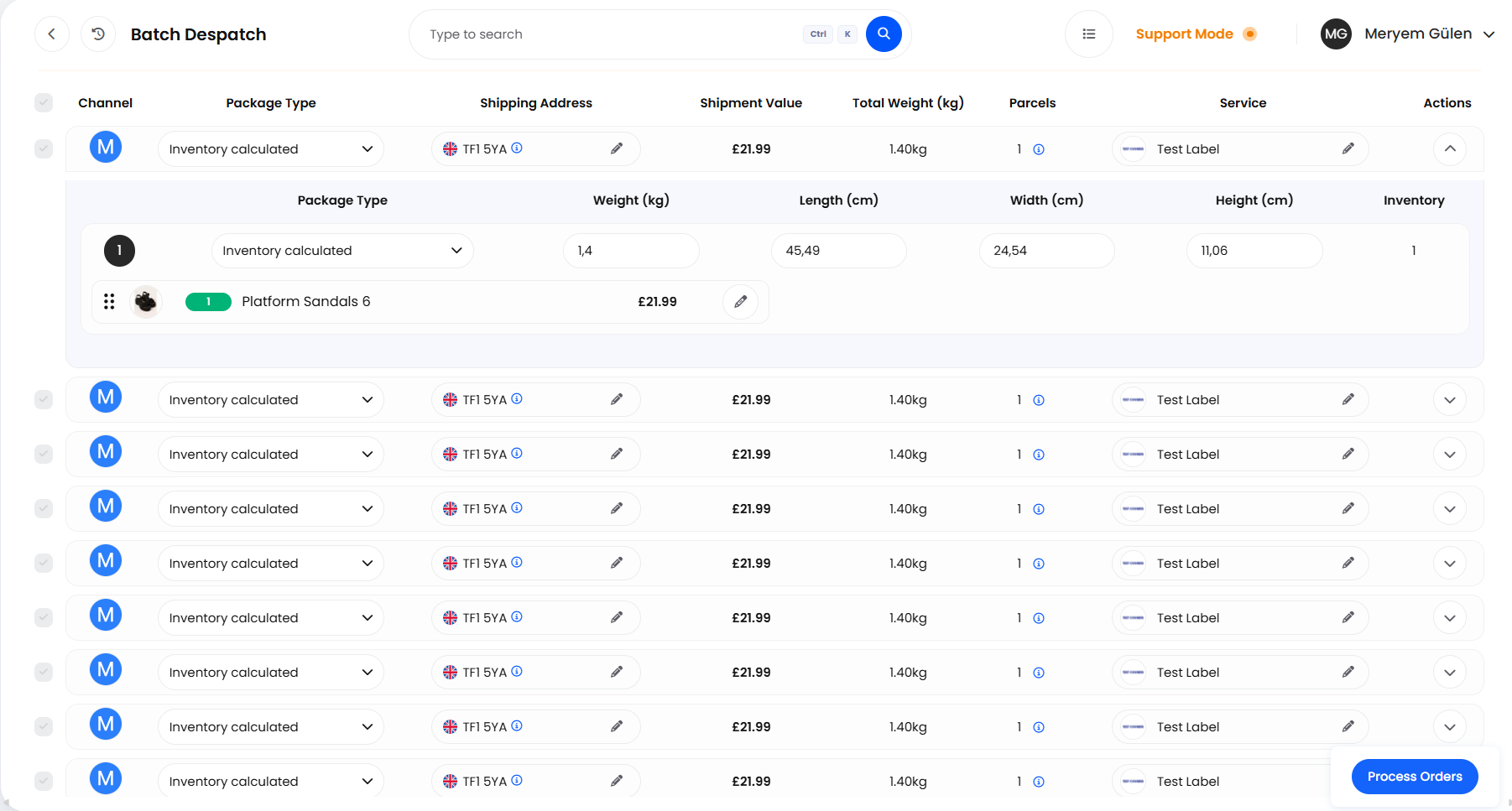
Most of what you do on this screen is local to it. Parcel splits, product edits and address changes are held on the screen until you process the batch, and leaving throws them away: Helm asks You are leaving the page and warns that you will lose your progress. The courier service is the exception. Picking one with Select Service, or with Bulk Change > Shipping Service, saves it to the order immediately and locks it, so it stays on the order even if you abandon the batch.

Working With Parcels & Products
Expanding an order shows one line per parcel with Package Type, Weight, Length, Width, Height and Inventory, and its products underneath. The Package Type decides where a parcel's dimensions come from:
Inventory calculated: Helm works the dimensions and weight out from the products in the parcel.
User Defined: you set the dimensions and weight yourself, starting from your system defaults.
A named package type: the box's dimensions are applied. A fixed-weight package rejects any parcel weight that differs from it; a variable-weight one rejects anything above its limit.
Various: shown against an order whose parcels are not all the same type. It describes the order rather than being a choice.
To spread an order across parcels, drag a product out of its parcel. A drop area appears reading To create a new parcel drag your products here. Drop it there for a new parcel, or onto another parcel to move it across. To move part of a line, drag it and use Split Qty, setting Qty to Remain and Qty to Split. On a grouped product, Group Items lists the components.
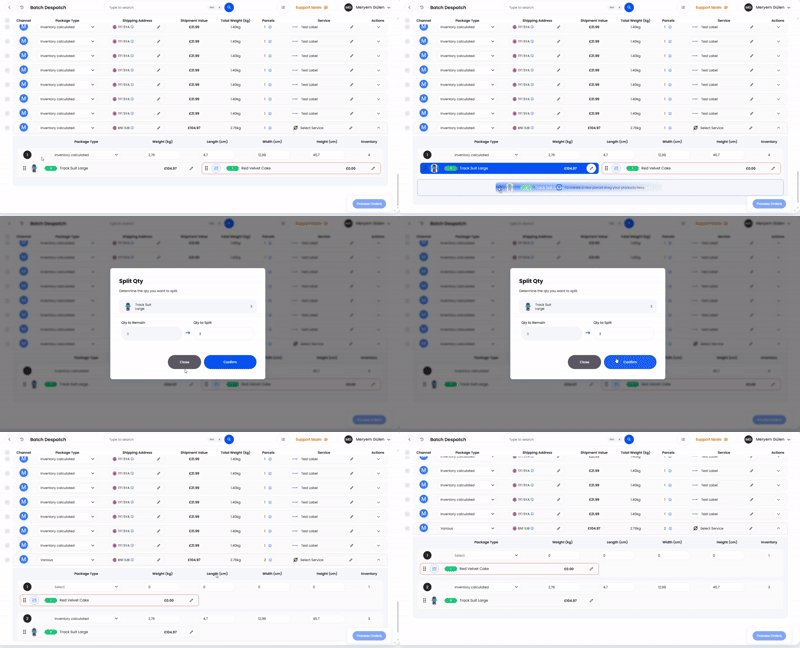
The pencil opens Edit Product, where you correct what goes on the paperwork for that line: Product Name, Qty, Value, Weight, Width, Height, Length, HS Code, Country of Origin and Customs Description. On a serial-tracked product, the serial selector sits at the bottom of the same dialog.
International shipments will not process without item-level customs data. Every item needs an HS Code of six to 10 digits, a Customs Description and a Country of Origin, and Helm rejects the batch before anything is created if any of them is missing. The Parcel Description that sits with the service selection is a different thing: it is optional, capped at 100 characters, and its absence will not stop the batch. Fill it in where you can, since some couriers want it on the declaration.
Where serial number validation is switched on for your warehouse, every serial-tracked line needs its serials chosen first. Helm shows a warning at the top of the batch screen saying that some items require serial number selection, and keeps Process Orders unavailable until they are set. Choose them in Edit Product on the line concerned.

Changing Many Orders at Once
Ticking rows shows a count of Orders Selected and offers two actions.
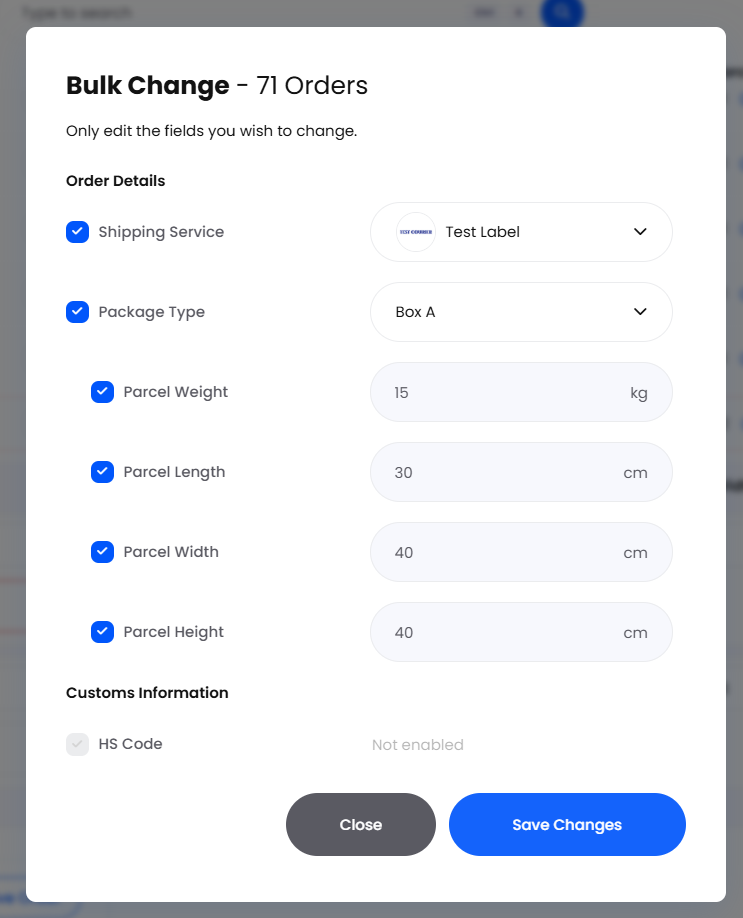
Bulk Change applies the same values to every selected order. Tick only the fields you want to change; anything left alone shows Not enabled. Order Details covers Shipping Service, Package Type, Parcel Weight, Parcel Length, Parcel Width and Parcel Height; Customs Information covers HS Code, Country of Origin, Item customs description and Parcel description. Apply with Save Changes.
Remove Order takes the selected orders out of this batch, after a Remove orders? confirmation that offers a link to take it back. Nothing changes on the order itself; it simply will not be in this batch.
Shipping Service is the one field here that reaches past the batch. Setting it in Bulk Change saves the choice onto each order straight away, exactly as Select Service does on a single row.

Excluded Orders & Batch Problems
Helm re-checks every order as the batch screen opens, not as you select it, so anything that can no longer be despatched is pulled out and reported. A banner counts the problems, Show all problems here opens the Batch Problems dialog listing each Excluded Order against its Reason, and See Orders takes you to them. Note the order numbers before you carry on: the same checks run again when you confirm, and at that point a failure costs you the whole batch.
An order that already has a label arrives read-only, marked This order has a pregenerated label. or flagged as having an active shipment. Cancel the existing label from the row first if you want it relabelled here.

Processing the Batch
Process Orders opens the Process Order dialog. Everything on it applies to the whole batch.
Label Paper Size: 6x4 Thermal Labels - default, 8x4 Thermal Labels, 10x4 Thermal Labels or S19. This sets the layout of the merged file, so it must match the stock in your printer.
Auto-Print: sends the finished batch to the printer without anyone opening it. It needs silent printing switched on and a printer online; otherwise Helm tells you which is missing.
Include Packing Slip and Include Collection Sheet: added to the batch file and printed in the label size. Include Collection Sheet is only offered where your warehouse is not using advanced stock control.
Set Status As: what the orders become once the batch succeeds, either Despatched or Processing.
Assign to Folder and Assign Tag: optional, and useful for finding the run later. An order already in a folder is moved into the one you choose.
Apply product information changes to all original inventory items.: writes this batch's product edits, such as weights and HS codes, back to the inventory records rather than using them here only.
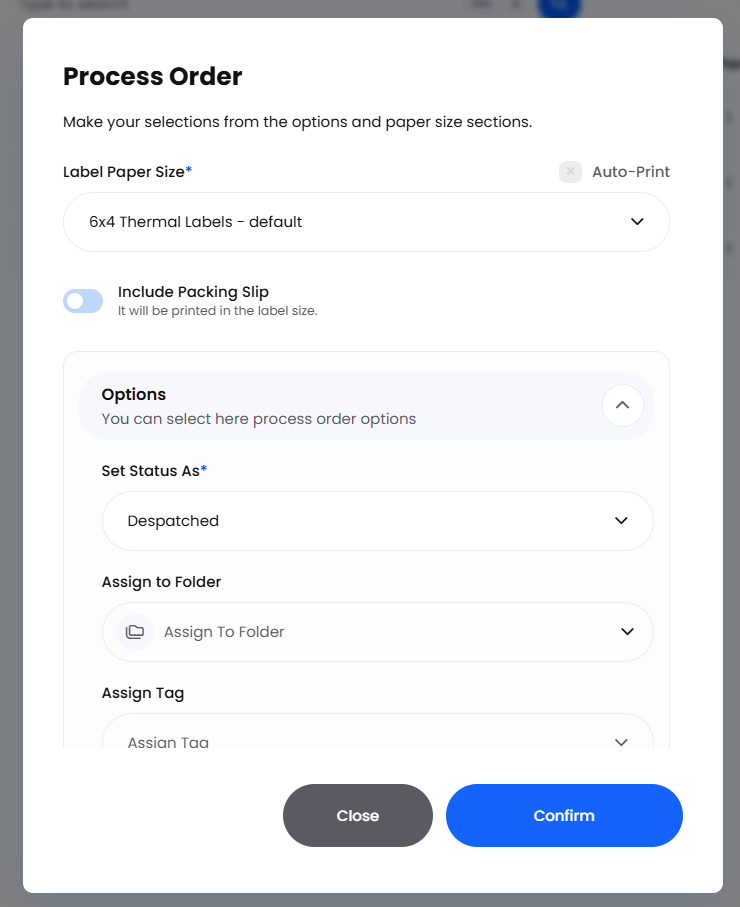
Confirm queues the batch. Helm warns that the action cannot be undone, and it means it: labels are bought from the courier as the batch runs.

What Happens After You Confirm
A batch is all or nothing. After you confirm, Helm runs the despatch checks over every order again in the background. If a single order fails, the whole batch fails and nothing at all goes to the courier: no labels are bought, and the orders that were fine are not despatched either. An order that goes on hold, loses its stock or gets despatched by someone else between you opening the screen and pressing Confirm therefore costs you the entire run, so process a batch soon after you build it.
Recovery for that case is in the jobs queue, not in Batching History. The queue entry for the run offers Go to Batch Despatch, which reloads the exact batch you submitted with each order carrying the reason it failed. Fix the orders that failed, or take them out with Remove Order, then confirm again.
A batch that falls over this way is not left in Batching History at all. Rather than leave a row with no labels in the list, Helm removes it, so if you cannot find your run there, go to the jobs queue. The one exception is a batch that reused a label created for an order earlier, which is kept and shown as Failed.
Once every order passes, Helm buys the labels in one call to the courier and merges them into one file. If the courier itself then fails on some of the orders, the batch lands on Error rather than failing outright, and the labels that did come back are yours to print.

Tracking a Batch in Batching History
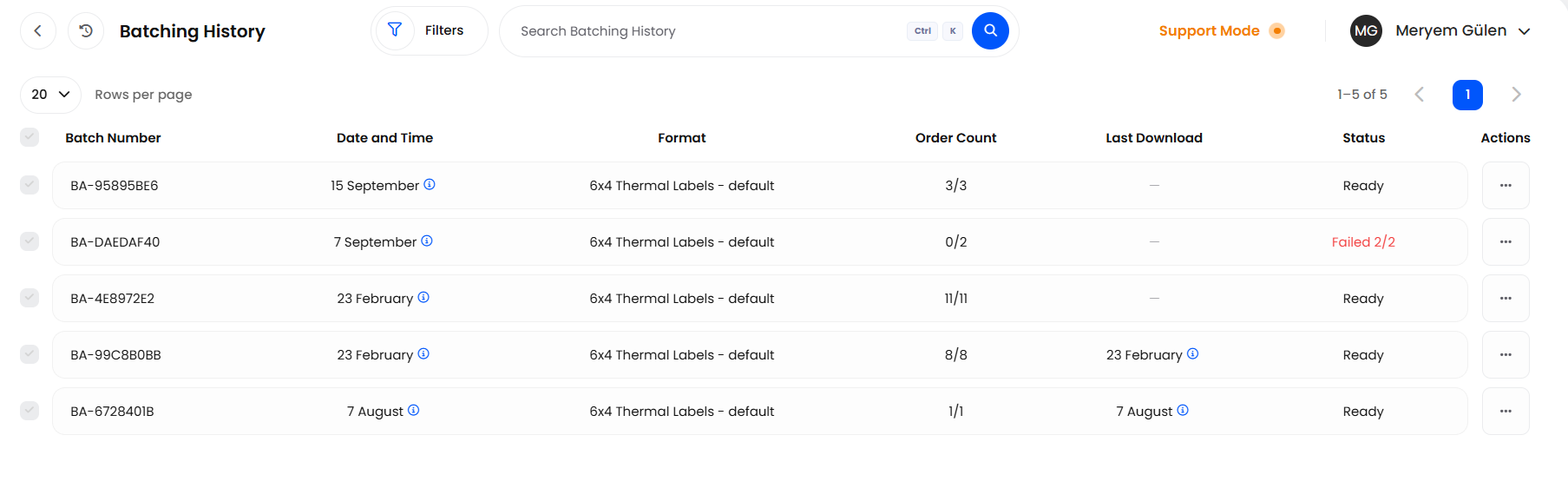
Shipping > Batch History opens Batching History, one row per batch showing Batch Number, Date and Time, Format, Order Count, Last Download and Status. Use Search Batching History to find a run by its number, and the Date, Format, Order Count and Last Downloaded filters to narrow the list.
The actions follow the status. A Processing or Ready batch offers Download Batch, Print Batch and Change Label Format, with the download and print options unavailable until the batch file exists, and Ready adds Cancel Batch. An Error batch offers Download Batch, Print Batch, See Logs and Retry Failed Orders, which reopens the batch despatch screen with only those orders on it. A Failed batch offers See Logs and Retry Batch where every shipment in it failed. Go to Orders filters the Orders list to the batch and is there on any status.
See Logs only exists on Failed and Error batches. There is nothing to open on a Ready, Printed, Print Failed or Cancelled one.
Change Label Format re-renders the merged file, and the Change Format dialog marks your existing Paper Size as Current. Expanding a batch lists its orders with Order Number, Customer, Address and a per-label Status of Pending, Success, Failed, Pending Cancelled or Cancelled, plus See Order and See Label.
Ticking batches shows a Batch Selected bar with Delete and, where every batch you have ticked is Ready, Cancel. Delete asks Are you sure you want to delete? and warns You are deleting your batch service. This action cannot be undone.
Delete removes the batch record from Batching History. It does not void the labels, so use Cancel or Cancel Batch if that is what you actually need. Once a batch record is deleted, its row and its merged file go with it.

Example: Despatching a Completed Pick
A pick of 60 orders is completed, and you choose Batch Despatch on it.
Helm loads 58 orders and reports two problems: one went on hold during the pick, and one already has a shipment. You note both order numbers from Batch Problems and carry on.
Most orders are single items going in the same mailing bag, so you select them all and use Bulk Change to set the Package Type and Parcel Weight once. Two orders need a second box, so you expand those rows and drag products into a new parcel.
You choose Process Orders, leave Label Paper Size on 6x4 Thermal Labels - default, switch on Include Packing Slip, set Set Status As to Despatched and confirm.
The jobs queue shows the run in progress. Nothing fails the second check, so Batching History shows the batch as Ready minutes later. You print it, and the held order waits for tomorrow.

Best Practices & Notes
Build the Batch, Then Send It
Because one order failing at Confirm fails the lot, the longer a batch sits open the more likely something moves underneath it. Build it, check it, send it. On a busy floor, several smaller batches are safer than one enormous one.
Bulk Change First, Fine-Tune After
Set the common case for every order with Bulk Change, then adjust the handful that differ. The other way round, your careful per-order edits get overwritten.
Fix the Defaults Rather Than the Batch
If you correct the same weights and dimensions on every run, the product data is wrong. Tick Apply product information changes to all original inventory items. when you process, or fix the products directly, so future batches start right.
Match the Paper Size to the Printer
Label Paper Size is set per batch and decides the layout of the whole merged file, so the wrong choice is the usual reason a batch prints misaligned. Change Label Format will re-render it, but a large batch takes time to rebuild.

FAQ
Why is an order missing from my batch?
It failed the despatch check as the screen opened. Open Batch Problems from the banner: every excluded order is listed with its Reason. If the batch was one you had already submitted, the same list comes back through Go to Batch Despatch in the jobs queue.
Why did my whole batch fail because of one order?
That is how batch despatch works. Helm re-checks every order after you confirm, and sends nothing to the courier unless all of them pass, so no half-despatched run can happen. Reopen the batch from the jobs queue with Go to Batch Despatch, deal with the order that failed, and confirm again.
My batch is not in Batching History. Where is it?
A batch that failed before it reached the courier is not kept in the list, and Batch History is not in the Shipping menu at all until your company has completed a batch. Look in the jobs queue for the run and use Go to Batch Despatch on it.
Can I edit an order that already has a label?
Not in the batch. The row is read-only and marked This order has a pregenerated label. or as having an active shipment. Cancel that label from the row and it becomes editable.
What happens if only some labels come back?
The batch lands on Error. Print the labels that worked, then use Retry Failed Orders to reopen the batch screen with just the failures on it.
Can I undo a batch once I have confirmed it?
No. Processing buys labels from the courier. A Ready batch can be cancelled with Cancel Batch, which voids the labels and also cannot be undone.
Why can't I choose Include Collection Sheet?
Your warehouse is using advanced stock control, and the toggle is hidden in that mode. There is no way to add a collection sheet to a batch from this screen while that setting is on.

If a batch is not behaving as you expect, start with the jobs queue, which holds the run itself and the reason each order failed, then check the batch's status in Batching History and open See Logs where the status offers it. If you are still stuck, contact support with the Batch Number, or the job from the queue, to hand.
Was this helpful?
Still need help? Share an idea