The Jobs Queue
Bulk actions in Helm WMS do not run while you wait: they are handed to a background queue so you can carry on working. The Jobs Queue is where those jobs are recorded, and this article covers how to reach it, what each status means, how to retry or investigate a job that did not finish, and how long the history is kept.
Why Bulk Actions Are Queued
When you archive 400 orders, publish a pick, import a product file or generate a report, Helm does not hold your browser open until the work is done. It accepts the request, tells you the job is queued, processes it in the background and notifies you when it is done.
Those notifications are not throwaway. They stay in the list behind the bell, grouped under Jobs In Progress, Ready to Download and Snoozed Problems, and one about a job that went wrong carries a See problems here link to the same failure list the queue opens. What the queue adds is history, and the one action a notification cannot start: retrying a job.
Example scenario: you set a new status on 900 orders at the end of the day. The notification tells you the job is queued, so you carry on. Half an hour later the queue shows it as Error with 12 of 900 skipped. You open See Errors, find all 12 are on hold, release them and run the action again on those orders.

Before You Start
The Jobs Queue is not on the sidebar. Click your name in the top right of any page, then Jobs, then Jobs Queue. The same submenu holds Printing Queue, which tracks documents sent to a printer rather than background jobs.
The list covers your whole company, not just your own jobs. Anything a colleague queued is here too, which is useful when someone is off and their import needs chasing. Use the User filter to narrow it to one person.
Permissions are enforced on the request, not by hiding buttons. System Jobs Listing lets the list load; System Jobs Cancel and System Jobs Retry cover the two actions. Everyone sees the actions on the row, so a missing permission shows up as an Uh-Oh! dialog when you click rather than as an absent button.
History is kept for one month. Older jobs are removed overnight, so this is not a long-term audit trail.
The page updates itself. Statuses change in place as jobs progress, so you can leave it open and watch a long import finish.

How to Read the Queue
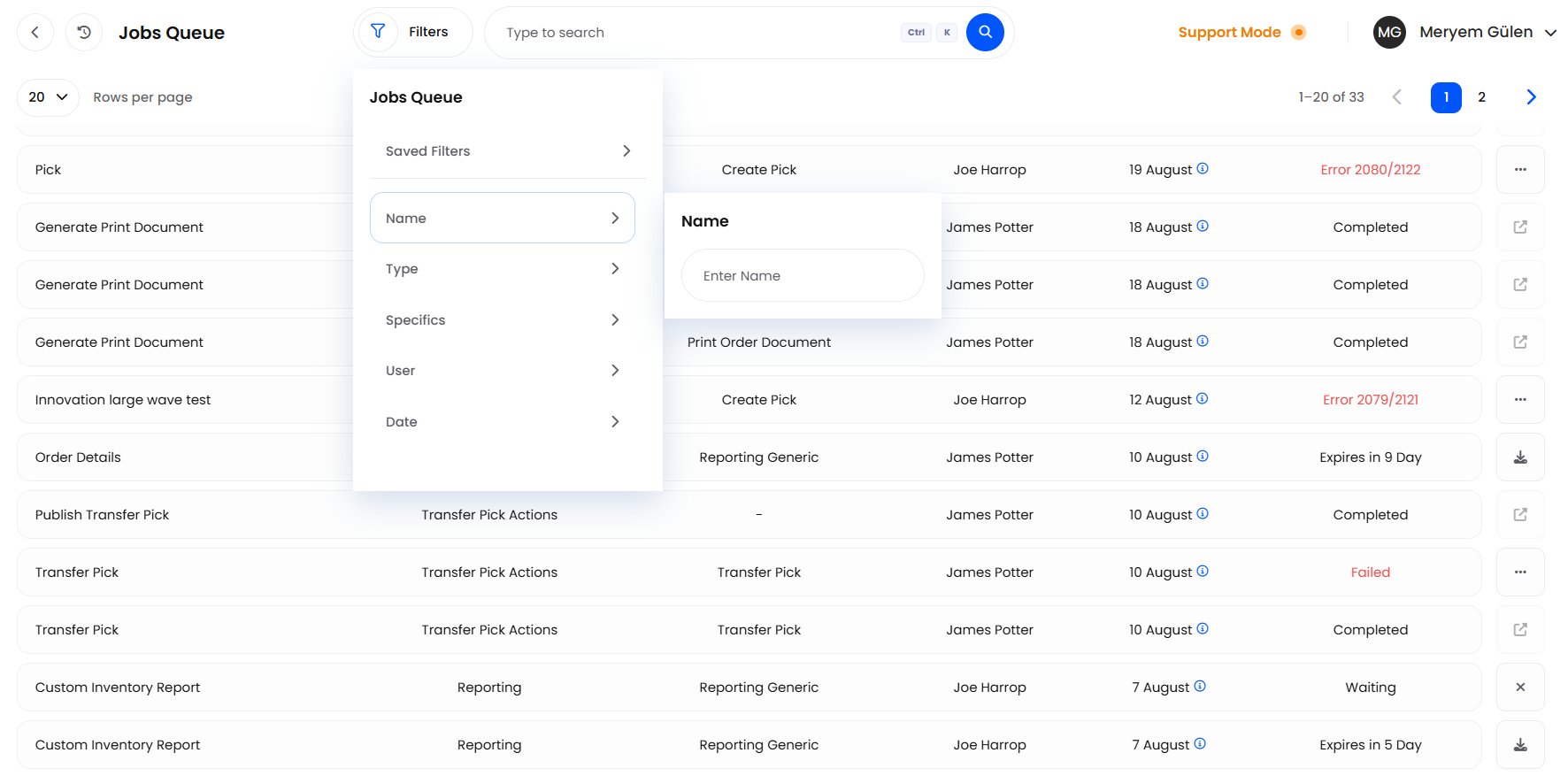
Open Jobs Queue from your account menu. Jobs are listed newest first.
Read the row across. Name says which job it is, Type which part of Helm it came from, and Specifics what it was doing.
Narrow the list with Filters: Name, Type, Specifics, User, Date and Status. A combination you use often can be kept with Save as New under Saved Filters, and Clear All Filters resets the list.
Click a column header to sort by it.
Use the search box to find a job by name or by who ran it.
Search matches the job name as Helm stores it, so it works for anything named after a record: a movement or inventory check number, a pick, an import file or a report. For bulk actions, filter on Type and Specifics instead.
A dash in the Type or Specifics column is not a fault: the job is a newer kind the queue has no name for yet. The Name column still identifies it, and both See Errors and See Logs work as normal.

What the Statuses Mean
Reports behave differently. A finished report shows how long its file stays available instead of Completed, counting down day by day and turning red on the last day. When the countdown runs out the Status cell goes blank: the report is past its 30 days, so generate it again.
A job that sits at In Progress without moving for over three hours is marked Failed automatically. That is a genuine failure, not a display quirk, so retry it rather than waiting longer.

Cancelling, Retrying & Investigating
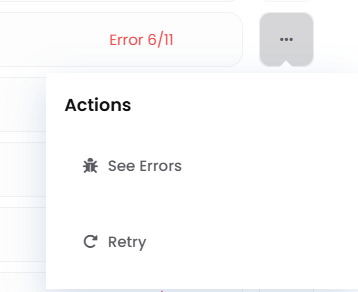
The action on the right of each row changes with the status; where a job has more than one option, they sit behind a menu.
Cancel a Job That Has Not Started
While a job is still Waiting, use Cancel on the row. Helm marks the job Cancelled and unwinds what it had set up, which is not the same as putting things back as they were:
Create Batch Despatch cancels the batch shipment and every shipment on it. They are cancelled, not returned to pending, so those orders have to go through a new batch.
Create Pick cancels the pick that was about to be built.
An import or export is closed off and recorded as failed.
Initial Stock Level releases the stock control switch on the warehouse, which Helm holds shut while an opening stock run is queued: the one cancellation that changes a warehouse-level setting.
A cancellation can be refused even while the status reads Waiting: a Create Pick job whose pick has already moved off pending will not cancel, and a permission group without System Jobs Cancel cannot cancel anything. Both come back as the Uh-Oh! dialog. Once a job is In Progress it cannot be cancelled at all, and the notification's cancel link is no different: offered on a running job, refused.
Retry a Failed or Cancelled Job
Open the menu on the row and choose Retry. On a cancelled job the retry button sits directly on the row.
Helm puts the job back to Waiting with the same instructions and records and reprocesses it from the start. Retrying a Create Batch Despatch job also returns the batch shipment and its shipments to pending.
Watch the status. A retry that fails again is telling you the problem is in the data or the settings, not the queue.
Retry is only accepted on a job whose status is Failed or Cancelled. It is still offered on an Error job, where the click produces the same error dialog. An Error job has done most of its work anyway, so read the failures, put those records right and re-run the action on just them. Retry is left off the menu altogether on a Create Batch Shipment job, where See Errors and See Logs are the only options.
See Errors
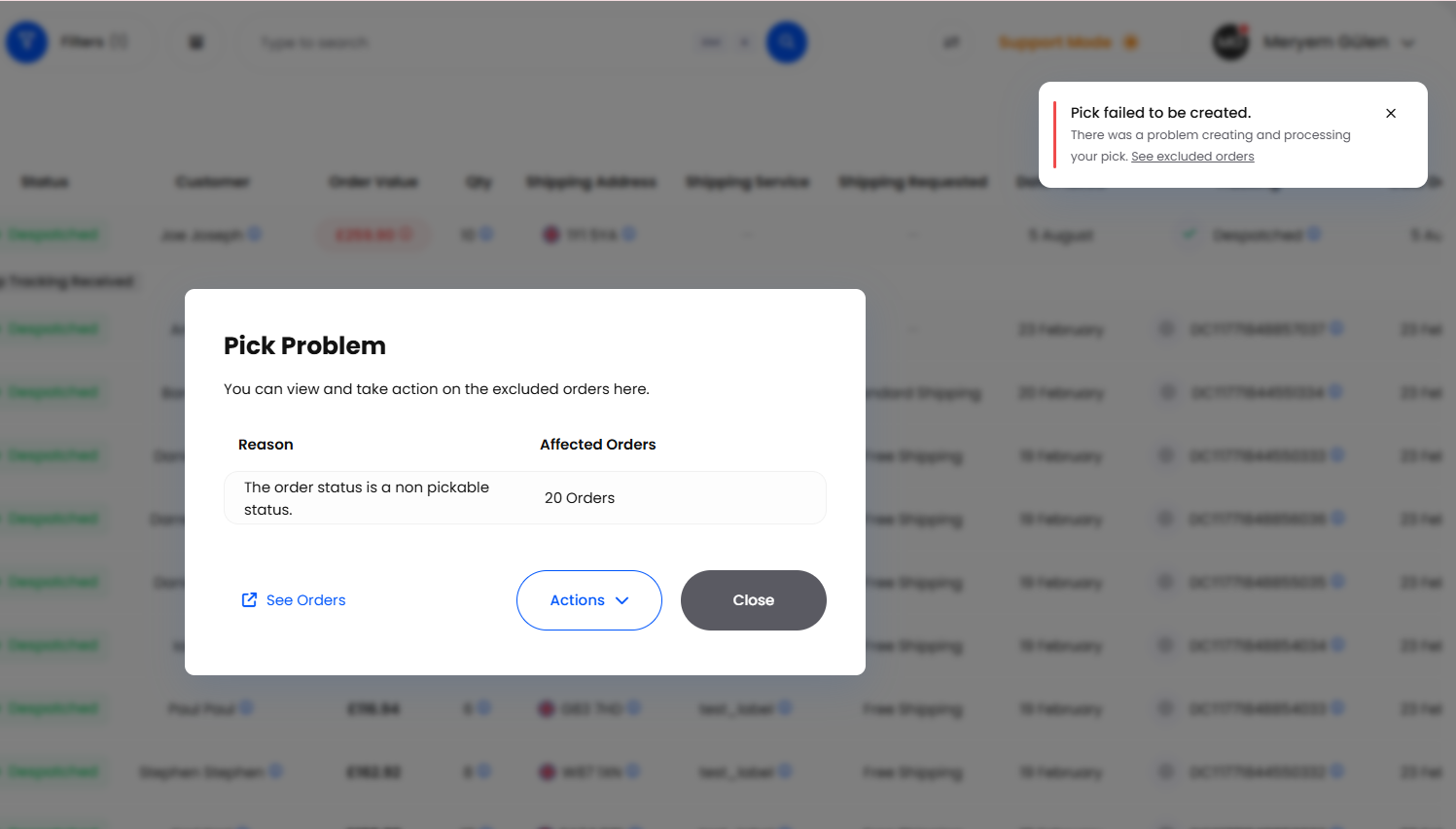
See Errors is the one to reach for first on anything that did not go cleanly. It opens a list of what was skipped, a row per record with a Reason against each. The title and the link back to the records change with the job:
On an import, each row also shows your file's row number wherever Helm captured one, which is what you need to fix the sheet and re-import. A Create Pick job gets two extra options under Actions: Tag as ‘Pick Failed’ and Move to ‘Pick Failed’ folder, which mark the excluded orders so the warehouse can handle them as a batch.
Two jobs skip the dialog. On a Create Batch Shipment job, See Errors takes you to Batch Despatch with that job's orders loaded; on a Create Batch Despatch job it takes you to the batch despatch history instead.
See Logs
See Logs opens the job's entry in Request Logs, on the Settings page under System Settings. It is the technical view, not the operational one, worth quoting to support when a job fails for no obvious reason, and it only appears on jobs that recorded a log.
Download & Go To
A finished export or report shows a Download button on the row: the same file the completed notification offers under Ready to Download. Go to is wired up for Batch Despatch Actions only, where it reads Go to Batch Despatch; elsewhere it is disabled with a Coming Soon tooltip, so open the record from its own list.

What Puts a Job in the Queue
Almost anything acting on more than one record at a time appears here, and the Type tells you where it came from.

Best Practices & Notes
Check the Queue Before Repeating an Action
If a bulk action seems not to have worked, look here before running it again. A job still Waiting or In Progress has not gone missing, and running the same thing twice is how duplicate tags, duplicate picks and puzzling stock figures happen.
Helm helps here. While a job of the same kind is unfinished and covers records you have selected, the bulk action bar refuses to submit and shows Wait for jobs in progress to finish to use bulk actions. If that earlier job ran against a filter rather than a named selection, every selection of that kind is blocked until it finishes.
Print Jobs & the Missing Cancel Link
Four jobs have no cancel link on their notification, because print runs are usually at the printer before anyone reads it: Print Order Document, Print Order Label, Print Location Barcode and Print Inventory Barcode. That is a decision about the notification, not the job: if one is still at Waiting in the queue, the Cancel button on the row works as normal.
Small document runs never reach the queue at all: a print of 25 orders or fewer is produced inside the request and handed straight back. Anything larger is queued like any other bulk action.

FAQ
Why Was My Retry Refused on a Job That Says Error?
Because retrying only accepts Failed and Cancelled, and an Error job counts as finished. The menu still offers Retry there, so the click comes back as the Uh-Oh! dialog. Read the failures with See Errors and re-run the action on the skipped records.
Why Is Retry Still Clickable After Three Attempts?
The menu item only greys out one attempt after the limit takes effect, so the fourth click looks available but is refused. The error dialog is the refusal itself, not a bug.
Why Is the Status Blank on a Finished Report?
Its countdown has run out, so the report is past the 30 days Helm shows it for. Generate it again.

If a job has failed twice for a reason that does not make sense, contact support with its Name, Type and Date, and say whether See Logs was available on the row. That is enough to trace it end to end.
Was this helpful?
Still need help? Share an idea