Order Rules
Order rules let Helm WMS make the repetitive decisions on an order for you: tagging it, filing it in a folder, holding it, changing its status or setting its shipping service. This article shows how a rule is built, how to test one safely, and when rules will and will not run.
How Order Rules Work in Helm
Every order rule has three parts:
Triggers: the events that cause the rule to run, such as an order arriving or its status changing.
Filters: the conditions deciding which orders it applies to. With no filters, it applies to every order its trigger fires for.
Actions: what Helm does to the order.
Only rules marked Active run, and they run in list order, from the top down. Rules run in the background a moment after the event, so a newly imported order will not always show its tag or folder the instant it lands.
Example: orders arrive overnight and some cannot be picked because stock has run out. Rather than checking each one by hand in the morning, a rule catches every new order that is not fulfillable, moves it to Backorder and tags it, leaving only pickable orders in the day's work.

Before You Start
Where to find it: go to Processing > Order Rules, or Settings > Despatch Settings > Order Rules.
A rule needs a name, one trigger and one action as a minimum. Filters are optional, and the Rule Name must be unique within your business.
Whatever an action points at has to exist first. Folders, notifications, shipping services, package types and products are chosen from what you already have. Tags are the exception: type a new one into an Add Tag action and the rule creates it.
Rules react to events, they do not block them. A rule runs after the change has happened, so it cannot prevent one.
Rules look forward. A saved rule affects orders whose trigger fires from then on. Use Execute Rules to apply it to orders already in Helm.

How to Create an Order Rule in Helm
On the Order Rules list, click Create Rule, then choose Create Manual for an empty rule, or Select From Library to start from a ready-made rule and adjust it.
Enter a Rule Name that describes what the rule does. This is the name you see in the list and in the Execute Rules window later.
In Triggers, choose a Trigger, then tick one or more events under Event.
In Filters, click + and add a condition for each thing that must be true of the order.
In Actions, choose an Action and fill in what it needs. Click + in the Actions header to add another.
Set Limit Run Count, or leave it as Unlimited.
Test the rule in the Test Rule panel, then click Save Changes.
The Rule Library currently offers four starting points: Insufficient Stock Move, Order SKU Update, Order Tag and Gift Note Updates. Each fills in the trigger and the shape of the rule, leaving you to choose the values.
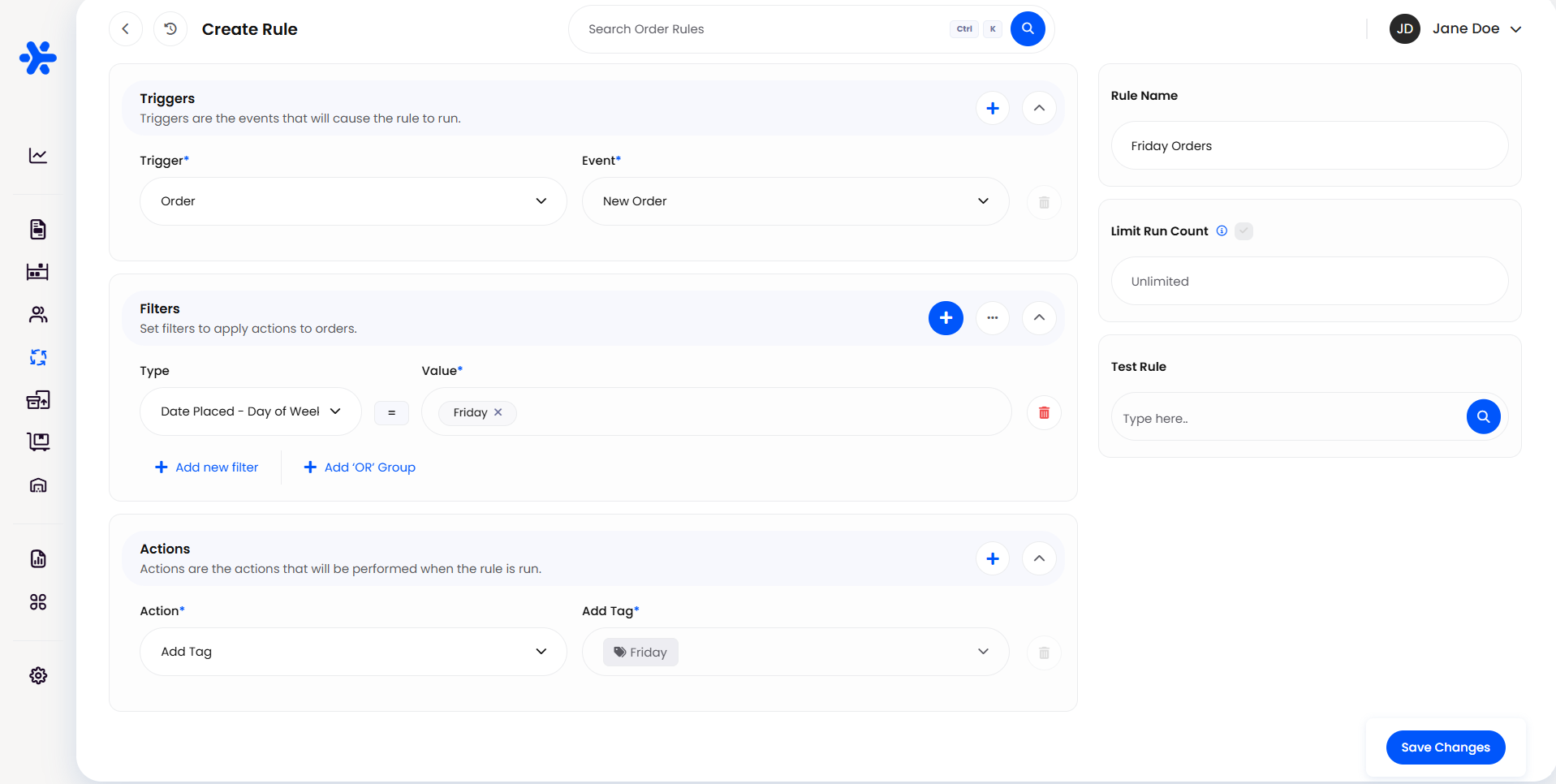

Choosing Triggers
Each row in Triggers is a pair: the Trigger is the part of the order that changed, and the Event is what happened to it. Order with New Order is the most common rule of all, one that runs as orders come in.
Ticking several events means any of them: a rule watching both Added and Removed on Tags runs when either happens. To listen to a second trigger as well, click + in the Triggers header.
Note: moving a Draft order to New Order counts as the order being created, so it fires Order and New Order rather than Status and Updated. Use the Order trigger if a rule needs to catch manually raised orders as well as imported ones.

Building Filters
A filter is a Type (the field you are testing), an operator and a Value, chosen in that order. The Type list covers most of the order and almost everything attached to it: the customer, both addresses, payment and totals, the shipping service and the order's items. Click Show More at the bottom of the list to see them all.
How filters combine is what catches people out:
Filters in one group must all be true. Use Add new filter to narrow a rule down.
'OR' groups are alternatives. Add 'OR' Group starts a new group, and the rule runs if any one group matches in full.
One filter can hold several values. Tick each value, then click Apply. A Shipping Country filter listing three countries matches an order going to any of them.
The operators depend on the field. Text fields offer Is, Is not, Contains, Does not contain, Begins with, Ends with and Is Empty. Fields picked from a list, such as Order Status or Tag, offer fewer. Numbers add Greater than, Less than and Between. Pick the Type first and see what the operator list gives you.
Note: a Tag filter is chosen from tags that already exist in Helm. Type part of the name, tick the tag and click Apply.
Filtering on Order Items
Item fields such as Order Item SKU and Order Item Quantity test every line on the order, so they get an extra choice beside the field: any item or all items. See Any Item vs All Items in Rule Filters for how that choice works.
Tip: if you build the same conditions often, click the ... button in the Filters header and choose Save as New. Your saved filters appear in the same menu, ready to reuse.

What the Actions Do
Most actions do what their name says. What is worth reading is where the order's status limits them, because that is the difference between a rule that works and one that seems to do nothing.
Eight actions can appear only once in a rule: Set Order Status, Add Tag, Add Gift Note, Add To Folder, Set Shipping Service, Set Package Type, Set Order On Hold and Pregenerate Label. The rest can be repeated.
Heads up: if an action cannot be applied, Helm skips it and carries on with the rest of the rule, without showing an error. Testing a rule before you save it is the quickest way to spot this.

Limiting How Often a Rule Runs
Limit Run Count counts per order, not per rule. Tick the box beside it and enter a number: a limit of one lets the rule act on any given order once, however many times its trigger fires afterwards. Leave it as Unlimited to run every time.
This matters because rules set each other off. A status change made by a rule is still a status change, so it can fire the Status trigger and start another rule. A run count is the simplest way to stop two rules passing an order back and forth.

Testing a Rule Before You Save It
Test Rule answers the two questions that matter: would this rule match the order, and what would it change?
In the Test Rule panel, search for an order and click Select.
Click the play button beside the order.
Read the result in Order Rule Test: each change is listed with its Affected Field, Old Value and New Value.
If the window shows No matching order fields., the order does not meet your filters. Testing checks the rule as it is on screen, saved or not, and changes nothing on the order, so you can test as often as you like, including on live orders.


Running Rules on Existing Orders
A rule you write today does not go back over orders already in Helm, so work from the Orders list:
On Orders, tick the orders you want to work through.
In the bar at the bottom, open Actions, then Advanced Actions, then Execute Rules.
Tick the rules to run and click Confirm. Only Active rules are listed.
The work is queued rather than run on the spot, and Helm lets you know when it is done. Only orders in an open status are included, and Limit Run Count still applies. Any order that none of your chosen rules matched is reported back as not suitable, which is normal in a mixed batch.

Managing Your Rules
The Order Rules list shows each rule's Rule Name, Rule Actions and Status. Hover the info icon in Rule Actions to see every action a rule runs without opening it.
Order is meaningful. Drag a rule by its handle. Rules run top down, so one that depends on another belongs below it.
Switch a rule off rather than deleting it. Click the Status to move between Active and Inactive. An inactive rule keeps its settings and stops running at once.
Duplicate to try a variation. Click the ... button and choose Duplicate. The copy arrives Inactive with "Copy" added to its name, so you can test it while the original runs.
Delete is in the same menu, and Helm warns you first that it may affect some of your orders.
Heads up: a new rule is saved as Active and starts running straight away. Test it before you click Save Changes, or switch it to Inactive until you are ready.

Example: Backordering Orders You Cannot Fulfil
Click Create Rule, then Create Manual, and name it "Move Unfulfillable to Backorder".
Set the Trigger to Order and tick New Order, so it catches imported orders and confirmed drafts.
Add a filter with a Type of Fulfillable, the operator Is and a Value of No.
Add a Set Order Status action with Backorder as the new status, plus an Add Tag action so the affected orders are easy to find later.
Set Limit Run Count to one, so an order that is fixed later is not pulled back into Backorder.
Test it against an order you know is short of stock, check New Value reads Backorder, then click Save Changes.
The orders left in the day's work are then the ones your warehouse can pick, and those waiting on stock sit tagged in Backorder where your buyer can see them.

Best Practices & Notes
Build It, Test It, Then Save It
A rule that tags or moves thousands of orders is quicker to run than to unpick. Test against a few real orders before you save.
Use Two Rules When Order Matters
Helm runs a rule's actions in a fixed order, not the order you added them. If one thing has to happen before another, use two rules and arrange them in the list.
Read the Timeline When an Order Changes on Its Own
Rule changes are recorded on the order's timeline and attributed to the system rather than a user, so the timeline tells you which rule touched the order and when.

FAQ
Why has my rule not run?
Why has my rule not run?
Check that the rule is Active, that its trigger fired for that order, and that the order matches every filter in at least one group. Testing the rule against the order settles it in seconds.
Why did the rule run but not change the status?
Why did the rule run but not change the status?
Helm only makes moves the order is allowed to make. A picked order cannot go back to New Order, so that action is skipped while the rest of the rule runs.
Why did Execute Rules report some of my orders as not suitable?
Why did Execute Rules report some of my orders as not suitable?
None of the rules you selected matched those orders, or they had already used up their Limit Run Count. In a mixed selection that is a report, not an error.
Will a new rule apply to orders already in Helm?
Will a new rule apply to orders already in Helm?
Not by itself. Rules respond to events after they are saved. Use Execute Rules from the Orders list for existing orders.
Why will Helm not save my rule name?
Why will Helm not save my rule name?
Rule names must be unique within your business, so choose a different name, or use Duplicate and let Helm name the copy.

If a rule is doing something you did not expect, test it against the order in question: that usually shows whether the trigger, a filter or the order's status is the cause. If you are still stuck, contact Helm support with the rule name and an example order number.
Was this helpful?
Still need help? Share an idea