Racking, Shelves & Components
Every component you can place on a Helm Warehouse Mapping map and the settings behind it: racking types, shelves and sections, walls and doors, areas and labels, pick points, stairs, lifts and bulk storage, plus how to add your own components to the library and change many units at once.
The Component Library
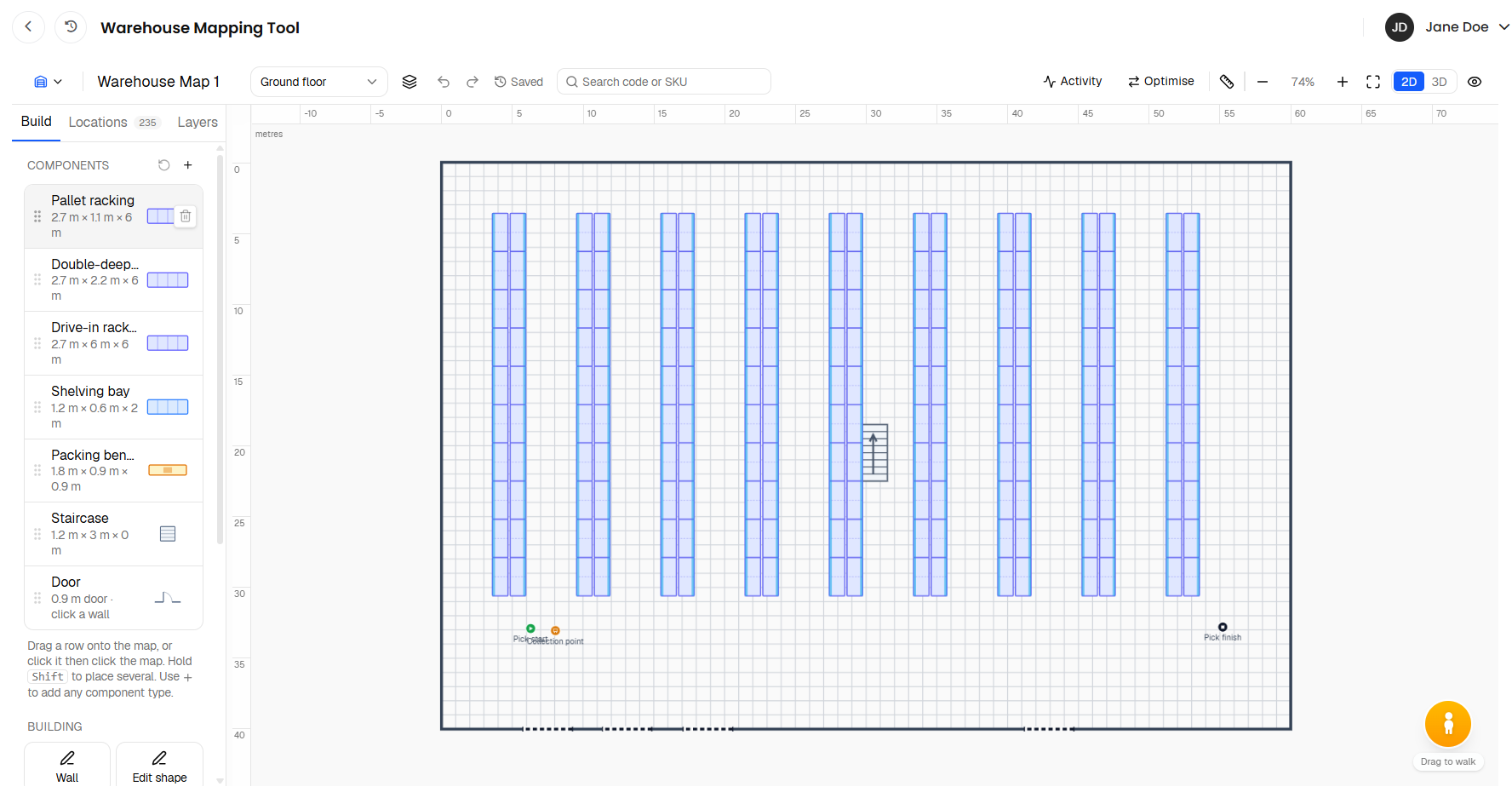
The Build tab lists the library under Components. Each row shows the name and its width, depth and height in metres. The defaults are:
Structural pillars, goods lifts, pallet storage and cage storage are not in the default library. Add them with the + button; see Adding Your Own Components below.

Rack Setup
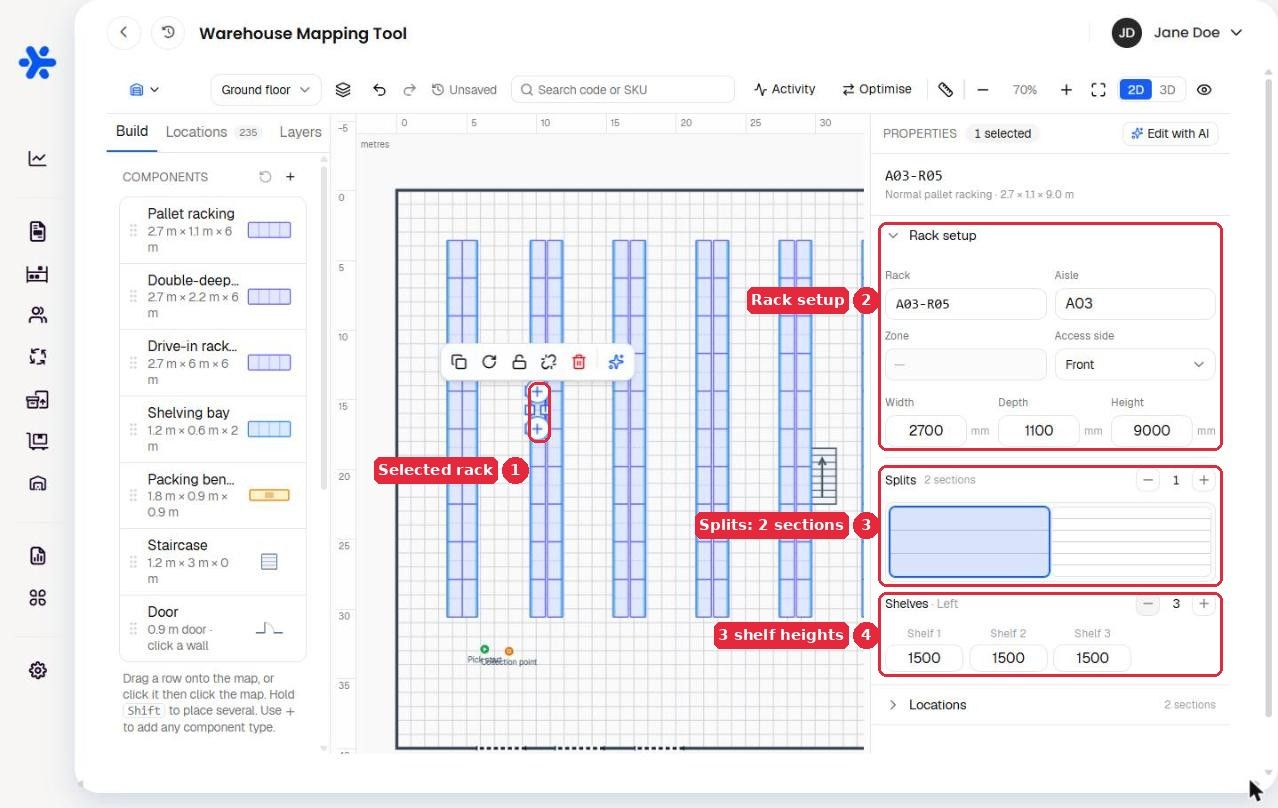
Select a rack and the Properties panel shows its code, type and size, with a Rack setup section:
Rack: the rack's own code, for example A01-R03. Location codes from Helm are matched against this when you auto-assign, so a consistent scheme pays off.
Aisle: a free-text aisle name, such as Aisle A.
Zone: read-only, taken from the Helm zone of the location codes on the rack. A warning appears if the rack's codes span more than one zone, which usually means a code is on the wrong rack.
Access side: Front, Back or Both sides. This is the pick face; routing walks to the side you choose, and a double-sided rack can be picked from either aisle.
Width, Depth and Height in millimetres. A height greater than the clear height to the floor above is refused, with a note to raise the level's floor height in Manage levels.
Sections
Splits divides the bay into side-by-side sections, each with its own shelves and location codes. Use the Fewer columns / More columns stepper, or click the suggestion such as Suggested: 2 sections for this width. The small schematic below the stepper shows each section; click one to edit it.
Shelves
Shelves sets how many shelf levels the rack has, with a height box for each (Shelf 1 at the bottom). Set the stepper to zero for an open bay, where the whole bay is one location, which is the right choice for full-height pallet storage where each bay holds one pallet position.
Shelves and sections can be changed after codes are assigned. Codes stay on their shelf; if a shelf is removed, its codes return to the Unassigned pool.

Walls & Doors
Walls are drawn with the Wall tool under Building: click to add corners (the wall squares to the last point unless you hold Alt), then double-click or press Enter to finish. Select a wall to set:
Wall type: Internal or External.
Thickness and Height in millimetres, plus Length for a straight wall.
Doors sit in walls. Choose Door from the library and click a wall. Then set:
Door type: Single, Double, Roller shutter, Loading dock or Opening (no door).
Width of the opening.
Opening direction (Left / Right) and Swing (Inward / Outward) for single and double doors. The swing arc is drawn on the plan.
Routing passes through doors and openings and is blocked by walls, so every doorway a picker uses needs a door on the map.

Areas & Labels
Area under Areas draws a rectangle on the floor. Select it to set:
Type: Packing, Drop-off, Goods in, Loading dock, Office or Custom. Packing and drop-off areas count as the end of a pick run in the routing tools.
Name and Colour (a default per type, a palette, or Custom… for a hex value).
Blocked for routing: tick this to make the area a no-go region that pickers cannot cross. It is drawn hatched.
Label drops a text pill, useful for aisle names and notes. Set the Text, a Colour and an optional Note. Labels are decorative: routing, collisions and the 3D view ignore them.

Pick Points
The Points section places the markers the routing tools need:
Pick start and Pick finish: where a pick run begins and ends. There is one of each per map; placing a new one moves the existing one.
Collection: a point where pickers collect a trolley or truck on the way. Tick Route every pick run through here, or leave it for particular handling equipment only.
Storage point: a free-standing storage spot that is not a rack, such as a container, a floor area or a cage. It can hold Helm location codes; type them into Location codes.
See Testing Pick Routes & Simulating Helm Jobs for how the points are used.

Stairs & Lifts
Staircase: set the Number of steps (used to estimate travel time), From level and To level, and its Width and Length.
Goods lift (added via +): choose the levels it Serves, a Wait time (s) for doors and boarding, and a Travel time per level (s). Routing adds the wait plus the travel time for every level a trip crosses.
Stairs and lifts are how routing and the 3D walk mode move between floors, so a mezzanine with no stair on the map is unreachable.

Pillars & Bulk Storage
Structural pillar, Pallet storage and Cage storage are added via +. Pillars are obstacles with a size and no code. Pallet storage and cage storage are solid floor-storage blocks, drawn as stacked pallets or roll cages in 3D; give them a Name and a Code and size them to the block they represent. All three block routing and walking.

Adding Your Own Components
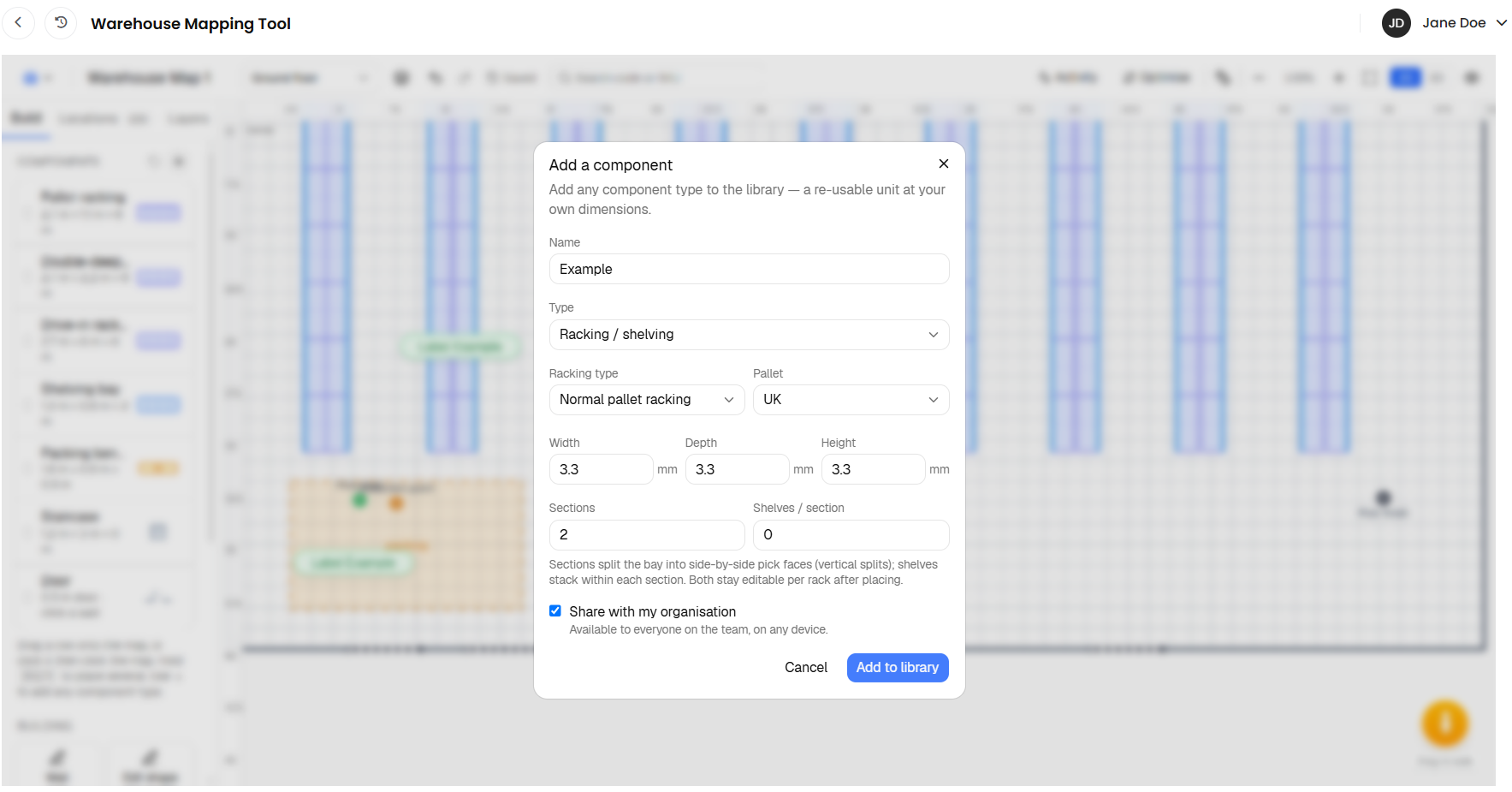
Click + next to Components to open Add a component. Any component type can be added at your own dimensions, so you can keep, say, a 3.3 m wide bay or a 1.5 m double door in the library.
Enter a Name and choose the Type: Racking / shelving, Workstation, Structural pillar, Door, Staircase, Goods lift, Pallet storage or Cage storage.
For racking, choose the Racking type and Pallet size (UK 1200×1000 or Euro 1200×800), and set Sections and Shelves / section. For doors, choose the Door type.
Set the Width, Depth and Height in millimetres.
Tick Share with my organisation to make the component available to everyone on your team on any device. Untick it to keep it on this browser only.
Click Add to library.
Hover a library row and click the bin icon to remove it. If copies are already on the map you are told how many and can tick Also delete to remove them too. Reset library to defaults restores the original list.
Removing a shared component removes it for everyone in your organisation, not just you.

Changing Several Units at Once
Select two or more units and the Properties panel shows Shared properties. It lists the fields every selected unit has in common: Aisle and Access side for racks, and Width, Depth and Height for anything resizable. A field showing Mixed has different values across the selection.
Change a field.
Confirm the prompt Change {field} for N units? with Apply.
Undo, if needed, with a single ⌘Z; the whole bulk change is one step.
Rack codes and names are deliberately not bulk-editable, since identical codes would collide. Use Edit with AI ("recode these racks A1, A2, …") to renumber a run instead.

FAQ
Should I give my racks shelves or leave them as open bays?
Match Helm. If Helm has one location code per bay, use an open bay. If it has a code per shelf level (A01-R03-S2, for example), add that many shelves so each code has a home.
How do I make a rack double-sided?
Set Access side to Both sides. The rack is then pickable from the aisle on either side.
Can I change a rack from pallet racking to shelving after placing it?
Yes. Select it and use Edit with AI with "convert to shelving" (or drive-in, two-deep or selective). The shelves are re-fitted to the new frame.

For anything not covered here, select the component and look at its Properties panel; every field has a short helper line. Contact Helm support if a setting does not behave as described.
Was this helpful?
Still need help? Share an idea