Building a Map with the AI Builder
The AI builder in Helm Warehouse Mapping drafts a complete, editable warehouse map for you, either by reading an uploaded floor plan or by asking a short series of questions about each floor. This guide walks through both routes and what to check once the draft is on screen.
What the AI Builder Does
Drawing a warehouse from scratch is slow, and most sites already have some kind of plan, even if it is a fire-escape drawing or a photo of the whiteboard. The AI builder turns whatever you have into a scaled, editable map in a couple of minutes:
From a floor plan: upload a PDF or image per floor. The drawing is read, the racking, walls, docks and areas are drawn at the right scale, and you are shown a plain list of what had to be assumed. No questions are asked.
From an interview: with no plan, you answer roughly a dozen questions per floor about size, racking direction, aisles and bays, and watch the map build live as you go.
Example: a fulfilment manager has a PDF of the unit from the letting agent and a mezzanine that is not on it. They tell the builder there are two floors, upload the PDF for the ground floor and leave the mezzanine slot empty. The ground floor is drawn straight from the plan; the mezzanine is built from six quick answers. Both land in one map, ready to be tidied up in the editor.
The result is a starting point, not a survey. Expect to nudge a few racks and check the building size, which is why the draft is flagged for review until you dismiss it.

Before You Start
Count the floors. Mezzanines count as floors. The builder handles up to six.
Plans: one file per floor, PDF (first page is used), PNG, JPEG or WebP, up to 25 MB. A plan with a printed scale or a known dimension gives the most accurate result. A photo of a drawing works, but expect to confirm the size afterwards.
Measurements, if you have no plan: the inside width and length, roughly how wide the aisles are, the size of one racking bay and how many pallets high you stack. Rough figures are fine; every answer offers a recommended default.
A default warehouse in Helm. The map is linked to the warehouse Helm reports as current. See Creating a Map.

Starting the Builder
On the Maps page click Add map, then choose Build with AI.
Answer How many floors does this warehouse have? using the stepper, then click Next.
Answer Do you have a floor plan to upload?:
Yes, I’ll upload a plan takes you to one upload slot per floor. Continue with Route A below.
No, I’ll describe it goes straight to the questions. Continue with Route B.
If your environment does not offer plan reading, the plan question is skipped and you go directly to the interview.

Route A: Uploading a Floor Plan
Choose a file for each floor. Slots are labelled Floor 1, Floor 2 and so on (or just Floor plan for a single floor). Leave a floor empty to describe it instead.
Click Start. Each plan uploads and is read in turn. The card cycles through Uploading your plan…, Reading the plan…, Counting rack runs and aisles…, Measuring the scale… and Checking docks and doors….
On the left, What I can see shows a wireframe of what was read from the drawing, with a caption such as "~24 rack runs, 11 docks, printed scale found".
When every floor is done you reach I’ve drawn your warehouse from the plan. Under What I assumed is a bulleted list of the guesses made, for example that no trustworthy scale was found. If nothing needed guessing it says so.
Click Continue to the map to open the editor.
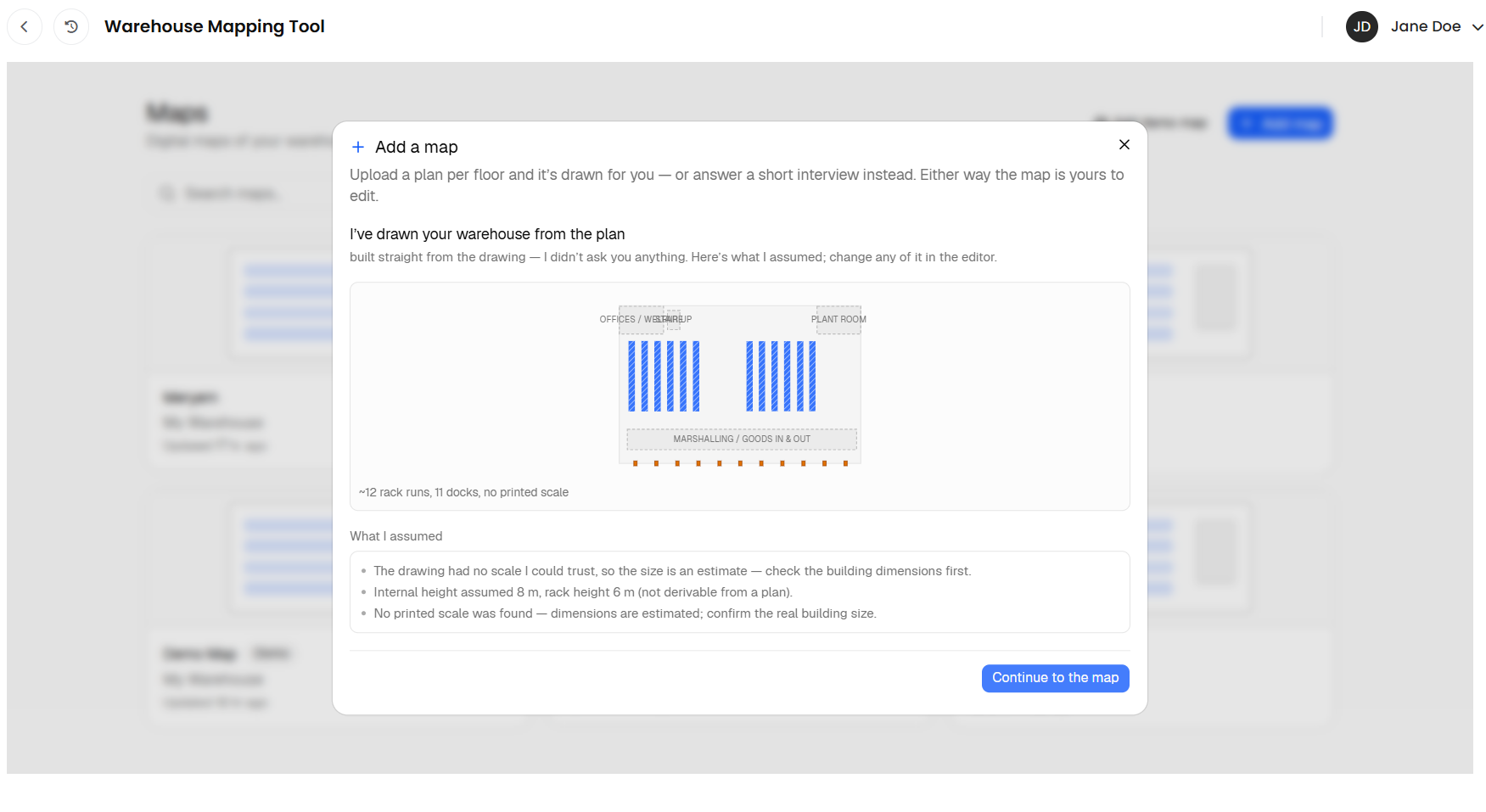
If a file cannot be read you will see That plan couldn’t be read with a reason. The floor switches to a describe box: type what you can see, click Continue, and answer the follow-up questions the builder asks to fill the gaps. Any floor you left without a plan is built through the interview in Route B.

Route B: Describing Your Warehouse
Each floor is built from a fixed sequence of questions, one per screen, with a live preview on the left. Choose an option or type your own number, then click Next. Back returns to the previous question with your answer still in place.
The preview shows an empty box until you confirm the building size. From then on it redraws after every answer, so you can see racking appear, aisles change and docks land on the wall you chose. For the questions about a single racking unit the preview switches to a front view of one bay.
If the counts you ask for will not fit, a banner headed That doesn’t quite fit the building explains what will be used instead and suggests going back to change the size or the aisle width.
After the last question for the last floor, the map is created and you see Draft created - review it on the map. The editor opens on the new map.

Reviewing the Draft
A map built by the AI carries an AI draft - review banner at the top of the editor until you dismiss it. Use it to check the draft before you build on it.
Click Review (or Review N items). The popover lists What I assumed and, where the builder was unsure about specific elements, Wasn’t sure about these with a stepper. Click an item to jump the map to it; each shows how confident the builder was.
If the banner says Scale was estimated - confirm the building size., click Set building size. Enter the length of the building along its longest wall, or pick one of the presets, then click Apply. The whole draft is stretched to match, and a snapshot of the old size is kept in version history.
Walk the plan visually: are the racking runs the right way round, are the docks on the right wall, is the mezzanine footprint right? Drag anything that is out of place; the editor tools all work on a draft.
When you are happy, click Done reviewing to clear the banner.


Best Practices
Give It a Scale
A plan with a printed scale bar or a dimension line removes the biggest source of error. If yours has neither, note one known length before you start (a wall, a bay) so you can answer ‘‘Set building size’’ confidently.
Answer for the Typical Rack, Then Fix the Exceptions
The interview builds one consistent racking pattern per floor. Answer for the bulk of the floor, then use the editor to change the odd taller run or the hand-load shelving in a corner.
Leave the Codes for Afterwards
The builder draws racking; it does not know your Helm location codes. Once the layout is right, open the Locations tab and assign codes, or use Auto-assign locations. See Assigning Helm Location Codes to Your Map.

FAQ
Can I mix a plan for one floor with an interview for another?
Yes. Upload a plan only for the floors that have one and leave the others empty. Each floor is built its own way and they are stacked into one map.
The wizard only offered the interview and never asked for a plan. Why?
Plan reading depends on the AI service being available in your environment. The interview is always available. If you expected plan upload, contact Helm support.
Where do the uploaded plans go?
They are used to draw the map and are stored with your company's data in the app. They are also sent to the AI model to be read. They are never shown to other companies.
Can I re-run the builder on an existing map?
Not on the same map. Add a new map with Build with AI, or add a floor plan underlay to the existing map and trace over it.

If a draft looks badly out of scale after you have set the building size, contact Helm support with the map name and the plan file so the team can look at the read.
Was this helpful?
Still need help? Share an idea