Exporting Data From Helm
Helm WMS can hand you any of its main lists as a spreadsheet: orders, products, customers, purchase orders, deliveries, suppliers and warehouse locations. This article covers where the export action lives, what ends up in the file, who receives it, and how long you can still get at it.
How Exporting Works in Helm
An export is a snapshot of a list, taken with the filters you have on screen. You do not build a query or pick columns: you narrow the list until it holds the rows you want, then export it. Nothing runs in front of you: Helm queues the job, writes the file in the background and emails it when ready.
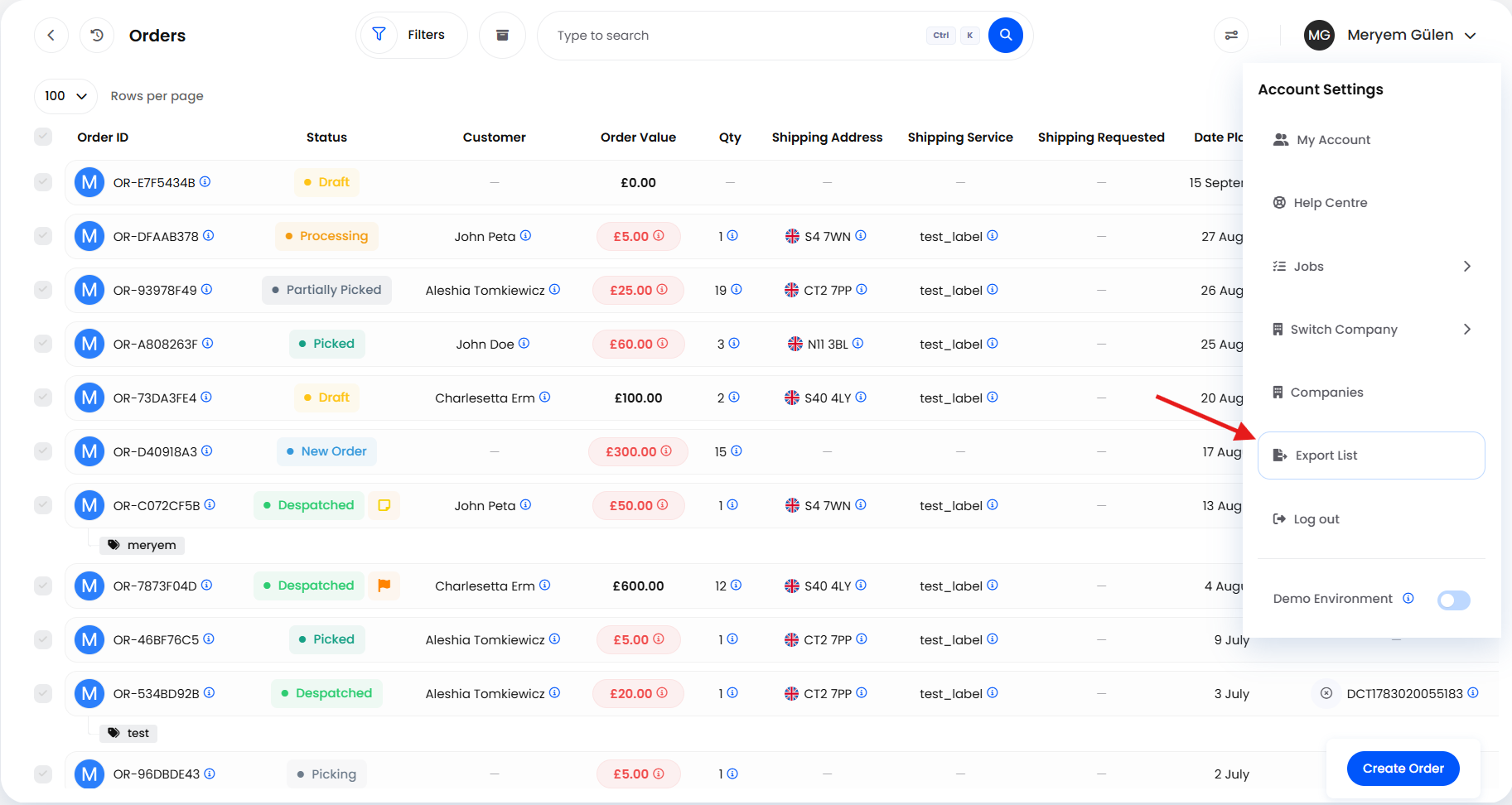
There is one place to start an export, and it is not on the list itself. Click your name at the top right to open the account menu, headed Account Settings. It offers Export List on a list page and Export Card on a single order, product or customer. Anywhere else the item is absent.
Example scenario: finance wants last month's orders, the ones that reached Despatched. You open Orders, filter to that status and date range, check the count the dialog quotes, then export with the finance mailbox on Recipients. They get the file by email and you never open a spreadsheet.

Before You Start
Get to the list first. The export takes its rows from the page you are on, so narrow it before you open the menu. A list's own filters always carry through to the file; the header search box does not always, as the next section explains.
Decide whether you want everything or a selection. Tick rows first and Helm offers to export only those. Tick nothing and you get everything your filters return.
At least one recipient is required. Helm will not create an export with an empty Recipients list. Your own address is filled in for you, so the trap is taking it off: the Export button stays available, the dialog closes, and you get a general error rather than a message on the field. Nothing is queued, so reopen it and add an address.
You need permission to create exports. The menu item is disabled, with a Permission Required tooltip, if your permission group is missing Data Export Create. Fetching the finished file from the queue needs Data Export Download.
The location list is a full stock control feature. Where your primary warehouse's Stock Control Type is Basic rather than Full, the warehouse page does not offer Go To Location List, so there is no location list to export from.
Have the email addresses to hand. Recipients need not be Helm users, but an outside address has to be typed in full.

What You Can Export
These are the seven lists that support an export. Two Jobs Queue columns identify a finished job: Name holds the Export Name you typed, and Specifics holds the fixed value below.
On purchase orders, deliveries and suppliers, a term typed into the header search narrows the list on screen but is dropped on the way to the export, so the file comes back as the whole filtered list. The count the dialog quotes ignores the term too, so it will not warn you. Narrow those three with the list's own filters instead.
Single records go out as a PDF instead, covered further down. Work Entries, in Team Manager, is the exception to all of the above: it has its own Export button and no dialog. One click runs it, always as xlsx, always named Team Manager Work Entries, and always to your own address only, so there is nothing to fill in and no way to send it to a colleague.

How to Export a List
Open the list and narrow it with its filters. On orders, products, customers and locations the header search narrows the file too; on purchase orders, deliveries and suppliers it does not.
Tick the rows you want if you only need some of them. Leave everything unticked to export the whole filtered list.
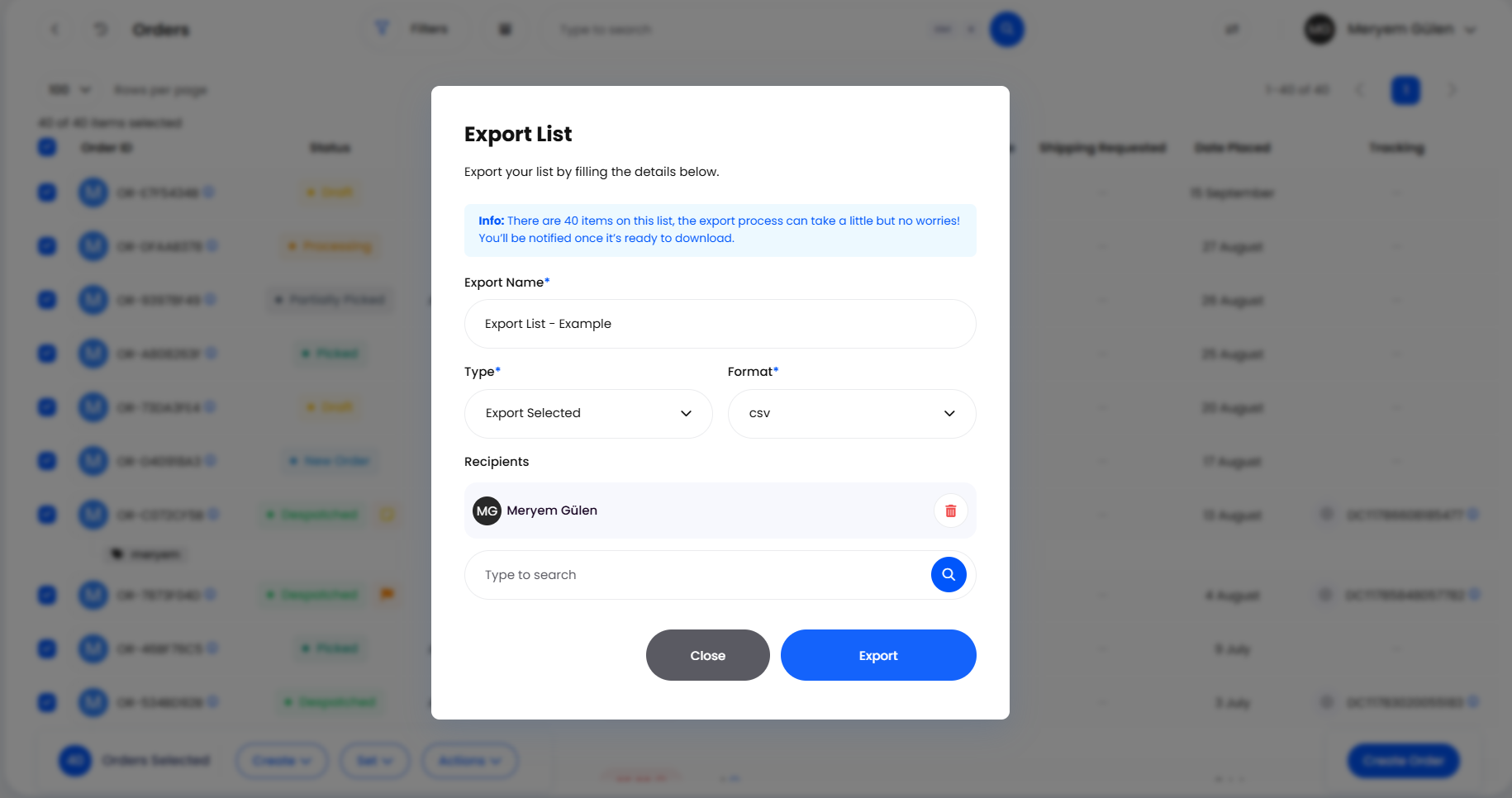
Open the account menu at the top right and choose Export List. The dialog quotes how many items are on the list: check that figure, because a count far larger than expected means a filter did not apply.
Name the file in Export Name. It arrives prefilled with the placeholder "Export List - Example", so replace it. This is the name on the download, in the email, and in the Name column of the queue.
Set Type to Export All or Export Selected. With nothing ticked, Helm sets Export All and locks the field, because there is no selection to export.
Set Format. It defaults to xlsx.
Check Recipients. Your own address is already on it. Search by name to add another Helm user, or type an outside address in full and confirm it when Helm says it is not in your contacts. Do not empty the field.
Choose Export. The dialog closes and the job joins the queue. Close leaves without exporting anything.

Formats & What Ends Up in the File
The columns are fixed per export type and come from Helm's own field list, not from the columns you have showing. Hiding or rearranging columns in the View Manager changes the screen, not the file.
One setting does move the column list, and it cuts both ways: your primary warehouse's Stock Control Type. Fields that only mean something with full stock control, batching among them, drop out on Basic. Fields that only mean something without it drop out on Full, which is why a product export on full stock control has no Physical Stock Level column: that figure only applies where stock is not held by location. If an expected column is missing, check this setting first.
On customer and supplier exports, a text value starting with a character a spreadsheet would read as the start of a formula is written with a leading apostrophe, so Excel treats it as text. That apostrophe is deliberate, not damage.

Recipients & the Completion Email
Recipients decides who gets the finished file, and it is a real send rather than a heads-up: the email carries the export as an attachment as well as a download link. It is also a required field, so treat it as part of the export.
Your own address is on the list when the dialog opens. Adding a colleague is a search by name against your company's users; adding anyone else means typing the address, at which point Helm asks whether you want to use one it does not recognise.
When the export finishes, each recipient gets an email headed Your export is ready! with a Download Export button. Inside Helm, the notification bell groups finished exports under Ready to Download and the action there opens the same file.
Everyone on Recipients goes on the same To line, so each recipient sees the other addresses. That matters most with someone outside your business: they will see who else received a full customer or order extract. Taking yourself off stops the email reaching you but does not cancel the export, as long as one other address stays on it.

Tracking, Downloading & Retrying
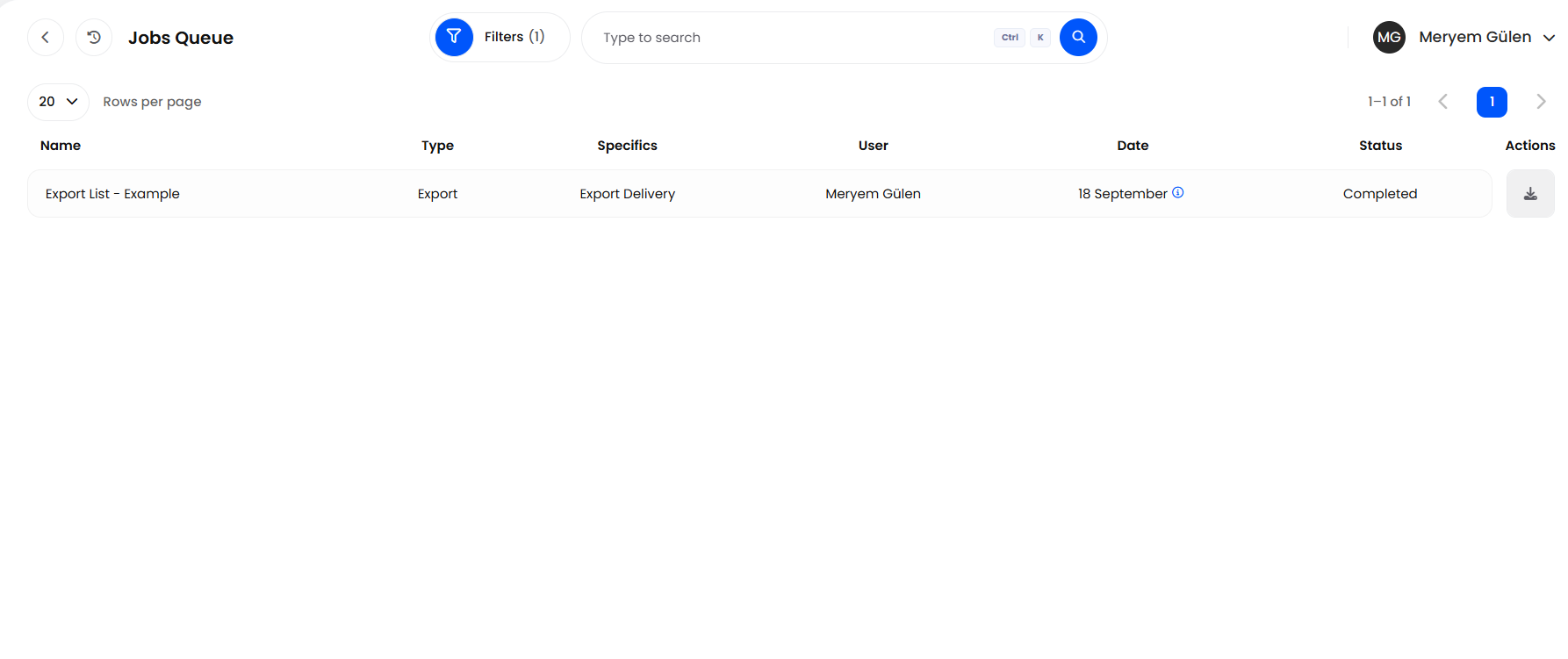
Every export also lands in Account Settings > Jobs > Jobs Queue, which is where to look when the email has not arrived. Filter to a Type of Export, then read Name for the name you gave it and Specifics for the kind of export, alongside User, Date and Status.
Retry runs the same export again, but not indefinitely: after three attempts Helm refuses and says the job has hit its retry limit. Past that point the only way forward is a fresh export, narrowed with filters first.

Exporting a Single Record
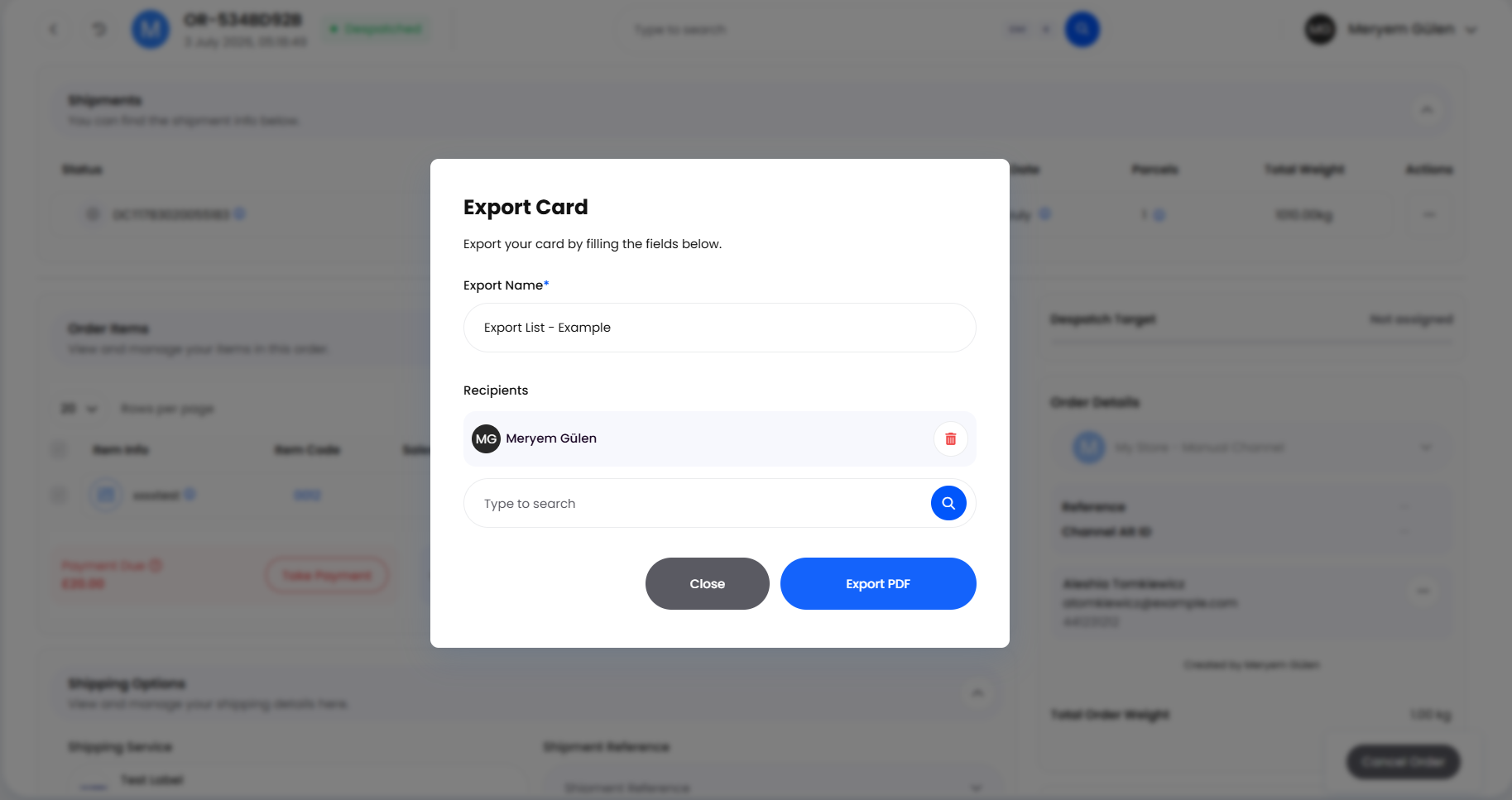
Open an order, a product or a customer and the account menu offers Export Card instead. This one is not a spreadsheet: Helm photographs the record as laid out on screen and turns it into a PDF, paginated to fit A4. There is no Type or Format to set, only Export Name and Recipients.
Choose Export PDF and Helm builds the file, saves it to your browser straight away, and emails it as well. Because it is a picture of the page, open the sections you want included before you export.

Schedules, Rules & Mappings
There Is No Recurring List Export
Every export in Helm is run on demand. There is no frequency, no next-run date and no way to have Monday's order list arrive by itself. For the same extract on a rhythm, use Reporting instead, where Schedule Report sets the frequency and Scheduled Reports lists what is already running.
For a feed into another system, the public API runs exactly these exports on your own schedule, and one started that way behaves like any other: same Jobs Queue, same email. It also reaches export types with no page in Helm, among them inventory categories, barcodes, containers and tags, order and customer tags, and location stock.
Exports Have No Saved Mappings
Saved Maps and Manage Mappings belong to importing, where you have to tell Helm which of your file's headings is which of its fields. An export has no such question, so there is nothing to map and nothing to save. The article on importing data into Helm covers mapping.
The Setting Named for Exports Is About Customs
Worth clearing up, because the naming catches people out. The rule Helm stores as an export rule appears as International Shipping under Settings, and its Split group items on export switch only changes how group items are listed on customs paperwork. It has no effect on the exports in this article.

How Long Exports Are Kept
Helm's nightly clear-out removes export records older than about a month. When that happens the row disappears from the Jobs Queue and the Download action there stops working.
The email outlives it. The file is not deleted from storage and the Download Export link does not expire, so an old export is usually still reachable through the message it arrived in, from that link or its attachment. It is the queue entry that expires, not the file.
Even so, an export is a copy rather than an archive. If a file matters, a month-end position or a count you are reconciling against, save it somewhere of your own the day it lands rather than trusting an old inbox. Re-running it later gives you today's data, not the day's you wanted.

Best Practices & Notes
One Export of a Type at a Time
Where an export of the same type is already queued for your company, Helm refuses the next with Export Already Started. The check is company-wide rather than per user, so a colleague's queued inventory export blocks yours, and single records count too: an Export Card on an order can hold up an order list export.
Name Exports for Your Future Self
Export Name is the only thing separating one attachment from another in an inbox, and the value it comes prefilled with describes nothing. Something like orders-may-finance earns its keep.
Export at a Quiet Moment
The job starts a few seconds after you choose Export, and on order, product and customer exports the set of rows is worked out once at that point and then held. So the file can differ from the screen you were looking at, and it will not pick up rows that qualify while it is being written. For anything you intend to reconcile, run it when the floor is quiet.

FAQ
Why Is Type Locked to Export All?
Because no rows are ticked. Close the dialog, tick what you want, then reopen it to get Export Selected.
My Export Failed With No Explanation. What Now?
If no row reached the Jobs Queue at all, check Recipients: an empty list is the common cause, and the dialog closes before the error can be shown against the field. If the row is there and shows Failed, choose Retry, then narrow the list with filters if it fails again.
Can I Send an Export Outside My Company?
Yes. Type the address into Recipients and confirm it when Helm says it does not recognise it. The file is attached to the email and every address sits on the same To line, so be sure that is what you want.
Why Can't I Download an Export From Last Quarter?
Its row has been cleared from the Jobs Queue, which happens about a month after it ran. Look for the original completion email: its attachment and its Download Export link both still work.

If an export shows as Completed in the Jobs Queue but has not arrived, check the addresses on Recipients and your spam folder, then contact support with the export name and the date it ran.
Was this helpful?
Still need help? Share an idea