Importing Data into Helm
Import in Helm WMS lets you create or update customers, products, locations, stock, orders and suppliers in bulk from a spreadsheet, using the same rules as creating them by hand.
How Importing Works in Helm
Import lets you create or update records in bulk from a spreadsheet instead of entering them one by one. It is the quickest way to bring in a product catalogue, a customer list or opening stock when you start on Helm, and to make large updates later.
An import follows exactly the same rules as creating records by hand: if a field is required when you click Create on a screen, it is required in your file too. Each kind of data has its own import type, so you can, for example, add tags to existing customers without re-importing the customers themselves.
Example: you are moving 3,000 products from another system. You download the inventory import template, paste your products in, upload it and map any columns with different names. A few minutes later the whole catalogue is in Helm, ready for stock to be added with a second import.

Before You Start
Where to find it: go to Settings and, under Company Settings, choose Import.
File types: .csv, .xls and .xlsx.
Import in the right order: records an import points at must already exist. Import suppliers before purchase orders, customers before customer tags, products before product tags or stock, and locations before stock levels.
Channel orders are not imported: orders from Shopify, Amazon, eBay and other channels arrive through their channel connection. The order import is for manual orders.
How to Import Data into Helm
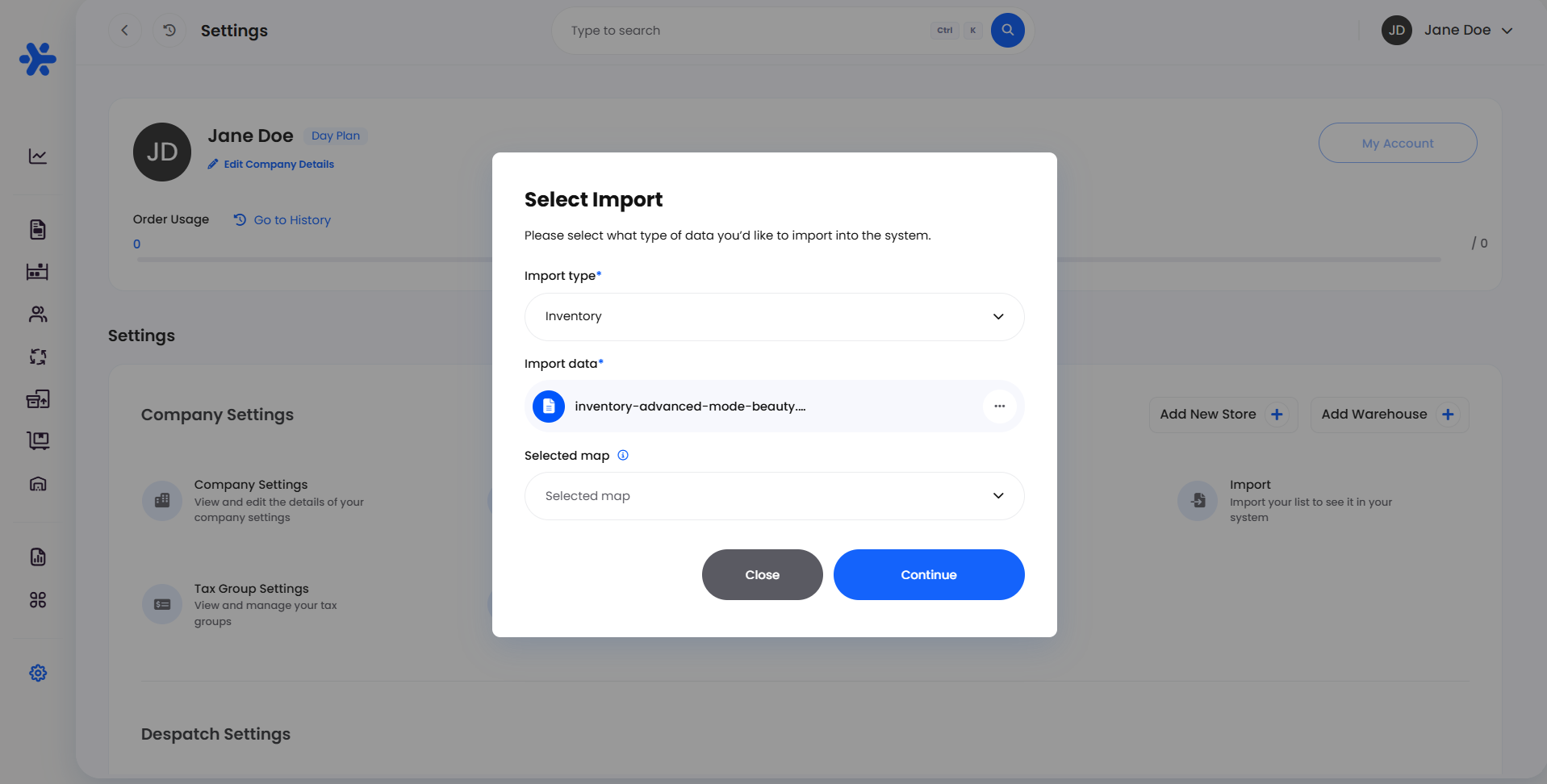
Go to Settings and choose Import. The Select Import window opens.
Choose the Import type, for example Customer.
If you do not have a file yet, click the download link under the upload area to get the import template for that type, and fill it in.
Drop your file into the upload area, or click browse to choose it.
If you have imported this layout before, choose it under Selected map.
Click Continue. The Import List page opens with Import Mapping.
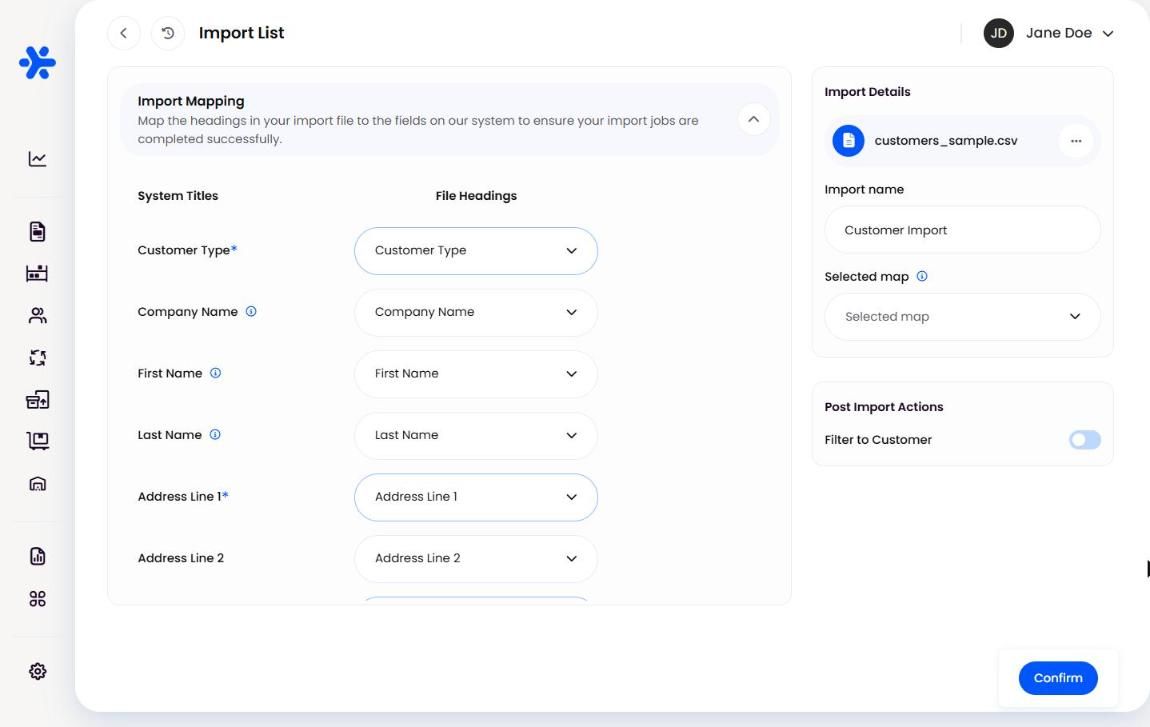
Check that each field under System Titles has the right column from your file under File Headings (see below).
On the right, check the Import name and any Post Import Actions.
Click Confirm.
Mapping Your Columns
Mapping tells Helm which column in your file fills which field in Helm. If your column names match Helm's exactly, as they do in the template, Helm matches them for you.
Choose a column: click Select Title beside a field and pick the matching heading from your file. If your file says "Name" and Helm expects First Name, map one to the other.
Use a fixed value: choose Fixed Value to type one value that applies to every row, for example the same Customer Type for the whole file.
Required fields are marked with *. Each one needs a column or a fixed value before you can confirm.
Hover the info icons for field-specific rules, such as Company Name being required when the customer type is Company.
Saving a Map to Reuse
Once your columns are mapped, open Selected map on the right and click Save New Mapping. Give it a clear name, such as "Inventory - Supplier A layout". Next time you import a file with the same columns, choose it under Selected map and the mapping is filled in for you.
After the Import
Filter to the new records: switch on the filter option under Post Import Actions (for example Filter to Customer) to go straight to a list of just the records you imported, ready to check.
Orders need a status: for order imports, choose a Set status of Draft, New Order or Despatched. It applies to every order in the file, so split your file if orders need different statuses.
Import Types
Note: a batch number is shared by a group of products made together, such as one production run with the same expiry date. A serial number belongs to one single unit. Use batch tracking for perishables and serial tracking for items you need to trace individually.
Example: Importing Your Customer List
Go to Settings > Import and choose Customer as the Import type.
Download the customer import template, paste in your customers and save the file.
Upload the file and click Continue.
Map any columns Helm has not matched, and use a Fixed Value of Retail for Customer Type if all of them are retail customers.
Click Save New Mapping under Selected map so the layout is ready next time.
Switch on Filter to Customer and click Confirm.
When the import finishes, you land on a list of just the new customers to check.
Best Practices & Notes
Start From the Template
The template's column names match Helm's, so most of the mapping is done for you.
Test With a Few Rows First
Import five or ten rows, check them in Helm, then import the rest. Fixing a small test is much quicker than fixing thousands of records.
Clean the File Before You Upload
Check for empty required columns, consistent date formats and duplicate rows in your spreadsheet first.
FAQ
Why is the Confirm button greyed out?
Why is the Confirm button greyed out?
At least one required field, marked *, has no column or fixed value mapped to it, or an order import has no status set.
Can I use my own spreadsheet instead of the template?
Can I use my own spreadsheet instead of the template?
Yes. Map your column names to Helm's fields once, then save the mapping to reuse it.
Can I import orders from my online store?
Can I import orders from my online store?
No. Channel orders arrive through the channel connection. The order import is for manual orders only.
Why did my tag import not add anything?
Why did my tag import not add anything?
Tag imports only work on records that already exist. Import the customers, products or orders first.
If an import does not behave as expected, contact Helm support with the file you used and the import type you chose.
Was this helpful?
Still need help? Share an idea