Custom Fields
Custom fields let you record information Helm has no standard field for against your products, orders, customers and suppliers. This article covers defining a field in settings, filling it in on a record, filtering by it, defaulting it on new products, and the two things about a field you cannot change once it exists.
How Custom Fields Work in Helm
Every operation tracks something the standard fields do not cover: a certification expiry on a supplier, an allergen sheet against a product, whether an order has been checked by a supervisor. Custom fields are where that information goes, so it lives on the record itself instead of in a spreadsheet sitting alongside Helm.
Setting one up is two separate jobs. First you define the field once in your settings, which fixes its name, the sort of value it holds and the kind of record it belongs to. Then, on each record, you add the field and enter a value. Defining a field does not put it on anything by itself.
Categories Decide Where a Field Appears
Every custom field belongs to one Field category: Inventory, Orders, Customers or Suppliers. The category decides which detail page the field can appear on, and it cannot be moved afterwards. A field created under Inventory will never show up on an order, which is the most common reason a field looks as though it has gone missing.
Field Types
There are six field types. The type controls what your team can enter and, like the category, it is fixed once the field is created.
Small Text Box: a single line of text, such as a reference, a code or a short note.
Large Text Area: several lines of text, for notes or instructions that will not fit on one line.
Dropdown: one choice from a fixed list of options you define when you create the field.
Toggle Switch: a yes-or-no fact, stored as on or off.
File Upload: one document per record, as a .doc, .docx, .pdf, .xls, .xlsx or .csv file.
Image Upload: one image per record, as a .jpg, .jpeg or .png file.
File Upload and Image Upload hold one file per record, up to 20 MB, and uploading a new one replaces what was there before.
Text values are capped at 255 characters, and that applies to Large Text Area as well as to Small Text Box. The larger box gives you room for a few lines rather than a longer allowance, so anything approaching a full page of notes will be rejected when you save. Where you genuinely need long-form detail, attach it as a File Upload instead.
Example scenario: you handle ambient, chilled and frozen stock, and the packing bench needs to know which is which. You create a Dropdown field in the Inventory category with three options, add it to your products, and then filter the inventory list by it whenever you plan the day's picks.

Before You Start
Decide the category first. A field belongs to one category for life. If you pick the wrong one, the only fix is to delete the field and create it again, losing every value already recorded against it.
The field type is permanent. A Small Text Box cannot become a Dropdown later, so think about how you will want to filter on the information before you choose.
Plan your Dropdown options up front. A Dropdown needs at least one option, and the list is built as part of creating the field. Where the possible answers change often, a Small Text Box ages better.
Field names must be unique within a category, up to 50 characters. The same name in two different categories is fine.
You need the permission to create fields. If Create Custom Field is greyed out, your permission group is missing Data Custom Fields Create.
Entering values is a separate permission. Saving from a record's Custom Fields section needs Data Custom Field Values Create, which is granted independently of the permission to create the fields themselves.
Deleting is a third permission, and the buttons do not match it. Removing a single field needs Data Custom Fields Delete, but the bin button is never greyed out, so without that permission you will get as far as the confirmation and then an error. Delete All is greyed out without Data Custom Fields Create instead. Check all three before a tidy-up.

How to Create a Custom Field in Helm
Go to Settings, then under System Settings choose Custom Field Settings. The page opens as Custom Fields Settings, listing what you already have by Category, Custom Field Name and Type. Before any field exists, the page shows the prompt Create your first custom field. in place of the list.
Choose Create Custom Field.
Under Field details, set the Field category to the kind of record this field belongs to.
Enter the Field name. This is the label everyone will see on the record, so name it for the whole business rather than for one desk.
Choose one of the Field type options. Nothing else in the dialog depends on this, but Create stays greyed out until a type is selected, so this is the step to check if the button will not respond.
If you chose Dropdown, build the list under Field Options.
Each row is labelled Option followed by its position. Type the text your team will choose from.
Use the plus button beside Field Options to add another row, and the bin button to remove one.
Every option name must be different, and Helm will not let you delete the last remaining row.
Choose Create. The field is immediately available to add to records in its category. Cancel backs out, and Helm asks first if you have unsaved changes.
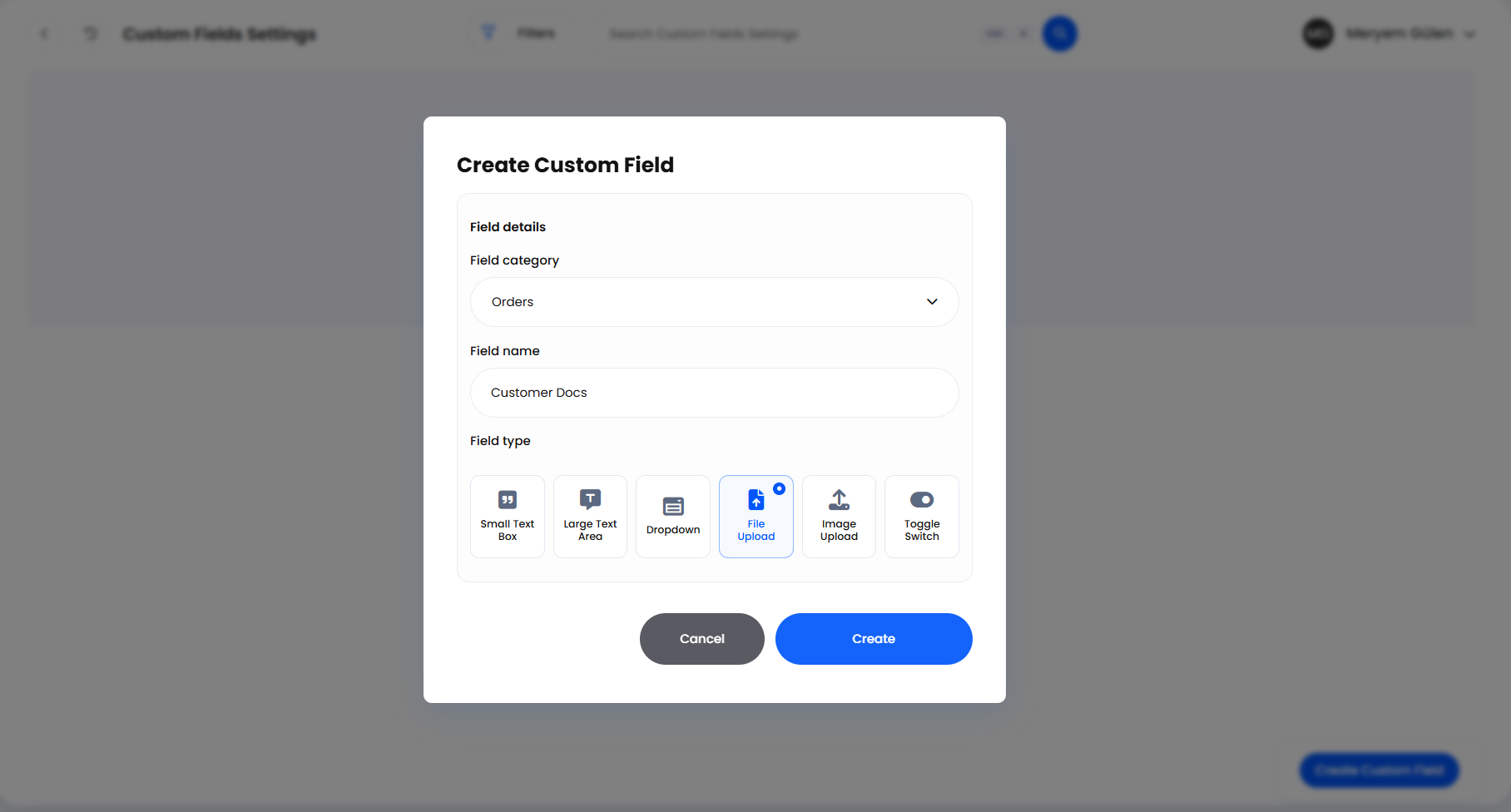
Check the Field category and Field type before you choose Create. Neither can be changed afterwards.
The list carries a Category filter, a Field Type filter and a Search Custom Fields Settings box. Use them before you add anything: near-duplicate fields are how this area gets messy.

Filling In Values on a Record
A defined field does nothing until someone puts it on a record. Products, orders, customers and suppliers each have a Custom Fields section on their detail page, and each section only offers the fields belonging to that category.
Open the record and expand its Custom Fields section. Expand it first: the section loads its contents on the way open, and the plus button you need for the next step does not appear until it has.
Read the empty state to confirm nothing has been added yet. A product or an order shows Select a custom field. On a supplier the same state reads Create your first custom field. On a customer it reads Add your first custom field. The wording differs by record type; the meaning does not.
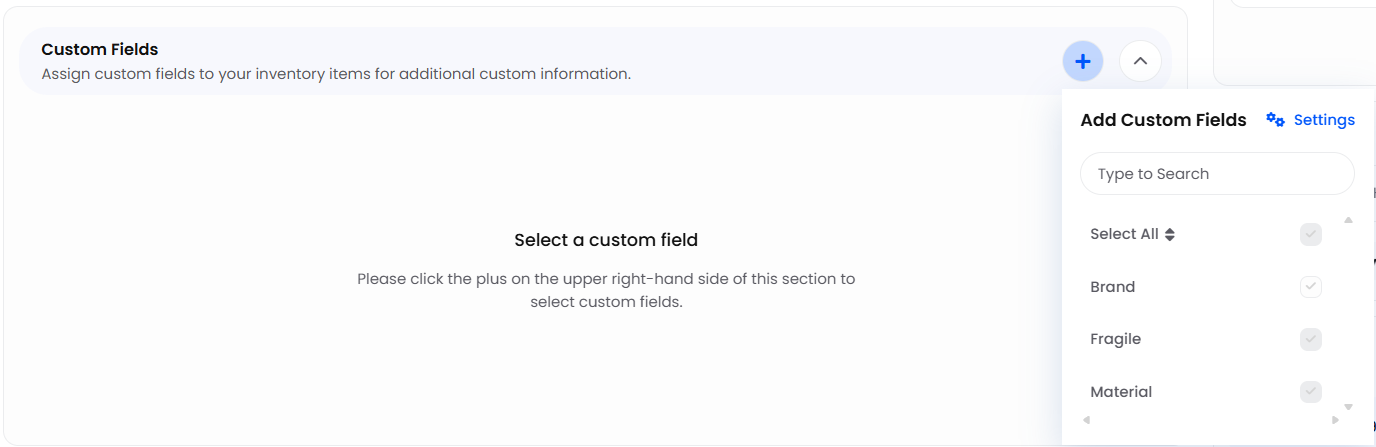
Use the plus button at the top right of the section. The Add Custom Fields menu lists every field available for this type of record.
Tick the fields this record needs. Each one appears in the section as an input labelled with the field's own name, so what you see is the Field name you gave it in settings.
Enter the values: type into the text fields, choose from the dropdowns, set the toggles, upload the files.
Choose Save Changes. Clear, beside it, reloads the last saved values and discards anything typed since.
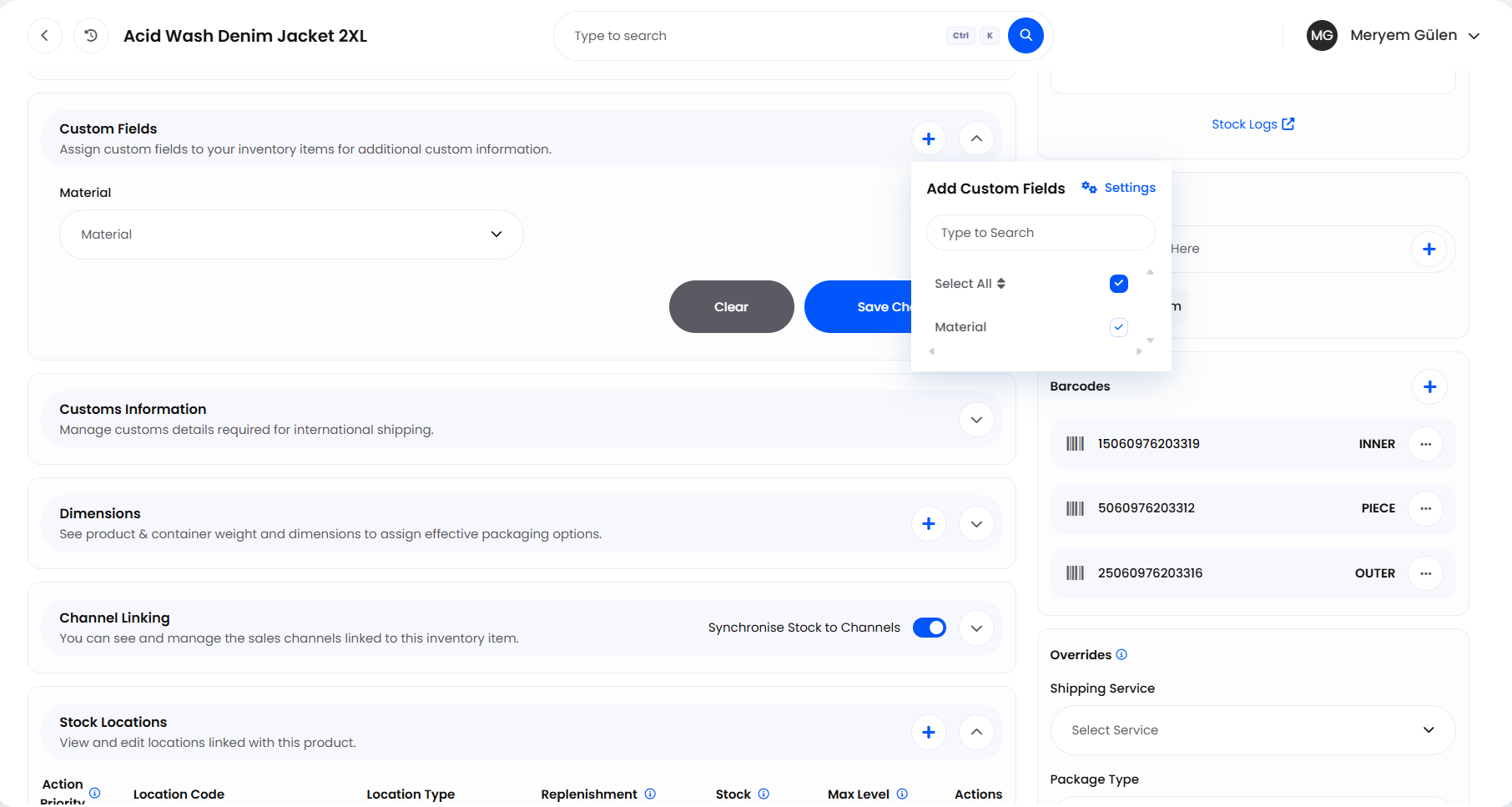
Untick a field and save, and that record's value for it is deleted. Clearing a value and saving does the same. Neither touches the field definition or any other record, but that value is gone.
The Add Custom Fields menu also carries a Settings link straight to the custom fields page, which saves leaving the record when you find you need a field that does not exist yet. If the menu shows No custom fields to show, nothing has been defined for this category.
The section is deliberately read-only in a few situations:
On an order that has moved on. Once an order is archived, cancelled or despatched, or a shipping label has generated successfully against it, its custom fields are locked. Capture what you need while the order is still open.
On an archived product, customer or supplier. Restore the record first if a value has to change.
Without update permission on the record. Products, customers and suppliers each need the permission to update that kind of record, not just the custom field permissions. On a product that means the inventory update permission, and the whole section is read-only without it.

Finding Records by Custom Field Value
Values are only worth capturing if you can act on them later. The Inventory, Orders, Customers and Suppliers list views all carry a Custom Fields filter: choose the field, then set what you are looking for. Text fields take free text, a Dropdown offers its option list, and the remaining types filter on a simple yes or no. Dropdown values can be filtered as including or excluding, so listing everything that is not frozen is as quick as listing everything that is.
This is the strongest argument for a Dropdown wherever the answers are known in advance. Filtering works on what people actually typed, and free text invites three spellings of the same word.

Setting a Default Value for New Products
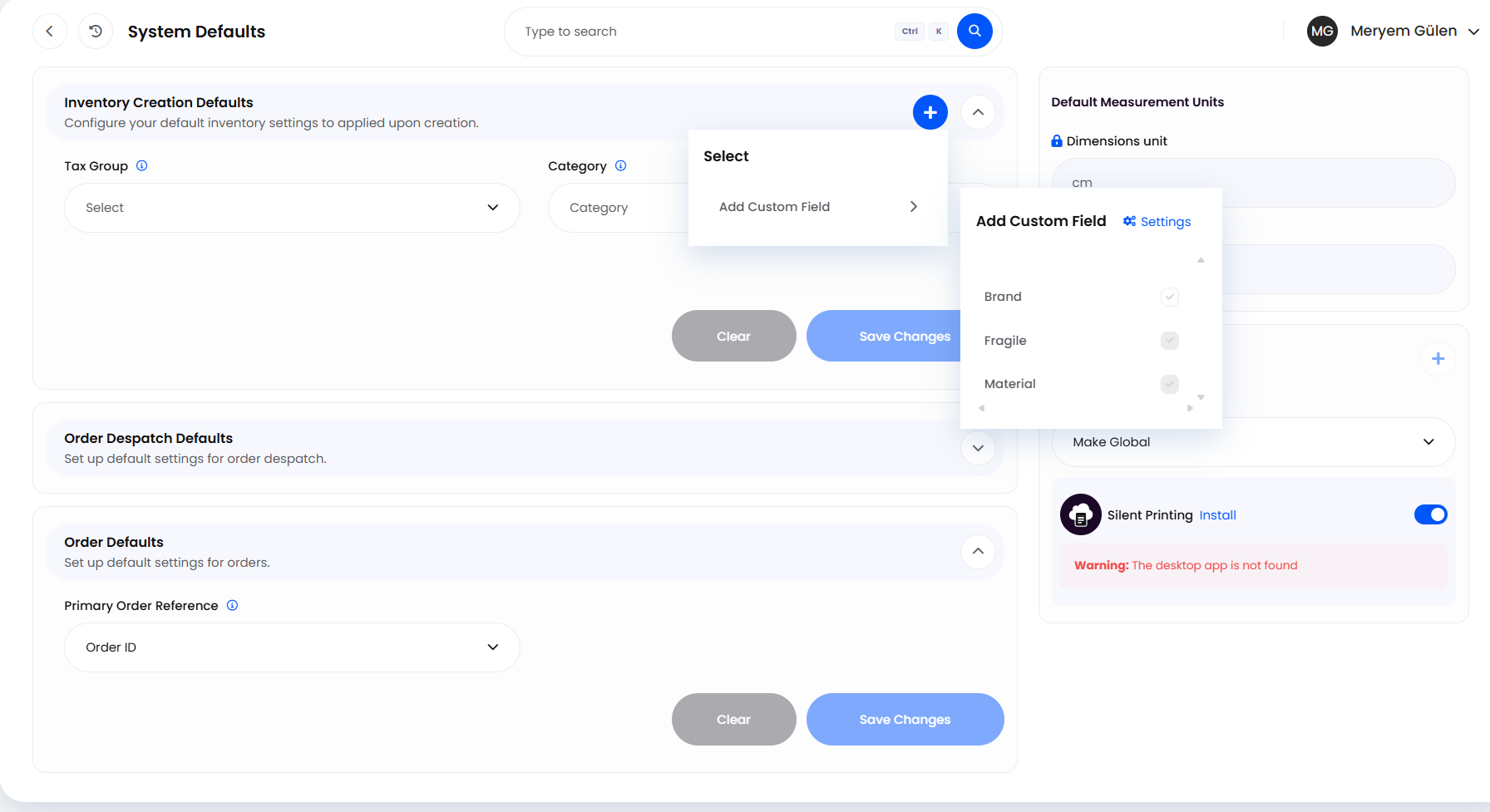
Inventory custom fields can be filled in automatically as products are created. Go to Settings, open System Defaults and find Inventory Creation Defaults. Use the plus button on that section, choose Add Custom Field from the menu that opens, then pick the fields you want and set the value every new product should start with.
Do this for anything that is nearly always the same: correcting a handful of exceptions beats filling the field in on every product. It applies to the Inventory category only.
A File Upload default here accepts only .doc, .docx and .pdf, which is narrower than the same field on a product. A spreadsheet you can upload against an individual product will be refused as a default.

Example: Storage Class on Your Products
You handle ambient, chilled and frozen stock, and pickers need to know which a product is without reading the box.
You open Custom Field Settings, choose Create Custom Field, set the Field category to Inventory, name the field Storage Class and choose Dropdown as the Field type.
Under Field Options you add three rows, Ambient, Chilled and Frozen, then choose Create.
Most of your range is ambient, so on Inventory Creation Defaults you use the plus button and Add Custom Field to default Storage Class to Ambient.
On each chilled and frozen product you expand Custom Fields, add Storage Class, set the right value and choose Save Changes.
When you plan the morning's picks you filter the inventory list by Custom Fields, choose Storage Class and select Frozen, and the cold room list is in front of you.

Deleting Custom Fields
Deleting happens on the same settings page. Like clearing a value on a single record it cannot be undone, but the scope is far wider: the field and every value recorded against it come off every record at once.
To remove a single field, use the bin button in its Actions column. Helm asks Delete Custom Field? and warns that the field will be removed from everywhere it is being used. Choose Confirm to go ahead, or Close to back out.
To remove several, tick them in the list. Helm shows the running count as Custom Fields Selected. Choose Delete All and confirm.
A multiple delete is queued as a background job under Custom Field Actions, and Helm notifies you when it has finished. It will not be instant, so do not assume it failed because the page has not changed yet.
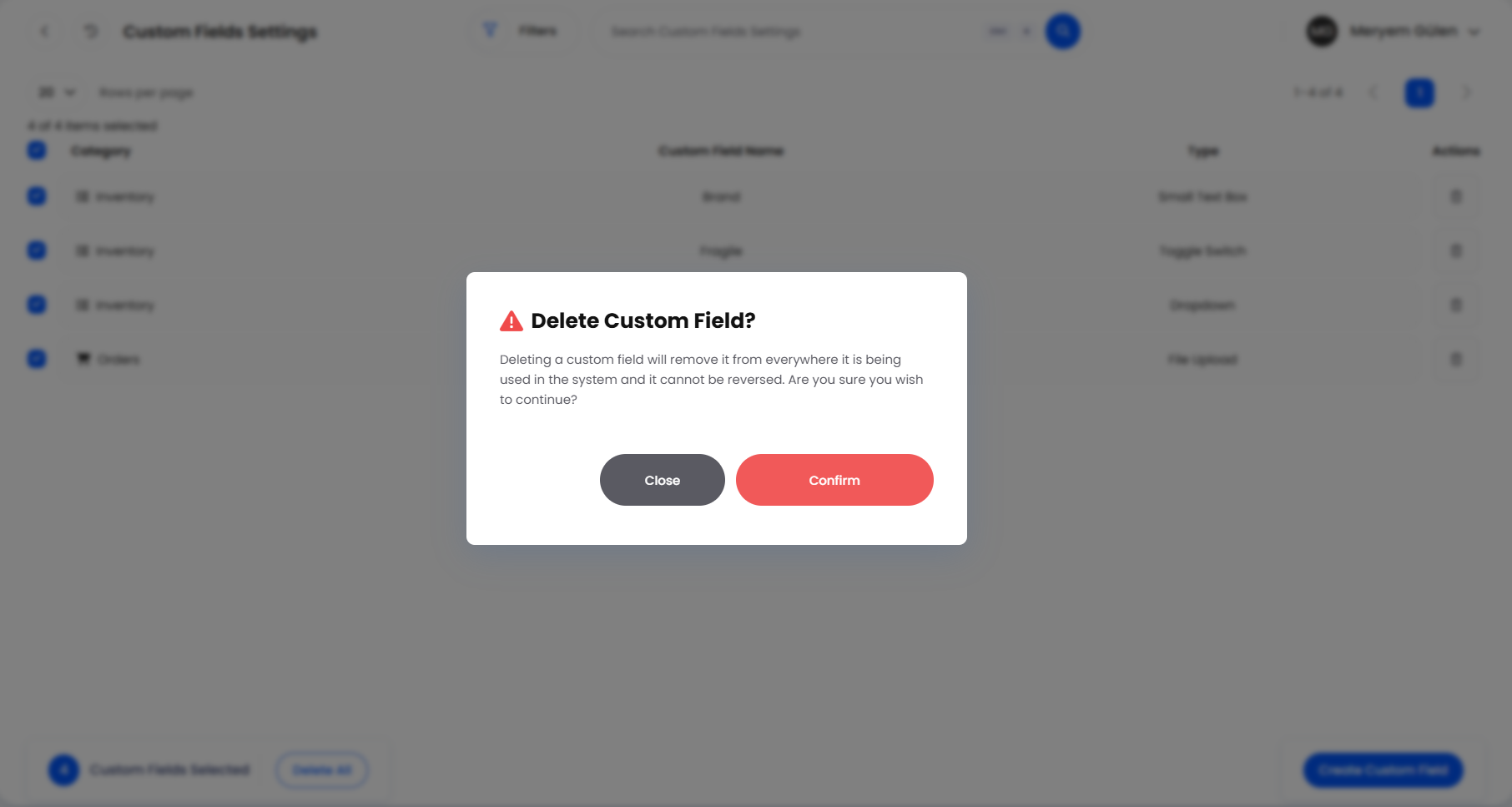
Deleting a custom field deletes every value recorded against it, on every record, and it cannot be reversed. If you simply want to stop using a field, leave the definition alone and remove it from the records that no longer need it.

Best Practices & Notes
Name Fields for the Whole Business
The Field name is what everyone sees, and it is not something you can tidy up later from the settings page. Write it as you would want it read by someone in another department in their first week, not as internal shorthand.
One Fact Per Field
Resist packing two pieces of information into one Large Text Area. Two separate fields can be filtered, defaulted and read at a glance; a paragraph holding both can only be read, and it will run into the 255-character limit sooner than you expect.
Keep Dropdown Lists Short and Stable
A Dropdown suits lists that genuinely do not move: temperature classes, hazard categories, packaging grades. Anything you expect to extend every few months is better as a Small Text Box.
Audit the List Now and Then
Read the Custom Fields Settings list through once or twice a year. Fields created for one project and never filled in again are noise on every record in that category, and they are why people stop trusting the section.
Order Changes Are Recorded on the Timeline
When someone adds, changes or removes a custom field value on an order, it is written to the Order Timeline with their name against it. Filter the timeline to Order Changes when you need to know who set a value and when.
Keep Stock Data in Its Own Fields
Anything Helm already tracks, such as batch numbers, expiry dates, locations or supplier costs, belongs in its own field where the rest of the system can use it. Custom fields are for what Helm has no opinion about.

FAQ
Can I change a custom field's type after creating it?
Can I change a custom field's type after creating it?
No. Helm blocks it outright, telling you that you cannot change the type of a created custom field. Create a new field with the type you need, move the values across, then delete the old one.
Can I add another option to a Dropdown later?
Can I add another option to a Dropdown later?
The option list is built when the field is created, so plan it up front. If you need more options than you allowed for, create a replacement field with the full list and retire the original.
Why is Create greyed out in the Create Custom Field dialog?
Why is Create greyed out in the Create Custom Field dialog?
No Field type has been selected yet, or your permission group is missing Data Custom Fields Create. The type is the usual answer: category and name alone are not enough.
Why can't I find the plus button on a record?
Why can't I find the plus button on a record?
The Custom Fields section has not been expanded yet, or it is still loading. The plus button appears once the section is open and its contents have loaded, and it does not appear at all where the section is read-only.
Why can't I see my custom field on an order?
Why can't I see my custom field on an order?
It was almost certainly created in a different category. Check the Category column on the Custom Fields Settings page: only Orders fields appear on an order.
Why is the Custom Fields section greyed out on my order?
Why is the Custom Fields section greyed out on my order?
The order has been archived, cancelled or despatched, or a shipping label has generated successfully against it. Custom fields lock at that point, so capture what you need before the order ships.
Why was my note rejected when I saved it?
Why was my note rejected when I saved it?
Text values are limited to 255 characters, in a Large Text Area as much as a Small Text Box. Shorten the note, or attach the detail as a File Upload field instead.
Does removing a field from a record delete it for everyone?
Does removing a field from a record delete it for everyone?
No. That deletes only that record's value. Deleting the field on the Custom Fields Settings page is what removes it everywhere.
Can a custom field be filled in automatically?
Can a custom field be filled in automatically?
For the Inventory category, yes. Use Add Custom Field on Inventory Creation Defaults under System Defaults to give new products a starting value.

If a custom field is not showing where you expect it, check its Category on the Custom Fields Settings page first, then check whether it has actually been added to that record. If you are still stuck, contact support with the field name to hand.
Was this helpful?
Still need help? Share an idea