Courier Logs
Courier Logs in Helm WMS records every call Helm makes to your couriers, from booking a label to cancelling a shipment. This article shows how to read the log, find a particular call, and see exactly why a courier turned a shipment down.
What Courier Logs Show
Every time Helm asks a courier to do something, such as book a shipment, create a manifest or cancel a label, it records exactly what it sent and what the courier sent back. Courier Logs is that record.
Most of the time you will never need it. It earns its place when a label does not come out: the courier's reply usually says why in plain terms, such as an address line that is too long or a missing phone number, so you can fix the order and despatch it again.
Example: a packer despatches a batch of 70 orders and three of them do not get labels. The team leader opens Courier Logs, filters to today and the batch's courier, and opens the entries that did not succeed. Each reply says address line 1 is too long. They shorten the three addresses and despatch those orders again.

Before You Start
Where to find it: go to Settings > System Settings > Courier Logs.
It is a record, not a setting: opening and reading entries changes nothing in Helm or with your courier.
Single shipments tell you straight away: when you despatch one order at a time, Helm shows the courier's error in a pop-up. Courier Logs matters most for batches, and for checking exactly what Helm sent.
Reading the Courier Logs List
The newest calls are at the top. Each row is one call to a courier:
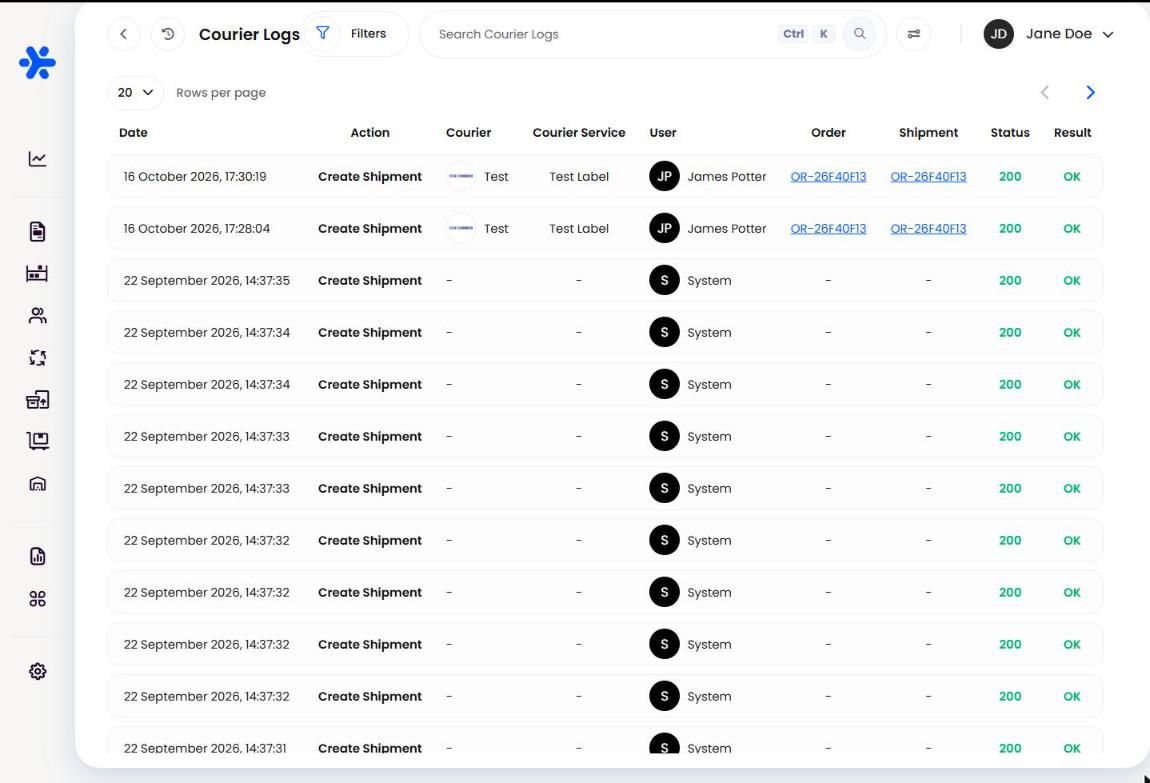
Finding a Particular Call
Click Filters to narrow the list by Date & Time, Action, Courier, Courier Service or User. A filter set you use often can be kept under Saved Filters.
The Action filter covers everything Helm asks a courier to do, including:
Create Shipment and Create Batch Shipment: booking labels, one order at a time or in a batch
Cancel Shipment and Change Label Format: changes after booking
Create Manifest: creating a manifest for a courier
Connect Courier Account, Update Courier Account and Disconnect Courier Account: setting a courier up in Helm
List Courier Services: fetching the services a courier offers
Tip: filter by Date & Time and Courier first. That usually brings a busy log down to a handful of rows.
Reading a Log Entry
Click any row to open it. The page has two sides:
Request and response: on the left, Request Headers and Request Body show what Helm sent, such as the service, label size, reference and addresses. Response Headers and Response Body show what the courier sent back. Each section has a Copy button.
Log Info: on the right, the Action, Courier, Status Code, Result, Execution Time, Timestamp, Request ID, User and IP Address.
Related Records: links to the Order and Shipment the call was about.

Understanding the Status Code
How to Find Why a Shipment Failed in Helm
Go to Settings > System Settings > Courier Logs.
Click Filters and set Date & Time to when the shipment failed. Add the Courier if you know it.
Look for rows where the Status is not 200.
Open the row and read the Response Body. The courier's message says what it could not accept.
Click the order under Related Records, correct the detail the courier named, and despatch the order again.
Heads up: the request body holds your customer's name, address and phone number. If you copy a log entry to share, send it only through your support ticket, never in a public channel.
For more on despatching, see Batch Despatch and Single Shipment.
Best Practices & Notes
Quote the Request ID to Support
Every entry has a Request ID under Log Info. Giving it to support, with the order number and time, lets them find the exact call straight away.
Fix Repeated Errors at the Source
If the same error keeps coming back, such as long address lines from one sales channel, fix it where the data comes from rather than order by order.
Use Execution Time When Labels Feel Slow
Execution Time shows how long the courier took to answer. A run of slow calls points to the courier rather than to Helm or your printer.
FAQ
Why does the User column say System?
Why does the User column say System?
Helm made that call on its own rather than because someone clicked a button, for example as part of an automatic process.
Does opening a log entry change anything?
Does opening a log entry change anything?
No. Courier Logs is read-only. To retry a shipment, despatch the order again.
Where do I see the error for a single shipment?
Where do I see the error for a single shipment?
Helm shows the courier's error in a pop-up as soon as you despatch. The same call is also recorded here.
What should I send support about a failed label?
What should I send support about a failed label?
The order number, the time it failed, and the Request ID from the log entry.
Where are the other logs?
Where are the other logs?
System, User, Channel and Request Logs sit beside Courier Logs in System Settings. User, System, Channel & Request Logs explains them.
If you are still stuck, contact Helm Support.
Was this helpful?
Still need help? Share an idea