Job Reasons
Job reasons are the picklist your team chooses from when a stock figure changes, or when an order line is returned, refunded or resent in Helm WMS. This article explains how to set them up in your system settings, what each of the four job types controls, and where the wording you enter ends up once an operator has picked it.
What Job Reasons Do
Helm asks for a reason at the moments where a bare number would not be enough: a counted quantity that does not match the system, a line coming back from a customer, a refund, a resend. The wording the operator picks is copied onto the record as text at that moment, so it survives on the product's Stock Logs and on the order's timeline long after the job is closed.
A job reason is one row in that picklist: one piece of wording attached to one job type, and the job type decides which prompt it appears in. The same wording can exist as several rows, one per job type, which is how a broken item can be a reason to return, refund and resend. It is configuration you do once, but it fixes the vocabulary every stock and returns question in your business is later answered in.
Example scenario: a picker counts 18 units where Helm expected 20. If your only stock change reason is a general correction, every discrepancy in the business reads the same. Add reasons for damage found on the shelf, a miscount at goods-in and stock taken as a sample, and the same two missing units start telling you something you can act on.

Where Each Job Type Appears
There are four job types.
The Stock Count dialog is opened by Edit Stock in a row's Actions menu on Stock Locations, so look for that rather than for the dialog's own name. Both dialogs carry a Reason List shortcut back to this page, the quickest route in when someone says a reason is missing from their list.
Not every reason prompt in Helm is configured here. Cancelling an outstanding quantity on a delivery asks for a reason from a fixed, built-in list. A pick shortfall records one of two built-in options the picker chooses on the device, and an inventory check correction records Helm's own Stock Count wording. A stock movement records no reason at all and leaves the Reason column blank. The warehouse app does not use this page either, as the FAQ explains. This page controls the four job types above.

Before You Start
Check what your permissions stop you doing. Without permission to manage job reasons, Create New Reason and the bulk Delete action are disabled and a tooltip says why. The row-level Edit Reason and Delete Reason items and the Status toggle stay clickable regardless, so if one of those errors instead of working, ask whoever administers Helm to check your permission group.
Helm has already given you a starter list. Every new company begins with the reasons below in place, with the three Return reasons set to Optional for images and everything else set to No Image. Edit and extend those rather than starting from nothing.
Reason wording has to be unique. This page rejects new wording that already exists anywhere in your list, whatever job type it sits under. If you want the same wording on more than one job type, create it once with those job types ticked together.
Know which sales channels each reason belongs to. A reason can be restricted to particular channels, and getting that wrong is the most common cause of a reason quietly failing to appear where an operator expects it.

How to Create a Job Reason
Go to Settings > System Settings > Job Reasons.
Choose Create New Reason.
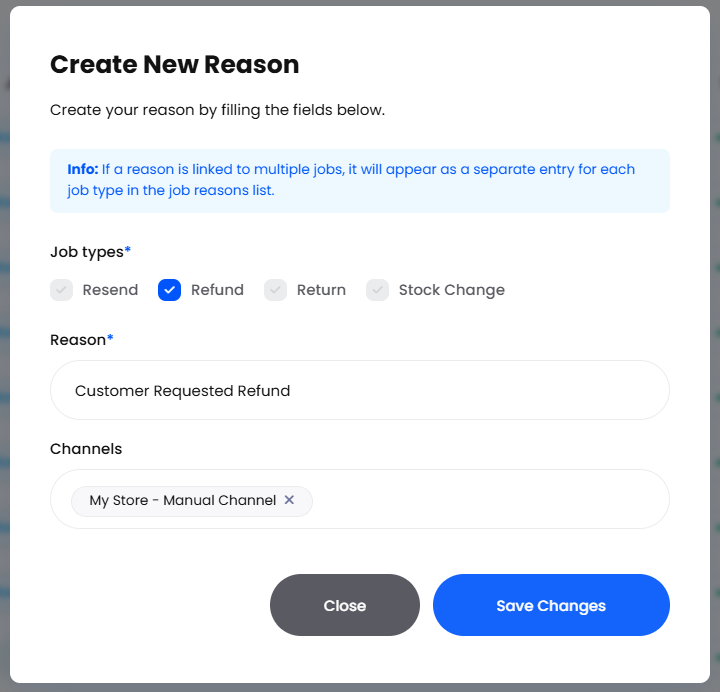
Under Job types, tick every job type the wording applies to. Ticking more than one is normal.
Type the wording your operators will read into Reason. Keep it short enough to recognise in a dropdown on a handheld; the limit is 100 characters.
Pick sales channels in Channels if the reason only makes sense for some of them. Leave it empty and the reason is offered everywhere, which is what you want for most operational reasons.
If Return is one of the ticked job types, set the Return image requirement. Helm will not save a return reason without one.
Choose Save Changes. The reason is live immediately, with a Status of Active.
Ticking several job types creates one entry per job type, so wording ticked for Return, Refund and Resend arrives as three separate rows. Each row keeps its own channels and status, and can be retired on its own.

The Return Image Requirement
Return reasons carry one extra setting, because a customer claiming a damaged item is a different evidence problem from a customer who simply ordered the wrong size. It controls the file attachment on each return line.
The requirement follows the reason rather than the return, so on one return a line can demand a photograph while another does not. Only Return reasons carry it: every other job type is stored as No Image, which is what the Image Requirement column shows against them.

Editing, Duplicating & Retiring Reasons
Edit Reason
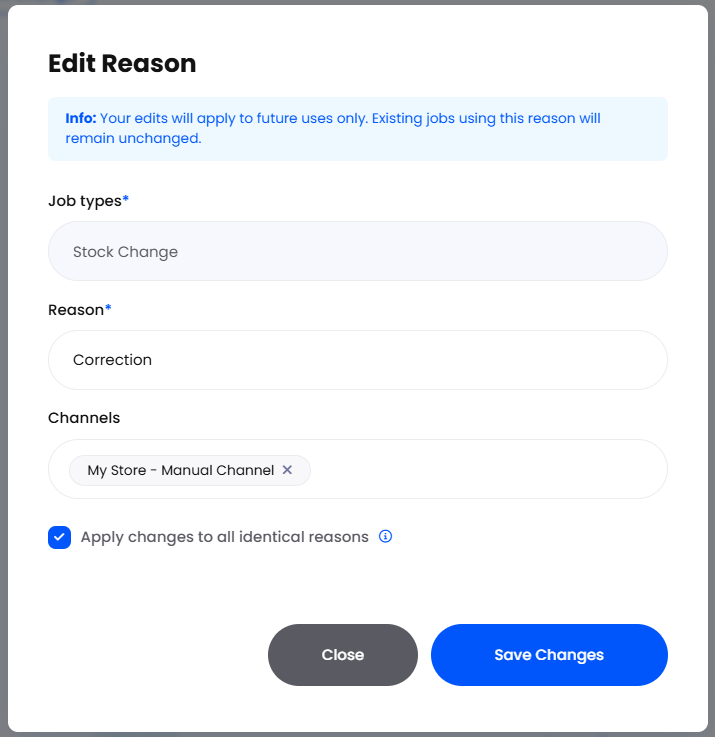
Click a row, or use Edit Reason in its Actions menu. The wording, the channels and the image requirement can all be changed. Job types is shown but locked: a reason cannot be moved to another job type once it exists, so to correct that, create the reason again under the right job type and retire the original.
Apply changes to all identical reasons rewrites records that already exist, and only within the job type of the row you are editing. On a Stock Change reason it rewrites the Reason column of the stock log entries that reason wrote. On a Return, Refund or Resend reason it rewrites that job's own records and the order timeline entries quoting them, but not stock logs, so a returned line put back into stock keeps its old wording in the product's Stock Logs. There is no undo. Left unticked, which is how the dialog opens, the change applies to future jobs only.
The tooltip on that checkbox says it updates identical reasons across all job types and channels. It does not: treat the tick as scoped to the row you have open. It is right for correcting a typo and wrong for changing what a reason means. To change the meaning, add a new reason and set the old one to Inactive, so records already written still say what actually happened.
Duplicate Reason
Duplicate Reason opens the same form pre-filled with the original's wording, channels and image requirement. Two things to expect: the job types are not carried across, so tick them again, and the wording has to be changed. It is a shortcut for building a family of similar reasons, not a way to copy one reason onto another job type unchanged.
Active & Inactive
The Status cell is a toggle you click in the list itself. An Inactive reason drops out of every prompt straight away, stays visible in your list, and leaves everything already recorded against it untouched. This is the safe way to retire wording you have stopped using, and it is what to reach for instead of deleting.
Delete Reason
Delete Reason in a row's Actions menu removes the reason the moment you choose it. There is no confirmation step and no restore action on the page, so treat it as final and keep it for reasons created by mistake. To clear several at once, select the rows and use Delete in the Reasons Selected action bar; that runs as a background job you can follow under Jobs Queue as Job Reasons Actions.

Finding a Reason in the List
The list holds one row per reason and job type, showing Reason, Job Type, Channels, Last Modified, Status and Image Requirement. Two cells do more than they look: Status is a button that flips the reason between Active and Inactive on the spot, and Channels shows only a count until you hover over it, at which point it names them. An empty Channels cell means no channel restriction.
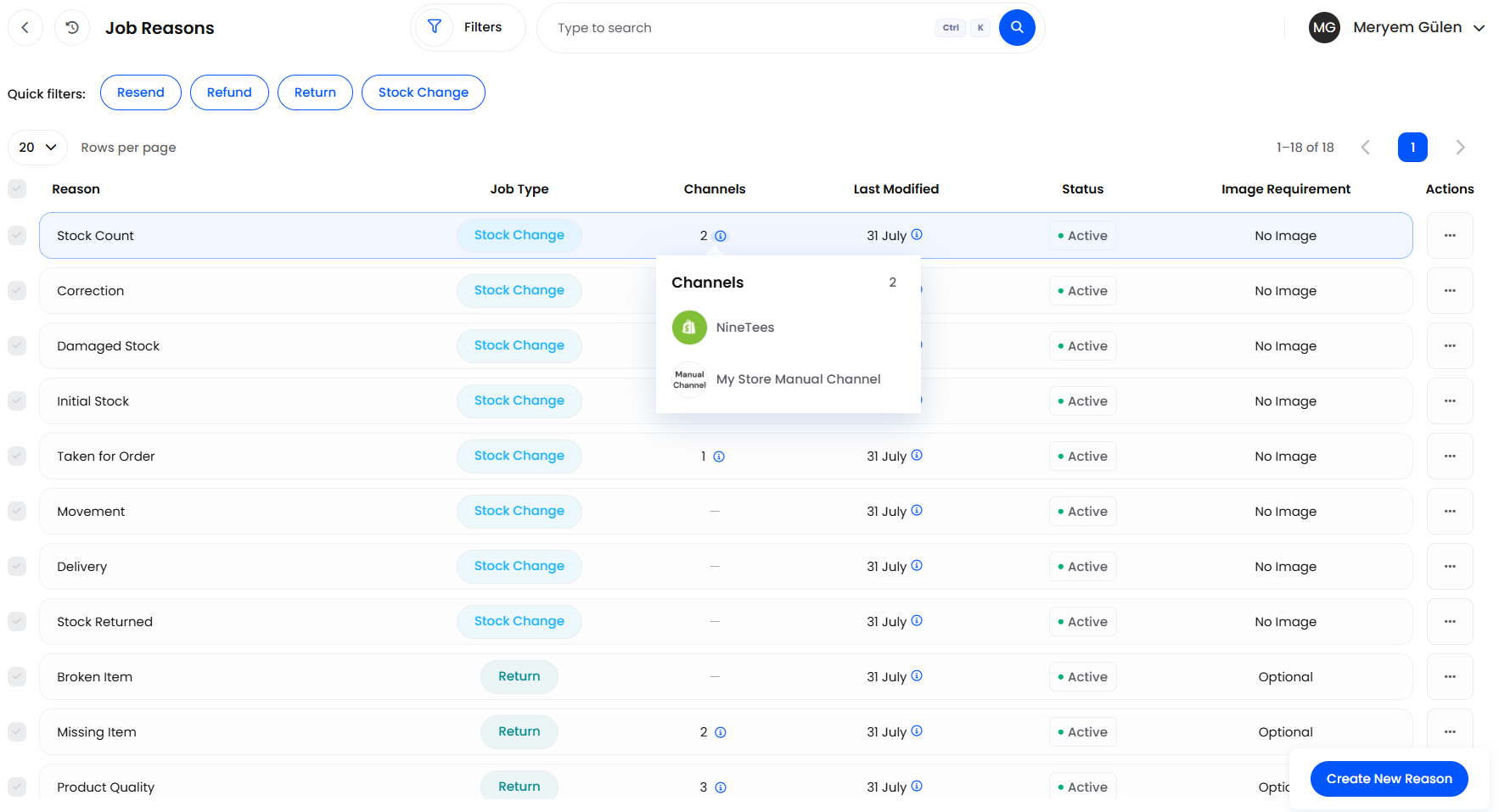
The quick filters along the top narrow the list to one job type in a click. Filters adds Reason, Job Type, Channels and Status, with Last Modified and Image Requirement under More Filters. A combination you use often can be kept with Save as New under Saved Filters, and Clear All Filters puts the list back. The search box matches the reason wording and the name of a linked channel.
Neither the Channels filter nor a channel-name search will tell you what a channel offers. Both return only the reasons explicitly restricted to that channel and leave out every unrestricted one, which is usually the majority of what an operator on that channel actually sees. Use them to audit restrictions, and read the unrestricted reasons as offered everywhere.
A company with nothing set up shows No Job Reasons Setup, which is worth checking first if an operator reports an empty prompt.

Example: Return Reasons With & Without Photo Evidence
Say you want photographic evidence on damage claims you will pass to your courier, but nothing extra on a change of mind. Create one reason worded damaged in transit, ticked for both Return and Refund, with the Return image requirement set to Required. Create a second worded no longer needed, ticked for Return only, with the requirement set to No Image. Leave Channels empty on both so they are offered on every channel.
An operator processing a return then picks damaged in transit and cannot save that line until a photograph is attached, while on the change-of-mind line the attachment button stays unavailable. Weeks later that wording is still on every one of those returns, and on the Stock Logs entries for the ones put back into stock, so the courier claim and the change-of-mind rate come out of the same picklist.

Best Practices & Notes
Write Reasons for the Person Picking Them
Reasons get chosen quickly, often on a handheld, by someone who wants to get back to the job. Short, distinct wording gets picked accurately; a long list of near-synonyms gets whatever sits at the top. Aim for a handful per job type you would be happy to see in a monthly review.
Leave Channels Empty Unless You Mean It
A reason with channels is offered only where the order came from one of them or, for a stock change, where the product is linked to one of them, so a reason tied to your marketplace channels will not appear on a product sold only through your own website. One exception: a Stock Change reason ignores manually created channels, so choose real sales channels or leave the field empty.
New Reasons Join the End of Their Job Type
Prompts list reasons in the order they were set up, with Helm's starter reasons first and yours after them. There is no reordering control on the page, so the order an operator scrolls through is the order you created them in.

FAQ
Why Isn't the Warehouse App Offering My Reasons?
It never does: the reason box on the app's stock change screens is free text the picker types, not a list from this page, and a stock count taken on the app records Helm's built-in Stock Count wording in the product's Stock Logs whatever the picker chose. Require Change Reasons, on a warehouse's Warehouse App Settings card under Settings > Company Settings > Warehouse, only forces a reason before a location is set to zero, from a built-in pair of options rather than yours, and Helm's save confirmation asks you to restart the app afterwards. Where a reason from this page has to be on the record, make the change in the browser from the product's Stock Locations section.
What Happens to Jobs That Used a Reason I Deleted?
Nothing changes on them. The wording was copied onto the record when the job happened, so those returns, refunds, resends and stock log entries still read exactly as they did.

If a reason still is not appearing where you expect it, note its Job Type, Status and Channels from the list and contact support with those three: between them they identify the reason and rule out most of the causes.
Was this helpful?
Still need help? Share an idea